How to Get PowerShell Output in CSV
Learn practical methods to export PowerShell output to CSV, including Export-Csv vs ConvertTo-Csv, encoding options, delimiters, and handling large datasets for reliable reporting.


By the end of this guide you will be able to export any PowerShell command output to a CSV file with simple one-liners and reusable patterns. You will learn when to use Export-Csv versus ConvertTo-Csv, how to control headers, handle nested data, and ensure clean encoding. This is essential for repeatable reporting.
Understanding CSV and PowerShell Output
PowerShell objects are rich, structured data. When you run a command like Get-Process or read a log file, PowerShell returns objects with properties. CSV, by contrast, is a flat, text-based format that stores data as comma-delimited fields. The challenge is translating the hierarchical, typed PowerShell objects into a flat table that other tools can import for analysis or reporting. The keyword here is consistency: you generally want the same set of properties in every row, and you want to avoid nested objects unless you flatten them first. For data analysts using MyDataTables guidance, exporting to CSV is a core skill because CSV is widely supported by BI tools, spreadsheets, and data pipelines. According to MyDataTables, adopting a consistent export pattern improves reproducibility and auditability across teams.
In practice, you’ll export to CSV using either Export-Csv (writes to a file) or ConvertTo-Csv (produces CSV text). The choice depends on whether you want a file-backed result or a string for further manipulation, such as piping into another process or embedding in a script. Remember that CSV is a text format; ensure your data doesn’t rely on non-text binary fields unless you encode them appropriately.
Quick Reference: Export-Csv vs ConvertTo-Csv
When you want a persistent file, use Export-Csv. It writes rows to a file and automatically creates headers from the property names you select. For example:
Get-Service | Select-Object Status,Name,DisplayName | Export-Csv -Path "services.csv" -NoTypeInformation
If you need the CSV as text (for example, to store in a database or pass through a pipeline that requires a string), ConvertTo-Csv is the better choice:
Get-Process | Select-Object Name,CPU | ConvertTo-Csv -NoTypeInformation
ConvertTo-Csv does not write to a file unless you pipe the output to a file writer. Using ConvertTo-Csv gives you more flexibility for composing pipelines, while Export-Csv is simpler for quick file exports. For MyDataTables users, the choice depends on whether you’re building a script that saves a report or composing multiple steps in a data workflow.
Structuring Your Output: Select-Object and calculated properties
PowerShell lets you shape the data before exporting. Use Select-Object to choose the exact columns you want. You can also create calculated properties to transform or combine fields. For example, to export a concise system report with a friendly timestamp, you might do:
Get-Process | Select-Object -Property Name,CPU,@{Name="StartTime";Expression={ (Get-Date).ToString("yyyy-MM-dd HH:mm:ss") }} | Export-Csv -Path "processes.csv" -NoTypeInformation
Calculated properties are powerful when you need derived values like uptime, combined strings, or formatted dates. They help ensure every row has consistent schema, which reduces downstream parsing errors. For complex data, consider exporting to CSV in a staging step and validating the columns with Import-Csv or a quick schema check. MyDataTables guidance emphasizes predictable column ordering for downstream tooling.
Handling Objects and Nested Properties
Many commands return objects with nested properties or collections. CSV doesn’t natively support nested structures, so flattening becomes essential. You can flatten by selecting properties individually, or you can compute a string representation of a nested object. Examples:
Get-EventLog -LogName System -Newest 10 | ForEach-Object {
  [PSCustomObject]@{
    TimeGenerated = $_.TimeGenerated
    Message = $_.Message
    EntryType = $_.EntryType
  }
} | Export-Csv -Path "events.csv" -NoTypeInformation
Alternatively, join nested data into a single string with a delimiter:
Get-ChildItem | Select-Object Name, @{Name="FullPath";Expression={$_.FullName}} | Export-Csv -Path "files.csv" -NoTypeInformation
Flattening ensures every row has the same set of fields, which is essential for reliable analysis. The MyDataTables approach recommends planning the schema before exporting to prevent messy CSVs downstream.
Encoding and Delimiters: UTF-8, BOM, and delimiter choices
CSV encoding matters, especially when data includes non-ASCII characters. UTF-8 with or without BOM is common; in PowerShell, you can specify encoding with the -Encoding parameter. For example:
Get-Process | Select-Object Name,CPU | Export-Csv -Path "processes.csv" -Encoding utf8 -NoTypeInformation
If you need a delimiter other than a comma (for example, a semicolon in locales that use comma as decimal separator), use -Delimiter:
Get-Service | Select-Object Status,Name | Export-Csv -Path "services.csv" -Delimiter ';' -NoTypeInformation
Be mindful that some tools expect comma-delimited CSVs; when sharing data across platforms, confirm the expected delimiter and encoding. Consistency here avoids subtle data corruption or misinterpretation by downstream workloads.
Real-World Examples: System commands, File content, Custom objects
Real-world export scenarios range from system diagnostics to data pipelines. For a quick inventory report, you might export service names and statuses:
Get-Service | Select-Object Status,Name,DisplayName | Export-Csv -Path "services.csv" -NoTypeInformation
If you’re exporting file content, reading a directory listing and capturing file sizes can be useful:
Get-ChildItem -Recurse | Select-Object FullName,Length,LastWriteTime | Export-Csv -Path "files.csv" -NoTypeInformation
For custom objects, create a small dataset with calculated fields, then export:
$rows = 1..5 | ForEach-Object { [pscustomobject]@{Index=$_;Square=$_*$_} }
$rows | Export-Csv -Path "squares.csv" -NoTypeInformation
Each example demonstrates how to define a stable schema and produce a CSV that downstream systems can ingest without extra parsing. The MyDataTables team emphasizes testing your CSVs with Import-Csv to verify headers and data shape before sharing broadly.
Working with Large Datasets: Performance tips
Large exports can become slow if you load everything into memory. Stream data by using pipeline-friendly commands and avoid materializing huge intermediate objects. For example, use ForEach-Object to process data in chunks and write incrementally:
Get-Content "largefile.txt" | ForEach-Object { $_.ToUpper() } | Export-Csv -Path "output.csv" -NoTypeInformation
If you must export large numeric datasets, prefer built-in filtering to reduce object size before exporting:
Get-Process | Where-Object {$_.CPU -gt 10} | Select-Object Name,CPU | Export-Csv -Path "highcpu.csv" -NoTypeInformation
Finally, consider using PSRemoting or parallel processing (where appropriate) to avoid bottlenecks. The aim is to keep memory usage predictable and the export time reasonable for daily reporting cycles.
Pipelining, redirection, and error handling
PowerShell excels at piping. Combine commands to build a robust export pipeline and gracefully handle failures. Example:
Get-Service | Where-Object {$_.Status -eq 'Running'} | Select-Object Name,DisplayName,Status | Export-Csv -Path "running-services.csv" -NoTypeInformation -ErrorAction Stop
If an error occurs, PowerShell can throw non-terminating errors by default. You can switch to terminating errors for strict pipelines:
Get-EventLog -LogName System -Newest 20 | Export-Csv -Path "events.csv" -NoTypeInformation -ErrorAction Stop
Redirection to files is also possible when you need a quick capture of standard output or error streams. Always check -NoTypeInformation to keep the CSV clean and machine-readable.
Common Pitfalls and How to Avoid Them
- Pitfall: Forgetting -NoTypeInformation leads to a non-data header line. Always include -NoTypeInformation unless you have a reason to include type metadata.
- Pitfall: Nested objects break the flat CSV schema. Flatten data before export or serialize nested data into strings.
- Pitfall: Mismatched encoding causes unreadable characters in some editors. Use -Encoding utf8 consistently and test with your target tool.
- Pitfall: Different tools expect different delimiters. Confirm the consuming system’s expectations and set -Delimiter accordingly.
Avoid these issues by planning your schema, testing exports with Import-Csv, and validating data round-trips. The MyDataTables approach advocates defining a fixed set of properties and reusing the same export expression across scripts to ensure consistency.
Best Practices and Quick reference cheat sheet
- Define a stable schema with a fixed set of properties before exporting.
- Use Select-Object to control the exact columns and apply calculated fields when needed.
- Prefer Export-Csv for persistent files and ConvertTo-Csv for in-memory pipelines.
- Always specify encoding and -NoTypeInformation for clean, portable CSVs.
- Validate exports with Import-Csv on a test dataset before sharing.
- For large datasets, process in chunks and avoid loading everything into memory at once.
Following these best practices helps you produce CSVs that are reliable, readable, and easy to integrate into reporting workflows. MyDataTables aligns with these principles to help data teams work efficiently with CSV data.
Tools & Materials
- PowerShell (Windows PowerShell 5.1 or PowerShell 7+)(Installed on your system or accessible via PowerShell Core on macOS/Linux)
- Output path for CSV(Absolute path recommended, e.g., C:\Exports\report.csv or /home/user/reports.csv)
- A text editor or IDE (optional)(For editing and testing scripts)
- Access to source data (commands, files, APIs)(Data source you plan to export from)
- Appropriate encoding knowledge(UTF-8 is standard; specify -Encoding when exporting)
Steps
Estimated time: 15-25 minutes
- 1
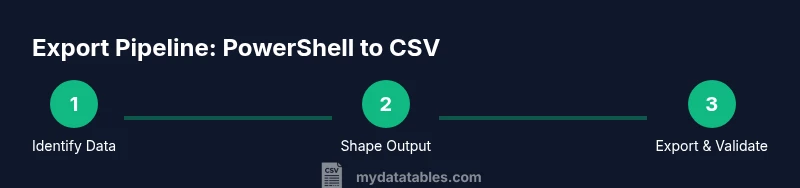
Open PowerShell
Launch PowerShell 7+ or Windows PowerShell. If you prefer, open Windows Terminal and run pwsh to access the cross-platform shell. This starts your session in a clean environment for scripting.
Tip: If you use Terminal, create a dedicated tab for your export tasks. - 2
Identify your data source
Decide which command or file will generate the data you want in CSV. Common sources include Get-Process, Get-Service, or reading a file with Get-Content and parsing it with ConvertFrom-String.
Tip: Know your data shape before exporting to avoid extra transformations later. - 3
Select and shape the data
Use Select-Object to pick the properties you want. Add calculated properties if you need derived values or formatted strings.
Tip: Prefer simple, named properties to avoid brittle migrations. - 4
Export to CSV
Pipe the shaped data to Export-Csv for file export, or use ConvertTo-Csv if you need text output.
Tip: Always include -NoTypeInformation to keep headers clean. - 5
Validate the CSV
Import the file with Import-Csv or open in a spreadsheet to verify headers and data integrity.
Tip: Check for encoding issues and delimiter consistency. - 6
Automate or reuse
Encapsulate the pattern in a function or script block so you can reuse it in future reports.
Tip: Document the properties and encoding you used for consistency.
People Also Ask
What is the difference between Export-Csv and ConvertTo-Csv?
Export-Csv writes the data to a file with a header row. ConvertTo-Csv produces CSV text that can be redirected or piped further. Use Export-Csv for final reports; ConvertTo-Csv for in-memory pipelines.
Export-Csv writes to a file, while ConvertTo-Csv gives you CSV text for pipelines.
How do I export to CSV with a different delimiter?
Use the -Delimiter parameter with Export-Csv, e.g., -Delimiter ';'. This is useful in locales where comma is used as a decimal separator or for downstream systems that expect semicolon-separated values.
Use -Delimiter to choose the separator.
How can I handle nested objects when exporting to CSV?
CSV is flat, so flatten nested properties by selecting individual sub-properties or by creating calculated string representations of nested data before exporting.
Flatten nested data into simple columns before exporting.
Can I append to an existing CSV file instead of overwriting?
Export-Csv overwrites by default; to append, you'd need to import the existing CSV, combine with new data, and export again, or use a dedicated append routine.
Export-Csv overwrites; appending requires extra steps.
What should I do if characters aren’t showing correctly after export?
Ensure you’re using UTF-8 (or the required encoding) with -Encoding and validate the file in the target app to confirm proper character rendering.
Check encoding and test with your target app.
Is there a way to export a dynamic dataset in one go?
Yes. Build a pipeline that collects data, formats it with Select-Object, and exports in one compact command or function for repeatable runs.
You can script a single pipeline for repeatable exports.
Watch Video
Main Points
- Export data with a consistent schema
- Choose Export-Csv for files, ConvertTo-Csv for text output
- Flatten nested data before exporting
- Always set encoding and delimiter consciously
- Validate the CSV after export