How to Save a CSV File: A Practical Guide for Data Professionals
Learn practical steps to save CSV files correctly across apps, covering encoding, delimiters, and how to avoid data loss when exporting, with Excel and Google Sheets guidance from MyDataTables.


Saving data as CSV is a common task across tools. In this guide, you’ll learn the exact steps to save a CSV file correctly, including encoding and delimiter considerations, handling special characters, and avoiding data loss. We’ll cover Excel, Google Sheets, and generic workflows to ensure your CSV exports stay portable and reliable.
Why CSV is a universal data format
CSV stands for Comma-Separated Values and is widely supported by data tools, databases, and programming languages. For data analysts, developers, and business users, knowing how to save csv file correctly ensures your data remains portable and readable across platforms. This section lays the foundation by explaining what CSV is, common use cases, and why precise exporting matters for downstream processes like data Cleaning, validation, and reporting. The MyDataTables team emphasizes that consistent CSV exports reduce formatting surprises when you share files with teammates or import into BI tools. When you save as CSV, you’re choosing a text-based format that preserves the table’s rows and columns while leaving more complex workbook features behind.
Key takeaway: Start with a clear understanding of what CSV can—and cannot—carry to set expectations for your export.
Choosing the right export flow
Different applications offer distinct save paths for CSV. For a smooth experience, identify whether your source data lives in a spreadsheet, a database, or a text editor, and pick the corresponding export option. In Excel, Google Sheets, or LibreOffice Calc, the typical path is a Save As or Download as CSV option. The important part is to confirm delimiters, encoding, and any feature loss before finalizing the file. If you’re collaborating, agree on a standard (for example, UTF-8 encoding with comma delimiter) to maximize compatibility. This consistency reduces back-and-forth when colleagues import the file into analytics pipelines or data warehouses.
Pro tip: Create a small test file with representative data to validate the export workflow before processing full datasets.
Encoding and locale considerations
Encoding determines how characters are stored in a CSV file. UTF-8 is the most compatible choice for multilingual data and avoids garbled characters when the file is opened in different tools. Some programs offer UTF-8 with BOM (byte order mark) to assist certain systems, while others assume UTF-8 by default. Regional settings can influence decimal separators and list delimiters, so it’s wise to pick a standard like UTF-8 and a comma delimiter, then document the choice for downstream users. When saving large data, verify that encoding remains consistent across parts of your workflow.
MyDataTables analysis shows that encoding choice has a significant impact on international datasets, reducing character corruption across export paths.
Handling quotes, commas, and special characters
CSV parsers treat commas as field separators, so any field containing a comma must be quoted. Other characters, such as quotes or line breaks, may require escaping or doubling quotes inside a field. If your data includes quotation marks, ensure the export format preserves them correctly. Some tools offer options like “Text Qualifier” or automatic escaping; always test with edge cases, including empty fields and fields with embedded newlines. A small validation step helps catch anomalies before sharing the file.
Tip: Use UTF-8 without BOM if your pipeline prefers clean text; otherwise, choose UTF-8 with BOM to maximize compatibility with legacy apps.
Delimiters and regional settings
Although comma-delimited CSV is standard, semicolon-delimited CSV is common in locales where the comma is used as a decimal separator. When saving, verify that the delimiter aligns with your target audience’s tools and configuration. If you must switch delimiters, adjust the export settings and, if possible, provide a short note about the delimiter used in the file name or metadata. Consistency wins when loading CSVs into databases or scripting environments.
Recommended practice: default to comma-delimited UTF-8 CSV for broad compatibility, and explicitly document any deviations.
Saving CSV from Excel
Excel users often encounter issues with advanced formatting, formulas, and multi-sheet workbooks when exporting to CSV. The safest approach is to save only the active worksheet, ensure numeric data uses standard formats, and verify that dates serialize predictably (e.g., YYYY-MM-DD). After choosing CSV (Comma delimited), confirm UTF-8 encoding if your version supports it. If Excel prompts about features not compatible with CSV, accept the warning and proceed with the acceptable loss.
Note: If you have multiple sheets, save each sheet separately as its own CSV file to preserve data from each sheet.
Saving CSV from Google Sheets
Google Sheets offers a straightforward export to CSV via File > Download > Comma-separated values (.CSV). Because Google Sheets operates in the cloud, the export is typically UTF-8 by default, which reduces encoding issues. For multilingual datasets, still verify that the exported file preserves all characters. If you need a different delimiter, you may need to post-process the file in a text editor or script.
Best practice: perform a quick open of the CSV in a plain text editor to confirm correct delimiters and encoding before distribution.
Verifying and debugging exports
After exporting, open the CSV in a simple viewer or a script to verify structure. Check that the number of rows matches the source, headers are correct, and no data was dropped due to delimiter conflicts. If any fields appear misaligned, re-open the file in the original application, re-export with adjusted settings (encoding, delimiter, qualifiers), and compare outputs. A small checksum or row count can help detect changes across environments.
Action item: create a reproducible export script or checklist to ensure consistency across teams.
Pitfalls, edge cases, and best practices
Common pitfalls include formulas turning into text, dates exporting as numeric codes, and embedded newlines breaking the CSV parsing. To avoid these issues, limit the content of CSV fields to plain text or standard numeric formats, standardize dates, and prefer UTF-8 encoding. Always keep a backup copy of the original data before exporting, and document your delimiter and encoding choices in a readme file associated with the CSV.
Key practice: automate the export process where possible to reduce human error and improve repeatability.
Tools & Materials
- CSV-capable application(Excel, Google Sheets, or LibreOffice Calc; ensures you can use Save As or Download as CSV)
- UTF-8 encoding option(Prefer UTF-8 for broad compatibility; UTF-8 with BOM is sometimes needed for older tools)
- Original data backup(Before exporting, save a copy of the source workbook or dataset)
- Plain text editor (optional)(Useful for quick checks of delimiters and encoding in the exported file)
Steps
Estimated time: 15-25 minutes
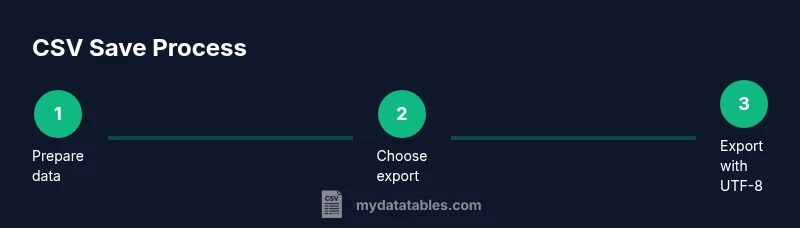
- 1
Prepare your data
Review the dataset for fields that might cause issues in CSV (special characters, line breaks, or formulas). Remove or convert complex objects you don’t need in the export to prevent data loss. This reduces surprises in downstream processing.
Tip: Remove formulas from the dataset if CSV is your final format; CSV only stores values, not formulas. - 2
Choose a destination
Decide where you will save the CSV file and ensure you have write permissions. Use a descriptive filename that includes a date or version (e.g., sales_202603.csv) to avoid confusion later.
Tip: Use a separate folder for exports to keep workflows organized. - 3
Open the export dialog
In your tool, open the Save As or Download dialog and locate the CSV option. If your data spans multiple sheets, plan to export each sheet separately as its own CSV file.
Tip: If the dialog warns about features not compatible with CSV, acknowledge and proceed with the safe options. - 4
Select CSV format and encoding
Choose CSV (Comma delimited) or your preferred delimiter, then select UTF-8 encoding when available. UTF-8 minimizes character corruption across platforms.
Tip: If you see an option for UTF-8 with BOM, pick depending on your downstream systems' compatibility. - 5
Handle quotes and delimiters
Ensure fields containing commas are properly quoted. If your data includes quotes, confirm how they are escaped in the export settings or standard CSV rules.
Tip: Test a problematic row to confirm the export preserves field boundaries. - 6
Save and name the file
Finalize the export with a clear name and location. If prompted about formatting or features, accept the changes that align with CSV limitations.
Tip: Save a backup copy of the CSV alongside the original workbook if possible. - 7
Verify the CSV content
Open the exported CSV in a plain text editor or a CSV viewer to verify correct headers, row counts, and delimiters. Look for garbled characters or misaligned columns.
Tip: Cross-check a sample row against the source to ensure fidelity. - 8
Document and repeat
Record the encoding, delimiter, and any special handling in a quick README for teammates. Use this checklist for future exports to maintain consistency.
Tip: Automate the export if you repeat this task often; automation reduces human error.
People Also Ask
What is a CSV file and when should I use it?
A CSV file stores tabular data in plain text, with each row as a line and fields separated by a delimiter. Use CSV for data exchange between apps, databases, or scripts when human-readable formats and broad compatibility are required.
CSV is plain text data with rows and comma-separated fields; it’s ideal for sharing tables between programs.
Can Excel save CSV with UTF-8 encoding?
Yes, many versions of Excel offer UTF-8 encoding options when saving as CSV. If your version lacks a dedicated UTF-8 option, use the default CSV, then validate encoding by reopening the file in a text editor.
Excel can save as CSV with UTF-8, but you may need to verify encoding by inspecting the file in a text editor.
Will formulas be preserved in a CSV export?
No. CSV exports store only the displayed values, not formulas or formatting. If you need to preserve calculations, keep a separate workbook with formulas and export only the data as CSV.
CSV stores values, not formulas; keep a separate file if you need calculations later.
Why does my CSV export change decimal separators?
Regional settings influence numbers; if your locale uses a different decimal symbol, consider exporting with the dot as decimal separator and standardize on a consistent format across teams.
Regional settings can alter numbers; standardize on a consistent decimal format during export.
What about using semicolon as a delimiter?
In locales where comma is a decimal, semicolon delimiters are common. If your pipeline expects commas, stick with comma or post-process to convert delimiters.
Some locales use semicolons as separators; ensure your downstream tools expect that.
How can I automate CSV exports to avoid mistakes?
Use scripts or built-in export templates to reproduce the same settings every time. This reduces human error and ensures consistency across datasets and teams.
Automation helps you export CSVs reliably and consistently.
Watch Video
Main Points
- Choose UTF-8 encoding to maximize compatibility
- Use a consistent delimiter and document it
- Test a small CSV export to validate formatting
- Export each meaningful dataset as its own CSV when needed
- Maintain backups and a simple export checklist