How to Save CSV from Notepad++
Learn how to save CSV from Notepad++ with proper encoding, delimiters, and validation. This educational guide covers formatting, saving as CSV, and testing in Excel or Google Sheets for reliable data interchange.


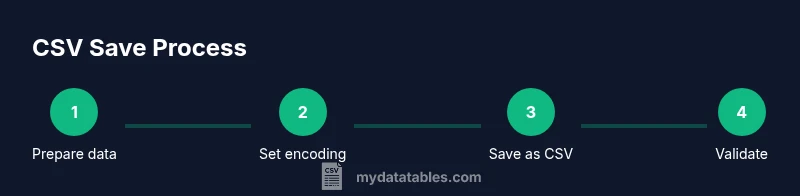
By following these steps, you will save a clean, correctly encoded CSV from Notepad++. You’ll ensure proper comma delimitation, choose the right encoding (UTF-8 or UTF-8 without BOM), and preserve data integrity for Excel, Google Sheets, or databases. This quick path is ideal when you’re starting from raw text and need a portable CSV file fast.
Understanding CSV and Notepad++
CSV, or comma-separated values, is a plain-text data format that uses commas to separate fields. It is widely used for data exchange because it remains readable in simple editors and is compatible with most spreadsheet programs. Notepad++ is a powerful text editor that can save files with any extension you type, including .csv. However, Notepad++ does not interpret CSV data the way Excel or Google Sheets do; it simply writes the characters you input, so you must ensure proper delimiters, quoting, and encoding yourself. In practice, saving CSV from Notepad++ means more than just renaming a file: you must guarantee that every row has the same number of fields, that values containing commas are enclosed in quotes, and that the encoding choice preserves all characters (especially non-ASCII). When data quality matters, this upfront care reduces downstream errors in data pipelines and reporting.
Common CSV pitfalls include mixing delimiters, omitting quotes for fields with commas, and saving in a non-uniform encoding. By understanding the basics of CSV structure and how Notepad++ handles plain text, you’ll be better prepared to produce reliable CSV files for import into databases, analytics tools, or spreadsheets.
/* 2nd body block */
Tools & Materials
- Notepad++ installed(Download from notepad-plus-plus.org and ensure you’re using the latest stable release.)
- CSV data example or dataset(Have a sample of comma-delimited data ready to format for CSV output.)
- Encoding awareness(Know your target encoding (UTF-8 is widely compatible; UTF-8 without BOM is safer for Excel in many cases).)
- Optional: second editor for comparison(Useful if you want to compare how another tool formats CSV.)
Steps
Estimated time: estimatedTotalTime: 20-30 minutes
- 1
Open Notepad++ and load data
Launch Notepad++ and paste or open your data. Ensure each record is on its own line and adjust fields so data is already separated by a single character delimiter (commas commonly). If your data uses a different delimiter, plan to convert it to commas before saving as CSV.
Tip: If you’re starting from a data source, copy a representative sample first to test formatting. - 2
Standardize delimiters and quoting
Confirm that fields containing commas are wrapped in double quotes. For example, a name like "Doe, Jane" should appear as "Doe, Jane" in a single field. Avoid stray semicolons or tabs that could confuse CSV parsers. Using a consistent delimiter reduces parsing errors.
Tip: If your data already uses quotes, ensure they are escaped properly (e.g., "Quoted "text" inside"). - 3
Choose the right encoding
Open the Encoding menu and select a UTF-8 option. UTF-8 without BOM is generally safest for cross-platform compatibility, especially with Excel and Google Sheets. Verify that non-ASCII characters render correctly after switching encoding.
Tip: Test a small sample first to confirm characters appear as expected before saving the full file. - 4
Save the file with a .csv extension
Use File > Save As, then type a filename with the .csv extension (for example, data_export.csv). If Notepad++ prompts for the encoding again, choose UTF-8 (without BOM) and ensure line endings match the target environment (CRLF for Windows, LF for Unix-like).
Tip: If the Save As dialog lacks a CSV filter, simply name the file with .csv; content will still be saved as CSV text. - 5
Validate the saved CSV
Open the saved file in a spreadsheet app (Excel, Google Sheets) or a data tool to verify columns align, quotes render, and there are no stray line breaks within fields. This step catches formatting issues that a plain text view might miss.
Tip: Prefer opening in Excel or Sheets rather than re-opening in Notepad++ to confirm parsing behavior. - 6
Handle large files and edge cases
For large datasets, consider saving in chunks or using a dedicated CSV tool if Notepad++ becomes slow. Watch for embedded newlines or tab characters; if needed, replace them with spaces or proper escaping before saving.
Tip: Split very large files into smaller chunks if system memory is limited.
People Also Ask
Can Notepad++ automatically format CSVs or enforce proper quoting?
Notepad++ is a text editor; it saves text as you type and does not enforce CSV-specific rules like automatic quoting. You must manually format fields with commas and quotes where needed or use a dedicated CSV tool for automatic handling.
Notepad++ saves what you type; you’ll need to format commas and quotes yourself or use a CSV tool for automation.
Which encoding should I choose when saving CSV files from Notepad++?
UTF-8 without BOM is the most compatible choice for cross-platform use. If you’re sharing with older systems that expect ANSI, you may choose UTF-8 with BOM, but be prepared for potential import issues in Excel or other apps.
UTF-8 without BOM is generally safest for cross-platform CSVs.
How do I handle fields that contain commas within a CSV saved from Notepad++?
Wrap any field that contains a comma in double quotes. If the field itself contains quotes, escape them by doubling the quotes ("He said, \"Hello\"" becomes "He said, \"Hello\"").
Wrap fields with quotes and escape inner quotes properly.
What if Notepad++ doesn’t show a CSV option in Save As?
Notepad++ saves based on the extension you type. Type filename.csv manually and select UTF-8 encoding if prompted. The important part is the .csv extension and correct encoding, not a specific CSV filter.
Just name the file with a .csv extension and set encoding to UTF-8.
Are there common line-ending issues when saving CSVs from Notepad++?
Yes. Windows typically uses CRLF, while Unix-like systems use LF. Align the line endings with your target environment to avoid misparsed rows. You can set this in Notepad++ under Edit > EOL Conversion.
Align line endings with your target environment to prevent parsing problems.
Can I save very large CSV files with Notepad++?
Notepad++ handles reasonably large files, but performance may degrade with very big files. For extremely large datasets, consider splitting the file or using a dedicated CSV tool to avoid slowdowns.
Notepad++ can handle big files, but split large datasets if performance drops.
Watch Video
Main Points
- Always validate encoding to prevent garbled characters
- Use quotes for fields containing commas
- Save with .csv extension and standard line endings
- Test the CSV in your target app before relying on it
- Keep data clean by standardizing delimiters and escaping