CSV vs XLSX: Understanding the Difference
Explore the fundamental differences between CSV and XLSX files, including structure, portability, editing capabilities, data integrity, and practical use cases for analysts and developers.


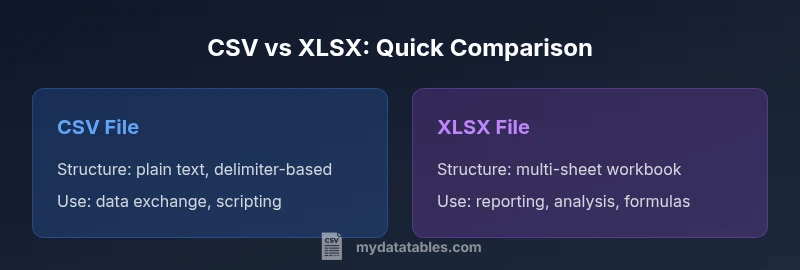
The difference between CSV and XLSX comes down to structure, editing capabilities, and use in data workflows. A CSV file is a plain-text, delimiter-delimited table ideal for data exchange and scripting. An XLSX file is a feature-rich Excel workbook that supports multiple sheets, formulas, formatting, and metadata. For most data pipelines, CSV offers portability and simplicity, while XLSX enables richer analysis and presentation. What is the difference between a .csv and an .xlsx file? The MyDataTables team emphasizes choosing the format based on task needs, not habit, to avoid conversion pitfalls and data integrity issues.
What is the difference between a .csv and an .xlsx file?
The question what is the difference between a .csv and an .xlsx file is foundational for data work. The CSV format is a plain-text, comma-delimited representation of tabular data with no built-in metadata, styling, or formulas. The XLSX format, by contrast, is a compressed, proprietary Excel workbook that stores data in cells across one or more worksheets, supports formatting, formulas, charts, and embedded metadata. According to MyDataTables, these differences aren’t just technical—they define when you should choose one format over the other. When you need a universally readable, lightweight file for data interchange, CSV is usually the best option. When your goal is analysis, reporting, or presentation with consistent structure, per-cell formatting, and built-in calculations, XLSX becomes the stronger choice. People who regularly automate data pipelines should understand this distinction to prevent unintentional data loss during format transitions.
Data Structure and Storage: CSV vs XLSX
CSV and XLSX organize data in sheets and rows, but they store that information in fundamentally different ways. A CSV file stores each row as a line of text with fields separated by a delimiter, typically a comma. There is no notion of data types, per-cell formatting, or multiple sheets. In contrast, an XLSX workbook contains a collection of worksheets, defined tables, and named ranges. Each cell can hold a number, date, or text, and cells can carry metadata and formatting rules. This structural distinction makes XLSX more suitable for complex datasets or datasets that require hierarchical organization, while CSV’s simple structure makes it highly portable across tools and platforms. For data analysts, understanding this is essential for choosing the right tool for import, export, or archival tasks.
How Data Types Are Handled
A CSV file treats every value as text until the consuming software applies its own interpretation. There is no explicit data type in the file itself, which means numbers, dates, and booleans are represented as strings until parsed. XLSX, however, embeds data types natively in cells. Numbers stay numeric, dates carry date-time semantics, and even boolean values can be stored as true/false with straightforward formatting rules. This native typing helps preserve meaning across Excel-based workflows and reduces post-import conversion work. When moving data between systems, be mindful that a CSV’s textual representation can complicate type inference and require careful parsing logic in downstream tasks.
Editing and Formulas: What XLSX Supports That CSV Can’t
Editing a CSV file is purely a text operation. You can open it in any text editor, but there is no concept of formatting, formulas, or validation rules baked into the file. Any data validation or calculated fields must be implemented by the application using the data. XLSX files, by contrast, are designed for editing inside Excel or compatible spreadsheet tools, offering formulas, conditional formatting, data validation, and structured tables. This means you can build dynamic reports and analyses directly in the workbook. If collaboration occurs in a spreadsheet environment, XLSX’s editing features save time and reduce manual recalculation errors, but at the cost of requiring Excel-compatible software.
File Size and Compression Considerations
CSV files are typically smaller than XLSX for the same dataset because they lack formatting, charts, or embedded metadata. However, CSV can expand when encodings, quotes, or delimiters must be escaped consistently. XLSX uses compression and stores data in binary structures, which often keeps large, multi-sheet datasets manageable and fast to load in modern tools. The trade-off is that XLSX files can be larger on disk than lean CSV exports, yet they enable richer features that CSV simply can’t provide. For archival and lightweight sharing, CSV often wins on size; for multi-faceted reporting, XLSX wins on capability.
Portability and Compatibility Across Tools
CSV’s strength is broad compatibility. Almost every programming language, database, and data tool can read and write CSV with consistent parsing rules. XLSX, while widely supported by modern office suites, requires libraries or applications that can handle the Excel format, which can vary across platforms. In code, CSV parsing is simple and deterministic, reducing surprises across environments. When you rely on automated deployments, pipelines, or cross-platform sharing, CSV generally minimizes edge-cases. If your workflow depends on formulas, charts, or specific Excel features, XLSX remains the best choice, but you’ll need appropriate tooling and version control to manage file evolution.
Using CSV for Data Exchange and Pipelines
CSV is the backbone of many data exchange pipelines due to its simplicity and predictability. It enables streaming ingestion, incremental loads, and easy integration with ETL tools, scripting languages, and databases. For scripting and automation, CSV’s line-oriented structure makes it easy to read line by line without constructing an in-memory workbook. In practice, CSV often serves as the transfer format between diverse systems, while the receiving tool reinterprets the data to its internal structures. When designing a pipeline, consider the delimiters used, the possibility of embedded newlines, and the encoding chosen to ensure reliable round-trips.
Using XLSX for Reporting and Analysis in Excel
XLSX shines when the end goal is analysis within Excel or visualization alongside your data. It supports multiple sheets, tables, named ranges, and inline formulas, enabling sophisticated reporting workflows and dashboards. This makes XLSX ideal for sharing polished results with stakeholders who rely on Excel-based tools, Power Query, or pivot tables. Be mindful, though, that XLSX's richer feature set can complicate automated processing, especially when tools expect a CSV-like simplicity. If your audience primarily consumes data through spreadsheets or if you need to preserve formatting and formulas across colleagues, XLSX is the pragmatic choice.
Encoding and Localization: UTF-8, BOM, and Regional Settings
Character encoding is a common source of confusion when choosing between CSV and XLSX. CSV files rely on the declared encoding, with UTF-8 being a safe default for most global data; some environments require explicit handling of Byte Order Marks (BOM) or alternative code pages. XLSX saves data with Unicode support embedded, which minimizes encoding problems within Excel and compatible readers. When exchanging data internationally, document the encoding you used and verify that consumers interpret characters correctly. MyDataTables emphasizes consistent encoding practices to prevent misinterpretation of accented characters or non-Latin scripts across tools.
Converting Between CSV and XLSX: Best Practices
Converting data between CSV and XLSX is common, but it introduces potential pitfalls. Before conversion, ensure headers are consistent, delimiters are properly defined, and the target tool will interpret numbers and dates as intended. When moving from CSV to XLSX, consider creating a single sheet with a clean header row and a defined data range to simplify further analysis. Conversely, when exporting from XLSX to CSV, strip any non-tabular content like charts and hidden sheets. Always validate a sample after conversion and keep a native backup of the source to avoid data loss due to formatting or type changes.
Practical Workflows: When to Choose CSV or XLSX
Think about the task’s requirements to decide between CSV and XLSX. Choose CSV for broad interoperability, streaming data, and machine-readable ingestion where no formatting is needed. Choose XLSX for internal analysis, complex datasets with multiple sheets, and scenarios where end-users rely on Excel features. For teams, a common pattern is to exchange a CSV for automation-friendly steps and provide an XLSX workbook for stakeholders who need formatting and formulas. In practice, document the decision criteria and maintain versioned samples to reduce ambiguity across environments.
Common Pitfalls and How to Avoid Them
A frequent pitfall is assuming that a CSV will preserve numeric types or dates without explicit parsing rules. Always define encoding, delimiter, and quote handling when exporting. Another mistake is neglecting headers or misaligning columns during conversions, which can lead to misinterpreted data downstream. Finally, avoid mixing binary XLSX content with plain text in automated scripts; always treat CSV as text and XLSX as a binary format handled by Excel-capable tools. By adopting explicit conventions and validating samples, you minimize surprises in production workflows.
Comparison
| Feature | CSV file | XLSX file |
|---|---|---|
| Structure | Plain-text rows and columns with delimiters | Multi-sheet workbook with cells, styles, and tables |
| Data types | All data as text until parsed | Native support for numbers, dates, booleans, and strings |
| File size | Typically smaller for simple data | Often larger due to formatting and features |
| Editability | Easily edited in any text editor | Edited in Excel or compatible apps with formulas |
| Best use case | Data exchange, scripting, quick imports/exports | Reporting, analysis, formatting, complex datasets |
| Tooling & automation | Excellent with scripting and parsers | Best with Excel ecosystems and BI tools |
Pros
- Excellent portability across platforms
- Simple, script-friendly format for automation
- Low processing overhead for parsing and loading
- Wide tool support for read/write operations
- Clear separation of data from presentation (in CSV)
Weaknesses
- Lacks metadata, styling, and formulas in the base format
- Potential data-type ambiguity without explicit parsing
- No built-in data validation or integrity constraints
- CSV delimiters and encoding violations can cause parsing errors
CSV for portability and data exchange; XLSX for analysis and presentation
When you need universal readability and simple data exchange, CSV is the practical choice. For richer analysis, formatting, and multi-sheet organization, XLSX is superior. The best approach often combines both formats in a well-documented workflow, using CSV for transfer and XLSX for final reporting.
People Also Ask
What is the main difference between CSV and XLSX?
CSV is a plain-text, delimiter-based format ideal for simple tabular data and data exchange. XLSX is a feature-rich workbook that supports multiple sheets, formatting, and formulas. The choice depends on whether you need portability or advanced Excel features.
CSV is plain text and great for data transfer, while XLSX is a workbook with sheets and formulas for analysis.
Can CSV files store formulas?
No. CSV files store data as plain text and do not support formulas, formatting, or metadata. Any calculations must be performed by the consuming application after import.
CSV can’t store formulas; those are Excel features.
Is CSV better for importing into databases?
CSV is commonly used for database imports because it is simple to parse and supported by almost all database systems. Ensure consistent headers and data types to prevent import errors.
CSV is typically preferred for database imports due to its simplicity.
How should I encode a CSV file for international data?
Use UTF-8 as the default encoding and declare it if possible. Be mindful of BOM presence and ensure the consuming system interprets non-ASCII characters correctly.
Use UTF-8 to avoid character problems with international data.
How can I convert CSV to XLSX without losing data?
Convert with careful handling of headers and data types, avoid mixing text and numbers, and validate results in the target XLSX workbook. Save a native CSV backup before converting.
Convert with care and test the results in Excel.
Do reading times differ between CSV and XLSX in Python/pandas?
CSV reading is typically faster and uses less memory because the data is not parsed into a workbook structure. XLSX reading involves parsing cells, styles, and formulas, which adds overhead.
CSV reads tend to be faster in pandas, while XLSX can be heavier to parse.
Main Points
- Choose CSV for broad compatibility and automation
- Prefer XLSX when you need formulas and formatting
- Ensure consistent encoding and delimiters in CSV workflows
- Beware data-type and metadata loss when converting formats
- Validate conversions with representative samples