How to Export Asana Data to CSV
Master the asana export to csv with native tools, API tricks, and data-cleaning tips. This MyDataTables guide helps data analysts prepare analytics-ready CSV files for BI dashboards and cross-tool reporting.


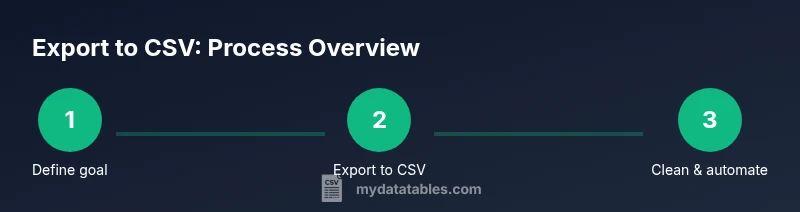
Goal: Learn how to perform an asana export to csv from Asana workspaces, including native export options, API-based methods, and practical workarounds for custom fields. This guide walks you through each step, shows how to format and clean the CSV for analytics, and highlights common pitfalls to avoid. Whether you’re a data analyst or developer, you’ll finish with a reliable CSV ready for import into your BI tools.
Why exporting Asana data to CSV matters for teams
In the modern analytics workflow, teams rely on CSV exports to feed BI dashboards, perform custom reporting, and share project status with stakeholders. The ability to export tasks and fields from Asana into CSV creates a universal data format that can be joined with other sources, enabling truly cross-functional insights. According to MyDataTables, a well-structured CSV is easier to validate than raw export dumps and reduces friction when data needs to be ingested by tools like SQL databases, spreadsheets, or visualization platforms. For many teams, the primary value of an asana export to csv is that it unlocks repeatable, auditable data pipelines rather than one-off reports. You’ll gain clarity on project progress, workload distribution, and due-date pressure across teams, which can drive smarter resource planning and prioritization.
In this section we’ll explore practical use cases, from quarterly reporting to ad-hoc analyses, and explain how a CSV export becomes the backbone of data-driven decision making. We’ll also flag common pitfalls such as inconsistent date formats, missing custom fields, and the challenge of flattening hierarchical data. By the end, you’ll know why exporting to CSV is a foundational skill for data professionals working with Asana.
Tools & Materials
- Computer with internet access(For local export, review, and data processing.)
- Asana account (free or paid)(Access to projects to export.)
- Spreadsheet software or data processing tool(Excel, Google Sheets, or pandas.)
- Text editor or IDE (optional)(For scripting API calls.)
- API token (Personal Access Token)(If using API-based export.)
Steps
Estimated time: 45-90 minutes
- 1
Define export objective
Clarify which projects, fields, and time range you need. A clear objective prevents unnecessary data and speeds up post-processing.
Tip: Write a one-sentence goal and list required fields before you export. - 2
Open the target project in Asana
Navigate to the project you want to export. Confirm you have the necessary permissions to view all tasks and custom fields that matter for analytics.
Tip: If you lack access, request needed permissions or export from a project you own. - 3
Export to CSV from the project menu
Open the project menu, choose Export/Print, and select CSV. Review which columns appear based on your current view.
Tip: Include relevant columns before exporting to avoid missing data later. - 4
Save the CSV locally
Download the file and store it in a structured folder. Use a consistent naming convention for easy retrieval.
Tip: Name files with project-name and date, e.g., sales_q3_2026.csv. - 5
Review headers and data types
Open the CSV and confirm headers align with your analytics schema. Check dates and numeric fields for correct formats.
Tip: Flag any unexpected headers for later remapping. - 6
Consider subtasks and custom fields via API
If you need nested data or non-standard fields, use the API to fetch and flatten data, or plan a post-export join.
Tip: API-based exports handle complex structures more reliably than native CSV. - 7
Clean and standardize the CSV
Apply data cleaning: unify date formats, set UTF-8 encoding, and fill or standardize missing values.
Tip: Create a simple cleaning template to reuse across exports. - 8
Automate future exports
Set up a script or automation tool to run on a schedule, then push the CSV to shared storage or a BI-ready destination.
Tip: Include error handling and a basic log to monitor future runs.
People Also Ask
Can I export subtasks in the native Asana CSV export?
Native CSV export commonly captures parent tasks, and subtasks may not be included depending on the view. For complete nested data, use the Asana API or a custom workflow to flatten subtasks.
Native exports may not include all subtasks; use API-based exports for nested data.
Does Asana export include attachments?
Attachments are not included in the CSV export. You’ll need separate methods or links to files if you require access to attachments.
CSV exports don’t include file attachments; you’ll need a separate approach for those.
How do I export data for multiple projects?
Native export is typically per project. To collect data across multiple projects, consider using the API to fetch tasks from several projects or use a third-party tool.
For many projects, API-based data collection is usually the better approach.
Is there a limit on CSV size?
CSV size limits depend on your spreadsheet tool. Large exports may be unwieldy in Excel; consider chunking the data or loading into a database for analysis.
Very large files can be tough in spreadsheets; splitting or database imports help.
What encoding should I use for exports?
Use UTF-8 encoding to preserve special characters and ensure compatibility across tools like BI platforms and databases.
UTF-8 is the safest choice for CSV data.
Watch Video
Main Points
- Define clear export goals before pulling data
- Use native export for quick snapshots and API for complex data
- Map and clean data for reliable analytics
- Automate exports to keep BI dashboards up to date