Auto-fill Web Forms from CSV: A Practical Step-by-Step Guide
Learn to map CSV headers to web form fields, validate data, and automate submissions safely. This guide covers data preparation, tool options, security practices, and testing workflows for reliable CSV-to-form automation.


By the end, you will be able to automate filling web forms from a CSV file by mapping CSV headers to form fields, validating data, and selecting a safe automation method. The guide covers data preparation, tool choices, best practices for security and privacy, and a testing workflow to ensure fast, accurate submissions.
Foundations: What auto-fill from CSV enables
Automating form filling from a CSV file starts with a simple premise: take structured data in rows and submit corresponding values into web form fields. When headers in the CSV line up with the names or selectors of the fields on a page, automation becomes reliable and repeatable. This approach is especially useful for onboarding forms, data-entry portals, contact forms, and repetitive surveys. For data professionals, this method reduces manual keystrokes and minimizes copy-paste errors. For developers, it opens paths to batch-processing workflows and integration with other data pipelines. In many teams, a well-planned CSV schema acts as a contract: every row provides all the information needed for a single submission, and every field in the form has a clear, labeled source in the CSV. According to MyDataTables, automating CSV-to-form workflows can dramatically reduce repetitive data-entry tasks and improve consistency when you manage clear field mappings and validation rules.
Understanding CSV and Form Field Mapping
The core idea is straightforward: each CSV column corresponds to a target form field. The mapping must be precise because a mismatch (like name vs. email) can cause failed submissions or incorrect data entry. Start by auditing the form’s fields, capturing their selectors or labels, and listing them side-by-side with your CSV headers. If a form contains dynamic fields (fields that appear based on previous answers), plan for conditional logic in your mapping. This stage is your blueprint; a well-documented mapping reduces maintenance effort as forms evolve. It also makes error handling simpler: you know exactly which CSV column feeds which field.
From a data quality perspective, consistency in header naming matters. Prefer stable, human-readable header names and avoid spaces or special characters that might complicate automated parsing. As you proceed, keep a changelog of any mapping adjustments so your team can track changes over time.
Choosing an automation approach: extension, script, or API
There are three main pathways to automate CSV-to-form filling: browser extensions, custom scripts, or API-driven automation. Extensions are quick to deploy and often provide visual mapping interfaces, but they may be limited by site security policies. Custom scripts (e.g., using a headless browser or automation library) offer flexibility and deeper control but require programming skills. API-based automation can be powerful when the target site exposes an API or supports programmatic form submission, though this isn’t always available for every web form. MyDataTables analysis shows that teams typically choose an extension for ad-hoc tasks and go with scripts or API-driven flows in production environments where repeatability and integration with data pipelines are priorities. Regardless of the path, you should design for error handling, logging, and data validation from the start.
Preparing your data: cleaning, normalization, and headers
Data quality is the backbone of reliable automation. Clean CSV data before processing: trim extraneous whitespace, normalize date formats to the form’s expected pattern, and ensure email and phone fields conform to expected patterns. Normalize encoding (prefer UTF-8) to avoid misinterpreted characters. Decide how to handle missing values — either provide defaults, skip records, or flag them for review. A well-prepared CSV reduces post-fill corrections and makes failure analysis faster. Create a pre-flight validation step that checks required fields, data types, and any format-specific constraints. This upfront discipline pays dividends in downstream workflows and user satisfaction.
Step-by-step workflow overview
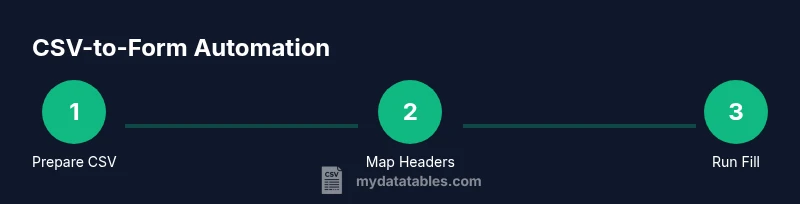
A robust workflow resembles a repeatable recipe. Start with data ingestion, then mapping, transformation, validation, and finally submission. Implement a test mode to preview what would be filled without actually submitting, followed by a dry-run on a staging form. Establish error-handling routines that categorize common failures (selector changes, missing fields, invalid data) and emit actionable logs. A centralized mapping file (CSV header to form field selector) becomes the single source of truth. Finally, integrate monitoring so any change to the form or data structure triggers a review, reducing drift over time.
Implementing with a browser automation extension
Browser extensions usually provide a form-mapping UI where you link a CSV header to a field selector. Steps typically include loading the CSV, configuring the form URL, and saving the mappings. When you run the task, the extension iterates rows and fills fields using the mapped selectors. To keep things safe, enable a dry-run mode first and verify that the values appear in the right fields before enabling actual submissions. Many extensions also offer per-field validators or transformation hooks (e.g., trimming whitespace or formatting dates) to ensure data quality at fill-time.
Data validation, privacy, and security considerations
Security should govern every automation design. Avoid storing sensitive data beyond what you need for a single run, and never reuse credentials in the fill process. Use field-level validation to catch obvious data issues before submission. If you’re handling personal data, consider data minimization, encryption in transit, and access controls for the automation tool. For sites that require login, separate authentication from the data-fill process and review terms of service to ensure compliant usage. Engaging a privacy review or data protection guidance can prevent future compliance issues.
Testing strategy and troubleshooting common issues
Testing is essential to prevent misfills and data leakage. Start with unit tests on the mapping file, validating that each CSV column maps to the correct selector. Move to integration tests using a staging form, validating that values appear correctly in every field and that required fields are enforced. Common issues include mismatched selectors due to page layout changes, dynamic fields that appear after user input, and format mismatches (dates, phone numbers). Maintain a test matrix covering different record types and edge cases. When a test fails, review the latest form changes and revalidate selectors, then re-run the test suite.
Best practices for reliability and maintainability
Build maintainability into the process from day one. Keep the mapping, validation rules, and transformation logic in version-controlled files. Document every field’s purpose and any edge cases. Use deterministic selectors and avoid brittle UI assumptions, updating them promptly when the site changes. Schedule regular mapping audits in response to form updates. Consider modularizing the workflow so you can swap in a different automation method without rewriting the entire pipeline.
When to avoid auto-fill and alternative options
Auto-fill is not a one-size-fits-all solution. For sites with strict anti-automation policies, or forms that capture highly sensitive data, you may need an alternative approach such as manual review or API-based submission if available. For dynamic pages with frequently changing field structures, automation can become brittle unless you implement robust selector discovery and fallback strategies. If the form’s behavior relies on client-side validation or complex conditional logic, ensure your pipeline can adapt to those conditions without bypassing safeguards.
Governance, auditing, and future-proofing
Establish governance around who can run the automation, how data is stored, and how changes are approved. Maintain an audit trail of mappings, CSV versions, and form changes. Plan for periodic reviews to accommodate form redesigns and policy shifts. By documenting decisions and preserving version history, you create a durable process that scales with your organization’s data needs.
Tools & Materials
- CSV file with header row(Headers must match form field names you intend to fill)
- Target web form URL(Use a stable environment URL for testing and production)
- Field mapping reference (CSV header -> form selectors)(Document exact selectors or labels for each field)
- Automation tool (extension or script runtime)(Examples: browser extension or a headless automation script)
- Test CSV subset (sample data)(Keep a small dataset to validate mappings before scale)
- Validation & sanitization functions(Optional if using built-in validators in your tool)
- Security and privacy guidelines(Policy references for handling sensitive data)
Steps
Estimated time: 1.5-2 hours
- 1
Identify target form and fields
Open the form URL in a test environment and inspect each input, select, and textarea to capture selectors. Note which fields are required and any conditional visibility rules. This step ensures your mapping has accurate targets and reduces future maintenance.
Tip: Use browser dev tools to copy selectors; avoid brittle text-based selectors. - 2
Prepare your CSV with header row aligned to fields
Ensure the CSV header names clearly map to each form field. Remove stray columns and normalize data types. Validate required fields exist in every row to prevent submission failures.
Tip: Keep headers stable; document any changes in a change log. - 3
Create a mapping table between CSV headers and form selectors
Build a simple mapping reference that pairs each CSV header with a form field selector (CSS/XPath) or label. Store this mapping in a version-controlled file to track changes over time.
Tip: If a field uses dynamic labels, log both stable and visible selectors. - 4
Choose your automation method
Decide between a browser extension, a custom script, or an API-based approach. Consider factors like site policies, maintainability, and integration with data pipelines.
Tip: Start with an extension for quick wins, then migrate to a script for production-scale needs. - 5
Configure the tool with mapping and selectors
Load the CSV, set the target URL, and bind each CSV column to its corresponding selector. Enable any transformation hooks (trim, normalize dates) that ensure data matches form expectations.
Tip: Test transformations on a single row before batch runs. - 6
Validate a single row (dry-run)
Run a non-submitting fill to verify values land in the correct fields. Confirm that required fields are present and that no data is left unfilled due to missing selectors.
Tip: Review any warning logs and adjust selectors if needed. - 7
Run a full dry-run with test data
Process a subset of rows in a staging environment to ensure the pipeline handles multiple submissions consistently. Observe how errors are reported and where retries occur.
Tip: Segment test data by field type to surface edge cases early. - 8
Apply data transformations and validations
Incorporate trimming, whitespace normalization, and date/number formatting to align with form expectations. Use validators to catch format mismatches before submission.
Tip: Centralize validation logic to keep mappings clean. - 9
Implement error handling and logging
Capture failures with clear messages, including which row, which field, and what value caused the issue. Store logs in a centralized location for auditing.
Tip: Include a retry policy for transient issues and a manual review trigger for repeated failures. - 10
Test in staging, then deploy to production
After confirming stability in staging, run the workflow against production targets with conservative limits. Monitor results and verify that data integrity remains intact.
Tip: Keep a rollback plan if issues arise after production deployment. - 11
Maintain mappings as forms evolve
Regularly review form changes and update selectors and headers accordingly. Keep a changelog and version control for all mapping updates.
Tip: Schedule quarterly audits aligned with form redesign cycles. - 12
Document governance and reuse
Create playbooks that describe roles, permissions, and approvals for running automations. Reuse components to accelerate future projects.
Tip: Capture learnings and share them with the team to avoid reinventing the wheel.
People Also Ask
What is required to auto-fill a web form from CSV?
You need a stable CSV with headers, a target web form, and a tool to map headers to form fields. A test environment is essential for validation before production use.
You need a CSV with headers, a target form URL, and a mapping tool. Start in a test environment to validate before going live.
Can I use free tools to implement this?
Yes, many browser extensions and scripting options are available at no cost. Always review security implications and site policies before enabling automation.
There are free extensions and scripts you can use, but check security and terms of service first.
How do I handle date fields?
Pre-process dates to match the form’s expected format using a dedicated transformation step in your workflow.
Convert dates to the format the form expects before filling.
What about multi-select fields?
Map each option individually if the form supports it, or join values into a single string if the form accepts it.
Map each option correctly or combine values as allowed.
Is automation compliant with site terms?
Always review site terms and privacy policies. Do not automate on sites that prohibit it or where data storage is restricted.
Check terms and privacy before automating on a site.
What if the form changes after I set up automation?
Update the mappings and selectors promptly, then re-run tests to ensure continued accuracy.
Update mappings when the form changes and test again.
Watch Video
Main Points
- Map CSV headers precisely to form fields.
- Validate and sanitize data before submission.
- Test thoroughly in staging before production.
- Choose a method aligned with privacy, security, and maintainability.
- Maintain mappings as forms evolve.