Convert XLS to CSV: A Practical Step-by-Step Guide
Learn how to convert an XLS/XLSX file to CSV with encoding, delimiter, and validation best practices. This comprehensive guide covers Excel, LibreOffice Calc, and Google Sheets workflows to ensure clean, shareable CSV exports. Includes tips from MyDataTables for reliable data interchange.


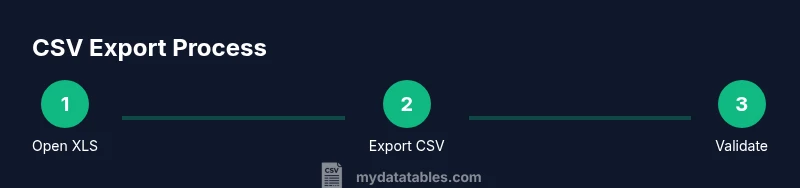
To convert an XLS file to CSV, export or save the workbook as CSV from your spreadsheet app, selecting the appropriate encoding and delimiter. Expect that only a single sheet will export, and formatting or formulas may be lost. Always keep a backup of the original XLS file and validate the resulting CSV before sharing. This guide covers Excel, Calc, and Sheets workflows for reliable results.
Why convert xls to csv
CSV, or comma-separated values, is a plain-text format that stores tabular data in a simple, machine-readable way. Converting from XLS to CSV matters when you need broad compatibility across systems, databases, analytics pipelines, or web applications. The XLS format is binary and preserves Excel-specific features like formulas, formatting, and macros, which do not transfer to CSV. When you export to CSV, you trade formatting for portability. In practice, most teams convert to CSV to share data with colleagues who use Python, SQL databases, or data visualization tools. The MyDataTables team notes that CSV remains a foundational data interchange format in 2026, prized for its simplicity and universal support. If your data contains non-English characters, Unicode-aware CSV (UTF-8) is strongly recommended to avoid garbled text.
Before you begin, ensure you have a backup of the original XLS file. This protects you from accidental data loss during the export process and allows you to revert to the original structure if needed.
Understanding XLS vs CSV
XLS is a feature-rich, binary workbook that can contain multiple sheets, rich formatting, formulas, data validations, and embedded objects. CSV is a flat text representation: it stores data row by row, with each field separated by a delimiter (commonly a comma) and each line representing a record. Key implications include:
- CSV supports only plain values; formulas are exported as their resulting values.
- CSV can store only one sheet per file; multiple sheets require separate exports.
- Delimiters and encodings matter for compatibility across locales.
Understanding these differences helps you plan what to export and how to validate the result. The MyDataTables analysis emphasizes that CSV is widely supported, but you must manage encoding and delimiters to preserve data integrity across tools.
When to use CSV in data workflows
CSV excels as a portable data format for ingestion into databases, data warehouses, or analytics pipelines. Use CSV when you need:
- A lightweight, text-based representation of tabular data.
- Easy loading into Python/pandas, R, SQL databases, or ETL tools.
- Simple sharing via email or version-controlled repositories.
However, CSV is not ideal for preserving formatting, multi-sheet workbooks, or formulas. If you require repeated exports or automated pipelines, CSV becomes a reliable backbone for data transfer. The MyDataTables team highlights CSV’s ubiquity across platforms, making it a dependable choice for reproducible data workflows.
Preparing your data for a clean export
Clean data before exporting to avoid downstream issues. Recommended preparation steps:
- Ensure there is a single header row with unique column names.
- Remove hidden columns and unnecessary rows that could export unexpectedly.
- Unmerge cells and convert date and numeric formats to consistent representations.
- For values that should begin with zeros (like IDs or ZIP codes), store them as text or apply formatting that preserves leading zeros.
- Decide on a delimiter and encoding upfront (UTF-8 is the default best practice).
Proper preparation reduces post-export cleanup and helps ensure the CSV loads cleanly into your target tools. The MyDataTables guidance stresses preparing data with discipline to minimize surprises later.
Step-by-step: Export from Microsoft Excel
Exporting from Excel is the most common path. Follow these steps:
- Open the XLS file in Microsoft Excel.
- Review the data: confirm headers, fix merged cells, and remove any non-data rows.
- Go to File > Save As or File > Export, depending on your version.
- Choose CSV (Comma delimited) or CSV UTF-8 (if available) as the file type.
- If prompted about features not compatible with CSV, confirm the export.
- If the workbook has multiple sheets, repeat the export for each sheet, saving with a distinct filename.
- Open the resulting CSV to verify data integrity and formatting.
This process preserves data values while delivering a portable, text-based format. If your locale uses a different delimiter, you’ll adjust in the encoding step. The key is to confirm UTF-8 encoding to avoid character loss in non-ASCII text.
Step-by-step: Export from LibreOffice Calc
Calc provides a straightforward path to CSV:
- Open the XLS file in LibreOffice Calc.
- Check the sheet for clean headers and consistent data types.
- Navigate to File > Save As and select Text CSV as the file type.
- In the dialog, choose UTF-8 encoding and the comma as the field delimiter (or your preferred delimiter).
- Ensure that the option to quote all text fields is enabled if your data contains commas.
- If multiple sheets exist, save each as a separate CSV file with a sheet-specific name.
- Inspect the resulting CSV to verify the export accuracy and character integrity.
LibreOffice Calc often exposes encoding and delimiter controls clearly, which can be helpful when working with international data.
Step-by-step: Export from Google Sheets
Google Sheets offers a cloud-based export path:
- Open the Google Sheets file and make sure you’re on the correct sheet you want to export.
- File > Download > Comma-separated values (.csv, current sheet).
- If you require UTF-8 encoding, this option usually provides UTF-8 by default.
- After download, open the CSV to check delimiters and data formatting.
- For multi-sheet workbooks, export each sheet separately by repeating the download for the specific sheet.
Google Sheets is convenient for quick exports and collaborative workflows, but be mindful of locale-based delimiter behavior and how your target system will interpret the CSV.
Handling encodings and delimiters across locales
Encoding and delimiter choices can drastically affect CSV compatibility. Best practices:
- Prefer UTF-8 encoding to preserve non-ASCII characters across tools and languages.
- If UTF-8 isn’t available, use UTF-16 or the encoding your data consumers require, but document it clearly.
- Delimiters: commas are standard in many regions, but some locales use semicolons due to decimal separators. Always confirm the expected delimiter for the target system.
- Some applications expect a Byte Order Mark (BOM) for UTF-8; consider enabling it if your recipient’s environment requires it.
- Always test the exported file by importing into a representative tool to catch encoding issues early.
By aligning encoding and delimiter choices with recipient systems, you reduce downstream processing errors and ensure smoother data sharing. The MyDataTables team recommends validating a sample row after export to confirm correct parsing.
Working with multiple sheets and large files
CSV’s one-sheet limitation means you have two practical options for workbooks with many sheets:
- Export each sheet as a separate CSV file, giving each sheet its own filename (e.g., sales_q1.csv, sales_q2.csv).
- If you need a single combined dataset, consolidate the relevant sheets into one sheet before export, then export once.
For large files, consider exporting in chunks or splitting into multiple smaller CSVs to facilitate faster loading into databases or analytics tools. Large CSVs can be slow to parse and may trigger timeouts in some ETL pipelines. Plan for incremental processing when possible.
Validating the exported CSV and verifying data integrity
Validation catches issues before they propagate:
- Open the CSV in a text editor to inspect a few lines for proper quoting and delimiter usage.
- Import the CSV into a test environment (e.g., a small SQL table or a dataFrame) and verify row counts and representative values.
- Check for special characters, newlines within fields, and any truncated data.
- If you exported multiple sheets, compare a sample row across the original and the CSV conversion to ensure consistency.
Automated validation scripts or minimal Python/R checks can speed up this step, especially for repeated exports. The MyDataTables guidance emphasizes reproducible validation to maintain data quality across exports.
Common pitfalls and troubleshooting tips
Even experienced users hit pitfalls. Common issues include:
- Mismatched delimiters due to locale settings.
- Loss of leading zeros or formatting changes when numbers are treated as numbers rather than text.
- Unintended wrapping of long fields or embedded newlines that disrupt the CSV structure.
- Non-UTF-8 characters appearing as garbled text.
- Multi-sheet workbooks not exporting all sheets.
To mitigate these, always verify encoding, handle data types explicitly, and export one sheet at a time if needed. Keep a changelog of each export’s settings so you can reproduce or adjust them in future iterations.
Automation and reproducibility: making CSV exports reusable
If you frequently convert XLS to CSV, automation saves time and reduces human error. Options include:
- Macro scripts within Excel to automate Save As steps and encoding choices.
- Batch scripts or PowerShell to run Excel in headless mode for batch exports.
- Simple Python scripts using pandas to read XLS/XLSX and write CSVs with UTF-8 encoding and chosen delimiters.
- Document a standard export template that includes sheet names, encoding, and delimiter preferences.
Automation improves consistency and auditability, which aligns with data governance practices. The MyDataTables team encourages building repeatable workflows and version-controlling export configurations for traceability.
Tools & Materials
- Microsoft Excel(Save As > CSV (Comma delimited); use CSV UTF-8 if available)
- LibreOffice Calc(Export as Text CSV with UTF-8 encoding)
- Google Sheets(Upload XLS and Download as CSV (current sheet))
- Backup copy of the original XLS file(Keep a safe copy before conversion)
- Text editor (optional)(Check for encoding or quoting issues if needed)
Steps
Estimated time: 15-25 minutes
- 1
Open the XLS file in your spreadsheet application
Launch Excel, Calc, or Sheets and open the file you need to convert. Confirm you are on the correct sheet when working with multi-sheet workbooks.
Tip: Always start from a backup copy to prevent data loss. - 2
Review data and prepare the sheet
Inspect headers for accuracy, remove hidden or unnecessary columns, and fix merged cells that might complicate the export. Ensure all data fields are in expected formats (dates, numbers, text).
Tip: Unmerge cells and standardize date formats before exporting. - 3
Choose Save As or Export
Navigate to the export option in your app. In Excel, use Save As; in Calc or Sheets, use Export or Download as CSV. Select the CSV format option.
Tip: If prompted about compatibility, proceed with exporting to CSV to preserve content. - 4
Select the CSV option and encoding
Choose CSV (Comma delimited) or CSV UTF-8 depending on availability. If you deal with non-ASCII characters, UTF-8 is essential.
Tip: If you see a separate BOM option, enable it only if your recipients require it. - 5
Handle multiple sheets (if any)
CSV exports typically handle one sheet per file. If your workbook has multiple sheets, export each as a separate CSV with a clear sheet-based filename.
Tip: Keep a mapping of sheet name to export file name for clarity. - 6
Save the file and review the result
After saving, reopen the CSV to verify that data appears intact, delimiters are correct, and there are no stray characters.
Tip: Look for stray quotes or broken lines that may indicate quoting issues. - 7
Validate data integrity
Optionally load the CSV into a lightweight environment (e.g., a small database or a data frame) to check row counts and a sample of values.
Tip: Run a quick compare against the source to confirm key fields match. - 8
Document and back up
Store the exported CSV in a shared location and document the export settings (delimiter, encoding, sheet included). Keep the original XLS for auditability.
Tip: Version-control the export settings so you can reproduce the process.
People Also Ask
Can XLSX be converted to CSV without losing data?
Yes, but some Excel-specific features like formulas and formatting won’t transfer to CSV. You’ll get the evaluated values instead of formulas.
Yes. You’ll get values instead of formulas, and formatting won’t carry over.
What encoding should I choose for CSV?
UTF-8 is the recommended default to preserve non-English characters. If you must use a regional encoding, document it clearly.
UTF-8 is best for preserving characters; use it unless you have a compelling reason not to.
What if my workbook has multiple sheets?
CSV does not support multiple sheets in a single file. Export each sheet as its own CSV file and manage naming accordingly.
CSV can only store one sheet per file; export each sheet separately.
How do I export from Google Sheets?
In Google Sheets, use File > Download > Comma-separated values to export the current sheet as CSV.
File > Download as CSV exports the current sheet.
What if the delimiter is wrong for my recipient?
Adjust the delimiter (comma vs semicolon) to match your recipient’s requirements, and re-export if needed.
Change the delimiter and export again to fit the recipient’s needs.
Will formulas be preserved in CSV?
No, CSV stores values only. If you need calculations later, keep the original XLS and re-run exports as needed.
CSV saves values, not formulas; keep the original file for recalculation.
Watch Video
Main Points
- Back up the original XLS file before exporting.
- Use UTF-8 encoding by default for CSV exports.
- Export one sheet at a time if needed for multi-sheet workbooks.
- Validate the CSV by loading it into a test environment.
- Document export settings for reproducibility.