Export Slack Channel to CSV: A Comprehensive Guide
Learn how to export a Slack channel to CSV using exports, API methods, or scripts. This practical guide covers permissions, data scope, and best practices for secure, reproducible results.


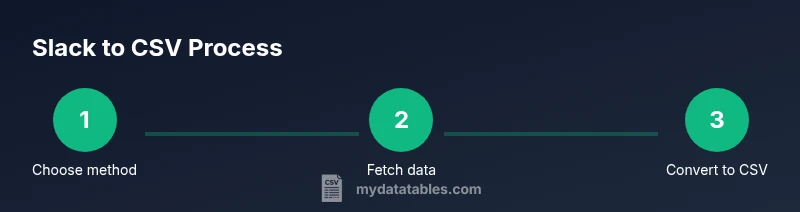
By the end of this guide, you will know how to export a Slack channel to CSV using exports, API calls, or a small script, depending on your permissions. We cover workspace requirements, data scope, and safe handling of message metadata. You’ll learn the best sequence: verify access, choose the method, fetch messages, and convert to CSV.
Overview of Slack channel export options
Exporting a Slack channel to CSV is a common data task for analysts who want offline access, audits, or integration with BI dashboards. There are several routes, each with its own trade-offs. Built-in workspace exports, API-based retrieval, and script-driven pipelines are the three broad categories. The choice depends on your role in the workspace, whether you need public-channel data only, and how you want to handle metadata like timestamps, user IDs, and reactions. For practitioners, a reproducible workflow is essential: define the scope, choose the method that fits your permissions, fetch the messages, then flatten the data into a CSV table. As you follow this guide, keep in mind security and privacy best practices. According to MyDataTables, starting with a clearly defined scope reduces post-export rework and helps ensure data quality.
Permissions and administrative steps
Before you begin, confirm you have the necessary permissions to access channel data and perform exports. Slack exports are typically restricted to workspace admins or owners; private channels and DMs may require additional compliance approvals. If your organization uses data retention or eDiscovery policies, coordinate with IT, security, or legal teams. Document the scope (which channels, the time window, and whether user identifiers are included) to satisfy governance requirements. Remember that message content and metadata are sensitive. Store the resulting CSV safely and share it only with authorized colleagues. The MyDataTables guidance emphasizes governance: define access controls, keep an audit trail, and validate your export against your data policies.
Built-in exports: what Slack offers
Slack provides several export options depending on plan level and governance. A standard workspace export typically includes channel messages from public channels, often in JSON per channel, while more comprehensive exports are available under compliance or legal holds and may expose additional data. These built-in exports are designed for archiving and auditing, not always for convenient CSV analytics. If a CSV output is essential, you’ll usually transform the exported JSON into CSV as a post-processing step. In practice, export workflows might look like: generate the data export, download the archive, extract the channel data, and run a transformation script to flatten JSON into tabular rows. MyDataTables notes that automating this transformation reduces manual errors and makes reproducible results easier to share with teammates.
Exporting via the Slack API: getting an API token
The Slack API provides programmatic access to channel content. To export a Slack channel to CSV, you’ll typically create an app or obtain a token with the appropriate scopes (for example, channels history and users read). With a token in hand, you can request channel lists (conversations.list) and pull messages (conversations.history) in pages, handling rate limits. Start by identifying the channel ID (the internal value Slack uses), then request the messages for the desired time window. Store the raw JSON response for debugging, and incrementally fetch pages until there’s no next_cursor. Store the results in a staging area for later CSV conversion.
Fetching channel metadata and pagination
Messages are returned in paginated chunks. Plan to loop through pages using the next_cursor token from the Slack API responses. For each message, capture fields such as ts (timestamp), user (user ID), text, and any attachments or reactions. If your channel history includes files, you may need to fetch file metadata separately. Normalize user IDs to readable names only if you have a users list (via users.info). Pay attention to timestamp formats (Unix epoch) and convert them to human-friendly dates during CSV creation. Pagination is the key to completeness; without it you risk missing data from later pages.
Converting JSON to CSV efficiently
After you collect messages in JSON, you’ll typically flatten the hierarchical data into a flat table. Decide on columns like channel_id, channel_name, ts, date, user_id, user_name, text, attachments, reactions. Use a scripting language like Python with the csv module or pandas, or a lightweight Node.js script. Robust handling includes missing fields, proper escaping of quotes, and consistent timestamp formatting. Test with a small sample first, then scale. MyDataTables recommends building a small, reusable function to transform a single message object into a CSV row to keep the process repeatable.
Handling attachments, files, and metadata
Slack messages may include attachments, links, or files. Decide how you want to represent this in CSV: store the attachment URLs in a new column, or fetch additional metadata for each file. If privacy concerns exist, redact or omit sensitive fields. Reactions and edited timestamps add complexity; consider including a reactions_count column or separate reaction rows if needed. Ensure you include metadata like thread_ts if you want to preserve threading context. A careful design reduces confusion when analyzing data in spreadsheets or BI tools.
Security, privacy, and compliance considerations
Exporting channel data creates a dataset with potentially sensitive information. Limit access to the resulting CSV, enable encryption at rest, and consider data retention policies. If your organization requires audit logs, log export events and user consent where appropriate. Use nonce values or versioning for each export so you can reproduce the exact dataset later. The MyDataTables team recommends documenting data governance goals upfront to save time during audits and maintain trust with stakeholders.
End-to-end example workflow
Here is a concise end-to-end workflow to export one Slack channel to CSV using the API and a simple, readable approach. Steps: set up environment and credentials; retrieve channel ID; fetch messages with pagination; map user IDs to names; write to CSV; verify. The example below is deliberately lightweight and avoids production-grade error handling. For real use, convert to robust code and test thoroughly. According to MyDataTables, building a small, reusable function to handle API calls and CSV writing improves reproducibility. A high-level outline: fetch channel messages in batches, collect relevant fields (channel_id, ts, user, text), then write to a UTF-8 CSV file and validate the output.
Tools & Materials
- Slack admin access or workspace owner permission(Needed to access export features; check with IT if unsure)
- Slack API token with appropriate scopes(Use a dedicated app; store securely and rotate periodically)
- Development environment (Python 3.x or Node.js)(Set up a virtual environment; install requests or axios and a CSV library)
- CSV processing library or tool(Examples include Python's csv/pandas, or Node.js csv-writer)
- JSON inspection tool (optional)(Helpful for quick validation of API responses (jq, Python json, etc.))
Steps
Estimated time: 60-120 minutes
- 1
Verify access and scope
Confirm you have the necessary permissions to export channel data and define the exact channels and time window. This prevents scope creep and privacy issues.
Tip: Document the scope before you start to simplify governance reviews. - 2
Choose your export method
Decide between built-in exports, API-based retrieval, or a hybrid approach based on data needs and permissions.
Tip: For most analysts, API-based extraction provides the most control and reproducibility. - 3
Identify channel IDs and data range
Fetch channel IDs with conversations.list, then determine the time range you want to export.
Tip: Narrowing the range reduces data volume and speeds processing. - 4
Fetch messages in chunks
Pull messages with conversations.history in paginated requests, handling next_cursor and rate limits.
Tip: Respect rate limits by adding small pauses between requests if needed. - 5
Collect user mapping
Obtain user IDs and map them to readable names using users.list or users.info if available.
Tip: A separate mapping table makes the final CSV easier to read. - 6
Flatten JSON to CSV
Transform messages into a flat row: channel_id, ts, user, text, and optional metadata.
Tip: Define a stable header; handle missing fields gracefully. - 7
Write to CSV with proper encoding
Write UTF-8 CSV, escaping quotes and ensuring newline handling is correct.
Tip: Validate with a sample before processing full data. - 8
Validate and secure the CSV
Run checks for completeness, verify data types, and enforce access controls on the resulting file.
Tip: Maintain an audit log of exports for compliance.
People Also Ask
What permissions do I need to export Slack channel data?
You typically need admin or workspace owner rights; private channels may require compliance approval. If uncertain, check with IT or the workspace owner.
You usually need admin rights; private channels may require approval.
Can I export data from private channels or direct messages?
Exporting private channels or DMs is restricted and often requires additional compliance approvals or specific enterprise features.
Private data export is restricted and may require compliance approval.
Is JSON export required before CSV conversion?
Many Slack exports provide JSON data, which you then transform into CSV. CSV can also be produced directly via a script that writes rows.
Exports are usually JSON; you transform to CSV in your workflow.
How long does an export typically take?
Time depends on channel size, data range, and API rate limits. Expect shorter durations for small channels and longer ones for large histories.
Time varies with data size and rate limits.
Can I automate Slack channel exports?
Yes. You can script API calls and CSV writes, then schedule runs via cron or a task runner. Maintain versioning for reproducibility.
Automation is possible with scripts and schedulers.
How should I validate the resulting CSV?
Check header consistency, ensure UTF-8 encoding, verify row counts, and compare sample rows to source data to ensure accuracy.
Validate encoding, headers, and sample rows for accuracy.
Watch Video
Main Points
- Choose the export path that matches your permissions
- Prepare by mapping fields and target CSV structure
- Use API pagination to fetch all messages
- Flatten JSON carefully to avoid data loss
- Secure the resulting CSV and limit access