How to Import CSV into R: A Practical Guide
Learn how to import CSV data into R using base R, tidyverse, and data.table. This step-by-step guide covers encodings, delimiters, missing values, and reproducible workflows for reliable data analysis.


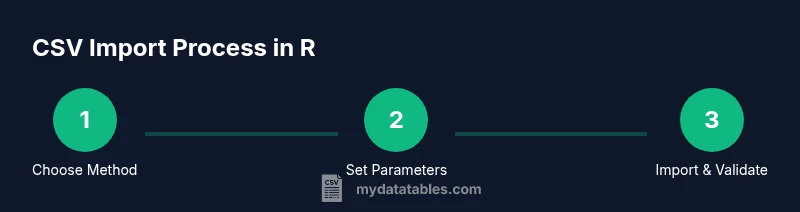
This guide shows you how to import CSV data into R using base R, tidyverse, and data.table. You’ll learn key functions, how to handle headers and encodings, and how to validate the imported data for clean analysis. Whether you’re a data analyst, developer, or business user, you’ll leave with a reliable, repeatable workflow.
Why Import CSV into R Matters
CSV is the de facto interchange format for data in analytics workflows. R users rely on clean imports to build accurate models, reproduce analyses, and share results with teammates. This article, informed by MyDataTables' experience in CSV guidance for 2026, explains practical import strategies that work in real-world projects. You’ll learn how to pick an import method, handle common pitfalls, and validate your data before you begin analysis. The goal is to make your CSV-driven workflow robust, repeatable, and editable by others on your team.
Preparing Your R Environment
Before importing CSV files, ensure your environment is ready. Install a recent version of R and, optionally, RStudio for a streamlined workflow. Decide whether you’ll use base R, tidyverse, or data.table for import, and consider version compatibility with your script. For reproducibility, keep a dedicated project directory, set a consistent working directory, and use relative paths when possible. This setup reduces path errors and makes your import steps portable across machines, which is especially important for teams and data pipelines.
File Formats, Encodings, and Delimiters You Should Know
CSV files come in many flavors. The delimiter may be a comma, semicolon, or tab, and encodings can vary (UTF-8, Latin-1, etc.). If a file uses a non-UTF-8 encoding, you must specify the encoding when importing to avoid garbled data. Likewise, some CSVs include a Byte Order Mark (BOM) that can affect header detection. Understanding these variations helps you pick the right function and arguments. In MyDataTables' experience, being explicit about encoding and delimiter settings minimizes import surprises and downstream data issues.
Import Methods: Base R, Tidyverse, and Data.Table
R ships with base functions like read.csv and read.table, which are simple and dependable for small datasets. For larger files or more robust parsing, consider tidyverse read_csv (from readr) or data.table's fread. read_csv offers faster parsing and sensible defaults, while fread is renowned for speed and convenience with large data. Each method has trade-offs: readability, performance, and memory usage. Your choice should reflect file size, encoding, and how you plan to manipulate the data downstream.
Reading CSVs with Special Delimiters and Encodings
When dealing with nonstandard delimiters or special encodings, you’ll need to tailor your import call. For example, read.csv may require sep = "," and fileEncoding parameters, while read_csv can auto-detect many cases but may need locale adjustments. If a file includes quotes or embedded newlines, handling may differ between methods. Always inspect the first few rows and column types after import to ensure the data structure matches your expectations.
Handling Headers, Missing Values, and Data Types
Headers determine column names and influence how data types are inferred. If the file lacks a header, set header = FALSE in base R or skip = 0 with readr. Missing values should be checked and properly typed afterward. After importing, run str() or glimpse() to inspect column types, convert factors where needed, and coerce dates to Date or POSIXct as appropriate. This step is crucial to prevent subtle modeling errors later in your analysis.
Reading Large CSV Files and Memory Management
Large CSVs can strain memory and slow down sessions. Solutions include using data.table::fread for speed, reading in chunks, or streaming with connections. If you must load a very large file, consider reading only necessary columns, specifying colClasses to set types early, and using options like nrows to limit the initial import. These practices help keep your workspace responsive and guards against memory fragmentation.
Step-by-Step Example: Importing a Sample CSV
Suppose you have a file data/sales.csv in UTF-8 with a header row. A simple base R import would be read.csv("data/sales.csv", stringsAsFactors = FALSE, encoding = "UTF-8"). With tidyverse, you might use readr::read_csv("data/sales.csv") for speed and consistent type guessing. If the file is large, data.table::fread("data/sales.csv") is an excellent alternative. After importing, check the structure with str(sales) and summarize using summary(sales) to confirm expected data types and ranges.
Authority sources
This guide aligns with best practices documented by major publications and project resources. For further reading, consult the official R documentation and respected tutorials that discuss CSV import details, encoding considerations, and reproducible workflows. These references underpin robust CSV handling in R for 2026 and beyond.
Common Pitfalls and How to Debug
Common issues include mismatched headers, incorrect delimiters, and unexpected factor conversion. If parsing errors occur, re-check the delimiter, encoding, and quote handling. Use head() and tail() to inspect rows around problematic areas, and validate with sum(is.na()) to assess missing values. When scripts fail on different machines, ensure the same R version, package versions, and file paths are in use.
Best Practices for Reproducible CSV Imports
Adopt a repeatable import workflow: pin package versions with a lockfile, include a dedicated script to define the file path, and document the import parameters. Prefer readr or data.table for performance on larger datasets, but provide fallbacks to base R for compatibility. This approach supports reproducible analyses and smoother collaboration across teams.
Tools & Materials
- R (latest stable release)(Ensure version 4.x for modern features; check compatibility with your packages.)
- RStudio (optional but recommended)(Provides a friendly UI and project management.)
- CSV file(s) to import(Have sample files ready for practice and testing.)
- Internet connection(Needed to install packages or fetch data from URLs.)
- Packages: readr, data.table, and/or base R(Depending on your chosen import method; install with install.packages().)
- A consistent project directory(Keeps file paths portable across machines.)
Steps
Estimated time: 60-90 minutes
- 1
Install necessary packages
Open R and install the packages you’ll use for import (readr for read_csv, data.table for fread, or rely on base R). Use install.packages(c('readr','data.table')) if needed. This ensures you have access to robust, modern functions for CSV parsing.
Tip: Install in a project-specific library to avoid version conflicts. - 2
Set up your working directory
Set a clear working directory for your project with setwd("/path/to/your/project"). Consider using setwd(dirname(rstudioapi::getActiveDocumentContext()$path)) if inside RStudio to keep paths relative.
Tip: Use here::here() to build portable paths across machines. - 3
Choose an import method
Decide between base read.csv, readr::read_csv, or data.table::fread based on file size, encoding, and performance needs. This choice shapes your subsequent code style and data handling approach.
Tip: For beginners, start with read_csv for readability and speed. - 4
Import with explicit parameters
If your file has a header, set header = TRUE (or header = TRUE by default). Specify encoding and delimiter as needed, for example read.csv(file, header = TRUE, fileEncoding = 'UTF-8', sep = ',').
Tip: Always confirm header presence to avoid misaligned columns. - 5
Inspect the imported data
Use str(data) and head(data) to verify column types and sample values. Check for unexpected factors or character encodings that may require conversion.
Tip: Run summary() to spot anomalies in numeric ranges and missing values. - 6
Handle missing values and types
Convert columns to appropriate types (e.g., as.Date, as.numeric) and address missing values using appropriate strategies. Consider stringsAsFactors = FALSE for older R versions.
Tip: Consistency in types prevents downstream modeling errors. - 7
Read large files efficiently
If the file is large, use data.table::fread or readr's read_csv with col_types to predefine column types. Avoid loading unnecessary columns to save memory.
Tip: Predefine column types when possible to speed up parsing. - 8
Read from a URL or remote source
CSV files can be read directly from URLs using read_csv(URL) or fread(URL). Ensure the URL is accessible and handle potential authentication if required.
Tip: Validate URL permissions and confirm data freshness before use. - 9
Save and reuse the import workflow
Store your import steps in a script and consider saving the resulting data as an RDS file for fast reloading in future sessions.
Tip: Document each step to facilitate collaboration and reproducibility.
People Also Ask
What is the difference between read.csv and read_csv in R?
read.csv is a base R function that is simple and reliable for small to medium files; read_csv from the readr package tends to be faster and provides more predictable data typing for larger datasets. Both require careful handling of encodings and headers.
read.csv is simple, read_csv is faster and works well for larger files.
How do I handle non-UTF-8 encodings?
Specify the encoding in the import function (e.g., fileEncoding = 'UTF-8' or locale settings). Mismatched encodings can corrupt characters and affect downstream analysis.
Set the encoding explicitly to avoid garbled text.
Can I import a CSV from a URL?
Yes. Many import functions accept a URL as the file path. Ensure the URL is accessible and consider authentication if required.
Yes, you can import directly from a URL if it’s accessible.
What should I do if the file has no header?
Set header = FALSE in base R or skip = 0 with readr and then assign column names manually. This ensures correct column alignment.
Turn off header reading and label columns yourself.
How can I handle very large CSV files efficiently?
Use fread from data.table or read_csv with selective column types and chunked reading. This reduces memory usage and speeds up parsing.
Use fast importers and limit what you load.
How do I verify that the import was successful?
Check the first few rows with head(), inspect structure with str(), and confirm summary statistics align with expectations. Validate missing values and data types before analysis.
Inspect the data to confirm a clean import.
Watch Video
Main Points
- Choose the import method based on file size and encoding needs.
- Verify headers, encodings, and delimiters before proceeding with analysis.
- Inspect and clean data with str(), head(), and summary() after import.
- For reproducibility, lock package versions and document import parameters.