sas7bdat to csv: Step-by-Step Conversion Guide
Learn how to convert sas7bdat files to CSV using SAS, Python (pandas), or SASPy. This step-by-step guide covers encoding, data types, validation, and automation for reliable data portability across tools and platforms.


You can convert sas7bdat to csv by exporting from SAS or by using Python with pandas, or via SASPy. This guide walks you through three practical methods, with emphasis on preserving headers, data types, and encoding. You’ll learn, compare approaches, and pick the best fit for your workflow.
What sas7bdat to csv means
In data analysis, sas7bdat to csv refers to converting a SAS data file into a plain text comma-separated format. This transformation enables easier sharing, broader tool support, and smoother integration with databases, spreadsheets, and scripting languages. According to MyDataTables, converting sas7bdat to csv should preserve headers, column order, and basic data types while avoiding accidental truncation or misinterpretation of missing values. Understanding the format and the implications for dates and encodings helps you plan a robust workflow for cross‑platform data work.
Why converting sas7bdat to csv is useful
CSV is a lightweight, universal format that many BI tools, databases, and analytics libraries understand. When you translate sas7bdat to csv, you unlock easier data exchange, faster prototyping, and seamless ingestion into Python, R, or SQL workflows. The MyDataTables team highlights that csv excels in portability and version control, making it ideal for reproducible analyses and collaboration across teams with diverse toolchains. This section outlines scenarios where a csv export improves collaboration and consumption of SAS results.
Common approaches and tools
There are several reliable paths to sas7bdat to csv conversion. The most common are exporting directly from SAS using PROC EXPORT, using a Python environment with pandas (read_sas and to_csv), or leveraging the SASPy bridge to run SAS code from Python. Each method has trade‑offs around speed, encoding handling, and dating formats. MyDataTables emphasizes selecting a method that aligns with your existing toolchain and data governance requirements. This overview helps you choose a baseline approach before diving into steps.
Prepare your environment for sas7bdat to csv conversion
Successful sas7bdat to csv conversion starts with the right environment. Ensure you have access to SAS (or SAS University Edition / SAS OnDemand) or a Python setup with pandas. Verify that the sas7bdat file is accessible from your workspace and note its path. Configure your preferred encoding (UTF-8 is recommended) and confirm that you can create and write to a destination CSV file. This preparation reduces surprises during the actual export and supports consistent results across methods.
Step-by-step workflow overview: three practical methods
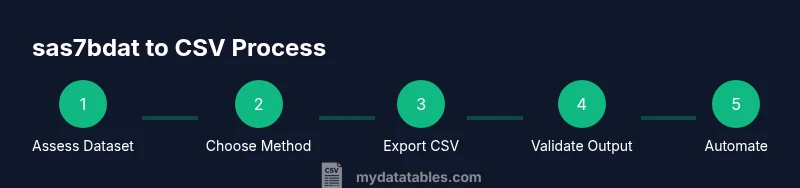
This section sketches three parallel workflows for sas7bdat to csv. Method A uses SAS PROC EXPORT for a direct, SAS‑native export. Method B uses Python with pandas to read the SAS file and write a CSV, which is ideal if you want to integrate the process into a Python data pipeline. Method C employs SASPy to run SAS code from Python, combining flexibility with SAS fidelity. The choice depends on your environment, data size, and team practices. The MyDataTables approach prefers reproducible, auditable steps and clear encoding handling.
Data quality considerations: encoding, dates, and locales
Converting sas7bdat to csv requires careful handling of encodings, date formats, and locale settings. Mismatches can lead to corrupted text, misinterpreted dates, or swapped decimal marks. Always verify that the CSV reflects the correct encoding (UTF-8 by default), that date fields are exported in a usable ISO format, and that numbers retain precision. This section provides practical checks and configuration tips to minimize data drift during conversion, with attention to column data types and nulls.
Handling large sas7bdat files and performance tips
Large sas7bdat files pose memory and processing challenges. If you attempt to load the entire dataset into memory, you may exhaust resources. Prefer streaming or chunked processing where supported, or increase memory allocation for the environment. Batch processing in SAS or chunked reads in Python can dramatically improve performance. The recommended approach is to prototype with a smaller subset to refine the encoding and formatting before running a full export.
Validation checks after conversion
Post‑conversion validation ensures the CSV faithfully represents the sas7bdat data. Compare row counts, column headers, and a sample of data values between the source and destination. Check for unintended nulls, type coercions, or date format changes. Automated checks, such as a small Python script or a SAS PROCEDURE for row/column tallies, help maintain confidence in the export process. This step is critical for reproducible data pipelines and audits.
Automating recurring conversions with scripts
Automation is the key to consistent sas7bdat to csv conversions. Integrate the chosen method into a script or batch job, parameterize input/output paths, and schedule regular runs. Use version control to track changes to the script, and document the configuration to support teammate reuse. Automation reduces manual errors and keeps data delivery predictable for downstream analysis.
Troubleshooting common issues
If the export fails, check file permissions, path correctness, and encoding settings. Dependency mismatches, especially with pandas read_sas, can cause read errors or version conflicts. Confirm that the SAS file is not corrupted and that the destination directory exists. When dates or times appear misformatted, revisit the encoding and date handling sections to adjust formatting options. This proactive troubleshooting keeps sas7bdat to csv conversions reliable.
],
toolsMaterials({
Tools & Materials
- SAS software (or SAS University Edition / SAS OnDemand)(Essential for direct SAS exports via PROC EXPORT or data steps.)
- Python 3.x with pandas(Needed for read_sas and to_csv workflows.)
- SASPy (optional)(If you want SAS code execution from Python, install and configure SASPy.)
- Command line / Terminal access(Required for file path navigation and script execution.)
- Text editor or IDE(Use for editing scripts and logging steps.)
- SAS data file sas7bdat and a destination CSV path(Provide input and output locations for the export.)
- Text encoding awareness (UTF-8)(Set encoding to prevent character corruption.)
Steps
Estimated time: 40-120 minutes depending on method and dataset size
- 1
Assess the dataset and choose a method
Review the sas7bdat file structure, data types, and size. Decide whether SAS PROC EXPORT, Python with pandas, or SASPy best fits your environment and automation goals.
Tip: Start with a small subset to validate the pipeline before a full export. - 2
Prepare the environment
Install or confirm access to SAS or Python/pandas, plus any connectors for SASPy. Ensure you have write access to the output CSV directory.
Tip: Create a dedicated output folder to avoid permission issues. - 3
Locate the sas7bdat file
Identify the full path to the SAS file and verify its integrity. Use a test read on a sample to confirm accessibility.
Tip: Avoid moving the file during export to prevent path errors. - 4
Export with SAS PROC EXPORT
If using SAS directly, write a PROC EXPORT step to create the CSV while preserving headers and variable formats.
Tip: Specify options to control separators and encoding explicitly. - 5
Export with Python pandas
In Python, use pd.read_sas('path/file.sas7bdat') and then df.to_csv('out.csv', index=False, encoding='utf-8')
Tip: Check that date columns are parsed correctly and that missing values are preserved. - 6
Optionally use SASPy
When combining SAS and Python, configure SASPy to execute SAS code from Python to generate the CSV.
Tip: Ensure the SAS configuration matches your environment and licenses. - 7
Validate the conversion
Compare row counts and a sample of values between sas7bdat and the resulting CSV. Confirm encoding, headers, and data types.
Tip: Automate a quick spot-check script to speed up validation. - 8
Handle edge cases
Address large columns, floating point precision, and date/time formats that may require formatting tweaks in the export.
Tip: Consider exporting dates as ISO strings for interoperability. - 9
Automate and document
Wrap the steps into a reusable script or notebook, log outcomes, and version the code for reproducibility.
Tip: Include a clear README with input/output examples. - 10
Schedule recurring runs
If this export is routine, set up a scheduler and notify stakeholders on completion.
Tip: Use robust error handling and alerting to catch failures early.
People Also Ask
What is sas7bdat and why convert to csv?
sas7bdat is a SAS data file format used by SAS software. Converting to csv makes the data portable across tools and platforms, enabling easier sharing and analysis.
sas7bdat is SAS data, and converting to csv helps you share and analyze the data in many tools.
Which method is best for large datasets?
For large datasets, consider streaming or chunked export, or using a pipeline that doesn’t load the entire file into memory. SASPROC EXPORT or pandas with chunked reads can help.
For big files, avoid loading everything at once; use chunked export or SAS processes built for large data.
Can I automate conversions?
Yes. Script the chosen method and schedule it with a task scheduler or a workflow orchestrator. Include logging and error alerts for reliability.
Absolutely. Automate the script and set up alerts so you’re notified if anything goes wrong.
How do I preserve dates during export?
Export dates in a standard format such as ISO 8601 and test that date values map correctly in the CSV. Adjust formatting if needed.
Use ISO date formats and test a few rows to ensure dates stay correct.
What if read_sas fails due to encoding?
Try specifying a different encoding, such as utf-8 or latin1, and verify the source SAS file’s encoding. Re-export if necessary.
If encoding fails, adjust the encoding setting and retry the read.
Is there a risk of data loss in conversion?
There is minimal risk if you retain data types, headers, and encoding. Validation checks help catch any anomalies.
As long as you validate the data after export, losses are unlikely.
Watch Video
Main Points
- Plan encoding and date handling before export
- Choose a method that fits your toolchain
- Validate results with automated checks
- Automate for repeatable, auditable conversions