SQLite to CSV: A Practical Guide for Data Export Analysis
Learn how to convert SQLite databases to CSV with clear steps, shell and Python options, and best practices for clean, portable data exports. A MyDataTables guide for data analysts, developers, and business users.


You're going to learn how to convert sqlite to csv efficiently. This guide covers using the sqlite3 command-line tool, configuring headers and delimiters, exporting entire tables or query results, and optional Python scripts for automation. By the end you'll produce clean CSV files ready for analysis or sharing. The steps work across Windows, macOS, and Linux.
Why exporting sqlite to csv matters
In data workflows, exporting from SQLite to CSV is a foundational skill. CSV files act as a lingua franca between different tools—from spreadsheets to analytics platforms—making data portable and easy to audit. When you convert sqlite to csv, you preserve table structure, columns, and records in a human-friendly format that can be inspected, transformed, and loaded elsewhere. This is especially valuable for teams integrating SQLite-backed apps with BI dashboards, data warehouses, or reporting pipelines. Consistency in encoding, quotes, and headers reduces downstream errors and speeds up collaboration across data analysts, developers, and business users.
Prerequisites and environment setup
Before exporting, ensure you have a few essentials in place. A working SQLite database file (.db or .sqlite) that you own or have permission to access is required. The sqlite3 command-line tool should be installed and reachable from your terminal or command prompt. Decide on a target CSV file path and confirm the character encoding (UTF-8 is generally recommended). If you prefer automation, have Python 3.x installed and be ready to run a short script that uses the sqlite3 and csv modules. This setup applies across Windows, macOS, and Linux with minor path adjustments.
Methods to convert sqlite to csv: shell vs. code
There are multiple valid paths to export data. The most common is using the sqlite3 shell with options to format output as CSV. Another option is to write a small Python script that queries SQLite and writes rows to a CSV via the csv module. Each method has trade-offs: the shell approach is quick for ad-hoc exports, while Python offers repeatability, parameterization, and error handling for larger pipelines. Consider your comfort with command-line tools and automation goals when choosing a method.
Data quality considerations during export
CSV is simple, but its simplicity can hide pitfalls. Ensure headers are included to preserve column meaning, choose the correct delimiter, and properly quote fields that contain commas or newlines. Handle NULLs consistently—decide whether to represent them as empty fields or a placeholder. Be mindful of data types; some numeric values might be interpreted as text if not properly exported. Finally, verify that the resulting CSV respects the intended encoding, as mismatches can corrupt data when imported elsewhere.
Practical export scenarios: full table, subset, and multiple tables
Exporting a full table is straightforward, but real-world needs often require subsets or multiple tables. You may export a single table, a subset of columns, or filtered rows using a WHERE clause. For multiple tables, you can run separate export commands or script a loop to iterate over a list of tables. In all cases, validate the output by inspecting a sample of rows and ensuring the header row aligns with the column order in the database schema.
Common pitfalls and how to avoid them
Pitfalls include forgetting to enable headers, exporting binary or blob columns unintentionally, and mismatched encodings. Always test on a small sample before exporting large datasets. If you run into permission or path issues, re-check file permissions and ensure the output directory exists. Finally, maintain a versioned export script to prevent drift between environments and ensure reproducibility.
Tools & Materials
- SQLite database file (.db or .sqlite)(Source database to export from; ensure you have read access.)
- sqlite3 CLI(Installed and accessible from the shell (PATH configured).)
- Output CSV file path(Absolute or relative path with .csv extension.)
- Text editor or IDE (optional)(Helpful for editing scripts or notes.)
- Python 3.x (optional)(If you plan to automate with Python using sqlite3 and csv modules.)
- Sample data or table name you want to export(Know the target table (e.g., users) or SQL query to run.)
- UTF-8 encoding awareness(Set encoding if your data uses special characters.)
Steps
Estimated time: 40-60 minutes
- 1
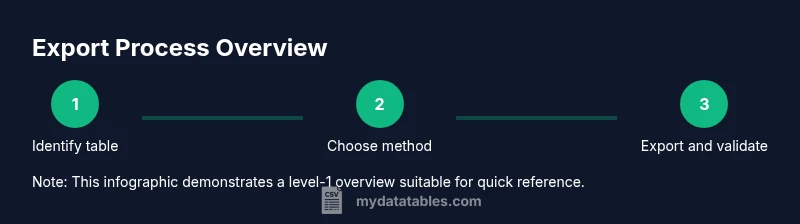
Identify the target table or SQL query
Inspect the database to determine which table or query you will export. Use sqlite3 commands like ``` sqlite3 your.db .tables PRAGMA table_info(your_table); ``` to confirm column names and data types. This ensures the CSV columns align with the source data.
Tip: Document the exact table name and column order to avoid surprises in the CSV. - 2
Choose export method: shell or Python
Decide whether to export via the sqlite3 CLI for quick, one-off exports, or to use Python for repeatable, parameterized workflows. The shell method is fastest for ad-hoc needs, while Python supports automation and error handling.
Tip: If repeating exports, prefer Python to reduce manual steps and enable validation. - 3
Export with sqlite3 shell to CSV (full table)
Run a single command that outputs CSV with headers. Example: ``` sqlite3 -header -csv your.db "SELECT * FROM your_table;" > output.csv ``` This produces a well-formatted CSV with a header row reflecting column names.
Tip: Use absolute paths for your input DB and output file to avoid working directory issues. - 4
Export with a subset of columns or a filter
Specify the desired columns and an optional WHERE clause. Example: ``` sqlite3 -header -csv your.db "SELECT id, name, email FROM your_table WHERE active = 1;" > active_users.csv ``` This keeps only the necessary data in the CSV.
Tip: Always verify the resulting CSV to ensure the subset matches expectations. - 5
Export multiple tables or sequences
For multiple tables, repeat the export command for each table or script a small loop. Example loop in a shell: ``` for t in users orders payments; do sqlite3 -header -csv your.db "SELECT * FROM $t;" > ${t}.csv done ``` This approach scales to several tables.
Tip: Place outputs in a dedicated folder to keep exports organized. - 6
Export with Python for automation
A Python snippet can query SQLite and write CSV with robust error handling. Example steps: connect, execute SELECT, fetch rows, write with csv.writer, commit, and close. This method lets you parameterize file paths and table names and add validation.
Tip: Wrap the export in a function and add try/except blocks to gracefully handle failures. - 7
Validate and post-process the CSV
Open the CSV in a viewer or validator tool to check for missing headers, misquoted fields, or unusual line breaks. If needed, adjust quoting or delimiter settings and re-export. Consider a secondary check by re-importing into SQLite to confirm round-trip accuracy.
Tip: Automate a lightweight re-import test as part of your pipeline.
People Also Ask
What is the simplest way to export a whole table from SQLite to CSV?
Use sqlite3 with the -header and -csv options to export a full table in one command, e.g., sqlite3 -header -csv your.db "SELECT * FROM your_table;" > table.csv. This produces a readable CSV with a header row.
The easiest export is to run sqlite3 with header and CSV mode to create a ready-to-use CSV file.
How do I export only certain columns or rows?
Specify the exact columns and, if needed, a WHERE clause in the SELECT statement, for example: sqlite3 -header -csv your.db "SELECT id, name FROM users WHERE active = 1;" > active_users.csv.
To export a subset, pick the columns and add a WHERE clause in the SELECT statement.
Can I automate exports with Python?
Yes. Use Python's sqlite3 module to query data and the csv module to write rows to a CSV file. This approach is ideal for scheduled exports and adding validation checks.
Python lets you automate exports plus validate results in one script.
What encoding should I use for CSV files?
UTF-8 is the recommended encoding for CSV exports to ensure compatibility across systems and languages. If your data uses a different charset, convert after export.
Use UTF-8 for broad compatibility, and convert if needed for non-UTF-8 data.
How should I handle NULL values in CSV?
CSV represents NULLs as empty fields unless you explicitly replace them in your query or post-process the file. You can use COALESCE in SQL to substitute default values if desired.
NULLs usually appear as empty cells in CSV; you can replace them if needed.
Is a database schema required to be exported to CSV?
A schema per se is not required to export data to CSV, but knowing column order helps ensure consistent downstream imports. You can fetch the schema with PRAGMA table_info(table_name).
The schema isn’t required for export, but knowing column order helps with imports.
Watch Video
Main Points
- Plan the export by identifying target tables and desired columns
- Choose between shell-based or Python-based exports based on repeatability
- Include headers and validate encoding to ensure portability
- Test the export by re-importing to confirm data integrity