CSV from Excel: A Practical Guide to Exporting Clean CSV
Learn how to reliably export CSV from Excel, preserve headers, encoding, and delimiters, export across sheets, and troubleshoot common CSV issues.


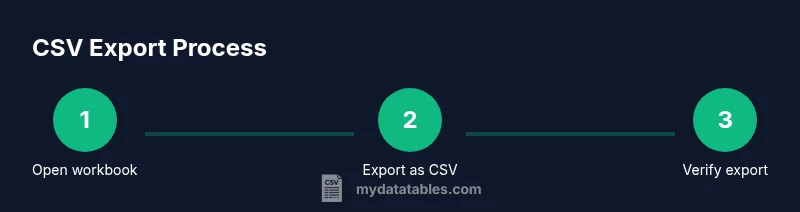
Goal: export a clean CSV from Excel that preserves headers, encoding, and data values. You will learn how to choose the right CSV format, handle multiple sheets, and verify the result. Before you start, ensure you have Excel or a compatible spreadsheet app, and decide between UTF-8 and locale-specific encodings. We'll cover common pitfalls, such as losing formulas, quotes, and embedded delimiters, and provide a quick checklist.
Why exporting CSV from Excel matters
In data workflows, exporting CSV from Excel is a foundational step for moving data into databases, BI tools, or data pipelines. A well-made CSV preserves headers, keeps column order intact, and avoids surprises during import. According to MyDataTables, investing a little time to configure the export correctly saves hours of debugging down the line. The reliability of your CSV affects downstream tasks such as validation, data transformation pipelines, and automated ingestion. This section explains why practitioners prioritize a clean export and what consequences arise when encoding, delimiters, or headers are mishandled. With this context, you’ll approach CSV from Excel with purpose rather than guesswork.
Key ideas to keep in mind include: the difference between a data file and a presentation layer, how Excel handles quotes and embedded delimiters, and how regional settings influence the default delimiter. When you start from a solid baseline, you reduce rework and improve the fidelity of your data across tools like pandas, SQL clients, and reporting dashboards.
Understanding CSV basics and common pitfalls
CSV, short for comma-separated values, is one of the oldest and most widely supported data interchange formats. Its appeal is simplicity: plain text, easy to read, and compatible with almost every data tool. But that simplicity also introduces pitfalls that can derail imports. Common issues include misaligned rows, inconsistent column counts, and unexpected quoting. If a delimiter appears inside a field, parsers rely on proper quoting rules; neglecting these rules leads to broken records. In practice, a robust CSV export from Excel should include a single header row, consistent column counts for every row, and predictable encoding. Merging cells or hidden rows in Excel can silently skew the result, so eliminating those anomalies before export is a best practice. A proactive approach helps your CSV survive across environments—whether you’re loading into a data warehouse or sharing data with teammates.
Choosing the right CSV format (UTF-8, delimiter, and quotes)
CSV formats vary by delimiter and encoding. UTF-8 is the safest default for international data because it supports a broad set of characters without corruption. Locales may prefer semicolons in place of commas due to decimal separators in some regions. When exporting from Excel, you can choose UTF-8 with a comma or semicolon delimiter depending on your destination’s expectations. The quoting rules matter too: fields containing delimiters or line breaks are typically wrapped in quotes, and embedded quotes are doubled. If your intake system requires a specific convention, you may need to adjust the export settings accordingly. Understanding these choices helps you avoid subtle parsing errors when the file is read by downstream tools like Python, SQL, or ETL platforms.
Handling multi-sheet workbooks and exporting per sheet
Excel workbooks often contain multiple sheets, each representing a distinct table. CSV, by contrast, stores a single sheet per file, so exporting a multi-sheet workbook requires handling sheets individually. Export each sheet as a separate CSV file, and name outputs clearly to prevent confusion (for example, sales-2026-q1.csv). If you automate, you can write a macro or use Power Query to export all sheets in a loop. Remember to confirm that formulas are converted to values during export, since CSV cannot preserve Excel formulas. This approach preserves data integrity and makes collaboration smoother across teams that rely on CSV inputs.
Managing quotes, delimiters, and embedded newline characters
Fields containing commas, quotes, or newlines require careful handling. Excel typically wraps such fields in double quotes and doubles interior quotes. If your downstream system uses a different rule, you may need to adjust the quoting behavior. Embedded newlines inside a quoted field can cause a single record to span multiple lines, which disrupts parsing. Testing with a small sample CSV helps catch these issues before you scale. Also consider the impact of trailing spaces and leading zeros, which can be significant identifiers in codes or IDs. Adhering to consistent quoting and delimiter usage minimizes surprises later.
How to verify the exported CSV: practical checks
After exporting, inspect the CSV in a plain text editor to confirm the delimiter, quotes, and encoding are correct. Check that the header row matches the data columns and that each subsequent line contains the same number of fields. If non-ASCII characters are present, verify they render correctly in UTF-8. A quick re-import test into a local tool (e.g., a small Python script or a test database) is a reliable sanity check to ensure the data line up exactly as in Excel. Document any anomalies and adjust your export settings accordingly to prevent repeat issues.
Common issues and how to fix them
The most frequent CSV problems include truncated rows, extra or missing columns, and encoding mismatches. If characters appear as or garbled glyphs, switch to UTF-8 and re-export. Mismatched column counts often stem from embedded delimiters not being properly quoted; review the source data for such cases and ensure Excel applies proper quoting rules. Locale-related delimiter choices can cause confusion when moving files between systems that assume different regional settings. Always verify that the target environment reads the same encoding and delimiter. When unsure, start with UTF-8 and comma-delimited output and adapt as you learn about your systems’ needs.
Automation ideas: exporting CSV with formulas and macros
Manual exports don’t scale, so consider automation for consistent results. A basic approach is to record a macro that performs the export steps and converts formulas to values before saving as CSV. For more advanced control, use Power Query in Excel or a small Python script to read the workbook and write CSV files per sheet. Include a validation step that re-imports the CSV to confirm data parity with the source. Document the automation so teammates can reproduce it reliably.
When to choose alternative tools for CSV from Excel data
When data volumes are large or transformations are complex, Excel may not be the most efficient tool for exporting CSV. Languages like Python (pandas), specialized ETL software, or dedicated CSV editors often offer better performance, error handling, and batch processing capabilities. Compare tooling options based on speed, memory usage, and how easily you can reproduce the export in pipelines. The MyDataTables team recommends evaluating automation-friendly options when CSV exports are part of a larger data workflow.
Practical tips for data quality in CSV workflows
Begin with a clean data source and decide encoding early. Maintain consistent file naming and store metadata alongside the CSVs. Periodically audit sample exports to catch drift as data evolves, and keep a changelog for export settings. These habits reduce surprises as data travels across Excel, Python, databases, and BI tools, ensuring your CSV remains a reliable transport format for your analyses.
Tools & Materials
- Excel or compatible spreadsheet app(Needed to perform the CSV export via Save As)
- Original workbook file (xlsx/xls)(Source data for export)
- Plain text editor (e.g., Notepad++, VS Code)(Used to verify delimiter/encoding in the exported CSV)
- Basic knowledge of delimiter/encoding decisions(Helps ensure correct export settings across locales)
- Reference documentation (RFC 4180, UTF-8 guidelines)(Helpful for advanced users verifying compliance)
Steps
Estimated time: 25-40 minutes
- 1
Open the workbook and inspect data
Open the Excel workbook and review each sheet to ensure headers exist, there are no merged cells in critical columns, and data types are consistent across rows. This prevents structural surprises after export.
Tip: Unmerge cells and convert formulas to values if you plan to export data, not formulas. - 2
Decide export scope (single sheet or per sheet)
Determine whether you need one CSV per sheet or a single CSV by consolidating data. Plan file naming to reflect sheet content and versioning.
Tip: If the workbook contains multiple panels, export each sheet to its own file to maintain clarity. - 3
Choose encoding and delimiter upfront
Choose UTF-8 as the default encoding for broad compatibility. Decide on a delimiter (comma is standard; semicolon may be necessary for locales with comma decimals).
Tip: Know your target system: some databases expect UTF-8, others may require a specific delimiter. - 4
Use Save As and select CSV format
In Excel, go to File > Save As, pick the destination folder, and select CSV (Comma delimited) or CSV UTF-8 if available. Confirm the save action.
Tip: If available, choose CSV UTF-8 to preserve international characters. - 5
Review the CSV options before saving
Check the dialog for the chosen delimiter and confirm that no Excel features (charts, formatting) are included in the CSV by default.
Tip: Be aware that formulas and formatting do not transfer to CSV; you are exporting values only. - 6
Save and confirm data integrity
When Excel finishes, re-open the CSV in a text editor to confirm the delimiter and quotes; ensure the first row contains headers.
Tip: If you see mismatched columns, re-check source data for embedded delimiters. - 7
Export additional sheets if needed
Repeat the export process for any additional sheets, giving each output file a descriptive name that reflects its content and sheet name.
Tip: Automate repetitive exports with a macro if this is a recurring task. - 8
Verify encoding and re-import in a test environment
Import the exported CSV into a local test environment (e.g., a small script or a DB client) to verify that data reads as expected and no characters are lost.
Tip: Use a small sample first to catch issues before exporting full datasets. - 9
Document the process and share with teammates
Create a short export guide describing steps, options chosen, and common pitfalls. Share this with your team to ensure consistent CSV exports.
Tip: Link to the exact Excel version and locale used for export.
People Also Ask
What is CSV and why is UTF-8 encoding important for exports?
CSV is a plain-text data interchange format. UTF-8 encoding ensures non-ASCII characters (like accents and symbols) are preserved across systems. This helps prevent data corruption when the file moves between tools and locales.
CSV is plain text and UTF-8 keeps non-English characters intact when moving files between tools.
Will formulas export to a CSV file?
No. CSV captures values, not formulas. If you need the formulas later, keep a separate Excel workbook with formulas or export a values-only sheet.
No, formulas don’t export to CSV; you’ll get the evaluated values instead.
How can I export multiple sheets to CSV files at once?
Excel doesn’t export all sheets to CSV in one go by default. Use a macro or Power Query to automate per-sheet exports, or export each sheet manually with clear file naming.
Use a macro or Power Query to export each sheet automatically.
What should I do if CSV contains extra delimiters or quotes?
Inspect the data for embedded delimiters and ensure proper quoting. If necessary, adjust the export to use UTF-8 with a consistent delimiter and test with a small sample.
Check for extra delimiters and ensure consistent quoting; test with a small sample.
Can I use a different delimiter like semicolons?
Yes. Some locales prefer semicolons due to decimal separators. Choose the delimiter in Save As and verify downstream compatibility before wide distribution.
You can use semicolons if needed, but verify downstream compatibility.
How do I verify that the exported CSV is correct?
Open the file in a text editor to check delimiter and headers, then re-import into a test environment to ensure data parity with the source.
Open in a text editor and re-import to confirm parity.
Watch Video
Main Points
- Plan encoding and delimiter before exporting.
- Export per sheet for clarity and reuse.
- Verify CSV by re-importing and inspecting headers.
- Document export steps for team consistency.