Excel to CSV Comma Delimited: A Practical Guide for Analysts
Learn how to convert Excel workbooks to comma-delimited CSV with UTF-8 encoding, preserve headers, and validate results. This MyDataTables guide covers step-by-step export, handling regional settings, and best practices for reliable data interchange.


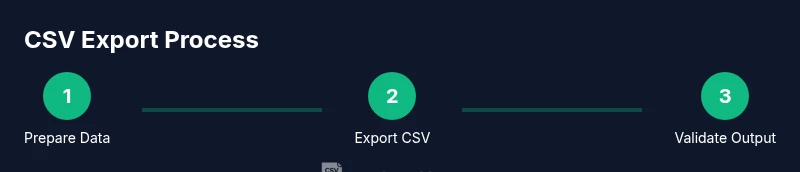
Convert an Excel workbook to a comma-delimited CSV by exporting as CSV UTF-8, preserving headers, and validating the output. Start from a clean worksheet, select the correct format, and verify the file with a text editor or data tool. This guide highlights common pitfalls and best practices for interoperability across systems.
What is CSV and why comma-delimited matters
A CSV (Comma-Separated Values) file stores tabular data in plain text where each row is a line and each field is separated by a delimiter. The most common delimiter is a comma, which is why many teams refer to a file as a comma-delimited CSV. CSV is widely supported by databases, analytics tools, and scripting languages, making it ideal for data interchange. However, CSVs can also use semicolons or tabs in certain locales or tools, which means you must align the delimiter with your consumer system. In this guide, we focus on the standard comma delimiter and UTF-8 encoding to maximize interoperability across platforms, including Excel, MyDataTables workflows, and cloud services.
What is CSV and why comma-delimited matters
CSV stands for Comma-Separated Values. Each row represents a record, and each field is separated by a delimiter, commonly a comma. This format is human-readable and machine-friendly, which makes it ideal for data exchange. When you hear "comma delimited" think of fields wrapped in quotes when necessary, and careful handling of embedded commas or line breaks. If your consumer expects a different delimiter, you can switch to a semicolon or tab, but you must maintain consistency across the pipeline. In practice, comma-delimited CSV is the default for many data pipelines because it balances readability with ease of parsing by software like Excel, Python's pandas, and MyDataTables analyses.
Why this matters for data pipelines
Interoperability is the key driver. A properly formatted CSV with a consistent delimiter reduces parsing errors, keeps data types intact, and simplifies automation. Consistency at export time translates to fewer downstream issues when loading CSV into databases, BI tools, or ETL processes. MyDataTables analyses show that misaligned delimiters or encoding issues are among the top causes of CSV import errors. Adopting a standard like UTF-8 and the comma delimiter improves portability across teams and systems.
The role of encoding and BOM in CSV
Encoding determines how characters are represented in a text file. UTF-8 is the most widely supported encoding for CSV, especially in international datasets. Some editors or environments misinterpret non-ASCII characters if the file is saved in ANSI or other legacy encodings. A Byte Order Mark (BOM) can help some applications detect UTF-8, but not all tools require it. The best practice is to export as CSV UTF-8 and test the file in the target environment to confirm correct character rendering.
Data preparation: clean before you export
Before exporting, ensure your data is ready for CSV. Remove stray characters, standardize dates and numbers, and verify headers. If your sheet includes formulas, decide whether to export the calculated values or the results. A quick approach is to create a copy of the sheet with values only (paste as values) to avoid exporting formula references. This preparation reduces surprises during import and downstream processing.
Step-by-step: Export as CSV (Comma Delimited)
Exporting from Excel involves choosing the correct format and encoding. In most recent Excel versions, you can select File > Save As and pick “CSV (Comma delimited) (.csv)” or “CSV UTF-8 (Comma delimited) (.csv)” when available. If you see two CSV options, prefer UTF-8 to support international characters. Save a copy first, then review the output in a text editor to confirm that commas separate fields and that headers remain intact.
Verifying CSV integrity after export
Open the produced CSV in a plain-text editor to inspect the first few lines. Check that headers match your Excel column names, and ensure that fields containing commas are properly quoted. If your dataset contains non-ASCII characters, verify their appearance in the editor. Export logs, if available, can help confirm that the correct encoding and delimiter were used. Consider loading the CSV into a test environment to verify parsing, type inference, and basic metrics like row count.
Handling common issues: quotes, embedded commas, and multiline fields
Fields containing commas, quotes, or newlines require careful quoting rules. Excel generally adds quotes around such fields, but inconsistencies can occur when exporting across platforms. If you see broken rows, check for unescaped quotes or stray line breaks. Multiline fields should be contained within quotes to preserve integrity. When this becomes frequent, a robust CSV validator or parser helps catch edge cases before they enter production.
Automating the process with Excel macros or scripts
For teams that export CSV regularly, automation saves time and reduces human error. A simple macro can select the relevant range, copy values, and perform a Save As to CSV UTF-8. Alternatively, use a small script (PowerShell, Python, or Google Apps Script) to export and validate, especially for large workbooks or scheduled jobs. Automation also supports consistent logging and post-export checks.
Best practices for CSV in data pipelines
- Always choose UTF-8 encoding when possible and confirm BOM needs with downstream systems.
- Keep a canonical, statically defined header row across all exports.
- Validate the CSV with a lightweight parser or a test import before integrating into a pipeline.
- Document any non-default rules (quoting, date formats, or decimal separators) for future maintainers.
- Where feasible, maintain an original, source-safe Excel workbook alongside the CSV export to enable traceability.
Tools & Materials
- Computer with spreadsheet software(Microsoft Excel 2016+ recommended; Google Sheets is an alternative for web-based editing)
- CSV-capable text editor or viewer(Notepad++ or VSCode works well for quick verification)
- UTF-8 capable editor or export option(Ensure encoding is UTF-8 during export)
- Backup copy of source workbook(Always keep an original to revert in case of export issues)
- Optional: CSV validator/tool(Helps catch quotes, delimiters, and multiline field issues)
Steps
Estimated time: 20-40 minutes
- 1
Open the Excel workbook
Launch the workbook containing the data to export and ensure you’re working on a clean, up-to-date copy. Verify that the header row is accurate and aligns with downstream expectations. Save a separate backup before making changes.
Tip: Create a separate sheet with values-only data if you plan to keep formulas intact in the source. - 2
Clean and standardize data
Review the dataset for stray characters, inconsistent date formats, and mixed data types. Normalize dates to ISO formats where possible and convert formulas to values if you need a static export.
Tip: Use Find/Replace to quickly fix common formatting issues and apply a data type cast where needed. - 3
Prepare for encoding and delimiter choices
Decide on UTF-8 encoding and whether to use a BOM. If your downstream systems require a specific delimiter, align the choice and document it for teammates.
Tip: UTF-8 with BOM can help Excel and other tools recognize encoding, but test in the target environment. - 4
Export as CSV (Comma Delimited)
Go to File > Save As and select CSV (Comma delimited) or CSV UTF-8 (Comma delimited) if available. Confirm the file path and give the file a descriptive name. Do not overwrite any critical source files.
Tip: If you see multiple CSV options, prefer UTF-8 to support international characters. - 5
Verify in a text editor
Open the CSV in a plain-text editor and inspect a few lines. Ensure each field is separated by a comma and that quoted fields contain internal commas as needed.
Tip: Check a row with a long text field to confirm quotes enclose the value correctly. - 6
Validate with a sample import
Import the CSV into a test environment or data tool to verify parsing, data types, and row counts. Confirm that headers map to expected fields and that no data was truncated.
Tip: Compare the number of rows in Excel with the imported data to catch dropped records. - 7
Automate for recurring exports
If exports are frequent, create a macro or small script to perform the steps automatically, including a post-export check. Maintain version-controlled scripts for traceability.
Tip: Log outcomes and errors to facilitate troubleshooting later. - 8
Handle edge cases proactively
Anticipate embedded newlines, quotes, and multi-value fields. Use quoting rules consistently and consider alternative delimiters if your data frequently includes commas.
Tip: Document handling rules so future users know how to adjust exports.
People Also Ask
What does 'CSV UTF-8' mean and why should I use it?
UTF-8 is a character encoding that supports virtually all languages. CSV UTF-8 ensures characters render correctly across systems. Use it when your data includes non-ASCII characters to prevent corruption.
UTF-8 CSV ensures characters display correctly across systems; use it for international data.
When should I use a BOM in CSV files?
A BOM can help some editors detect UTF-8 encoding, but not all tools require it. If you encounter misread characters, try exporting with a BOM and testing in your target environment.
Try including a BOM if encoding issues appear in your tools.
What if my data contains commas in fields?
CSV rules require quoting fields that contain commas. Excel typically handles this automatically, but verify by inspecting the output and testing an import.
Quoted fields containing commas should parse correctly after export.
Can I export with a different delimiter like semicolon?
Yes, some regions prefer semicolons as the primary delimiter due to regional list separators. Ensure downstream systems expect the chosen delimiter before exporting.
If your systems expect a semicolon, export with that delimiter and document the choice.
How can I automate CSV exports from Excel?
You can create a macro or script that performs the export, optional encoding settings, and a quick validation step. This reduces manual steps and errors for repeated tasks.
Automate the export with a macro or script to save time.
What are common mistakes when exporting from Excel?
Common mistakes include forgetting UTF-8 encoding, not preserving headers, exporting formulas instead of values, and ignoring delimiter-compatibility across consumers.
Watch encoding, headers, and whether you export values or formulas.
Watch Video
Main Points
- Export as CSV UTF-8 to maximize compatibility
- Preserve headers to avoid downstream mapping errors
- Validate the output with a text editor and test import
- Document delimiter and encoding decisions for teams
- Automate recurring exports to reduce human error