Which CSV to Choose in Excel: A Practical Guide
Learn how to pick the right CSV format for Excel, including delimiter, encoding, and locale considerations, with step-by-step import and export tips. Aimed at data analysts, developers, and business users who work with CSV files in Excel.


Choosing the right CSV to open in Excel means selecting a delimiter, encoding, and regional settings that align with your data and locale. This guide explains when to use comma-delimited CSV, semicolon-delimited CSV for locales using comma decimal, and UTF-8 versus ANSI encodings, plus practical steps to import without errors.
Understanding CSV formats Excel can read
CSV stands for comma-separated values, but the actual delimiter is not fixed. Excel can read CSVs with commas, semicolons, tabs, or other separators if the file is properly formatted. The critical choices are the delimiter and the encoding used to store the text. In practice, the delimiter you choose should match the data and the recipient's software expectations. If your data uses decimals with a comma (1,23) in many European locales, a comma as a delimiter creates ambiguity, so many teams prefer semicolon-delimited CSVs. Excel's default handling varies by platform (Windows vs macOS) and language settings, so you might see different results across machines. According to MyDataTables, the most reliable approach is to use Excel's built-in Get & Transform (Power Query) or the "From Text/CSV" option to control the parser and preview results before loading. This initial decision determines how easily you can share the file and how accurately Excel will split fields into columns. Understanding these basics helps you avoid common pitfalls like stray quotation marks and broken date fields. As data professionals, we must choose a format that minimizes rework for colleagues across different systems.
Delimiters and regional settings: comma vs semicolon
The delimiter defines where one field ends and the next begins. In the United States, a comma is the most common separator for CSV files. In many European and Latin American locales, a semicolon is preferred because the comma is used as a decimal marker (for example, 12,34). If you send a CSV with a comma delimiter to someone whose locale expects a semicolon, Excel may misparse rows, shifting data into wrong columns. When you generate a CSV from a source, try to align the delimiter with the recipient's region or provide a brief note about the delimiter used. If you cannot modify the source, Excel’s import dialog lets you pick the delimiter and immediately preview how it will lay out the data, reducing back-and-forth. Modern collaboration benefits from standardizing on a delimiter that minimizes ambiguity across teams.
Encoding matters: UTF-8, ANSI, BOM
Text encoding determines how characters are stored in a CSV. Windows-based Excel often opens ANSI-encoded CSVs by default, which can garble non-ASCII characters (for example, accented letters or non-Latin scripts). UTF-8 with BOM (byte order mark) is widely compatible and reduces garbling, but Excel may sometimes misinterpret BOM on older systems. If you work with international data, save as UTF-8 and, when possible, enable BOM or use a text editor to verify the encoding before importing. When sharing data, ask recipients to confirm they can read UTF-8 files, or provide both UTF-8 and ANSI versions if necessary. These encoding choices help preserve names, IDs, and notes without corruption.
Import workflow in Excel 365/2019
Excel provides a structured import path that gives you control over delimiter and encoding. In newer Excel versions, go to Data > Get & Transform Data > From Text/CSV, select your file, and use the preview to choose the correct delimiter and file origin (encoding). If you’re unsure, start with UTF-8 and then switch to the appropriate locale as needed. The preview pane shows how data will be split into columns and allows you to apply type transformations (text, number, date) before loading. Power Query (Get & Transform) is especially helpful for repeated imports or large datasets, because you can apply consistent transformations across files. After loading, you can further clean and reshape data without altering the source CSV. This workflow minimizes data loss and makes downstream analysis more reliable.
Exporting CSV from Excel: preserving data
Exporting data from Excel to CSV requires attention to delimiter, encoding, and formatting. When saving, choose File > Save As and select CSV (Comma delimited) or CSV UTF-8 (CSV). If your locale uses semicolons, you may need to choose the semicolon-delimited option (if available) or adjust regional settings to export with a compatible delimiter. Ensure that quotes wrap fields containing delimiters or line breaks to preserve integrity. Note that formulas, macros, or Excel-specific formats do not survive the CSV export, since CSV is plain text. If you need to preserve formatting, consider exporting to multiple CSVs or to an Excel workbook for sharing with others who require richer formatting.
Common pitfalls and how to avoid them
Several issues commonly affect CSV usability in Excel. Misinterpreted delimiters lead to broken columns; encoding mismatches produce garbled text; and quotes inside fields can cause truncation if not properly escaped. Always preview imports or exports at the start to confirm that delimiters and encodings align with expectations. Use consistent delimiters across files and document the chosen encoding and delimiter in a readme or data dictionary. When possible, perform a quick end-to-end test by sharing a sample CSV with a colleague and confirming it opens correctly on their system. These practices reduce the back-and-forth and keep data positions stable for analysis.
Real-world examples: choosing CSVs for different locales
Imagine you work with teams in both the United States and Spain. A CSV from a Spanish system might use semicolons as delimiters and UTF-8 encoding with a BOM. When that file is opened in Excel on a US machine, you’d want to be able to import it with the semicolon delimiter and UTF-8 encoding to maintain data fidelity. Conversely, a CSV from a US source with a comma delimiter should work smoothly for most colleagues, provided they use a compatible encoding. Inconsistent choices between locales often introduce delays. Establish a shared standard for your organization, and adopt Excel’s Get & Transform as the common import method to enforce that standard across all files.
Quick-start checklist before sharing CSVs
– Confirm the delimiter used in the source CSV and include a note for recipients. – Verify encoding (UTF-8 with BOM is preferred for international data). – Ensure text qualifiers (quotes) properly wrap fields containing delimiters. – Run a quick open/import test on a fresh Excel instance to confirm column alignment. – Document the standard in your data dictionary for future files.
Tools & Materials
- Excel (Microsoft 365, 2021, 2019, or equivalent)(Any modern Excel version with Get & Transform features)
- CSV file to test with(Include varied delimiters and encoded characters)
- Text editor (Notepad++, VS Code, or similar)(Useful for inspecting encoding and quotes)
- Knowledge of the recipient locale(Helps decide delimiter and encoding choices)
- Optional: encoding detector tool(Confirms UTF-8, UTF-8 with BOM, or ANSI)
Steps
Estimated time: 25-40 minutes
- 1
Open the CSV with the import tool
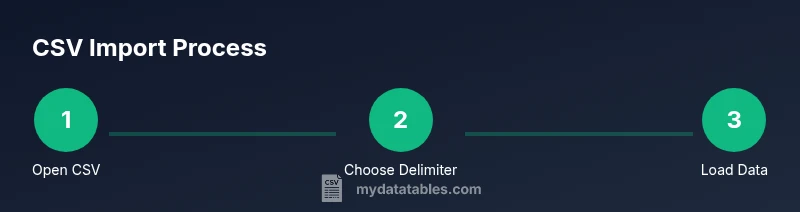
Launch Excel and use Data > Get & Transform Data > From Text/CSV to initiate a controlled import. This approach exposes delimiter and encoding options before loading, reducing misalignment. Preview the data and confirm that each column lines up with the header.
Tip: Use the preview pane to catch misparsed columns before loading. - 2
Select the correct delimiter
In the import dialog, choose the delimiter that matches your file (comma, semicolon, tab, or other). If the data doesn’t align, try another delimiter and recheck the preview. Consistency across files helps downstream automation.
Tip: If the preview shows merged cells, the chosen delimiter is wrong. - 3
Choose the encoding
Set the file origin or encoding to match how the CSV was created (UTF-8 is widely supported; ANSI may be needed for older systems). If characters look garbled, switch to UTF-8 with BOM and re-import. The encoding governs how non-ASCII characters render in headers and fields.
Tip: Garbling often indicates an encoding mismatch; re-import with UTF-8. - 4
Load data to worksheet or data model
After confirming the delimiter and encoding, decide where to load the data. Loading to a worksheet is simplest; loading to a data model enables advanced transformations with Power Query. Apply any essential type conversions (dates, numbers) during this step.
Tip: For repeated tasks, choose Load to Data Model and reuse the query. - 5
Adjust columns and data types
Review each column’s data type (text, number, date). Convert as needed using Power Query or Excel's Number/Date formatting. Correct data types improve sorting, filtering, and calculations later in your workflow.
Tip: Use Power Query to enforce consistent types across multiple files. - 6
Save or export as CSV with intent
If you’ve transformed the data, save the file again as CSV with the same delimiter and encoding as the source. Double-check that quotes wrap fields containing line breaks or delimiters. If you need multiple variants, save separate files for each locale.
Tip: Always re-check the delimiter and encoding after transformations.
People Also Ask
What is the difference between a CSV file and an Excel workbook?
A CSV is plain text with delimiters and no formatting, formulas, or metadata. An Excel workbook stores cells, formulas, formatting, and multiple sheets. CSVs are ideal for data exchange, while Excel workbooks support rich analysis and presentation.
CSV is plain text with delimiters and no formatting, while an Excel workbook supports formulas and formatting.
Which delimiter should I use if my CSV is shared internationally?
If your recipients are in locales that use a comma as a decimal marker, use semicolon delimiters. Otherwise, a comma is widely accepted. Clarify the delimiter in accompanying documentation.
If your recipients use comma as decimal, use semicolon. Otherwise, comma is usually fine.
How do I save an Excel sheet as CSV without losing data?
Use Save As and choose CSV, ensuring that all data fits the delimiter and encoding. Remember that CSV cannot preserve formulas or formatting. Verify by re-opening the saved file to confirm data integrity.
Save as CSV using the exported format, then reopen to check data integrity.
Why is my CSV displaying incorrect characters?
This usually indicates an encoding mismatch. Save or convert the file to UTF-8 (preferably UTF-8 with BOM) before sharing, and verify characters with non-ASCII glyphs.
Character garbling usually means encoding isn't UTF-8; convert the file to UTF-8 with BOM.
Can Excel handle UTF-8 without BOM?
Yes, modern Excel versions handle UTF-8 without BOM, but BOM can help compatibility with some systems. If you encounter issues, re-save with UTF-8 BOM.
Modern Excel handles UTF-8, but BOM can improve compatibility on some systems.
Watch Video
Main Points
- Choose delimiter based on locale to avoid misparsed data.
- UTF-8 with BOM provides broad compatibility for international data.
- Use Excel Get & Transform for reliable CSV imports and transformations.
- Always preview and test imports/exports before sharing.
- Document your standard to reduce back-and-forth with teammates.