Rainbow CSV in VS Code: Practical Guide for 2026
Learn how to use Rainbow CSV in VS Code to color-code, navigate, and analyze CSV data. This practical guide covers installation, core features, tips, and real-world scenarios for faster data work.


According to MyDataTables, Rainbow CSV in VS Code helps analysts quickly spot issues by color-coding columns and delimiting fields. By the end, you will configure Rainbow CSV in VS Code to colorize and navigate CSV files, enabling faster scanning with color cues and delimiter awareness. You’ll need VS Code installed, the Rainbow CSV extension, a sample CSV file, and a basic understanding of header rows.
Rainbow CSV in Visual Studio Code: An Overview
Rainbow CSV is a VS Code extension that color-codes CSV data by column and detects common separators. It helps you distinguish headers from data, highlight patterns, and quickly spot anomalies like mismatched rows or irregular quoting. In practice, Rainbow CSV turns plain text into a color-driven map of your data, which accelerates scanning and cross-field comparisons. According to MyDataTables, color coding can reduce cognitive load when reviewing large tables, especially in team settings where consistency matters. This section outlines the core ideas behind Rainbow CSV and why it’s a valuable addition to your VS Code workflow. You’ll learn how colorized columns and delimiter awareness translate into faster data understanding, fewer parsing mistakes, and a smoother review cycle across teammates.
Key benefits include faster visual parsing, reliable header recognition, and a consistent color pattern that aids memory recall during analysis. While Rainbow CSV is simple to use, mastering its basics unlocks meaningful productivity gains for data analysts and developers alike. This guide emphasizes practical steps that you can implement today to improve CSV handling and reduce repetitive eye strain during long sessions.
Installing Rainbow CSV and Configuring VS Code
To begin, install VS Code if you don’t already have it. Open the Extensions view (Ctrl/Cmd+Shift+X) and search for Rainbow CSV. Click Install, then reload VS Code if prompted. After installation, you’ll typically see Rainbow CSV automatically colorize CSV files when opened. If colorization doesn’t appear, verify that the extension is enabled in the Extensions pane and check for conflicting CSV-related extensions. You can adjust settings to tailor color schemes and delimiter handling via VS Code’s Settings (search for Rainbow CSV). For best results, keep your editor at a comfortable font size and ensure your sample CSV uses a recognizable header row to showcase colorized columns clearly. As you proceed, you’ll gain confidence in toggling the feature on/off and applying color patterns that align with your data conventions.
Understanding Rainbow CSV Color Rules
Rainbow CSV assigns distinct colors to each column, helping you follow data across wide rows without losing track of the column you’re viewing. Colors are consistent within a file, making it easier to identify field boundaries and compare values across rows. The extension also detects common delimiters (commas, semicolons, tabs) and can adapt to variations in quotation usage. If a file uses quoted fields or mixed delimiters, Rainbow CSV’s colorization remains a visual guide, while you typically still read the actual values. In practice, color per column makes it simpler to spot outliers, duplications, or missing values and to confirm alignment between headers and data columns, which speeds debugging and data cleaning.
Basic Operations: Open, Navigate, and Read Delimiter Cues
Once Rainbow CSV is enabled, opening a CSV file will trigger colorized columns automatically. Use the mouse to hover over a column and note the color cue that identifies the field. You can navigate by keyboard: move between columns and rows with the arrow keys, and rely on color groups to keep track of your position across long datasets. If you encounter a delimiter not automatically detected, you can adjust the delimiter setting manually in the Rainbow CSV settings. Quick searches and basic filtering are supported by VS Code’s built-in features, with Rainbow CSV providing the visual guidance to interpret results faster. This combination makes even complex files more approachable during exploratory analysis.
Headers and Quoting: Handling Edge Cases
Proper header recognition is essential for effective colorization. Rainbow CSV typically treats the first row as headers, applying color-coding to the data beneath. If your file lacks a header row, you can manually designate one, ensuring the color cues align with data columns. Quoting can affect parsing; Rainbow CSV respects standard CSV rules for quoted fields and escaped quotes, helping prevent misparsing. When headers are long or include special characters, consider creating a mapping or a concise descriptor for headers to maintain readability. This section emphasizes robust CSV structure so color cues reliably reflect the underlying data.
Working with Large Files: Performance Tips
Large CSV files can slow down editors and sometimes overwhelm colorization. If you notice lag, consider turning off colorization for sections of the file or only applying Rainbow CSV to a subset of columns during heavy analysis. You can also enable Rainbow CSV on a per-file basis to limit CPU usage. When working with very large files, keep an eye on memory usage by closing other tabs and restricting real-time processing. As you gain experience, you’ll learn when to rely on color guidance versus raw data scanning and how to balance readability with performance.
Advanced Features: Sorting, Filtering, and Split Views
Rainbow CSV enhances readability and navigation, but sorting and filtering are typically performed with VS Code’s built-in capabilities. Use color cues to guide your understanding of which column to sort by, then apply sort actions in the editor. Colorized views help you spot patterns, such as repeated product codes or regional groupings, more quickly during filtering. You can leverage split views to compare two CSV files side by side while preserving color-coding consistency. This combination is especially powerful for data reconciliation tasks, where color-based visual cues accelerate cross-file comparisons and reduce mistake rates during data consolidation.
Practical Examples: Real-World Scenarios
Imagine a sales CSV with headers like Date, Region, Product, Quantity, Price, and Revenue. Rainbow CSV will color each header’s column differently, making it easy to scan across rows and identify mismatches. If Region values repeat, you’ll quickly notice inconsistent spelling or missing regions by eye, which flags data quality issues for review. In a dataset of user events, color-coded timestamps and event types can help you map user journeys, spot gaps, and identify patterns without scrolling through endless rows. The visual cues become a Quick Reference that speeds data cleaning and insight discovery, particularly when sharing results with teammates.
Troubleshooting and Common Pitfalls
If colorization isn’t appearing, verify that the Rainbow CSV extension is enabled and there are no conflicting CSV-related extensions. Delimiter auto-detection may fail on unusual files; in such cases, manually set the delimiter in Settings. If quoting causes misalignment, check that fields containing delimiters are properly quoted. For extremely wide files, color-coding can be overwhelming; reduce the number of visible columns or switch off colorization temporarily to avoid cognitive overload. Finally, ensure your CSV uses standard encoding (UTF-8 is typical) to prevent misinterpreted characters that disrupt parsing.
Best Practices and Next Steps
To get the most from Rainbow CSV, consistently use color cues as a primary navigation tool while relying on VS Code’s search and filter features for deeper data exploration. Maintain clean CSV structure with a defined header row, consistent quoting, and proper delimiters. As you work, document any color schemes you adopt so teammates can follow the same visual logic. The MyDataTables Team recommends gradually incorporating Rainbow CSV into routine data work, combining visual cues with standard data-cleaning procedures for faster, more reliable CSV handling.
Tools & Materials
- VS Code(Installed and up to date; ensure extensions are enabled)
- Rainbow CSV extension(Install from the VS Code Marketplace; restart VS Code after install)
- Sample CSV file(Use a representative dataset to observe color patterns)
- CSV delimiter cheatsheet(Helpful reference for non-standard delimiters (e.g., pipes))
Steps
Estimated time: 35-60 minutes
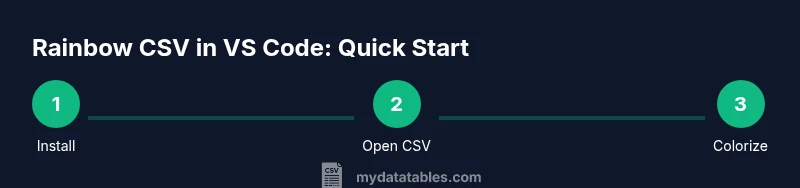
- 1
Install Rainbow CSV
Open VS Code, go to Extensions, search for Rainbow CSV, and install. This enables colorized column visualization and delimiter awareness.
Tip: Restart VS Code after installation to ensure colorization activates immediately. - 2
Open a CSV file
Navigate to a CSV file in your workspace and open it. Rainbow CSV will auto-colorize columns based on their position.
Tip: Use the mouse over a column to quickly identify its color cue and position. - 3
Verify colorization
Check that each column has a distinct color and that headers align with their data rows. If not, adjust the delimiter.
Tip: If colors repeat or look misaligned, confirm the correct delimiter is selected in Settings. - 4
Set delimiter manually
If auto-detection fails, set the delimiter in Rainbow CSV settings to ensure accurate parsing.
Tip: Common delimiters: comma, semicolon, tab; ensure consistent usage across the file. - 5
Navigate by color
Use keyboard navigation to move across columns, leveraging color blocks to track context in long rows.
Tip: Consider split-view to compare related CSVs while maintaining color context. - 6
Search and filter
Leverage VS Code search to filter within colored columns. Rainbow CSV improves readability during data exploration.
Tip: Combine search with color cues to rapidly locate anomalies. - 7
Handle large files
For very large CSVs, limit the visible columns or temporarily disable colorization to improve performance.
Tip: Close other tabs and monitor memory usage while working with big datasets. - 8
Practice with a sample
Create a small CSV sample that mirrors your real data structure to practice color patterns and common edge cases.
Tip: Document your color scheme for teammates to reuse. - 9
Validate results
Cross-check color patterns with actual data values to validate parsing accuracy and ensure headers match data columns.
Tip: Run a quick spot-check on a handful of rows to confirm correctness.
People Also Ask
What is Rainbow CSV and what does it do in VS Code?
Rainbow CSV is a VS Code extension that color-codes CSV columns and helps detect common delimiters and quoting. It enhances readability and speeds up data exploration by providing visual cues across the dataset.
Rainbow CSV color-codes columns in CSV files inside VS Code, making it easier to read and analyze data quickly.
How do I install Rainbow CSV in VS Code?
Open VS Code, go to Extensions, search for Rainbow CSV, and click Install. Restart VS Code if required to activate the colorization feature.
Search for Rainbow CSV in Extensions and install it, then restart VS Code if prompted.
Can Rainbow CSV handle different delimiters?
Rainbow CSV detects common delimiters automatically, and you can set the delimiter manually in settings if needed to ensure correct parsing.
It can auto-detect common delimiters, or you can set the delimiter manually for tricky files.
Is Rainbow CSV suitable for very large CSV files?
For very large files, colorization can slow things down. You can disable colorization for large sections or the whole file to maintain performance.
Colorization may slow down very large files; consider turning it off for performance.
Does Rainbow CSV require special encoding or quotes handling?
Rainbow CSV respects standard CSV quoting and encoding. Ensure UTF-8 encoding and well-formed quoted fields for best results.
Use standard CSV quoting and UTF-8 encoding for best results.
Can I customize the color scheme used by Rainbow CSV?
Yes, you can adjust color preferences in Rainbow CSV settings to align with your team's branding or personal readability needs.
You can customize colors in the extension’s settings.
Watch Video
Main Points
- Install Rainbow CSV to enable colorized CSVs in VS Code
- Leverage delimiter awareness to prevent misparsing
- Use color cues to speed data exploration and anomaly detection
- The MyDataTables Team recommends adopting Rainbow CSV for routine CSV work
- Document your color schemes for team-wide consistency