Read CSV Online: A Practical Guide for Analysts
Learn how to read CSV online without installing software. This practical guide covers tools, parsing options, privacy tips, and exporting results for quick data validation.


Read CSV online with confidence by using a browser-based viewer to inspect structure, headers, and values, without installing software. This quick approach helps you validate format, compare delimiters, and export results for sharing. This guide walks through tool selection, data loading, parsing options, and basic privacy practices for safe online viewing.
What does reading a CSV online mean?
Reading a CSV online means using a web-based tool to view and analyze comma-separated values directly in your browser, without installing local software. It allows you to inspect column headers, verify data types, and spot formatting issues from anywhere with an internet connection. This approach is ideal for quick checks, collaboration with teammates, and sharing findings without emailing large files. When you read a CSV online, the tool fetches the file (via URL or pasted data) and renders it in a table, applying parsing rules such as delimiter, encoding, and header presence. Understanding these concepts helps you choose the right viewer, avoid common mistakes, and maintain data privacy. The phrase read csv online is commonly used in tutorials and data workflows to describe this convenient, browser-first workflow.
Why reading CSV online matters for data work
For data analysts, developers, and business users, reading CSV online accelerates the exploration phase. It eliminates the friction of software installation, especially in environments with strict IT controls. You can quickly verify that the file structure matches your expectations, spot missing values, and perform light filtering to spot anomalies. This approach also supports collaboration: teammates can review results in real time, leave comments, or export a subset for discussion. As part of best practices, always ensure that the data you view online is non-sensitive or properly masked if you lack enterprise-grade privacy controls.
Tools & Materials
- Web browser(Any modern browser (Chrome, Firefox, Edge, Safari))
- Internet connection(Stable connection to load and fetch CSV data)
- CSV source (URL or clipboard data)(Have a public URL or copy/paste CSV text ready)
- Online CSV viewer tool(Choose a trusted platform for viewing and exporting)
- Optional: account on the tool for saving files(Helpful for saving sessions and reloading later)
Steps
Estimated time: 15-25 minutes
- 1
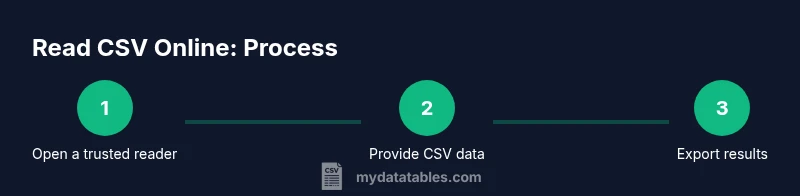
Open a trusted online CSV reader
Launch your browser and navigate to a reputable online CSV viewer. Confirm the site uses HTTPS and review any privacy notices before loading data. This initial check reduces exposure to unsafe tools and ensures you’re operating in a secure environment.
Tip: If you’re unsure about the provider, use a known brand or your organization's approved tool. - 2
Provide your CSV data
Paste the CSV text into the tool or provide a public URL where the file can be fetched. Some tools also allow uploading a local file. Ensure the data source is reachable and that the file extension is .csv or recognizable as CSV.
Tip: For large files, paste a sample first to validate the parser before loading the entire dataset. - 3
Configure parsing settings
Set the delimiter (comma, semicolon, tab), select encoding (UTF-8 is common), and specify whether the first row contains headers. Enable auto-detection if available and verify that the first few rows display correctly.
Tip: Always verify with a row that includes edge cases (quotes, commas inside fields, or escaped characters). - 4
Preview and validate the data
Scan the grid to confirm headers align with columns, confirm numeric fields are recognized as numbers, and check for truncated values. If something looks off, adjust delimiter/encoding and re-parse.
Tip: Use column highlights or grouping to detect mis-parsed columns quickly. - 5
Apply optional transformations
If supported, perform light transformations such as filtering rows, selecting columns, or sorting. These actions help you focus on the subset of data needed for your task without leaving the browser.
Tip: Export only the subset you need to keep the file size manageable. - 6
Export or save your results
Download the interpreted data in a preferred format (CSV, JSON, or Excel) or save the session if the tool provides cloud storage. Keep a local copy for archival or further analysis in your preferred environment.
Tip: Prefer exporting to a clean CSV with consistent quoting and line endings.
People Also Ask
What does it mean to read a CSV online?
Reading a CSV online means viewing and analyzing CSV data in a web-based tool without installing software locally. You load the data (via URL or paste) and inspect it in a browser-based table.
Reading a CSV online means you can view CSV data in your browser without installing software.
Is reading CSV online safe for sensitive data?
Safety depends on the provider. Use HTTPS, review privacy policies, and avoid uploading highly sensitive information to unknown sites. If in doubt, use an offline tool or masking.
Yes if you choose trusted sites and avoid sharing sensitive data.
What about large CSV files?
Some online viewers support streaming or chunked loading. For very large files, consider offline processing or tools designed for big data to avoid timeouts.
Large files may be slow online; chunk or offline processing can help.
Can I edit and export after reading?
Many online readers let you edit cell values and export in CSV, JSON, or Excel formats. Saving changes may require an account on the platform.
Yes, many tools let you edit and export.
Do I need an account to read CSV online?
Not always. Some tools work as guests, while others offer saved sessions and cloud storage with an account.
Sometimes; check the site's requirements and features.
How do I handle different delimiters and encodings?
Look for auto-detect options and explicit encoding settings. Test with a sample to confirm correct parsing before proceeding.
Use auto-detect if available and verify with a sample row.
Watch Video
Main Points
- Choose a trusted online CSV reader.
- Verify delimiter and encoding first.
- Preview data before deeper analysis.
- Export results to preserve work.