CSV Open File: A Practical How-To
A comprehensive, educator-friendly guide to opening CSV files with correct delimiters and encodings. Learn tools, code snippets, best practices, and troubleshooting tips to ensure data integrity when performing csv open file operations.


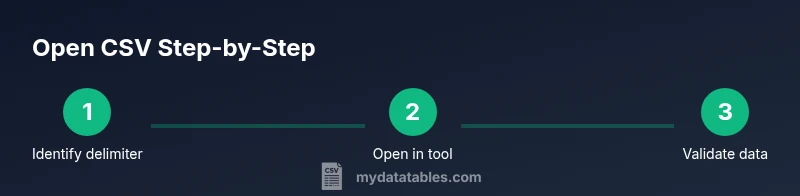
To open a CSV file, identify its delimiter and encoding, then choose a compatible tool. Common paths include opening in spreadsheet apps via File > Open, or importing with code (Python or R) using the correct delimiter and UTF-8 encoding. Ensure the file uses the .csv extension.
What is a CSV file and why opening it correctly matters
A CSV file (Comma-Separated Values) stores tabular data in plain text, with each row on a new line and fields separated by a delimiter. The most common delimiter is a comma, but others like semicolons or tabs are frequent, depending on regional settings and the source system. Opening a CSV file correctly is critical: a misread delimiter, wrong encoding, or improper line endings can scramble data, misalign columns, or trigger import errors downstream. According to MyDataTables, opening a CSV file correctly boosts data reliability and reduces import errors across workflows. In this guide we’ll cover how to identify the file’s characteristics, choose the right tool, and apply best practices to ensure data integrity from the moment you open the file.
Common tools to open CSV files
CSV files are opened with a wide range of tools, from lightweight editors to full-featured spreadsheet programs. Typical options include:
- Excel (Windows/macOS): File > Open or Data > Get External Data, with delimiter and encoding controlled in import dialogs.
- Google Sheets: File > Import, then Upload and specify delimiter and locale.
- LibreOffice Calc: File > Open, with encoding and delimiter controls in the import wizard.
- Text editors (Notepad++, VS Code): Open as plain text to inspect encoding or delimiter issues.
- Programming environments (Python, R): Import libraries can parse CSVs with explicit delimiter and encoding settings.
Knowing your tool’s import options helps prevent misalignment of columns and hidden characters that can derail downstream analysis.
Handling delimiters and encodings
CSV files rely on a delimiter to separate fields; the most common is a comma, but semicolons or tabs are widespread in Europe or software with different defaults. Always verify the delimiter before importing. Similarly, encoding matters: UTF-8 is the standard for interoperability, but some sources use UTF-16 or Latin-1. Look for a Byte Order Mark (BOM) at the start of the file. When opening in Excel or Sheets, you may need to specify the delimiter and encoding in the import dialog or via a dedicated option. Consistent handling of both delimiter and encoding reduces the risk of garbled data, misread headers, or trailing characters.
Opening CSVs in code: quick starts in Python and R
If you prefer reproducible data workflows, coding your CSV import is a reliable choice. In Python, the pandas library can read CSVs with explicit delimiter and encoding settings:
import pandas as pd
# Read a standard CSV with UTF-8 encoding
df = pd.read_csv('data.csv', delimiter=',', encoding='utf-8')
print(df.head())
In R, you can use read.csv with fileEncoding to handle BOM and UTF-8 reliably:
# Read a UTF-8 CSV, handling BOM if present
df <- read.csv('data.csv', fileEncoding = 'UTF-8-BOM', stringsAsFactors = FALSE)
head(df)
These approaches ensure you control encoding, delimiters, and quoting, making the process repeatable and auditable.
Troubleshooting common issues when opening CSV files
Many CSV openings fail because of subtle issues like a nonstandard delimiter, unexpected quotes, embedded newlines, or inconsistent header rows. Start by confirming the first row contains headers and that the number of fields per row is consistent. If data appears garbled, re-check the encoding (prefer UTF-8) and delimiter. When editing in a spreadsheet, use Import or Data Wizard to specify settings rather than simply copying into a new worksheet. For large files, consider chunked imports or streaming to avoid memory limits.
Best practices for CSV open file workflows
A robust CSV opening workflow minimizes surprises:
- Always verify the file extension (.csv) and the source encoding before opening.
- Use a dedicated import path rather than copying data into a workbook from the raw file.
- Keep a record of the delimiter and encoding used for future reproducibility.
- Validate headers and data types after import to catch parsing errors early.
- When sharing CSVs, standardize on UTF-8 encoding and a common delimiter, and avoid embedded commas in unquoted fields.
Following these practices helps reduce rework and ensures data remains accurate across tools.
How to validate CSV openness and integrity
Validation is the last mile before relying on CSV data. Check that the header row matches your schema, count rows to confirm complete reads, and skim for missing values in critical fields. Run a quick sample query or a pandas read_csv with error_bad_lines=False for diagnostics. If you find mismatches, re-export from the source with clear delimiter and encoding instructions. A clean CSV opens smoothly in both analysis tools and dashboards.
Tools & Materials
- Computer or device with internet access(Needed to download tools and access online guides.)
- Spreadsheet software(Excel, Google Sheets, or LibreOffice Calc.)
- Text editor(Optional but helpful for quick checks of encoding and BOM.)
- Programming environment (optional)(Python with pandas or R with read.csv for code-based opening.)
- Sample CSV file(A real or synthetic CSV to practice opening.)
Steps
Estimated time: 15-25 minutes
- 1
Identify the CSV file and characteristics
Locate the file on disk, confirm the extension is .csv, and check for a Byte Order Mark (BOM) or unusual encodings. This determines how you’ll open it and what tooling to use.
Tip: Open the file in a text editor to quickly verify encoding hints. - 2
Choose the best opening tool
Decide between a spreadsheet app for quick viewing or a code-based approach for reproducibility. For dashboards or data pipelines, code or a script is preferable.
Tip: If you’ll share the data later, plan to export in UTF-8. - 3
Open or import with correct settings
In spreadsheet apps, use Import or Data Wizard to specify delimiter and encoding. In code, pass delimiter and encoding explicitly in the read function.
Tip: Always confirm delimiter is the same as the source (comma vs semicolon). - 4
Inspect headers and field counts
Verify the first row contains headers and that each subsequent row has the same number of fields. Mismatches indicate parsing errors or corrupted data.
Tip: If headers are missing, add them before processing. - 5
Resolve common issues
If data looks garbled, retry with UTF-8 encoding or a different delimiter. For quotes and embedded commas, enable proper quoting in your importer.
Tip: Consult your tool’s docs for example import strings. - 6
Save or export a clean copy
Save your opened data in a clean format (e.g., UTF-8 CSV or native spreadsheet format) to preserve settings for future opens.
Tip: Avoid re-saving with a different encoding unless required.
People Also Ask
What is a CSV file?
CSV stands for Comma-Separated Values. It stores tabular data in plain text where each line is a row and fields are separated by a delimiter. Understanding this helps you read and import data accurately.
CSV is a plain text format for tabular data with fields separated by a delimiter, typically a comma.
Why won’t my CSV open in Excel?
Excel may misinterpret the delimiter or encoding, leading to misaligned columns. Check the Import Wizard settings to specify the delimiter and encoding, especially for non-US locales.
Excel may misread the delimiter or encoding; try importing using the wizard and specify settings.
How do I change the delimiter in Excel?
Excel uses regional settings for delimiter. Use Data > Get External Data or Text Import Wizard and select the correct delimiter for your CSV.
Use Excel's import wizard to choose the right delimiter.
What encoding should I use for CSV files?
UTF-8 is the safest default encoding for CSVs, ensuring broad compatibility and fewer special characters issues. If your source uses BOM, enable UTF-8 BOM in your importer.
UTF-8 is generally best; enable BOM if your source includes it.
How do I import a CSV in Python?
Use pandas.read_csv with explicit delimiter and encoding to ensure reproducibility across environments. This approach makes the import transparent and auditable.
Use pandas.read_csv with delimiter and encoding to import CSVs reliably.
What if there are quotes and embedded commas?
Enable quoting in your importer (RFC 4180) so that fields containing commas are treated as a single value. Most tools support this by default, but verify in settings.
Enable proper quoting so embedded commas don’t split fields.
Can I use text editors to inspect CSVs?
Yes, but text editors show raw content. They are useful for verifying encoding or spotting unusual characters before importing into a tool.
Text editors help inspect encoding and raw content before import.
Should I save as UTF-8 CSV when sharing?
Yes, UTF-8 is widely supported and preserves special characters. When possible, export as UTF-8 and avoid nonstandard encodings.
Export as UTF-8 when sharing CSVs.
Watch Video
Main Points
- Identify file characteristics before opening
- Choose the right tool for reproducibility
- Explicitly set delimiter and encoding in imports
- Validate headers and data types after import
- Standardize on UTF-8 for sharing CSVs