How to Open a CSV File: Step-by-Step Guide
Learn how to open a CSV file across Excel, Google Sheets, LibreOffice Calc, and other tools. This guide covers delimiters, encoding, and data verification to ensure clean, reliable results.


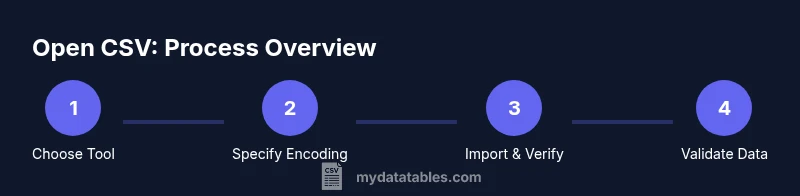
You will learn how to open a CSV file across popular tools and environments. Start by confirming the file delimiter and encoding, then choose Excel, Google Sheets, LibreOffice Calc, or a plain text editor as appropriate. This quick guide covers encoding handling, common pitfalls, and how to verify data integrity after opening.
What is a CSV file and why opening matters
According to MyDataTables, a CSV file is a plain-text table where each line represents a row and each field is separated by a delimiter, most commonly a comma. The choice of delimiter and encoding can dramatically affect how data appears when you open the file. If you do not open a CSV correctly, you may encounter misaligned columns, garbled characters, or even lost leading zeros in identifiers. Understanding these basics helps data analysts, developers, and business users avoid common pitfalls when sharing data across tools and platforms. CSVs remain popular because they are lightweight, human-readable, and easy to generate from databases, logs, or export features. When you start, confirm the delimiter and encoding to set the stage for a clean data view. The MyDataTables team emphasizes that consistent encoding—UTF-8 preferred—and a predictable delimiter minimize surprises when opening CSVs in different environments. Different locales can affect how numbers and dates are parsed, so a quick check upfront saves time later.
In practice, you’ll often encounter files that use UTF-8 with or without a BOM, and delimiters other than a comma. If you encounter issues later, remember that CSV is a flexible format designed for interoperability, not a single rigid standard. The goal is to preserve data integrity and ensure that every column lines up with its header when you import into your analysis or reporting workflow. By starting with a clear understanding of encoding and delimiter, you lay a solid foundation for successful data work across teams and tools.
Choosing the right tool to open a CSV
Choosing the right tool hinges on your objective: quick viewing, editing, analysis, or collaboration. Excel is ubiquitous and easy for single-user editing; Google Sheets shines for real-time collaboration and cloud access; LibreOffice Calc offers a robust, open-source alternative with excellent compatibility. Plain text editors (Notepad++, VS Code, Sublime Text) are invaluable for inspection, especially when you suspect quoting issues or unusual Unicode characters. Each tool handles opening, parsing, and representing CSV data a bit differently. Excel might auto-detect a delimiter and reorganize columns unexpectedly, especially with semicolon-delimited files in locales that still use commas. Google Sheets can preserve headers and allow multi-user editing but imports differently depending on locale settings. Calc tends to be reliable across platforms but can require manual delimiter specification for non-standard files. For data professionals, a blend of tools is common: view in a spreadsheet for quick checks, then import into a database or scripting environment for deeper validation. MyDataTables notes that standardizing the delimiter and encoding across teams reduces friction when sharing CSV data. Consider file size, need for offline access, and required features when choosing the right tool.
Open CSV in Excel: Windows and Mac basics
Opening a CSV in Excel is typically straightforward, but you’ll want to be mindful of how Excel interprets delimiters and data types. On Windows, you can simply double-click the file or use File > Open. If the columns look misaligned, use the Text Import Wizard (Data tab > From Text/CSV) to specify the delimiter, text qualifier, and data format for each column. In newer Excel versions, you can import directly from the Data tab by selecting Get & Transform Data, then From Text/CSV, which lets you preview results and choose encoding options before loading. On macOS, the steps are similar, but the interface labels may differ slightly; you still access the Import Wizard or Text Import settings to override Excel’s default parsing. A key tip is to verify that numeric columns stay numeric (not text) and that date fields are parsed with the correct format. If you encounter BOM-related issues, choose UTF-8 with or without BOM during the import so characters render correctly. By controlling the import parameters, you prevent common alignment and formatting errors that can creep in during a simple open. This approach aligns with best practices highlighted by data teams at MyDataTables.
Remember to save or export to preserve your selected settings if you plan to reuse the same parsing in the future.
Open CSV in Google Sheets: collaborative editing
Google Sheets offers a convenient, cloud-based way to view and edit CSV data with teammates. Start by opening Google Drive and uploading the CSV, then use File > Import to bring the data into a new sheet or replace the current sheet. Choose the appropriate import location (create a new sheet or insert new rows) and specify the delimiter and locale if necessary. Sheets can auto-detect delimiters, but you may achieve better consistency by explicitly setting the separator (comma, semicolon, tab) based on the file’s structure. If the CSV uses UTF-8 encoding, Sheets will typically render characters correctly, but if you encounter garbled text, re-upload with the proper encoding. For large CSVs, Sheets can become slow; in those cases, consider importing a subset or using a scripting workflow to process the data before sharing. This method is ideal for quick collaboration and lightweight data exploration, a scenario many teams tackle regularly in modern data workflows. The MyDataTables team notes that cloud-based tools can accelerate validation and feedback cycles among analysts and stakeholders.
After import, review headers and sample rows to confirm that fields align with expectations, and adjust column widths to improve readability. Save changes in Google Sheets to maintain an up-to-date working copy.
Opening CSV with LibreOffice Calc or a text editor
LibreOffice Calc provides a strong cross-platform option for CSV viewing and editing, especially when Excel is not available. Use File > Open and browse to the CSV; Calc will typically detect a delimiter but you can fine-tune it via the Text Import dialog. In Calc, you can preview how data will appear in columns, set the proper character encoding (UTF-8 is a solid default), and apply data type formats as needed. If you prefer to inspect the raw content, a plain text editor like Notepad++, VS Code, or Sublime Text helps you spot quoting issues, embedded commas within quotes, or inconsistent line endings. For very large CSVs, Calc may become sluggish; consider importing in chunks or using a database tool for bulk operations. The primary goal is to validate that headers map to columns and that data types look consistent before performing downstream tasks. Calc and editors provide complementary views that help you catch issues early, a practice recommended by MyDataTables for robust CSV handling.
Encoding and delimiters: prevent surprises
Encoding and delimiters are the quiet culprits behind many CSV headaches. UTF-8 is broadly compatible and preserves a wide range of characters; however, some files come in UTF-16 or with a Byte Order Mark (BOM) that can trip up parsers. Delimiters vary too: while a comma is standard in many locales, semicolons or tabs are common in others. When opening or importing a CSV, explicitly select the correct encoding and delimiter, and if the app offers an option for “text qualifier” (usually the double quote), ensure it matches how the data uses quotation marks. If you see stray quotation marks or commas inside fields, that’s a red flag that the delimiter or text qualifier settings may be wrong. MyDataTables analysis shows that consistently applying UTF-8 and the correct delimiter reduces the number of follow-up edits and makes data sharing smoother across teams.
For developers, consider validating encoding at the file origin or using a small script to normalize CSVs to UTF-8 before consumption. This proactive step prevents downstream errors in analytics pipelines, reports, or dashboards that rely on clean CSV input.
Verifying data after opening: checks and fixes
Once a CSV is open, verification becomes essential. Start by checking the header row to confirm all expected columns exist and that their names match the schema. Then, verify row counts and spot-check a few rows to ensure numeric fields are recognized as numbers and dates are parsed correctly. Look for misaligned columns, truncated text, or unexpected nulls, which often indicate quoting issues or mixed delimiters. If you find problems, re-import with explicit settings, or use a scripting approach to normalize the file (for example, removing stray line breaks inside quoted fields). A common pitfall is losing leading zeros in IDs or codes; ensure the relevant columns are treated as text when necessary. The MyDataTables team emphasizes performing a quick checksum or sample audit after opening to catch issues early, especially when CSVs are shared across teams or uploaded into BI tools.
If the data looks inconsistent, consider re-exporting the CSV from the source system with a consistent encoding and delimiter, then re-importing. This iterative approach often resolves stubborn formatting problems and preserves data quality for downstream analysis.
Quick-start checklist and best practices before opening
Before you ever click Open, run through this practical checklist to speed up the process and reduce errors. Confirm the delimiter used in the file (comma, semicolon, tab), confirm the encoding (UTF-8 is preferred), and determine whether headers exist. Ensure you have access to a tool that can handle the file size and provide the needed editing or analysis capabilities. If you expect you’ll need to share the data with others, plan a standard workflow for opening and importing CSVs across teams to minimize divergence. When working offline, save a local backup before experimenting with import settings, then document any choices you make for future reference. Finally, test with a small sample of the data to confirm that your chosen tool renders the content correctly. Following these steps helps prevent common issues and makes your CSV workflows more reliable, a philosophy supported by the MyDataTables team.
Final notes on data integrity and interoperability
CSV is a versatile interchange format designed to move tabular data between systems. The act of opening a CSV is not merely about seeing rows and columns; it’s about preserving data fidelity across tools, locales, and pipelines. The best practices include using UTF-8 encoding, specifying the correct delimiter, checking quotes and line endings, and validating headers with a quick row sample. In collaborative environments, agree on a standard: one encoding, one delimiter, and one method for handling special characters. This alignment reduces misinterpretation and makes downstream processes like importing into databases or analytics platforms more predictable. As you build your CSV workflow, document your preferences so teammates can reproduce the same results. The MyDataTables team recommends treating the opening of a CSV as a small, repeatable phase of your data pipeline, not a one-off step.
Tools & Materials
- Computer or device with internet access(Windows, macOS, or Linux)
- Spreadsheet software (Excel, Google Sheets, or LibreOffice Calc)(Ensure you have access and permissions)
- Plain text editor (Notepad++, VS Code, Sublime Text)(Helpful for diagnosing quoting issues)
- CSV file to open(Source file you will inspect and edit)
- Knowledge of encoding (UTF-8, UTF-16, BOM)(Useful when dealing with non-ASCII characters)
- Internet connection (for Google Sheets)(Needed when using cloud-based tools)
Steps
Estimated time: 25-40 minutes
- 1
Decide opening method
Determine whether you will view, edit, or analyze the CSV. If you need quick viewing, a spreadsheet app is fine; for raw inspection, a text editor helps you spot quoting or delimiter issues. This decision guides your next steps and ensures you pick the right tool for the task.
Tip: If you plan to share edits, start with a copy and document any formatting decisions. - 2
Check encoding and delimiter
Before importing, determine the file’s encoding (UTF-8 is safest) and the delimiter (comma, semicolon, or tab). This reduces misparsed columns and garbled characters during import.
Tip: Use a quick-primer of the first 20 lines to confirm the delimiter and verify characters render correctly. - 3
Open in Excel
In Excel, use File > Open or Data > From Text/CSV. Preview the results and set the delimiter and encoding. If needed, apply the Text Import Wizard to map columns and data types.
Tip: For consistent results, import as text and format data types after import rather than relying on automatic typing. - 4
Open in Google Sheets
Upload the CSV to Drive and use File > Import to bring it into a sheet. Explicitly set the delimiter and locale if auto-detection misbehaves.
Tip: Choose the import location to keep headers intact and avoid overwriting existing data. - 5
Open in LibreOffice Calc
Use File > Open, then adjust the Text Import settings for delimiter, encoding, and text qualifier. Calc often handles nonstandard delimiters well.
Tip: If Calc misparses, try re-importing with UTF-8 and a different text qualifier. - 6
Verify content in editor
Open the file in a plain text editor to confirm quotes, embedded delimiters, and line endings. This helps you spot anomalies that might not be visible in a grid view.
Tip: Look for fields containing the delimiter character inside quotes and ensure they aren’t split into multiple columns. - 7
Validate headers and types
Back in your chosen tool, verify that headers exist and the first few rows reflect correct data types (numbers, dates, text). Correct any misparsed columns.
Tip: If a numeric column is treated as text, convert it using built-in tools or a quick script. - 8
Save, export, or import into workflow
After confirming correctness, save the session, export with consistent encoding if needed, or import into your analysis tool for further processing.
Tip: When sharing, export with UTF-8 encoding to maximize compatibility.
People Also Ask
What is a CSV file?
A CSV file stores tabular data in plain text with rows separated by line breaks and fields separated by a delimiter such as a comma or semicolon.
A CSV is plain text with rows and columns separated by a delimiter.
Which programs can open a CSV file?
Common options include Excel, Google Sheets, LibreOffice Calc, and simple text editors. Each tool offers different import controls and data-type handling.
Excel, Sheets, Calc, or a text editor can open CSVs.
How do I handle different delimiters?
If the file uses a delimiter other than a comma, specify it during import. Otherwise fields will merge into incorrect columns.
Choose the right delimiter during import to keep columns separate.
What encoding should I use for CSVs?
UTF-8 is the most compatible choice. If you see strange characters, try UTF-8 without BOM or UTF-16 depending on the source.
UTF-8 is usually best; adjust if characters look off.
What if data looks misaligned after opening?
Misalignment often means a delimiter or quoting issue. Re-import with explicit delimiter/text qualifier settings and verify headers.
If lines don’t line up, re-import with correct settings.
How can I handle large CSV files effectively?
For very large files, consider chunked imports, streaming tools, or loading into a database for analysis rather than loading all data at once.
Big CSVs are easier with chunked loads or databases.
Watch Video
Main Points
- Open with the correct delimiter and encoding
- Verify headers and data types after import
- Use UTF-8 to preserve characters
- Choose the right tool based on task (view/edit/analyze)
- Validate data integrity before sharing or analysis