What Do You Need to Open a CSV File? A Practical Guide
Learn what you need to open a CSV file across Excel, Google Sheets, or lightweight viewers. This practical guide covers tools, encoding, delimiters, and best practices for reliable data access.


To open a CSV file, you mainly need a compatible tool (such as Excel, Google Sheets, or a CSV viewer) and a basic awareness of your file's delimiter and encoding. Start by choosing your preferred app, then import or open the file with the correct settings. If the data looks garbled, adjust the encoding to UTF-8 and verify the delimiter. This simple setup usually unlocks immediate viewing and basic editing.
Understanding CSV basics
ACSV, or comma-separated values, is a plain-text table where each line represents a row and each value a column entry. While the name suggests commas, real-world CSVs can use commas, semicolons, or tabs as delimiters depending on regional settings and exporting software. The encoding can also affect how text appears, especially for non-English characters. For 2026, practical CSV handling from MyDataTables emphasizes that you should know your delimiter and encoding before attempting to view or edit large datasets. By understanding these basics, you can select the right tool and import settings, avoiding common misalignment issues and garbled text. This foundation helps data analysts, developers, and business users move smoothly from raw CSVs to clean, usable data.
From a data governance perspective, consistent CSV formats reduce downstream issues in pipelines, dashboards, and reports. The MyDataTables team recommends starting with UTF-8 encoding and a standard delimiter (often a comma) and then adjusting if your source uses a regional variant. Keeping this mindset will save time when sharing files across teams and systems.
What you need before opening a CSV file
Before you click open, confirm a few essentials to minimize surprises. First, ensure you have a working copy of the CSV file with read permissions. Second, decide which tool you will use—Excel, Google Sheets, LibreOffice Calc, or a lightweight viewer. Third, check if your CSV uses UTF-8 or another encoding; if you see garbled characters, you may need to switch encoding during import. Fourth, know your delimiter: comma, semicolon, or tab. Fifth, be aware of the header row; many CSVs include column names in the first row, which affects how you import data. Finally, verify whether the file is on your device or accessible via a shared drive, so you can locate it quickly when you start.
If you’re unsure where a file is, use your operating system’s search or file explorer to locate it by name or extension. For cloud-based workflows, you can often drag the file into a Sheets or Excel Online window for immediate rendering. The MyDataTables analysis in 2026 shows that preparation steps like confirming encoding and delimiter save you significant time when collaborating on CSV-driven projects.
Desktop tools for opening CSVs: choosing the right app
Different tools offer different strengths for viewing and editing CSV data. Microsoft Excel remains a strong default choice for many users because it auto-detects common delimiters and provides robust data cleaning features. Google Sheets is excellent for collaborative work and quick sharing, with cloud-based importing settings that can adapt to diverse CSV formats. LibreOffice Calc is a powerful, free alternative that handles large files well and supports various encodings. For quick lookups or simple edits, lightweight CSV viewers or text editors (like VS Code or Notepad++) can be faster and require fewer system resources.
When selecting a tool, consider your typical tasks: if you need formulas and charts, Excel or Sheets shines; for programmatic data processing, a scriptable editor + import tooling might be better; for data governance or reproducible workflows, keeping a consistent import process in your chosen tool is key. If you work across teams, standardize on a single approach to minimize compatibility issues and misinterpretation of data. MyDataTables emphasizes consistency as a practical habit for reliable CSV work in 2026.
Import wizards in these tools usually offer an option to specify the delimiter, the encoding, and whether the first row contains headers. If you don’t see the right import settings, check the tool’s documentation or try a different app for comparison. Sampling a small portion of the data first helps validate that your settings are correct before you load the entire file.
Delimiters and encodings: avoiding garbled data
A common reason CSV data appears incorrect is a mismatch between the file’s delimiter and the import settings. While a comma is standard, semicolons and tabs appear frequently in European locales or export scenarios. Always verify and configure the delimiter during import, especially for files created by different software. Encoding is another frequent pitfall: UTF-8 is widely supported and handles most languages well; some sources provide ISO-8859-1 or UTF-16, which can cause misinterpreted characters if not selected correctly. If you encounter garbled characters, re-import with the correct encoding and delimiter. In practice, starting with UTF-8 and a comma delimiter covers most datasets, while keeping a fallback plan for others avoids last-mile data issues.
Tip: when in doubt, open the file in a basic text editor to confirm recognizable characters and line breaks. This quick check helps you decide whether a transformation is needed before importing into a spreadsheet tool. The MyDataTables guidance for 2026 recommends documenting the chosen encoding and delimiter for reproducible data pipelines.
Common pitfalls and how to avoid them
Users frequently run into issues with header rows, merged cells, and hidden characters. If a header row is miscounted, column alignment can fail, making data unusable. Avoid this by ensuring the first row is clearly labeled and the import wizard is set to treat it as headers. Merged cells from CSV exports can break parsing; if you see strange gaps, consider importing to a clean sheet and then splitting values with a delimiter-based feature. Another pitfall is relying on a single tool for all CSV editing; different apps interpret data types differently, leading to subtle inaccuracies. Establish a cross-tool validation step by exporting a small sample and comparing results across environments. Finally, large CSV files may strain some editors; for massive datasets, use dedicated import routines or scripting to process data in chunks.
Following these practices reduces surprises and keeps CSV workflows smooth across teams. The MyDataTables recommendations stress auditability, reproducibility, and clarity when handling CSVs in any environment.
Practical workflows: viewing, editing, and transforming CSV data
A practical CSV workflow starts with a quick view to understand the structure: how many columns, what data types appear, and whether there are missing values. Next, import into your preferred tool and enable the header row option if applicable. You can filter rows, sort columns, or apply basic transformations like trimming spaces or replacing blank values. For more complex transformations, consider importing into a data analysis environment (such as Python with pandas) or using spreadsheet formulas to clean data before saving back to CSV. If your goal is to transform CSV data into a new format (for example, converting to JSON or exporting to another CSV variant), plan a consistent pipeline with version control for your transformations. Documentation of the steps you take ensures others can reproduce your results and maintain data integrity across updates. In 2026, MyDataTables highlights practical workflows that balance accessibility with reliability, enabling both analysts and developers to work efficiently with CSV data.
When CSVs get large: performance and reliability tips
Opening very large CSV files can be slow, especially in consumer-grade applications. For large datasets, consider loading the data into a database or using a scripting language to stream data in chunks rather than loading everything into memory at once. If you must work within a spreadsheet tool, enable data import options that limit the number of rows loaded at a time or use a tool that supports lazy loading or incremental processing. Additionally, keep the file size in check by trimming unnecessary columns or splitting the CSV into logical parts if possible. For collaboration, avoid editing the same file concurrently; instead, coordinate via a shared workspace and commit changes after validation. These practices help maintain performance without sacrificing data integrity. The MyDataTables guidance for 2026 reinforces that careful handling of large CSV files is essential for scalable data work.
Tools & Materials
- CSV file to open(Source data you intend to view/edit)
- Spreadsheet software (Excel, Google Sheets, or LibreOffice Calc)(Supports importing delimited text and encoding settings)
- Text editor (optional but helpful)(Useful for inspecting encoding or delimiters directly)
- Web browser or lightweight CSV viewer (optional)(Good for quick checks without heavy software)
- Knowledge of delimiter and encoding(Delimiter (comma, semicolon, tab) and encoding (UTF-8, etc.))
Steps
Estimated time: 30-60 minutes
- 1
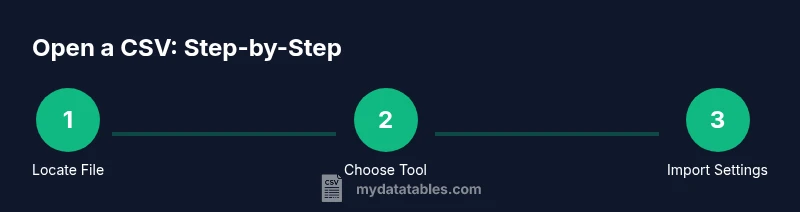
Locate the CSV file
Navigate to the folder containing the CSV file on your device or in your cloud storage. Verify you have read permissions and note the file path for quick access during import.
Tip: Use the search feature with the .csv extension to find it fast. - 2
Choose your opening tool
Decide which app you will use to view or edit the file (Excel, Sheets, LibreOffice Calc, or a CSV viewer). Consider collaboration needs and whether you require formulas or data transformations.
Tip: If you expect to share edits, Google Sheets offers built-in collaboration features. - 3
Open with import settings
Open the file in your chosen tool and configure import settings: delimiter, encoding, and whether the first row is a header. This ensures data columns align correctly.
Tip: If the import wizard misreads the delimiter, try switching to comma, semicolon, or tab until alignment looks right. - 4
Verify headers and data types
Check that the header row is detected and that numbers, dates, and text appear in the expected columns. Adjust data types if needed to avoid misinterpretation.
Tip: Use a quick sample check on several rows to confirm consistency. - 5
Handle encoding issues
If you see garbled characters, re-import with UTF-8 encoding or re-save the file in UTF-8. BOM presence can affect certain tools—choose BOM-aware options if available.
Tip: Keep a note of the encoding used for future imports from the same source. - 6
Edit or transform as needed
Make required edits, apply simple transformations, or export to a new CSV to preserve the original. Use formulas or scripting for repeatable cleaning.
Tip: Document changes to support reproducibility. - 7
Save and share the result
Save the edited file in CSV format if you must preserve that format, or convert to another delimiter or encoding as needed for downstream systems.
Tip: If sharing, include a note about the chosen delimiter and encoding.
People Also Ask
What is a CSV file and why is encoding important?
CSV stands for comma-separated values and is a plain-text format. Encoding determines how characters are stored; using UTF-8 avoids most garbled text across languages. Choose encoding during import to preserve characters correctly.
A CSV is a plain-text table. Encoding matters so characters appear correctly; UTF-8 works in most cases.
Which delimiter might a CSV use?
The standard delimiter is a comma, but some locales use semicolons or tabs. If data appears misaligned, adjust the delimiter during import until columns line up.
CSV files usually use a comma, but sometimes semicolons or tabs are used. Import with the correct delimiter.
Do I need to convert to Excel to edit CSVs?
No. You can edit CSVs in many apps, including Google Sheets, LibreOffice Calc, or a text editor. Choose the tool that fits your workflow and collaboration needs.
You don't have to convert to Excel; Google Sheets or LibreOffice Calc also work well.
How do I import CSV into Google Sheets?
Open Google Sheets, go to File > Import, and choose Upload to select your CSV. Configure delimiter and header rows in the import options.
In Sheets, use Import to bring in the CSV and set delimiter and header options.
What if the file is very large?
For large CSVs, avoid loading everything into memory. Use database import, scripting, or tools with streaming support to process data in chunks.
Large CSVs may require streaming or database processing rather than loading all at once.
How can I fix encoding issues quickly?
Open the file in a text editor to confirm the encoding, then re-save with UTF-8 if needed. Re-import with the correct encoding to avoid garbled text.
Check encoding in a text editor and re-save as UTF-8 if needed, then re-import.
Should I keep a header row?
If the first row contains column names, enable header detection during import. This ensures proper column labeling and avoids misinterpretation of data.
Yes, keep the header row and import with headers enabled.
Watch Video
Main Points
- Know your delimiter and encoding before opening.
- Choose the right tool for editing needs and collaboration.
- Verify headers and data types early to avoid misinterpretation.
- Document settings for reproducible CSV workflows.
- Use encoding- and delimiter-aware workflows for reliability.