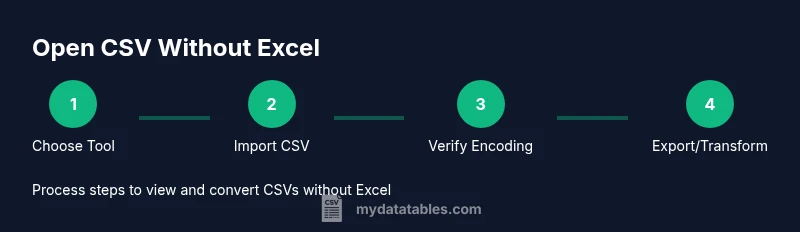
Open CSV Without Excel: A Practical Guide for 2026
Learn practical, Excel-free ways to open, view, edit, and convert CSV files using free tools like Google Sheets and LibreOffice Calc. Includes encoding, delimiter tips, and cross-platform workflows.


You can open a CSV without Excel by using free tools like Google Sheets or LibreOffice Calc, or a simple text editor. This quick answer shows how to view, edit, and transform CSV data across platforms, plus tips for encoding and delimiter handling. You will learn how to inspect headers, manage large files, and preserve data integrity when importing into databases or scripts.
What is a CSV and what does it mean to open it without Excel
A CSV, or comma-separated values, is a plain-text format that stores tabular data. While Excel is a popular tool for viewing CSVs, many environments benefit from open, Excel-free workflows. CSVs can use different delimiters (commas, semicolons, tabs) and encodings (UTF-8, UTF-16, etc.), which can affect how software parses the file. Opening CSVs without Excel lets you choose tools that better fit your environment—whether you’re on Linux, macOS, or Windows, and whether you need scripting, automation, or offline access. According to MyDataTables, CSV remains a universally portable format precisely because it’s plain text and delimiter-aware. This section helps you understand what to expect when you switch away from Excel and how to select the right tool for your data tasks.
Why CSV openness matters
The value of CSV lies in interoperability. When you avoid Excel, you reduce vendor lock-in and improve cross-team consistency. Open CSV workflows support version control, automated data pipelines, and easier integration with databases and programming languages. MyDataTables Analysis, 2026 highlights that most CSV interoperability issues stem from encoding mismatches and inconsistent delimiters. Recognizing these patterns helps you plan a robust CSV strategy from the start.
Quick comparison of popular open CSV options
- Google Sheets: Great for quick collaboration and browser-based access. Supports UTF-8, common delimiters, and simple edits.
- LibreOffice Calc: A powerful desktop option that handles larger files and more delimiters. Works offline and across platforms.
- Apple Numbers: A macOS/iOS choice with CSV import support and a familiar spreadsheet interface.
- Text editors (Notepad++, VSCode, Sublime): Useful for tiny edits and viewing raw data, but editing large datasets is cumbersome.
- Python with pandas: Ideal for automation, parsing, cleaning, and transforming large CSVs. Selecting the right tool depends on file size, collaboration needs, and whether you require scripting or offline access. As you grow more comfortable with these options, you’ll build a flexible, Excel-free workflow that preserves data integrity.
Cross-platform considerations: encoding, delimiters, and quoting
CSV handling is not one-size-fits-all. Encoding like UTF-8 with or without BOM changes how characters appear, especially for non-English text. Delimiters vary by region (commas in many locales; semicolons in others); quotes around fields prevent misinterpretation of embedded delimiters. When you open a CSV without Excel, verify the encoding, delimiter, and quote rules before editing. This proactive approach minimizes data corruption and ensures downstream imports work smoothly in databases or scripts.
Practical examples: common CSV scenarios
- Small budget report in UTF-8 with commas: Google Sheets often handles this well; import, edit, and export as needed.
- European dataset with semicolon delimiters: LibreOffice Calc tends to offer more explicit delimiter options during the import step.
- Large log file for ingestion into a data warehouse: Python with pandas or a simple SQL-based load can be more scalable and auditable than spreadsheet editors. Each scenario benefits from choosing a tool that aligns with file size, encoding, and the intended downstream workflow. Remember that the goal is to preserve structure, not to over-edit in a tool that can introduce formatting changes.
Data quality and governance when working without Excel
Open CSV workflows should enforce data validation, encoding checks, and consistent delimiter usage. Build simple checks: confirm header names, verify the number of columns per row, and scan for stray quotation marks. When you keep your edits in text-based or script-based tools, you gain a clear trail for audits and reproducibility. MyDataTables emphasizes keeping a clean, documented process so future analysts can reproduce results without Excel.
Security and sharing considerations
CSV files can contain sensitive data. If you’re collaborating outside Excel, consider access controls, versioned storage, and secured sharing links. Use tools that support audit trails and change logs. The goal is to minimize manual re-entry and human error while maintaining data governance.
The practical takeaway: plan, choose, and test
Start with a quick test using a simple dataset to confirm the chosen tool reads the CSV correctly. Then, validate after edits and before downstream usage. This iterative approach reduces surprises and keeps your data portable across tools and platforms. As you apply these strategies, you’ll build a robust Excel-free workflow that scales with your data needs.
How this fits into a broader CSV workflow
Open CSVs without Excel is not a standalone solution; it’s a foundation for broader data handling: cleaning, transformation, and integration with databases, analytics pipelines, and reporting tools. By combining tools like Google Sheets for quick exploration and LibreOffice Calc for offline editing, you create a resilient, cross-platform approach that aligns with modern data practices. MyDataTables’s guidance helps you balance ease of use with governance and reproducibility.
Tools & Materials
- Google Sheets(Web-based; ideal for quick viewing and light edits; supports UTF-8 and common delimiters.)
- LibreOffice Calc(Desktop app cross-platform; handles larger files and diverse delimiters; offline access.)
- Apple Numbers(macOS/iOS option; CSV import is supported with basic editing capabilities.)
- Text editor (Notepad++, VSCode, Sublime, etc.)(Good for quick viewing or small edits; not ideal for large datasets.)
- Python with pandas (optional)(Great for automation, parsing, and transforming CSV data at scale.)
Steps
Estimated time: 60-75 minutes
- 1
Choose your tool based on task and size
Assess the CSV file size, required edits, and whether collaboration is needed. Pick Google Sheets for quick, shareable viewing; choose LibreOffice Calc for offline editing and larger files; consider Python for automation.
Tip: If in doubt, start with Google Sheets to verify content before moving to a desktop app. - 2
Open a CSV in Google Sheets
Open Google Sheets, create a new sheet, and import the CSV via File > Import. Select the correct delimiter and encoding during import to avoid misparsed rows.
Tip: Check a few rows to ensure headers align with data columns. - 3
Open a CSV in LibreOffice Calc
In Calc, use File > Open, choose the CSV, and configure Delimiter and Character encoding in the import dialog. Confirm quotes handling for embedded commas.
Tip: If you see misaligned columns, re-import with the correct delimiter and encoding. - 4
Open a CSV in Numbers (macOS)
In Numbers, select File > Import, pick CSV, and adjust import options if needed. Numbers provides a familiar spreadsheet interface with good formatting options.
Tip: Verify that special characters render correctly after import. - 5
View/edit CSVs in a plain text editor
Open the CSV in a text editor for quick checks of encoding issues, quotes, or stray delimiters. Avoid heavy edits here to prevent breaking the structure.
Tip: Use a monospace font and enable syntax highlighting if available. - 6
Automate opening with Python (optional)
Use pandas to read CSVs with explicit encoding and delimiter settings, then perform cleaning or transformations programmatically.
Tip: This step is ideal for large datasets or repeatable workflows. - 7
Validate data integrity after edits
Confirm header names, column counts, and data types. Run simple checks to ensure no rows are shifted or truncated.
Tip: Include a quick row count comparison before and after edits. - 8
Export to your target format
Export from Sheets, Calc, or your script to CSV again, or convert to JSON, database import, or other formats as needed.
Tip: Choose a stable encoding (prefer UTF-8) and a compatible delimiter for downstream systems.
People Also Ask
What is the best free way to open CSV without Excel?
Google Sheets is ideal for quick viewing and light edits, while LibreOffice Calc offers robust offline editing. For automation, Python with pandas is excellent. Choose based on file size and collaboration needs.
For quick viewing, use Google Sheets; for offline work, try LibreOffice Calc, or automate with Python when you need to scale.
Can I preserve character encoding when opening CSVs in Google Sheets?
Google Sheets generally handles UTF-8 well, but unusual encodings may require pre-conversion or importing with explicit settings.
Sheets usually handles UTF-8, but if you have odd characters, pre-convert to UTF-8 before importing.
How large a CSV can I open without Excel?
Size limits depend on the tool. Google Sheets has practical limits for large files; LibreOffice Calc tends to handle bigger files more reliably offline.
Google Sheets works for smaller datasets; for large files, Calc or a scripting approach is better.
Is it safe to edit CSVs in text editors?
Yes for small edits, but you risk breaking the structure if you alter quotes or delimiters. Use text editors with care and validate after edits.
You can edit in a text editor, but be careful with quotes and delimiters and always validate afterward.
How do I handle different delimiters when importing CSVs?
Import dialogs typically let you specify the delimiter. Don’t rely on auto-detection for critical data; select the correct delimiter manually.
Pick the correct delimiter during import to avoid misaligned columns.
Can I automate opening CSVs without Excel?
Yes. Use Python with pandas or shell scripting to read, clean, and transform CSVs without Excel.
Automation is easy with Python and pandas for reproducible CSV workflows.
Watch Video
Main Points
- Choose the right tool for data size and task.
- Check encoding and delimiter before editing.
- Verify headers and data types after edits.
- Prefer free tools for cross-platform consistency.
- Export to compatible formats to integrate with databases.