How to Edit CSV Without Excel: A Practical Guide
Learn practical methods to edit CSV files without Excel using plain text editors, Google Sheets, LibreOffice, and scripting. This step-by-step guide emphasizes encoding safety, portability, and data integrity for data analysts and developers.


You can edit a CSV without Excel by using plain-text editors, Google Sheets, LibreOffice, or scripting tools (Python, R). Ensure UTF-8 encoding, preserve the delimiter, and quote fields with embedded commas. Avoid Excel-specific features that alter data formatting. Always back up the file before edits and validate with a CSV validator for accuracy.
Why edit CSV without Excel
Editing CSV files without Excel is not only feasible but often preferable for data accuracy and reproducibility. CSVs are plain text, and Excel can alter them through automatic formatting or date parsing. By editing with plain text editors, spreadsheet alternatives, or scripting, you preserve the original data integrity and encoding. According to MyDataTables, many data analysts prefer non-Excel workflows for portability across systems. The main reasons to choose an Excel-free approach include avoiding unwanted reformatting, easier version control, and better compatibility with scripting pipelines. This article explains why skipping Excel is a smart practice and how to pick the best tool for your scenario, with concrete examples and trade-offs across popular methods.
Choosing the right approach: editor vs programmatic
The first decision is whether your CSV edits will be manual or automated. If changes are small and occasional, a plain-text editor can be perfectly adequate. For repetitive edits, data validation, or large files, scripting languages (like Python or R) or dedicated CSV tools offer reproducibility and error checking. MyDataTables recommends weighing file size, encoding, and sharing needs before choosing a tool. This section breaks down the pros and cons of editors, spreadsheet substitutes, and programmatic approaches so you can pick the method that aligns with your goals and team workflows.
Quick-start: edit CSV in plain text editors
Plain-text editors are fast and introduce minimal risk when you need to make small tweaks. Prefer editors that clearly show encoding, line endings, and provide search-and-replace with regex support. Key practices include viewing the raw file, enabling UTF-8 encoding, and avoiding automatic formatting features that can misinterpret numbers or dates. For embedded commas or quotes, remember to properly escape fields and validate after edits. This approach is especially useful when you need to patch a single row or adjust a few fields without loading the data into a spreadsheet-like interface.
Using spreadsheet alternatives: Google Sheets, LibreOffice Calc, CSV editors
If you want a familiar grid interface without Excel, Google Sheets and LibreOffice Calc offer robust CSV import/export options. Use a clean import: specify the delimiter, choose UTF-8 encoding, and verify how quotes are handled. When exporting back to CSV, confirm that the delimiter and encoding remain correct and that no unintended formatting has been applied. Dedicated CSV editors provide features like delimiter detection, column alignment checks, and built-in validation, helping you maintain data integrity across platforms. MyDataTables notes that many teams rely on these tools to balance ease of use with control over the CSV structure.
Programmatic editing with Python, R, or shell
Programmatic editing provides repeatable, auditable changes. Using Python’s csv module or pandas, you can trim whitespace, normalize casing, or apply rule-based transformations across thousands of rows with a single script. R’s readr package or shell tools like awk can also be effective for batch edits. This section includes sample patterns for common edits, plus guidance on maintaining encoding and escaping rules. By scripting, you reduce human error and create an auditable history of changes, which is essential for data pipelines and collaboration.
Validation and quality checks: ensuring CSV integrity
After edits, run validation to catch structural issues: inconsistent row lengths, broken delimiters, or malformed quotes. Simple checks include verifying header presence, row counts, and that all rows have the same number of fields. Use CSV validators or write a small script to test for irregularities. Consistent encoding is critical; confirm UTF-8 without BOM if your downstream systems require it. This step helps ensure your edited CSV will load correctly in downstream processes such as databases, BI tools, or data pipelines.
Tools & Materials
- Plain-text editor (e.g., VSCode, Notepad++, Sublime Text)(Essential for direct edits and to view exact delimiters and encoding)
- CSV-compatible tool or viewer (optional)(Google Sheets or LibreOffice Calc offer grid-based editing and easy import/export)
- Scripting language (e.g., Python 3, R)(Recommended for automated edits and reproducible pipelines)
- CSV validation tool(Online validators or local scripts help catch structural issues)
- Backup storage(External drive or version control for original CSV backup)
- UTF-8 aware tooling(Ensure encoding is preserved during edits and exports)
Steps
Estimated time: 60-90 minutes
- 1
Choose editing approach
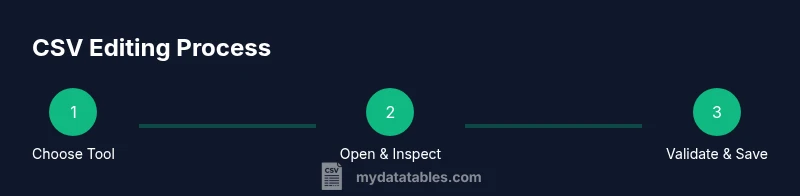
Assess file size, encoding, and how many rows you need to modify. Manual edits suit small tasks; automation excels for large files or repeated updates. Decide whether a plain-text editor, Google Sheets/LibreOffice, or scripting best fits the job.
Tip: For reproducibility, prefer scripting when edits are repetitive. - 2
Back up the original CSV
Create a copy of the file before making any changes. Store it in a separate folder or version control so you can revert if something goes wrong.
Tip: Name backups with a timestamp to avoid confusion. - 3
Open the file and inspect structure
Check the delimiter, header row, and encoding. If you see irregular quotes or embedded newlines, plan how to handle them safely in your chosen tool.
Tip: Enable UTF-8 encoding view and reveal hidden characters if possible. - 4
Make edits with care
If using a text editor, modify the exact fields and maintain the delimiter. If using a script, apply transformations in a test environment and log changes.
Tip: Limit edits to one section at a time to simplify validation. - 5
Save with proper encoding
Export or save the file using UTF-8 encoding. Ensure the file extension remains .csv and that no extra characters were appended.
Tip: Avoid BOM unless your workflow requires it. - 6
Validate the edited CSV
Run a quick validation to confirm consistent row lengths and proper quoting. Open the file in another tool to confirm it loads cleanly.
Tip: If possible, import a sample into a test environment to confirm downstream compatibility.
People Also Ask
Do I need Excel to edit CSV files?
No. CSV files can be edited with plain-text editors, Google Sheets, LibreOffice, or scripting languages. Excel is not required for basic edits or for maintaining data fidelity across tools.
You don’t need Excel to edit CSV files; plain editors or scripts work just fine.
How can I ensure encoding remains correct after editing?
Always save with UTF-8 encoding and verify the file does not include a BOM unless required by your workflow. Use editors that display or let you choose encoding explicitly.
Save as UTF-8 to keep characters correct and verify encoding when exporting.
Can I edit very large CSV files without Excel?
Yes. For very large files, use streaming approaches in Python, R, or shell tools, or leverage database imports. Loading the entire file into memory can cause performance issues in spreadsheet apps.
Yes, for large files use scripting or stream processing to avoid memory issues.
What are common pitfalls when editing CSVs outside Excel?
Misinterpreting delimiters, improper quoting, and accidental encoding changes are common. Always validate after edits and test loading the file in downstream processes.
Watch for delimiters, quotes, and encoding; always validate after edits.
Which tools are best for reproducible CSV edits?
Scripting languages (Python, R) and version-controlled workflows offer the best reproducibility. They let you document steps and re-run edits consistently.
Use scripts and version control to reproduce edits reliably.
Is there a quick way to verify a CSV import in a database?
Yes. Import a small sample into a staging table, run a basic sanity check, and compare row counts and key fields before committing.
Test import on a sample to ensure data integrity before full load.
Watch Video
Main Points
- Choose the right tool for file size and workflow
- Back up before editing to prevent data loss
- Validate structure and encoding after edits
- Prefer reproducible, script-based edits for large tasks
- Use non-Excel workflows to preserve data integrity