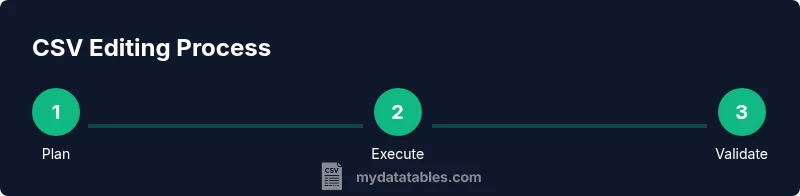
How to Safely Make Changes to a CSV File
Learn how to safely edit a CSV file with backups, encoding awareness, and validation. This step-by-step guide covers tools, workflows, and best practices for data analysts, developers, and business users.


To safely modify a CSV file, you’ll learn how to back up data, choose the right tool, preserve encoding and delimiters, and validate results after edits. This step-by-step guide covers practical techniques, safeguards, and common pitfalls to help data analysts, developers, and business users keep CSV data accurate while making changes.
Why You Might Need to Edit a CSV File
CSV files are a backbone of data exchange. They are small, human readable, and easy to generate, but that simplicity can mask real risks when editing. If you’re asking can you make changes to a csv file, the answer is yes—but only when you plan, back up, and validate. A stray comma, a misquoted field, or a changed delimiter can corrupt a whole dataset or break downstream imports. Before you type a single keystroke, map your changes to the columns, confirm the header row, and decide how you will verify the results after editing. This guidance emphasizes deliberate, tested edits. According to MyDataTables, organizations that implement a simple change-tracking workflow preserve data integrity while updating records.
Can you make changes to a csv file? Yes, but treat edits as experiments on a copy first. In practice, you should document the intended modifications, define acceptance criteria, and plan a rollback if something goes wrong. This section lays the foundation for safer editing by explaining why edits happen, how to plan changes, and how to avoid breaking downstream processes that rely on consistent structure.
In modern data workflows, CSV edits often feed into dashboards, databases, or data lakes. A single malformed row can cascade into errors across analytics pipelines. The goal is to maintain a clean, auditable trail of edits that makes it easy to reproduce results or revert changes when needed.
note
Tools & Materials
- Reliable backup storage (external drive or cloud)(Before editing, create a full backup of the CSV file and its metadata)
- CSV-compatible editor or IDE (e.g., VS Code, Notepad++, Sublime Text)(Prefer editors that support large files and UTF-8 encoding)
- Spreadsheet software (optional)(Use with caution; beware auto-formatting that can alter data types or delimiters)
- Scripting environment (e.g., Python with pandas, or CSVKit)(Useful for batch edits and reproducible workflows)
- Integrity checksumming or diff tool (optional)(Helps verify changes and detect unintended edits)
Steps
Estimated time: 45-90 minutes
- 1
Prepare your workspace
Create a copy of the original file and clear a dedicated folder for edits. This reduces the risk of overwriting the source and makes it easy to compare versions. Confirm you have the exact file path and that you know the encoding and delimiter used by the file.
Tip: Use a versioned folder structure to track edits over time. - 2
Back up and document the baseline
Save a pristine backup with a timestamp and write a short note describing the intended changes. This baseline is your rollback point if errors occur during editing or validation.
Tip: Store the backup in a separate location from the working copy to prevent simultaneous loss. - 3
Inspect the file structure
Open the file and verify the header row, number of columns per row, and the delimiter. Look for quoted fields and embedded newlines that could affect parsing.
Tip: If you see nonstandard delimiters like semicolons, be prepared to adjust parsing settings. - 4
Make the required edits
Edit only the targeted fields or rows. Avoid global find-and-replace unless you’ve locked the scope. If you’re editing in a text editor, keep a parallel log of changes.
Tip: Prefer making small, incremental edits and testing after each batch. - 5
Validate after edits
Run quick checks: row counts remain the same, headers are intact, and sample rows show expected values. If possible, run a small test import to confirm downstream compatibility.
Tip: Automate validation when possible to reduce human error. - 6
Save with proper encoding and delimiter
Export or save using UTF-8 encoding and the original delimiter. Confirm the file extension remains .csv and that no extra formatting was added by the editor.
Tip: Avoid Excel’s default .xlsx export to preserve CSV fidelity.
People Also Ask
Can I edit a CSV file directly in Excel without causing data corruption?
Excel can edit CSVs, but it may alter formatting or delimiter usage, especially with large files or nonstandard delimiters. Prefer dedicated CSV editors or scripting for precise edits, and always test the result with a sample before saving.
Excel can edit CSVs, but it can change formatting. Use specialized tools for safer edits and test the output.
What is the safest way to back up a CSV before editing?
Create a full copy of the original file with a timestamp and store it in a separate location from the working copy. Keeping a metadata note with the backup helps you track what edits were planned.
Make a full backup with a timestamp and keep it separate from the working file.
How should I handle Unicode or special characters in CSVs?
Use UTF-8 encoding and proper quoting for fields containing commas, newlines, or quotes. Avoid manual edits that strip or misinterpret non-ASCII characters.
Use UTF-8 and proper quoting for fields with special characters.
What should I do if my CSV uses a semicolon delimiter?
Treat the semicolon as the delimiter when parsing or exporting. Update your tool’s delimiter settings accordingly to avoid misalignment.
If your file uses a semicolon, set that as the delimiter when parsing or exporting.
How can I verify that edits didn’t break downstream processes?
Run a small import or load test into the target system and compare the results against expected outputs. Check key aggregates and row counts for consistency.
Do a small test import and compare results to ensure nothing broke downstream.
Watch Video
Main Points
- Back up the original CSV before edits
- Preserve encoding and delimiter during save
- Validate structure and a sample of rows after changes
- Choose the right tool to match file size and complexity
- Document edits for reproducibility and rollback capability