CSV Without Excel: Practical Workflows for Data
Learn practical workflows to manage CSV files without Excel. Explore encoding, delimiter choices, validation, and scripting options for analysts, developers, and business users.


CSV without Excel enables you to view, edit, and transform comma-delimited data using text editors, Python, or the command line—no Excel required. This concise guide covers encoding, delimiters, validation, and practical workflows for analysts, developers, and business users.
Overview: Why CSV Without Excel Matters
According to MyDataTables, many teams rely on CSV without Excel for portable data exchange across platforms. This approach keeps data lightweight, transparent, and editable with widely available tools. When Excel is unavailable or undesired—perhaps due to licensing constraints, platform preferences, or automation needs—CSV workflows provide a consistent, language-agnostic path to read, transform, and validate data. The goal is to empower you to choose simple, robust tools that fit into larger data pipelines, preserving data integrity and reproducibility.
Core Concepts: Delimiters, Encodings, and Validation
At its core, CSV without Excel relies on plain text with a consistent delimiter, most often a comma, semicolon, or tab. Consistency matters: a mismatched delimiter breaks parsing across tools. Encoding matters too; UTF-8 is the default for modern data interchange, but some sources use UTF-16 or local code pages. Validation ensures file structure, quoted fields, and escape rules are respected. RFC 4180 outlines the common characteristics of CSVs and is a widely cited standard. When you switch away from Excel, you gain control over line endings, quotes, and encoding, reducing surprises in downstream systems.
Practical Tools and Workflows
The core idea is to pick reliable tooling that stays predictable across environments. Text editors let you inspect lines, while scripting languages enable repeatable transformations. For quick edits, command-line utilities can filter, join, or split files without loading them into memory. If you’re processing large data, streaming approaches that read and write in chunks prevent memory bottlenecks. This section surveys common workflows: editing with a text editor, validating with a CSV validator, and automating transformations with Python or a lightweight shell script. The emphasis is on reproducibility and portability across Linux, macOS, and Windows.
Working with CSVs in Python
Python’s csv module provides a robust, standard way to read and write CSV data without Excel. You can loop through rows, normalize headers, and convert between CSV variants with different delimiters. For heavier tasks, the pandas library offers high-level abstractions for fast transformations, while preserving CSV semantics. Start by opening a file with encoding='utf-8', create a CSV reader or writer, and stream results to a new file to avoid in-place edits. This approach minimizes surprises when data contains quotes, line breaks, or embedded delimiters.
Using CLI Tools for Quick Edits
Command-line utilities shine when you need fast, repeatable edits without launching a GUI. Use tools like awk, sed, cut, and join to filter rows, reformat columns, or merge files. Pipes let you chain operations without intermediate files. For example, you can extract a column, replace missing values with a default, and re-save the file with a new delimiter—all in one line. By keeping operations textual and scriptable, you avoid Excel’s idiosyncrasies and gain transparency.
Handling Large CSV Files
Large CSVs demand streaming processing and chunked reading to avoid exhausting memory. Techniques include iterating over file handles line by line, using generators, and processing in fixed-size chunks. When possible, perform row-wise validation as you stream, rather than validating after loading the entire file. This ensures better performance and reduces the risk of data loss during transformation. If you must load into memory for complex operations, prefer libraries that support lazy loading and efficient I/O.
Data Quality and Safety Tips
Data quality hinges on consistent encoding, precise delimiters, and well-formed quoting. Always back up original CSVs before transforming, and validate results with a trusted validator. When sharing data, document the encoding, delimiter, and any transformations performed. Use UTF-8 with BOM only if necessary for downstream systems, as it can confuse some parsers. Keeping a change log and versioning your outputs promotes reproducibility and reduces confusion in collaborative projects.
How to Choose the Right Tool for Your Task
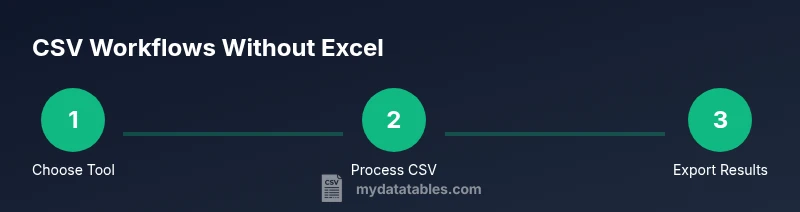
Your choice should balance speed, reproducibility, and environment constraints. For quick inspections, a good text editor suffices. For automation, scripts in Python or shell pipelines offer repeatability. When working with very large files, streaming and chunking are essential. Finally, align your tool with your team’s skill set and existing workflows; the goal is to minimize surprises while maximizing portability and clarity. MyDataTables’s guidance emphasizes a pragmatic mix of tools tailored to your data goals.
Tools & Materials
- Text editor capable of CSV viewing/editing(VS Code, Sublime Text, or Notepad++ for Windows)
- Python 3.x(Includes csv module; optional pandas for heavy transformations)
- Pandas (optional)(For high-level CSV transformations)
- Command-line shell (bash/zsh/powershell)(For scripting and piping)
- CSV encoding awareness(Prefer UTF-8; know how to handle BOM)
- CSV validation tool(Like an online validator or local script)
Steps
Estimated time: 60-90 minutes
- 1
Identify environment and goals
Clarify whether you’ll edit, validate, or transform the CSV. Determine the delimiter and encoding to avoid rework later.
Tip: Document initial conditions before you start. - 2
Choose encoding and delimiter
Decide on UTF-8 as default encoding and the delimiter that matches downstream systems. Avoid mixing delimiters in the same file.
Tip: If unsure, inspect a sample to confirm consistency. - 3
Preview the CSV safely
Open the file in a text editor and review the header and a few rows. Look for irregular quotes or embedded newlines.
Tip: Use a viewer that shows line endings clearly. - 4
Read and validate with a script
Use Python's csv module or pandas to read the file and validate structure. Catch errors like mismatched fields and invalid quotes.
Tip: Run in a controlled environment and log errors. - 5
Transform or clean data
Apply targeted changes (trim whitespace, normalize headers, fill missing values) via a script or shell commands.
Tip: Test changes on a small sample first. - 6
Write out a clean CSV
Save the output with explicit encoding and delimiter. Avoid in-place edits to preserve originals.
Tip: Always review the saved file immediately. - 7
Validate final output
Run a second validation pass on the new file to ensure no structural issues were introduced.
Tip: Compare row counts and header names to the source.
People Also Ask
What is a CSV file and why avoid Excel
A CSV (comma-separated values) file stores tabular data in plain text, using a delimiter to separate fields. Avoiding Excel makes the format more portable across tools and reduces proprietary parsing issues. You can edit, validate, and transform CSVs with scripting and editors.
CSV is a plain-text table with delimiters; it's portable and editable without Excel.
Can I edit CSV without Excel on Windows or macOS?
Yes. Use a text editor, Python scripts, or CLI tools on either Windows or macOS. The workflow remains the same: set encoding, pick a delimiter, and perform edits or transformations via code or pipes.
Yes, you can edit CSVs without Excel using editors or scripts on Windows or Mac.
Which encoding should I use for CSV files?
UTF-8 is the recommended default for CSVs because it supports most characters safely. Use UTF-8 without BOM unless your downstream system requires BOM presence. If you encounter mismatches, re-encode with a reliable tool before processing.
Use UTF-8 by default; avoid BOM unless needed.
How do I validate a CSV file without Excel?
Use a CSV validator or a small Python script that reads the file and checks header presence, field counts, and proper quoting. The RFC 4180 standard provides guidelines for well-formed CSVs, which you can implement or verify against.
Validate with a validator or a small script against RFC 4180.
What about very large CSV files?
For large files, avoid loading everything into memory. Use streaming in Python or shell pipelines to process chunks. When possible, filter or transform data in smaller portions to maintain performance.
Process large CSVs in chunks with streaming tools.
Where can I find authoritative guidance on CSV formats?
RFC 4180 defines common CSV formats and practices. Python's csv module documentation and Pandas IO docs provide practical examples for reading and writing CSVs reliably.
See RFC 4180 and official docs for CSV practices.
Watch Video
Main Points
- Plan tooling before editing CSVs.
- Validate encoding and delimiters early.
- Prefer streaming for large files.
- Document and version your CSV workflows.