CSV vs Excel: Master CSV-Excel Workflows for Analysts
A practical guide comparing CSV and Excel workflows, showing when to convert, how to preserve data integrity, and best practices for analysts, developers, and business users.


CSV and Excel are complementary rather than mutually exclusive. For data interchange and pipelines, CSV remains the plain-text workhorse; Excel offers rich analytics and presentation. This quick comparison highlights when to choose each tool and how to blend them for reliable csv excel workflows across teams. Keep in mind that data quality and encoding matter most when moving between formats—plan validation steps, preserve headers, and test round-trips on a sample dataset.
Why CSV Excel matters for data workflows
According to MyDataTables, the choice between CSV and Excel shapes both how data moves and how insights are built. The csv excel workflow is common in organizations that collect data through forms, logs, or external feeds and then want to analyze and present results quickly. CSV files provide portability, predictability, and language-agnostic parsing, making them ideal for batch imports, data pipelines, and cross-system transfers. Excel, by contrast, shines when analysts need to perform calculations, run pivot tables, and present results in reports with charts. The historical tension between flat-text data and feature-rich spreadsheets is not a zero-sum decision; the real strength comes from using both in concert. In this article we examine when to rely on CSV for data capture and validation and when to lean on Excel for analysis and visualization. We'll also outline practical patterns to bridge the two formats with minimal data degradation.
When to use CSV vs Excel
- Data interchange and ingestion: CSV excels here because it is lightweight, human-readable, and easy to parse across languages and platforms.
- Quick data validation and batch imports: CSV is ideal for staging data before loading into a database or analysis tool.
- Ad-hoc analysis and presentation: Excel shines when you need formulas, charts, pivot tables, and a shareable report.
- Small-to-mid datasets with rich metadata: Excel can store headers, data types, and descriptive notes inside a workbook.
Key takeaway: Use CSV to move data between systems; use Excel to analyze, format, and present results; bridge the gap with clean imports and consistent encoding.
Understanding CSV basics: encoding, delimiters, quoting
CSV is deceptively simple but carries important edge cases. Delimiters vary by locale (comma, semicolon, or tab). Encoding matters—UTF-8 with or without BOM can affect non-ASCII characters when importing into Excel. Quoting rules determine how to handle embedded delimiters in fields. Line endings can differ between Windows and UNIX environments, impacting cross-system compatibility. When Excel opens a CSV, it may misinterpret columns if the delimiter or encoding isn't what the program expects, so plan to verify column boundaries, header rows, and data types after import. A robust CSV workflow standardizes on a single delimiter, an explicit encoding, and a consistent header row to minimize surprise edits later on.
Excel's strengths for data analysis
Excel stands out for its native analytics capabilities. Formulas, conditional formatting, and built-in functions enable rapid ad-hoc analysis. Pivot tables summarize large datasets with minimal setup, while charts turn results into compelling visuals. Power Query and Power Pivot add data modeling and ETL-style workflows inside Excel, making it possible to pull from external CSV sources, transform data, and refresh analyses with a single click. For teams prioritizing visualization and storytelling, Excel remains a powerful companion to raw CSV data. The key is to use Excel for analysis after validating and importing clean CSV data, not as the sole data source for complex pipelines.
Data quality and validation in CSV workflows
Data quality starts with the CSV format, which is plain text. Enforce encoding, consistent delimiters, and explicit headers. Validate field types after import: dates should parse as dates, numbers should be numeric, and missing values should be clearly flagged. Consider introducing a lightweight validation layer upstream (in a script or a lightweight tool) to catch malformed rows before they enter Excel. When transforming data, keep a pristine copy of the original CSV so you can compare checksums or row counts after each step. A disciplined approach to validation reduces downstream errors and saves time during analysis.
Encoding, locale, and delimiter considerations
Different regions adopt different CSV conventions, which can create subtle problems during cross-team collaboration. If your source uses a semicolon or a tab as a delimiter, ensure the consuming tool is configured to parse that delimiter. Encoding consistency is critical for non-ASCII characters; UTF-8 with explicit BOM can help Excel correctly interpret characters when opening files. Locale settings affect number formats (decimal separators) and date formats, which can lead to mis-parsed data if not standardized. Document and enforce a single convention for each project: delimiter, encoding, decimal symbol, and date format. When necessary, convert data with a small preflight script to normalize these settings before sharing CSV files.
How to convert between CSV and Excel without data loss
A reliable conversion path starts with validation of the CSV. When importing into Excel, choose the correct delimiter and encoding in the import wizard, and verify column boundaries and data types. After editing in Excel, export back to CSV using the same encoding and delimiter to avoid surprises in downstream systems. When moving from Excel to CSV, be mindful of multi-line fields, embedded newlines, and quoted values. Use explicit text qualifiers and verify that the exported file preserves headers and field order. Maintaining a small audit trail of changes helps you track data lineage across formats.
Practical pipelines: from CSV to Excel and back
A practical pipeline often begins with data collection in CSV, followed by a validation pass and loading into Excel for analysis. Analysts update summaries, produce charts, and create formatted reports in the workbook. The final step exports CSV again for ingestion into databases, data lakes, or downstream applications. This loop, when automated with simple scripts or BI tools, minimizes manual rework and reduces the risk of drift between your raw CSV and your Excel analyses. Build in checks for row counts, header consistency, and encoding compatibility at each transition to ensure reliability across teams.
Tooling and automation options
There are multiple ways to streamline csv excel workflows. Scripting languages like Python and R handle CSV parsing and transformation with robust libraries, offering repeatable validation and transformation steps. Excel Power Query provides a no-code ETL approach to pull in CSVs, clean data, and load results into models or dashboards. For teams seeking lightweight automation, shell scripts or batch files can orchestrate import-export tasks, while cloud-based workflows can schedule regular updates from shared CSV sources. MyDataTables recommends pairing a CSV-first validation stage with an Excel-analysis stage to maximize data fidelity and accessibility for business users.
Common pitfalls and how to avoid them
- Hidden characters and inconsistent encoding can corrupt data across tools. Validate encoding at the source and after every transfer.
- Misinterpreted delimiters or text qualifiers lead to column drift during import. Standardize on a single delimiter and test with sample records.
- Forgetting to preserve headers or data types in Excel exports causes downstream failures. Keep explicit headers and consistent data types throughout.
- Large CSV files can overwhelm Excel. Break up huge datasets or use data modeling tools that handle big data efficiently.
Quick-start checklist to get started
- Define a single, consistent CSV encoding and delimiter.
- Create a small test dataset to validate round-trips between CSV and Excel.
- Enable data validation and keep a pristine copy of the original CSV.
- Use Excel for analysis and presentation; export final results back to CSV for pipelines.
- Document your workflow and update it when tools or environments change.
Comparison
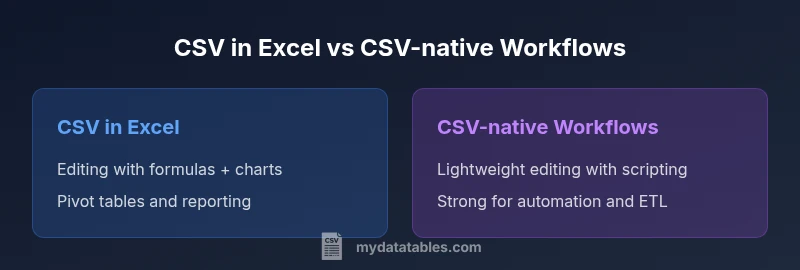
| Feature | CSV in Excel | CSV-native Workflows |
|---|---|---|
| Editing interface | Rich editing and formatting in Excel | Text-based editing with lightweight tools |
| Analytics & formulas | Full Excel formulas, pivot tables, charts | External scripting/libraries for analysis |
| Performance with large data | Handles interactive work on moderate datasets | Better performance with dedicated tools for very large data |
| Data validation | Strong data types and in-cell validation | Requires external validation steps |
| Automation & ETL | Macros/Power Query inside Excel | Scripting pipelines (Python, awk, etc.) |
| Portability | Native CSV portability; direct import/export | CSV remains universal; depends on tooling for parsing |
| Best use case | Analysis-rich reports from Excel | Ingestion, transformation, and automation pipelines |
Pros
- Familiar editor and strong analytics in Excel
- Robust data validation and formatting options in Excel
- CSV offers universal data interchange and portability
Weaknesses
- Possible formatting drift during CSV↔Excel transitions
- Excel can become slow with very large datasets
- CSV lacks built-in data validation and metadata in some previews
CSV in Excel is best for analysis-rich workflows; CSV-native workflows excel for automation and data ingestion.
If your priority is rapid analysis and polished reports, use Excel after validating CSV data. For data ingestion and automated pipelines, keep CSV-centric steps and limit Excel usage to vetted analyses. The two-workflow approach provides reliability and flexibility.
People Also Ask
What is the key difference between CSV and Excel for business data?
CSV is a plain-text format optimized for data interchange and pipeline transfer. Excel is a feature-rich workbook that supports formulas, charts, and data modeling. In practice, use CSV to move data between systems and Excel to analyze and present results.
CSV is great for moving data. Excel is great for analysis and visuals.
Can I open CSV files directly in Excel without losing data?
Yes, Excel can open CSV files directly, but you may need to specify the delimiter and encoding. After import, verify column boundaries and data types to prevent misinterpretation. Saving back to CSV should preserve headers and order.
You can open CSV in Excel, just check the delimiter and encoding first.
Is CSV or Excel better for large datasets?
CSV typically handles large data as plain text and can be fed into external tools for processing. Excel can struggle with very large files or complex formulas, so consider a pipeline that uses CSV for ingestion and a dedicated analytics tool for analysis.
CSV scales in data movement; Excel is best for in-app analysis on moderate data.
How do I convert CSV to Excel without losing data?
Open the CSV in Excel using the Import Wizard, specifying the correct delimiter and encoding. After editing, save as Excel format to preserve formulas and formatting, or export back to CSV with the same encoding and delimiter to avoid data loss.
Import with the right delimiter and encoding, then save as Excel or export back to CSV carefully.
What are best practices for CSV data quality?
Validate encoding, standardize delimiters, ensure consistent headers, and check for missing values. Run a light validation script before loading into Excel or databases to catch malformed rows early.
Keep encoding and headers consistent, and validate data before analysis.
What tools does MyDataTables recommend for CSV-Excel workflows?
Leverage a CSV-first validation step and Excel for analysis. Use scripting languages or Power Query for ETL-like tasks, and document the workflow for repeatability. MyDataTables emphasizes practical, scalable approaches over flashy features.
Use a CSV-first approach and analyze in Excel; document your steps.
Main Points
- Choose the data flow first: analysis vs ingestion
- Maintain encoding consistency across formats
- Validate data during every transition
- Automate repetitive steps to reduce errors
- Document your CSV↔Excel workflow for team-wide coherence