CSV File vs Excel: A Practical Comparison for Data Professionals
Analytical, side-by-side comparison of CSV file vs Excel, focusing on interchange, analysis capabilities, and real-world workflows for data professionals.


CSV file vs Excel: a quick verdict for data workflows. For interchange and automation, CSV is the leaner choice thanks to its plain-text format, small footprint, and language-agnostic parsing. Excel offers built-in analysis features, multi-sheet organization, and rich formatting. The best approach is to use CSV for data transfer and Excel when analysis and presentation are the goals.
Foundations of CSV and Excel: What They Are, and How They Differ
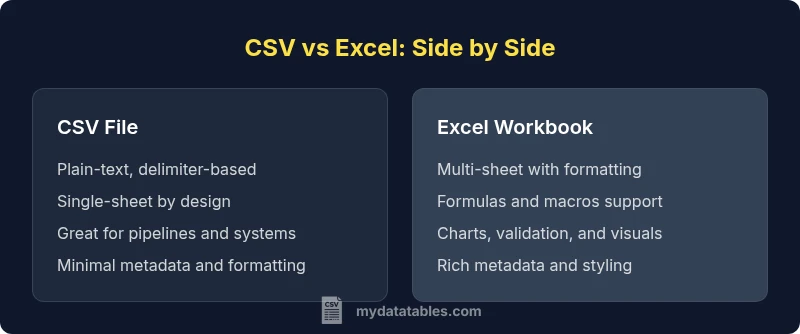
In the world of data exchange, two formats dominate when you compare csv file vs excel: CSV (comma-separated values) and Excel workbooks. A CSV file is a simple text representation of tabular data where each row is a record and each column is a field separated by a delimiter. There is no intrinsic metadata beyond the delimiter and encoding, making CSV highly portable across languages and platforms. An Excel workbook, by contrast, stores data in a structured, feature-rich environment. It can contain multiple sheets, formatting, data validation, charts, and formulas. When you weigh csv file vs excel, you’re choosing between portability and capability. For data professionals, this distinction guides whether a file will be a plain interchange payload or a living dataset used for analysis and presentation. Understanding these fundamentals helps you design data flows that minimize friction and maximize reliability across systems.
The Core Differences: CSV vs Excel at a Glance
CSV is a flat, text-based format designed for simple tabular data. It emphasizes portability, compatibility, and tiny file sizes. Excel, meanwhile, is a rich application format that supports multiple sheets, cell formatting, embedded charts, and in-workbook calculations. The core differences influence how you store, share, and transform data: CSV files excel at simplicity and interoperability, while Excel excels at exploration, modeling, and presentation. When planning a data project, it’s common to begin with a CSV for extraction and transfer, then import into Excel for deeper analysis and stakeholder-facing reporting. This high-level contrast sets the stage for deeper exploration of real-world use cases, limitations, and best practices.
Data Interchange and Interoperability
CSV files shine in data interchange. They are easy to generate from almost any programming language, script, or database export, and most tools can read or write CSV with predictable results. The plain-text nature means CSV avoids many compatibility pitfalls, such as embedded formatting or locale-dependent features. Excel workbooks offer strong interoperability within the Microsoft ecosystem and with Power Query, but require libraries or software capable of parsing .xlsx/.xlsm formats for others to read. When you design pipelines, consider CSV as the lingua franca for data transfer, with Excel as the preferred destination for analysis and decision-ready reports. In practice, teams frequently exchange CSV during ETL steps, then load into Excel for final analysis and visualization.
Data Types, Validation, and Precision
CSV stores data as text, so there is no inherent data typing or validation. Numbers, dates, and booleans are interpreted by downstream applications, which means date formats can vary and cause misinterpretation if not standardized. Excel stores data in a richer internal representation and can enforce data types, apply data validation rules, and automatically format numbers and dates. This difference matters when you import data into a workspace that relies on precise types for calculations. When csv file vs excel is evaluated for a workflow, remember that CSV favors raw data transfer while Excel provides robust in-app data integrity features that reduce downstream errors in analysis.
Formulas, Macros, and Automation
One of the strongest differentiators between the two formats is support for formulas and automation. CSV has no native support for formulas, macros, or embedded logic; any calculation must be performed by the consuming application after import. Excel provides a rich formula engine, automatic recalculation, and support for macros (VBA) and advanced automation with Power Query and the Office scripting environment. If your workflow requires dynamic calculations, modeling, or repeatable analytics within the same file, Excel is often the better choice. For robust automation across systems, CSV excels when coupled with parallel processing scripts and ETL tools.
File Size, Performance, and Scalability
CSV files tend to be smaller and faster to parse because they are plain text with minimal structure. Large CSVs can be read row by row by streaming parsers, enabling efficient processing in memory-constrained environments. Excel workbooks, while powerful, include metadata, formatting, and features that increase file size and CPU usage during open or save operations. In performance-sensitive pipelines, CSV is usually preferred for data transfer, while Excel is appropriate for end-user analysis on workstation-grade hardware. When csv file vs excel considerations involve performance, the choice often comes down to whether you prioritize throughput and simplicity (CSV) or rich interactivity and formatting (Excel).
Collaboration, Version Control, and Workflows
CSV’s plain-text structure makes it friendly for version control systems like Git, enabling line-based diffs and clean merge histories. This is a practical advantage in collaborative environments where transparency and traceability matter. Excel’s binary format introduces more complexity for diffs and merges, although modern tools offer change tracking and co-authoring features within the application. For teams that must audit changes or manage large collaborative datasets, starting with CSV for raw data and converting to Excel for stakeholder review can streamline reviews while preserving a solid audit trail.
Encoding, Delimiters, and Data Quality
Delimiter choice (comma, semicolon, tab) and character encoding (UTF-8, UTF-16, etc.) are critical when exchanging CSV files. Mismatched encoding or unusual delimiters can corrupt data during read or write operations. Always agree on a standard encoding, include a header row when possible, and test the import path across target systems. Excel, while handling UTF-8 and Unicode well in recent versions, can still introduce surprises during import if delimiter settings are inconsistent. The csv file vs excel decision should account for how your teams will ingest, validate, and use the data in downstream tools.
Real-World Scenarios: When to Choose CSV vs Excel in Practice
In data pipelines, CSV shines as the default interchange format between systems, databases, and services. It is ideal for exporting from a warehouse, feeding an ETL job, or delivering raw data to an analytics platform. When end users need to explore, model, or present results, Excel becomes the natural workspace due to its calculation capabilities, charts, and formatting features. A common pragmatic pattern is to export clean CSV data for loading into a BI tool or data lake, then import into Excel for ad-hoc analysis or presentation-ready dashboards. By separating data transport from data analysis, teams can improve reproducibility and speed. csv file vs excel is not an either-or decision; it is about choosing the right tool for the right stage in the workflow.
Comparison
| Feature | CSV file | Excel workbook |
|---|---|---|
| Structure | Flat, single sheet, delimiter-based | Multi-sheet workbook with formatting |
| Data Types | All data as text; no inherent typing | Rich data types with explicit formatting and formulas |
| Formulas & Macros | No native formulas or macros | Full support via formulas and VBA/macros |
| File Size & Performance | Smaller, faster to parse | Larger, more metadata and features |
| Collaboration & Versioning | Text-based diffs, easy for VCS | In-app collaboration with change tracking |
| Automation & Pipelines | Ideal for ETL and scripting | Best for analysis with automation via Excel tools |
| Encoding & Delimiters | Delimiters and encoding must be standardized | Binary format with internal encoding handling |
| Best Use Case | Data interchange, logs, exports | Analysis, reporting, rich presentations |
Pros
- Low barrier to data interchange and parsing
- Lightweight and human-readable
- Excellent for automation and pipelines
- Widely supported across platforms and languages
Weaknesses
- No built-in data types or formulas in raw CSV
- No multi-sheet structure or embedded visuals
- Encoding and delimiter issues if not standardized
- Limited metadata and formatting capabilities in the raw format
CSV is the preferred choice for data interchange and automation; Excel is the preferred choice for analysis and presentation.
Choose CSV for data transfer and integration across systems; choose Excel when you need modeling, formulas, and rich formatting. In practice, many workflows use both: CSV for input/output, Excel for analysis and stakeholder reporting.
People Also Ask
When should I use CSV vs Excel?
CSV is ideal for data interchange between systems and automation pipelines, where human readability and parsing speed matter. Excel is preferable when data needs analysis, formulas, charts, or presentation-ready formatting. In practice, many teams start with CSV for intake and move to Excel for analysis.
Use CSV for transferring data between tools; switch to Excel when you need formulas and visuals.
Can Excel handle large CSV files efficiently?
Excel can open large CSVs, but performance may degrade with very large datasets. For extremely large files, CSV-based ETL pipelines or data-processing tools are often more scalable, with Excel serving as the final presentation layer.
Yes, but performance can suffer; consider preprocessing in CSV-first workflows.
Do CSV files support dates and numbers properly?
CSV stores values as text; interpretation of dates and numbers depends on the consuming program. Standardizing formats (YYYY-MM-DD for dates, unformatted numbers) helps ensure consistent parsing across platforms.
Dates and numbers depend on how the reader interprets the text.
How do I safely convert CSV to Excel and preserve data?
Use a clean CSV with headers, specify encoding (UTF-8), and import via Excel's data import tools to map columns correctly. Review data types after import and adjust formatting as needed to preserve accuracy.
Import with care and verify data types after the import.
Are there encoding pitfalls I should avoid?
Yes. Mismatched encodings can corrupt characters, especially for non-ASCII data. Always agree on UTF-8 (or another standard) and test end-to-end with representative samples.
Make encoding the first thing you fix when exchanging CSVs.
Can I automate Excel from a CSV input?
You can automate Excel after loading a CSV via macros, Power Query, or Office Scripts. Direct automation from a CSV without loading it into Excel isn’t possible because Excel must ingest the data first.
Automate after loading CSV into Excel.
Main Points
- Use CSV for data interchange and pipeline automation
- Use Excel for analysis, modeling, and presentation
- Standardize encoding and delimiters when exchanging CSV
- Leverage CSV with version control for traceability
- Convert to Excel when rich formatting or complex calculations are required