CSV vs Excel: When to Use Each for Data Workflows
A practical comparison of CSV and Excel to help data analysts, developers, and business users decide when to use each format in data pipelines, analysis, and reporting. Practical guidance for analysts, developers, and business users.


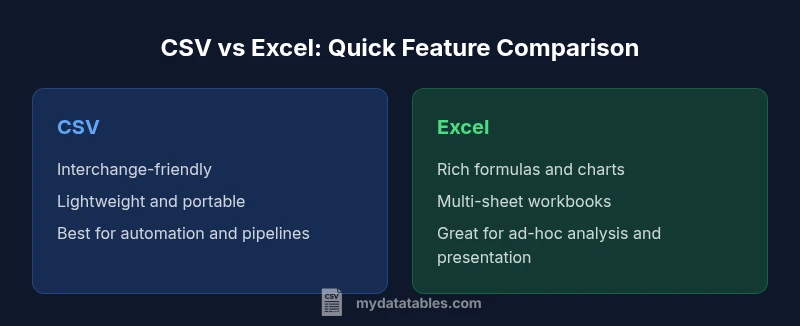
CSV and Excel serve different workflows. Use CSV for data interchange and automation, especially in large-scale pipelines and cross-system exchanges, while Excel excels at ad-hoc analysis, formatting, and presentation. For mixed environments, store raw data as CSV and reserve Excel for finalized reports and dashboards. This quick take helps you decide at a glance which path minimizes rework and preserves data fidelity.
When CSV shines for data interchange
When approaching data work, many teams ask: what format should I use for moving data between systems? The canonical answer to when to use csv vs excel is that CSV shines for data interchange and automation. CSV files store plain tabular data as text, with simple row-column structure and no formatting. This simplicity makes CSV highly portable: it travels across operating systems, programming languages, and database systems without special readers. For data engineers and analysts, that portability reduces friction in ETL pipelines, data exports from dashboards, or exports from databases. It also means diffs in version control are readable, since a change to a single cell becomes a line-level diff rather than a binary patch.
In practice, CSV is the workhorse for ingestion, transfer, and validation steps where the downstream consumer expects clean, schema-free data. The MyDataTables team emphasizes that when to use csv vs excel depends on data fidelity and downstream tooling. If you want predictable parsing, deterministic encoding, and minimal processing surprises, CSV is often the correct starting point.
When Excel adds value: structure, formulas, and UI
Excel brings a rich surface for exploring data. When you need to create formulas, perform complex calculations, build pivot tables, and generate charts in a single workbook, Excel offers a cohesive environment. The UI enables non-technical users to experiment with data, test hypotheses, and present findings without writing code. Workbooks can include multiple sheets, data validation rules, and embedded visuals that communicate trends clearly. For analysts who frequently need to annotate, filter, and sort data ad hoc, Excel provides an ergonomic workflow that accelerates hypothesis testing and storytelling. However, it's important to keep in mind that Excel's features can introduce hidden complexity: formatting, named styles, and embedded logic may drift or become inconsistent when files are shared or edited by many people. If you value repeatability and automation, you should still consider exporting to CSV as an archival or interchange format after analysis.
Data quality and schema considerations
Data quality is easier to manage when the data source is plain and schema-free, or when you have an explicit schema defined elsewhere. CSV's lack of embedded data types can be a blessing when data originates from diverse systems, but it also means you must enforce a data model during ingestion. In contrast, Excel relies on cell types, data validation rules, and formatting to guide users; this can be helpful but also risks implicit type coercion and inconsistent metadata across files. If you work in regulated environments, consider documenting the schema in a separate specification and attach a data dictionary. In a CSV, a header row indicates column names; in Excel, the header is visually presented but the underlying data types may vary by locale or program. The bottom line: choose the format that makes the data’s intended schema most explicit to the downstream process and stakeholders.
Performance and scalability: file size and speed
Performance considerations matter as datasets grow. CSV files are plain text, which generally makes them lighter and faster to parse in bulk processing scenarios. They are well-suited for streaming or batch ingestion where you want predictable read/write speeds across tools and languages. Excel workbooks (xlsx) compress data and can store richer structures, but they carry metadata, formatting, and potential feature overhead that can slow opening, saving, or parsing very large files. If your pipeline processes hundreds of megabytes or more, CSV often wins on speed and simplicity, while Excel might incur overhead that complicates automation or integration. When determining when to use csv vs excel, consider how the downstream systems will consume the data and whether the extra features of Excel are even required for the task at hand.
Collaboration and version control implications
Collaboration dynamics differ sharply between the two formats. CSV is plain text, which makes it friendly for version control systems like Git: diffs, merges, and history are human-readable. This can greatly simplify auditing changes and coordinating multiple contributors. By contrast, Excel (even modern xlsx files) is largely binary, with metadata and formatting that are hard to diff or merge cleanly. Collaborative workflows on Excel often rely on shared workbooks or cloud-based collaboration where edits are serialized rather than merged. If multiple people must edit the same dataset, prefer CSV for the shared data layer and reserve Excel for final review, annotations, or presentation. MyDataTables notes that separating data from presentation reduces conflicts and preserves traceability across versions.
Automation and scripting compatibility
Automating CSV handling is straightforward across languages and platforms. Most programming languages provide robust, well-documented CSV parsers, and CSV is the de facto interchange format between systems. When you need repeatable data extraction, transformation, and loading, CSV minimizes surprises and simplifies reproducibility. Excel, while scriptable via libraries and APIs, introduces a layer of complexity: workbook objects, macros, and VLOOKUP-like operations can complicate automated pipelines. If automation is a priority, start with CSV for inputs and outputs, and perform optional analysis or formatting inside a controlled Excel export only when needed. This approach aligns with best practices for data integrity and reproducibility.
Encoding, escaping, and delimiter pitfalls
One of the most common issues when deciding when to use csv vs excel is encoding and delimiter handling. CSV must declare an encoding (usually UTF-8) and escape embedded delimiters with quotes. Different regions may default to semicolons instead of commas, which Excel can interpret differently depending on locale settings. Excel, for its part, often assumes a locale-based delimiter and can alter data when opening files with mismatched separators. To reduce friction, standardize on UTF-8 with a clear header, and validate data during ingestion. If you anticipate mixed tooling and locales, CSV becomes the safer bet because it’s generally explicit about delimiters and encoding, reducing interpretation errors downstream.
When to choose CSV in data pipelines
For data pipelines, data lakes, and API exports, CSV remains a practical default. It provides portability, predictable parsing, and low overhead, which are essential in automated workflows that span multiple systems. Use CSV when you need clean separation between data and presentation, when versioning the data itself matters, or when downstream consumers expect a simple, language-agnostic format. In large-scale ingestion scenarios, CSV’s textual nature allows streaming parsers and parallel processing without the overhead of a feature-rich workbook. MyDataTables emphasizes that clarity in a pipeline often hinges on choosing a consistent, widely-supported interchange format—and CSV frequently fills that role.
When to choose Excel for analysis and presentation
Excel shines when the goal is exploration, storytelling, and stakeholder-facing deliverables. If you require formulas, pivot tables, charts, conditional formatting, or annotated worksheets, Excel offers a unified environment that accelerates discovery and presentation. In a team setting, Excel can facilitate review sessions, scenario analysis, and quick dashboards, especially when the audience benefits from a familiar UI. However, this richness comes with caveats: workbook complexity can obscure data provenance, and sharing may introduce versioning conflicts. When your priority is clarity of insight and polished deliverables for business audiences, Excel remains a strong choice, often complemented by a CSV data source for reproducibility.
Practical guidance: hybrid workflows
Many teams adopt a hybrid approach to balance the strengths of both formats. A common pattern is to store the raw data in CSV for ingestion and transformation, then produce Excel workbooks for reporting, stakeholder review, and final distribution. This hybrid workflow preserves data fidelity in the source while enabling rich analysis and storytelling in a presentation-friendly format. Establish documentation that links Excel sheets back to the underlying CSV or database, including data dictionaries and provenance notes. Automate the conversion from CSV to Excel in a controlled step within your pipeline to minimize drift and ensure that the Excel files reflect the latest data state. In practice, this approach reduces the risk of manual errors and preserves auditability across environments.
Decision framework: a quick checklist
- Is data being shared with machines or systems that expect plain text? If yes, prefer CSV.
- Do you need formulas, charts, or multi-sheet analysis in the same file? If yes, Excel is advantageous.
- Will multiple people edit the file concurrently? CSV is easier to version control, while Excel collaboration can be managed via cloud tools.
- Are you exporting to a downstream system that requires a specific format? Align with that requirement, often CSV first.
- Is locale, encoding, or delimiter a concern? Favor a predictable encoding like UTF-8 and a standard delimiter in CSV.
- Will you need auditing and reproducibility? CSV supports cleaner diffs and history in text-based systems.
- Do you need to keep data and presentation separate? Store raw data as CSV and use Excel for presentation-only exports.
- Are you dealing with large data volumes? CSV generally scales better in parsing and loading.
- Is security a concern (macros or embedded logic)? Restrict Excel usage or disable macros when possible.
- Will the audience require a familiar UI? Consider Excel for business-friendly analyses with strong visuals.
Common misconceptions and resolver notes
A frequent misconception is that Excel is always better for analysis because of its UI. In reality, Excel’s UI can mask data lineage and lead to drift if sheets are edited without governance. Conversely, CSV is not intended to replace Excel when rich formatting and interactive visuals are required. The most resilient approach is to separate data (CSV) from presentation (Excel) and document the transformation steps that convert raw data into the formatted workbook. By doing so, you preserve data integrity, support reproducibility, and enable teams to choose the right tool for the task at hand. MyDataTables emphasizes that practitioners should evaluate the workflow holistically, not just the immediate task, to determine the right balance between CSV and Excel in their environment.
Comparison
| Feature | CSV | Excel |
|---|---|---|
| Data fidelity & formatting | Plain text with no embedded formatting or formulas | Rich formatting, formulas, macros, and charts |
| Best for | Data interchange, pipelines, and cross-platform sharing | Ad-hoc analysis, reporting, and stakeholder presentations |
| Large file handling | Lightweight, fast parsing of plain text | Feature-rich but heavier; performance depends on features used |
| Automation | Easy to automate with scripts and ETL tools | Automation requires API/Libs or macros; more complex |
| Collaboration & versioning | Plain-text diffs are readable in Git and other VCS | Binary or zipped formats complicate merges and diffs |
| Cross-platform compatibility | Universally readable across environments with standard parsers | Platform-specific features may cause compatibility issues |
| Data types & schema | No enforced data types; relies on external schema | Cells with explicit types and validation rules |
Pros
- Lightweight and portable across systems
- Excellent for automation and version control with text diffs
- Universal support and easy to generate programmatically
- Ideal for data interchange and pipeline inputs/outputs
Weaknesses
- Lacks formulas, macros, and built-in analytics
- No native data validation or rich presentation features
- Encoding and delimiter pitfalls can cause misinterpretation
- Excel-specific workflows may require additional tooling
CSV for data interchange; Excel for analysis and presentation
Use CSV as the default interchange format to maximize portability and automation. Switch to Excel when you need analysis, visuals, or stakeholder-ready reports. A hybrid approach often yields the best balance.
People Also Ask
When should I start with CSV instead of Excel?
If the primary goal is data interchange, automation, or feeding multiple systems, start with CSV. It provides portability, predictable parsing, and simple version history. Move to Excel later if you need analysis or presentation features for stakeholders.
If your goal is to move data between systems or automate loads, start with CSV. Only switch to Excel when you need analysis or polished presentations.
Can Excel read all CSV variants?
Excel can read many CSV variants, but behavior varies with locale, delimiter, and encoding. To avoid surprises, standardize on UTF-8 with a clear delimiter and test opening files on target systems.
Excel can read most CSVs, but differences in encoding and delimiters can cause issues. Use UTF-8 and test on target systems.
How do I convert between CSV and Excel without losing data?
Export from the source format to CSV for data and then import into Excel for analysis, or reverse. Always verify that delimiters, quotes, and encodings are preserved during conversion.
Export to CSV for data, then import to Excel for analysis, and check encoding and delimiters after each step.
Are there security concerns with Excel macros?
Yes. Macros can execute code when opened, posing security risks. Disable macros by default and only enable them from trusted sources. Use Excel with governance for macro-enabled workbooks when needed.
Macros can pose security risks. Disable them unless you absolutely need them and trust the file source.
What about encoding issues when sharing CSV internationally?
Encoding mismatches are common across regions. Agree on a single encoding (prefer UTF-8) and validate the file on all target systems to prevent misread characters.
Encoding can cause garbled text across regions. Use UTF-8 and validate the file on all target systems.
Main Points
- Start with CSV for data ingestion and sharing
- Reserve Excel for analysis and presentation needs
- Favor explicit encoding and consistent delimiters in CSV
- Document data lineage when moving between formats
- Adopt hybrid workflows to leverage strengths of both formats