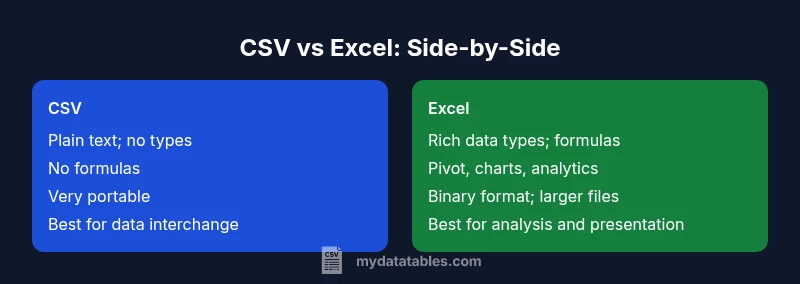
CSV vs Excel: Practical Data Format Comparison for Analysts
A practical, analytical comparison of CSV and Excel, highlighting data types, formulas, collaboration, and when to choose each format for reliable data workflows for analysts and developers.


CSV and Excel serve different but complementary roles in data work. For portability, automation, and simple data exchange, CSV is usually the best starting point. For in-depth analysis, complex calculations, and polished presentations, Excel offers more built-in tools. The choice hinges on task scope, collaboration needs, and how you plan to automate or share results.
Why CSV and Excel Fit Distinct Roles in Data Workflows
The question of why use csv or excel often boils down to the task at hand and the ecosystem around the data. For many teams, CSV provides a lightweight, portable format ideal for data interchange, batch processing, and automation pipelines. Excel, by contrast, offers a rich set of built-in analysis and presentation tools that support interactive exploration, dashboards, and business reporting. In practice, organizations frequently combine both formats: CSV for data ingestion and export, and Excel for final analysis and stakeholder-facing outputs. This article, grounded in practical CSV guides and references, explains how to choose between them and how to maximize their strengths within modern data workflows. The guidance also reflects best practices from MyDataTables on handling CSV and Excel in real-world projects.
Note: This section introduces the core decision premise and sets up concrete criteria for choosing between CSV and Excel in different scenarios.
Core Technical Differences: Data Types, Formulas, and Automation
CSV is essentially plain text: it stores rows of comma-delimited fields with no explicit data types or metadata beyond the header line if present. This makes CSV highly portable but also means every value is a string until interpreted by the consumer. Excel files (.xlsx) are binary containers that preserve data types, cell formats, formulas, and a wide range of features like charts and PivotTables. That richness comes at the cost of compatibility and file size. When you automate processes, CSV integrates cleanly with scripting languages and ETL tools, while Excel’s automation relies more on macros, VBA, or external libraries capable of reading formulas when needed. Understanding these distinctions helps teams design reproducible data flows that minimize surprises during handoffs.
From the MyDataTables perspective, documenting how data is parsed and transformed in each step is essential for maintainability and auditability.
CSV Shines: Interchange, Portability, and Automation
CSV excels at data interchange between systems because it embraces simplicity. It is favored for import/export between databases, data warehouses, Python or R analysis scripts, and cloud services. Because there is no embedded logic, CSV files are easy to diff in version control, allowing teams to track changes over time. For automation pipelines, CSV is deterministic: producers and consumers share the same delimiter rules and encoding expectations, minimizing surprises when data moves across environments. Teams embracing CI/CD workflows often use CSV as a front line data carrier to avoid proprietary format lock-in. MyDataTables highlights emphasize encoding discipline, delimiter consistency, and header usage as key practices in this space.
This section includes practical checks for common CSV pitfalls, such as misplaced quotes, embedded newlines, and inconsistent line endings, which can derail automated pipelines.
Excel Shines: Analysis, Visualization, and Advanced Features
Excel shines where data exploration and reporting are required. Its built-in formulas support computations that refresh as data changes, PivotTables summarize large datasets efficiently, and charts transform numbers into insights. Excel also offers features like named ranges, data validation, conditional formatting, and macros that automate repetitive tasks. While modern data pipelines may treat Excel as a final-report tool, many teams pair Excel with external data sources to preserve interactivity. The lesson is that Excel’s strengths are most pronounced in the analytical and presentation stages of a data workflow. This section also discusses how to structure Excel workbooks for collaboration and governance, including naming conventions and version control considerations.
We reference practical patterns from MyDataTables guidance on balancing Excel's capabilities with robust data processes.
Interoperability and Tooling: Where the Formats Meet and Diverge
Tooling support for CSV is ubiquitous, with native readers in nearly every programming language and many database systems. This universal compatibility makes CSV ideal for long-term archiving and cross-team collaboration where different software stacks are in use. Excel’s ecosystem is equally strong but more ecosystem-specific: it integrates tightly with Microsoft Office, Power BI, and some enterprise suites. When teams share data, consider how version control, data lineage, and reproducibility will be managed. The combination of CSV for interchange and Excel for analysis is a practical approach in many organizations. MyDataTables notes emphasize documenting intended consumers of data and the expected downstream tools to avoid format drift.
This section offers a checklist for interoperability: confirm encoding, delimiter standards, and the availability of post-processing tools.
Practical Workflows: Real-World Scenarios Across Departments
Finance teams may export transaction data as CSV to feed accounting systems or data warehouses, then open the result in Excel to perform ad hoc reconciliations and visualization. Data scientists often start with CSV for model inputs, preprocess in Python or R, then export results for stakeholders in Excel dashboards. Marketing teams might collect survey responses as CSV, clean data in a notebook, and present findings in Excel charts. Each department benefits from understanding the limits and strengths of both formats. This section includes role-based decision trees to guide practitioners toward the most effective file format for a given task.
Migrating Between Formats: Safe Transitions and Data Hygiene
Transferring data from CSV to Excel or from Excel to CSV requires careful handling of delimiters, encoding, and data types. Always include a header row, ensure consistent quoting rules, and validate that numeric fields retain their meaning after import. For CSV input, specify UTF-8 encoding to minimize character corruption; for Excel outputs, verify that formulas are preserved or the outputs are converted to values if needed. Document these steps to support reproducibility and to reduce errors in downstream tooling. This block also reviews strategies for rolling back changes if a migration path introduces unexpected formatting issues.
Best Practices for Encoding, Delimiters, and Regional Considerations
Delimiters include comma, semicolon, and tab, depending on regional conventions. Always agree on an encoding standard (UTF-8 is preferred) and test with sample data that includes edge cases like commas in fields or line breaks. When distributing CSVs, provide a small README with the delimiter, encoding, and sample import steps. For Excel users, consider saving as a modern .xlsx workbook to preserve formats, while exporting to CSV for data ingestion by other tools. This section also discusses how to handle non-English data and date formats to minimize misinterpretation across locales.
The Future Landscape: CSV and Excel in Modern Data Ecosystems
Looking ahead, the role of CSV remains foundational for data interchange, integration with cloud services, and reproducible pipelines. Excel will continue to evolve as a visualization and analysis tool, expanding support for automation through scripting and improved collaboration features. For teams aiming to streamline workflows, the recommended approach is to design processes that leverage CSV for data movement and Excel for analysis and storytelling, while keeping governance, versioning, and documentation at the center. The MyDataTables perspective stresses the importance of adaptable data architectures that tolerate evolving toolchains.
Comparison
| Feature | CSV (Comma-Separated Values) | Excel (.xlsx) |
|---|---|---|
| Data storage & types | Plain text; no explicit types | Rich data types; native formatting |
| Formulas & calculations | No built-in formulas; external processing | Full formula engine and PivotTables |
| File size & performance | Lightweight; fast parsing | Larger, richer files; more CPU/memory use |
| Collaboration & version control | Text-based; easy diff/merge in VC systems | Binary format; diff/merge harder; some tools exist |
| Best use case | Data interchange, simple exports, automation pipelines | Interactive analysis, dashboards, reporting |
| Automation & scripting | CSV feeds easily into scripts and ETL tools | Excel automation via VBA, Office Scripts, or external libraries |
| Data validation and governance | Manual validation needed; weak schema enforcement | Stronger data validation features and governance options in workbooks |
Pros
- Excellent interoperability across systems and languages
- CSV files are lightweight and easy to parse programmatically
- Excel provides powerful data analysis, charts, and pivot tables
- Good for small to medium datasets and quick ad-hoc work
- Easy to version with textual diffs in collaborative environments
Weaknesses
- CSV lacks native data types and formulas; processing must be external
- Excel workbooks can be large and complex, affecting performance
- Binary formats are less portable and harder to diff
- Regional encoding and delimiter inconsistencies can cause data corruption
CSV is the preferred format for data movement; Excel is preferred for analysis and presentation
Use CSV when you need portability and reproducibility across tools. Turn to Excel when you require formulas, interactive analyses, and stakeholder-ready visualizations. The best practice is to blend both formats in a disciplined workflow.
People Also Ask
What is the primary difference between CSV and Excel?
CSV is a plain-text format that stores data as rows of delimited fields with no intrinsic data types or formulas. Excel stores data in a rich workbook format with types, formatting, formulas, and visualization features. The choice depends on whether you value portability or analytical capabilities.
CSV is plain text for data interchange; Excel is a feature-rich workbook for analysis and presentation.
Can CSV contain formulas or macros?
No. CSV does not support formulas or macros. Any calculations must be performed outside the file by scripts or external tools before or after import.
CSV cannot store formulas or macros; calculations must be done outside the file.
Is CSV safe for sharing sensitive data?
CSV can be secured in transit and at rest, but it offers no built-in access controls. Sensitive data handling depends on the hosting system and encryption in transit, as well as policy-driven access today.
CSV itself has no built-in security features; security depends on how you store and share the file.
When should I export data from Excel to CSV?
Export to CSV when you need to move data into another system that does not support Excel's binary format, or when you want clean, text-based data for processing with scripting languages.
Export to CSV when passing data to another tool or system that doesn't support Excel files.
Which format is best for collaboration in teams?
CSV excels for fast data sharing and versionable text changes, while Excel shines for collaborative analysis with comments and structured dashboards. A hybrid approach often works best, with CSV for data movement and Excel for analysis.
CSV is great for collaboration on data movement; Excel for collaborative analysis and dashboards.
How do I handle encoding issues in CSV?
Specify a standard encoding like UTF-8, test with non-ASCII data, and document the encoding in a README. This minimizes misinterpretation across tools and locales.
Use UTF-8 and document encoding to prevent misinterpretation.
Can I automate Excel processes from outside Excel?
Yes. External automation is possible via Office Scripts, VBA, or modern APIs, enabling integration with data pipelines while preserving Excel’s analytical capabilities.
Excel can be automated from outside using scripts and APIs.
What is a practical rule of thumb for choosing CSV vs Excel?
If your priority is interoperability and automation, start with CSV. If your priority is rich analysis, presentation, and interactive exploration, start with Excel.
Start with CSV for portability and automation; choose Excel for analysis and presentation.
Main Points
- Choose CSV for data interchange and automation
- Choose Excel for analysis, charts, and dashboards
- Plan interoperability with encoding, delimiters, and versioning
- Document data flows to preserve reproducibility
- Leverage both formats where appropriate in a hybrid workflow