What is a CSV file vs Excel: A Practical Comparison
Learn the key differences between CSV files and Excel workbooks, including format, portability, features, and practical use cases for data professionals.


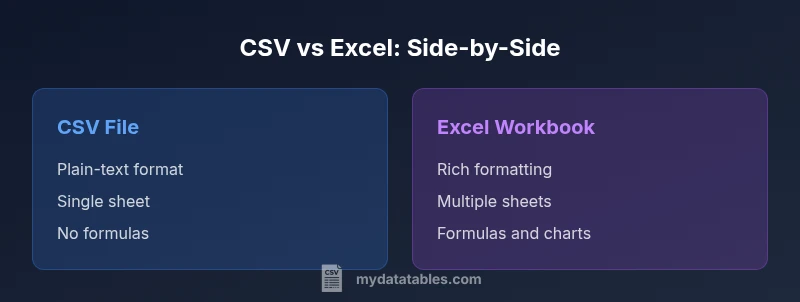
CSV files are plain-text data exports that prioritize portability and simplicity, while Excel workbooks are feature-rich environments that support formulas, formatting, and multiple sheets. When you need quick data interchange, CSV wins. For analysis, presentation, and embedded calculations, Excel provides more built-in capabilities. In practice, many workflows use both formats to maximize compatibility and analysis power.
What is a CSV file vs Excel? Core definitions
If you're asking what is a csv file vs excel, the answer starts with two fundamentally different data formats. A CSV file is a plain-text file that stores rows of data with a delimiter, most commonly a comma, but semicolons or other characters are possible. There is no embedded formatting, no formulas, and no metadata aside from a header row if you include one. An Excel workbook, by contrast, is a structured file (typically .xlsx) that can contain multiple worksheets, rich formatting, data validation, charts, and calculated fields. In practical terms, CSV acts as a simple data dump to move information between systems, while Excel serves as a lightweight database and presentation tool within a single software ecosystem. According to MyDataTables, mastering when to choose CSV or Excel is a foundational skill for any data professional.
History and typical workflows
CSV has long been the default for data interchange between diverse systems because it is simple, human-readable, and forgiving across platforms. Early data pipelines used flat text dumps, and many databases loaded CSV exports effortlessly. Excel emerged as a more user-friendly tool for business users, offering a grid-based interface, in-place calculations, and presentation-ready formatting. Over time, teams built workflows that blend both formats: generate CSV during data extraction from servers or ETL jobs, then open the results in Excel for analysis, validation, and reporting. This two-format reality remains visible in many organizations. For analysts, CSV is often favored in reproducible scripts and data-applications that require portability, while Excel remains the preferred sandbox for exploratory analysis, scenario planning, and the final touches of a presentation. MyDataTables’ perspective is that recognizing when to apply each format streamlines processes and reduces friction between data sources and decision makers.
File structure and data types
CSV stores data as plain lines of text with a delimiter separating fields. There is no fixed data type system—everything is text until the consuming application interprets it. This simplicity makes CSV highly portable but requires downstream tooling to coerce values to numbers, dates, or booleans. Excel workbooks, by contrast, organize data into cells with explicit types. Numbers, dates, strings, and formulas can coexist in the same worksheet, while the file format preserves these types through calculations, formatting, and features like data validation. When you move data between systems, CSV acts as a neutral vessel, and Excel provides a richer semantic layer for analysis and presentation.
Formatting, formulas, and features
CSV has no formatting or built-in calculations. If you export a table to CSV, any styling, fonts, colors, or conditional formatting are stripped away. This makes CSV ideal for clean data transfers but not for end-user presentation. Excel supports a broad set of features: cell formatting, charts, conditional formatting, pivot tables, and a wide array of built-in functions and macros. You can reference cells across sheets, create dynamic dashboards, and automate repetitive tasks with VBA. For teams that require both raw data and rich analysis, this distinction is a primary driver for choosing between CSV and Excel in different steps of the workflow.
Encoding, localization, and reliability
CSV relies on delimited text and is sensitive to encoding and locale. UTF-8 is common, but regional settings may affect delimiter interpretation, decimal separators, and quote handling. When sharing files internationally, it’s crucial to agree on encoding (and sometimes the delimiter) to avoid data corruption. Excel, while offering robust encoding support, tends to keep locale-dependent behavior within the application, which helps preserve data consistency across users but can complicate batch-processing pipelines that expect pure text. In practice, you should document encoding and delimiter choices when distributing CSV and ensure readers know how to re-import accurately.
Data integrity and validation differences
CSV does not carry validation rules or data-type constraints by default. Any validation must be implemented outside the file, in your processing scripts or databases. Excel provides data validation features, allowing you to constrain input values, define drop-down lists, and enforce data types at the point of entry. This makes Excel useful for data cleansing and quality assurance in a collaborative environment, but it also means CSV exports may require revalidation after import. Understanding these differences helps teams design robust data pipelines that preserve integrity across formats.
File size, performance, and scalability
CSV files are typically smaller and faster to parse because they contain only plain text data. For large datasets, CSV can outperform Excel in import/export tasks and batch processing, especially when read-by-default tools are optimized for delimited text. Excel workbooks, especially with multiple sheets, charts, and formatting, can grow large and incur overhead in loading times. The performance gap becomes more pronounced when dealing with very large data dumps or automated ETL processes. For high-volume analytics, CSV often serves as the backbone of data exchange, while Excel is used for targeted analysis on subsets of data.
Interoperability and automation pipelines
CSV’s universal readability makes it a favorite in automated pipelines, data integration platforms, and scripting environments (Python, R, SQL, etc.). It is straightforward to read, parse, and transform without relying on a single software vendor. Excel integrates deeply within the Microsoft ecosystem, offering excellent tooling in Windows environments and strong support within business workflows. When automating end-to-end processes, consider using CSV for the input/output stages and reserving Excel for user-driven analysis and reporting tasks. Combining both formats can yield a flexible, scalable workflow.
Practical workflow scenarios
Consider a typical data-analysis scenario: collect survey responses in a CSV export from a form tool, perform initial cleaning via a scripting language, and then hand off a summary to stakeholders in an Excel workbook with charts and formatting. In another scenario, you might export an internal dataset as CSV to share with a partner who uses a non-Microsoft tool, then receive a CSV back that includes updated records. In both cases, understanding the strengths and limits of CSV and Excel helps you design efficient, auditable workflows that minimize data loss and misinterpretation.
How to choose in practice
To decide between CSV and Excel, start with your goals: is the priority portability and automation, or do you need advanced calculations and presentation-ready formatting? If you’re moving data between systems or building batch processes, choose CSV as the default interchange format and use Excel for analysis and reporting. If collaboration happens primarily in spreadsheets and you rely on formulas or macros, Excel is the natural choice. In mixed environments, a two-format approach—CSV for data exchange and Excel for analysis—often delivers the best balance of simplicity and capability.
Common pitfalls and how to avoid them
Common CSV pitfalls include inconsistent delimiters, missing quotes around fields with embedded delimiters, and mismatched headers. Regional settings can flip the meaning of decimal separators or delimiters, leading to misparsed files. To avoid these issues, standardize on a single delimiter (or explicitly declare it in your tooling), ensure UTF-8 encoding when possible, and validate imports with a quick check of column counts and sample records. When working with Excel, beware of saving as CSV that loses features (multiple sheets, formulas, or charts) and keep a master Excel file for complex workflows.
Best practices for long-term CSV and Excel use
For CSV: always include a clear header row, choose a universal encoding (UTF-8), and specify the delimiter in documentation or tooling. For Excel: use defined table ranges, avoid excessive use of volatile formulas, maintain data-validation rules, and keep a separate raw data sheet if possible. Document data lineage, including where data originates, how it is transformed, and how it is validated. By maintaining clear conventions for both formats, you improve reproducibility and reduce the risk of data loss across teams.
Comparison
| Feature | CSV file | Excel workbook |
|---|---|---|
| File type | Plain-text CSV | Binary Excel workbook (.xlsx) |
| Data types | Text and numbers; no native types | Rich data types, formulas, dates, and more |
| Multi-sheet support | Single sheet per file | Multiple sheets per file |
| Formulas/macros | No built-in formulas or macros | Full formula and macro support (VBA in .xlsm) |
| Formatting/styling | No formatting preserved by default | Rich formatting, charts, and styling |
| Encoding/locale handling | Delimiter and encoding depend on tool; UTF-8 common | Strong encoding and locale support within Excel |
| Best use case | Data interchange, scripting, lightweight data dumps | Analysis, dashboards, and reporting within the Excel ecosystem |
| Tooling compatibility | Excellent cross-tool compatibility; easy to parse programmatically | Best within Excel/Office ecosystem; may require conversion for external systems |
| File size/performance | Typically smaller and faster to process | Larger due to features and metadata |
Pros
- High portability and simplicity
- Widely supported across tools and platforms
- Small file size for simple datasets
- Easy to script and automate workflows
- Clear data lineage when used correctly
Weaknesses
- No built-in validation or metadata (CSV)
- No formulas or formatting by default (CSV)
- Delimited text can break with regional settings if not managed
- Excel files can be large and heavier to parse in bulk
CSV is best for portability and data exchange; Excel is best for analysis and presentation.
Choose CSV when you need a lightweight, universally readable data dump. Choose Excel when advanced calculations, formatting, and multi-sheet organization are required; use both formats strategically in a workflow.
People Also Ask
What is the main difference between CSV and Excel?
CSV is a plain-text format that stores tabular data without formatting or formulas. Excel is a feature-rich workbook format that supports multiple sheets, formatting, and calculations.
CSV is plain text without formatting or formulas, while Excel is a full workbook with calculations and styling.
Can Excel open CSV files without losing data or formatting?
Excel can open CSV files, but any formatting from Excel will not be preserved in the CSV. You may need to reapply formatting and convert data types after import.
Excel can open a CSV, but formatting isn’t preserved in the CSV file itself.
When should I export to CSV instead of Excel?
Export to CSV when you need a simple, portable data dump that can be read by many programs and automated scripts. Use Excel when you need analysis, calculations, and presentation-ready outputs.
Choose CSV for portability and scripting, Excel for analysis and reports.
How do I convert CSV to Excel or vice versa?
To convert CSV to Excel, open the CSV in Excel and save as .xlsx, preserving data as a worksheet. To convert Excel to CSV, save the workbook as CSV and note that only the active sheet is saved in CSV format if multiple sheets exist.
Open in Excel and save as XLSX, or save as CSV from Excel for each sheet you need.
Do CSV files support formulas or calculations?
CSV files do not support formulas or calculations natively. Any calculations must occur in the application that reads the CSV or after importing into Excel or another tool.
CSV is just data; you add calculations in Excel or your processing tool.
Are there common delimiter or encoding issues to watch for?
Yes. Mismatched delimiters, quotes, and encoding can corrupt data import. Standardize on UTF-8 with a consistent delimiter and include a header row to minimize issues.
Make sure your delimiter and encoding are consistent across systems.
Main Points
- Use CSV for data interchange and scripting.
- Prefer Excel for analysis, charts, and reports.
- Be mindful of delimiters and encoding in CSV.
- Keep a master Excel file for complex workflows.
- Document data lineage and processing steps.
- Leverage both formats when workflow requires portability plus analysis.