Editing CSV Files: A Practical Step-by-Step Guide
Learn practical techniques for editing CSV files safely and efficiently. This guide covers encoding, delimiters, validation, and workflows for Excel, Sheets, and scripting to keep data intact and ready for analysis.


By the end of this guide, you will reliably edit CSV files with confidence, preserving headers, encoding, and data integrity. You will learn safe workflows for in-browser editors, spreadsheet apps, and script-based tools, plus validation checks to catch delimiter mismatches, quoting errors, and empty fields before saving. This approach suits data analysts, developers, and business users working with large CSV datasets.
Introduction to editing csv files
In data workflows, editing csv files is a common, necessary task. This section introduces the core goal: to modify content without breaking the file structure, the header row, or the encoding. You will learn practical strategies that apply whether you edit in a lightweight text editor, a spreadsheet program, or a scripting environment. Throughout, keep the phrase editing csv files in mind as the central activity, because it guides decisions about delimiters, quoting, and validation. The MyDataTables team emphasizes starting with a clean backup and a clear definition of what you intend to change. The most common edits include renaming headers, correcting typos, removing duplicates, inserting missing rows, or reformatting date columns for consistent parsing. By focusing on structure first, you reduce downstream errors during import into databases or analytics pipelines. This approach is suitable for data analysts, developers, and business users who work with CSV data daily.
block
Tools & Materials
- Text editor with encoding support(Examples: VSCode, Notepad++, Sublime Text)
- Spreadsheet application(Excel, Google Sheets, or LibreOffice Calc)
- CSV file sample (backup)(Always keep a copy before editing)
- Delimiter reference(Know if the file uses comma, semicolon, or tab)
- Validation tool or script(Optional: csvkit, OpenRefine, or a Python script)
- Encoding reference(Common encodings: UTF-8, UTF-16; be explicit when saving)
- Command-line tools (optional)(cut, awk, sed for quick checks on large files)
Steps
Estimated time: 60-90 minutes
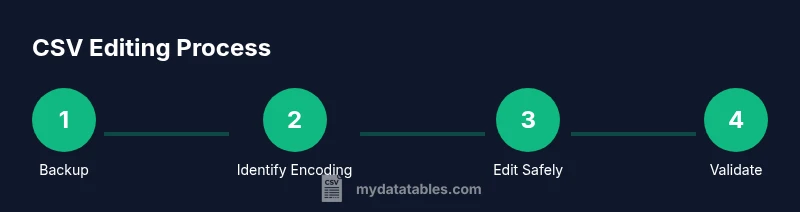
- 1
Back up the original CSV
Create a dated copy of the file before editing begins. This protects you from accidental data loss and makes it easy to revert if a change introduces errors. Verify the copy opens in your editor and contains the same header structure.
Tip: Name backups with a clear prefix and date, e.g., sales_20260314_backup.csv - 2
Identify encoding and delimiter
Check the file’s encoding (UTF-8 is common) and confirm the delimiter (comma, semicolon, or tab). Mismatches can corrupt parsing in downstream systems. Use a quick inspect tool or open in a text editor to confirm.
Tip: If unsure, save a small sample in UTF-8 without BOM and with a comma delimiter for compatibility. - 3
Open the CSV in a safe editor
Open the file in a tool that doesn’t aggressively reformat content. Disable any automatic smart quotes, word-wrapping, or auto-correct features that can alter fields. Inspect headers for typos or inconsistent naming.
Tip: Turn off auto-fill and wrap at 80-100 characters to maintain row integrity. - 4
Make changes with care
Edit headers for consistency, correct data typos, and fix obvious errors one field at a time. If you need to add or remove columns, do so only after confirming upstream schema compatibility. Save minor edits incrementally to ease rollback.
Tip: Prefer in-place edits in a controlled column rather than re-creating rows. - 5
Validate structure and content
Check that each row has the same number of columns as the header and that data types align with expectations. Use a quick validator to spot mismatches, missing fields, or malformed quotes. This reduces import failures later.
Tip: Run a test parse against a sample dataset to catch edge cases early. - 6
Save with proper encoding and delimiter
Choose UTF-8 encoding if possible and ensure the delimiter remains consistent with your target system. Avoid unnecessary BOMs unless required by your pipeline.
Tip: After saving, re-open the file to confirm the delimiter and encoding are preserved. - 7
Re-import and verify edits
Load the edited CSV into a staging area or a lightweight database to verify that rows map correctly and column counts remain stable. Check a few representative rows for accuracy.
Tip: Document any schema changes for future reference. - 8
Optional: data profiling and mapping
If you’re adjusting data types or adding derived fields, run a quick data profile to confirm distributions and identify anomalies. Maintain a mapping sheet for reproducibility.
Tip: Use a scripting approach for repeatable edits on future datasets.
People Also Ask
What is the safest practice for editing CSV files?
Begin with a backup, confirm encoding and delimiter, edit in a controlled editor, and validate through a test import. Avoid bulk edits without verification to prevent data loss.
Always back up, check encoding and delimiter, edit carefully, and test the import.
Can I edit CSV files directly in Excel without issues?
Yes, but Excel can alter quotes and delimiters during save. Use the Text Import Wizard or Save As CSV with UTF-8 encoding to minimize changes and ensure compatibility.
Excel can work, but be mindful of how quotes and delimiters are handled.
How should I handle encoding when editing CSV files?
Prefer UTF-8 encoding for broad compatibility. If your data contains special characters, verify that the encoding is preserved after saving in your editor or spreadsheet tool.
Keep UTF-8 encoding and confirm it’s preserved after saving.
What tools are best for editing large CSV files?
For large datasets, consider command-line tools (awk, sed), Python with pandas, or specialized CSV editors that support streaming and chunking to avoid loading the entire file into memory.
Use streaming tools or scripting for large CSV files.
How do you validate a CSV after editing?
Run a validator to check column counts, data types, and required fields. Import a sample into a staging area to confirm that edits don’t break downstream processes.
Validate structure and test in a staging environment.
What if I need to revert edits?
Use the backups you created or version control for documents. Revert to the original file and reapply edits in a controlled fashion if necessary.
Rely on backups or version history to revert.
Watch Video
Main Points
- Back up before editing to safeguard data.
- Preserve headers, encoding, and delimiter consistency.
- Validate structure and data types after changes.
- Test edits by re-importing into a staging environment.