How to Put CSV Data into Columns: A Step-by-Step Guide
Learn practical, step-by-step methods to put CSV data into columns across Excel, Google Sheets, Python, and more. Master delimiting, cleaning, and exporting with MyDataTables guidance.


Learn how to put csv data into columns across popular tools like Excel, Google Sheets, Python, and the command line. This guide covers common delimiter issues, practical workflows, and reproducible steps for clean, columnar CSV data. By following the steps, analysts can quickly transform messy input into structured output, ready for analysis, reporting, or integration with databases.
How to put csv data into columns
In data workflows, putting CSV data into columns means transforming a flat set of records into a structured, columnar format where each field occupies its own column. The phrase how to put csv data into columns captures a common data-cleaning task: when a single row contains multiple values or when a delimiter is inconsistent, you need reliable methods to separate those values into distinct columns. According to MyDataTables, mastering this skill reduces downstream errors and speeds up analysis. The MyDataTables team emphasizes building repeatable workflows so that colleagues can reproduce results with the same delimiter rules and schema. In practice, you’ll decide on a target schema (which columns you want), pick a tool, and apply a transformation that splits or transposes values without losing context. This is foundational for accurate reporting, machine-learning preprocessing, and database imports. The core idea is to map input fields to fixed columns so that downstream tools can easily sort, filter, and aggregate the data.
Why columnar data matters in CSV workflows
Columnar data is easier to analyze, visualize, and join with other datasets. When every value has a dedicated column, you can run stats, create pivot tables, and perform lookups without complex string parsing. This is especially important for large CSVs where performance hinges on clean, consistent column definitions. You’ll find that consistent column names, stable delimiters, and predictable data types dramatically reduce preprocessing time. MyDataTables analysis, 2026, indicates that teams save time when transformation steps are standardized and documented, which lowers the risk of errors during ETL pipelines. By keeping a clear schema, you also simplify validation and reproducibility for teammates and automated jobs.
Choosing the right tool for CSV-to-columns tasks
The right tool depends on data size, your environment, and how you prefer to work. For quick ad-hoc tasks, spreadsheet software with built-in features (Text to Columns in Excel or SPLIT in Google Sheets) is often fastest. For repeatable pipelines or large datasets, programming languages like Python with pandas offer robust parsing, error handling, and testing. Command-line tools (awk, cut, csvkit) are excellent for automation and integration into batch jobs. In each case, the goal remains the same: reliably map input values to dedicated columns, respecting delimiters, quotes, and nested structures. MyDataTables analysis shows that teams who document delimiter expectations and edge cases tend to have fewer rework cycles and faster handoffs to data consumers.
Handling quotes, delimiters, and edge cases
CSV parsing is sensitive to delimiters, quote characters, and embedded newlines. A common problem is values containing commas that should not split into separate columns. In Excel and Sheets, you’ll rely on Text to Columns or SPLIT with proper settings to handle quotes correctly. In code, you’ll specify the delimiter and quote rules so the parser doesn’t misinterpret embedded separators. Planning for edge cases—such as missing values, escaped quotes, and multi-line fields—helps prevent corruption of column structure. When in doubt, validate a handful of representative rows after transformation to ensure column alignment remains consistent across the dataset.
Validation strategies for transformed CSVs
After splitting data into columns, validate by spot-checking several rows and comparing against the original row. Create a small test set that covers edge cases (empty fields, quoted strings, and nested delimiters) and run the transformation against it. Use a sample export to confirm that the resulting column headers match your target schema and that numeric columns are properly typed. If you’re using Python, you can programmatically assert shapes (number of columns) and sample values to catch off-by-one errors or misaligned splits. Consistent validation reduces debugging time in production pipelines.
Best practices for reproducible transformations
Document the exact delimiter, quote handling, and target columns in a short runbook so teammates can repeat the process. Favor declarative approaches over ad-hoc steps; for example, write a small script or a user-defined function that performs the split and writes out a new file with a stable header row. Version-control your transformation logic, test with diverse inputs, and keep a changelog of schema updates. When you publish the final dataset, include a brief data dictionary describing each column’s purpose and data type. The MyDataTables team recommends storing transformation scripts alongside the data so future analysts can reproduce results without re-creating steps from memory.
Tools & Materials
- CSV file to process(Source file that needs columnar formatting)
- Spreadsheet software (Excel or Google Sheets)(Use Text to Columns (Excel) or SPLIT (Sheets) for quick splits)
- Text editor or IDE(Useful for inspecting raw lines or scripts)
- Python with pandas (optional)(Great for large datasets and repeatable pipelines)
- Command-line tools (awk, sed, csvkit)(Excellent for automation and batch processing)
Steps
Estimated time: 1-2 hours
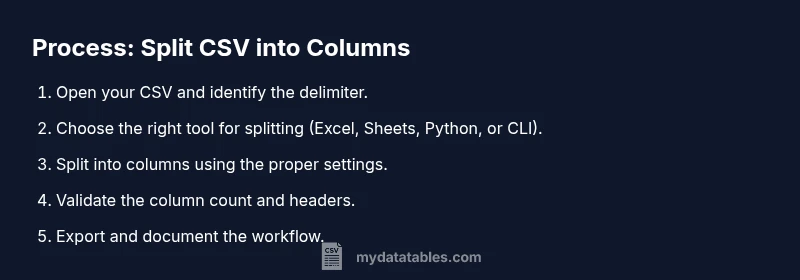
- 1
Define target column schema
Decide which data fields must appear as separate columns and determine the final column order. Create a simple data dictionary to guide the splitting rules and help with validation later.
Tip: Write down the exact header names you expect to see in the output. - 2
Inspect the input CSV
Open the CSV in a viewer to understand the delimiter, header presence, and potential edge cases like embedded quotes. Note any rows that look unusual.
Tip: Check a sample of 20 rows across the top and bottom of the file. - 3
Choose your tool
Pick the tool that matches your environment and data size. For quick tasks, use a spreadsheet; for automation, use Python or CLI workflows.
Tip: If you’re new to scripting, start with Excel/Sheets before moving to code. - 4
Import the CSV into the chosen tool
Load the CSV so the tool can access the data. Ensure the delimiter and encoding are correctly detected; adjust as needed before splitting into columns.
Tip: Always work on a copy of the original file to avoid data loss. - 5
Split into columns
Apply Text to Columns (Excel) or SPLIT (Sheets) with the right delimiter and quote handling. If using code, use a robust CSV reader with proper dialect settings.
Tip: Test with a row containing a quoted value with a comma. - 6
Clean and normalize
Trim whitespace, convert numeric-like strings to numbers where appropriate, and standardize date formats. Remove any accidental empty columns.
Tip: Use a data type inference step to catch misinterpreted fields. - 7
Validate the structure
Confirm the number of columns matches your schema for several rows. Check for misaligned data or swapped columns and correct if necessary.
Tip: Create a quick script or formula that asserts column counts for new rows. - 8
Export the transformed data
Save or export the result to a CSV or your preferred format, preserving the header row and column order.
Tip: Export with UTF-8 encoding to avoid character issues in downstream systems. - 9
Document and save the workflow
Document the transformation steps, including the delimiter, edge cases handled, and the final schema. Store any scripts alongside the data.
Tip: Create a minimal runbook for future users to reproduce the process.
People Also Ask
How do I split a single column that contains comma-separated values into multiple columns in Excel?
Use Text to Columns and specify a comma as the delimiter. If quotes surround values, enable the 'Treat consecutive delimiters as one' option and review the results for proper alignment.
In Excel, use Text to Columns with comma as the delimiter and verify quoted fields to ensure correct splitting.
What if quotes or commas appear inside fields?
Enable proper quote handling in your parser or use a CSV library that respects quoted fields. Manually splitting with a simple delimiter can corrupt data if quotes aren’t honored.
Make sure your split function respects quotes so embedded commas don’t break the structure.
Can I automate this process for large CSV files?
Yes. Use Python with pandas or a CLI workflow to process large files iteratively. Automation reduces manual errors and supports reproducibility across datasets.
Absolutely—Python or shell scripts are great for big CSVs and repeatable transformations.
How do I handle headers when creating new columns?
Decide header names before splitting, and apply them consistently. If you’re importing, ensure the first row is used as headers or renamed after splitting.
Choose and apply clear headers up front, then align the data to match.
Which tool is best for reproducible CSV column splitting?
Python with pandas or a small CLI script is often best for reproducibility, especially when you need to run transformations on multiple files.
For reproducibility, Python scripts or CLI workflows are ideal.
What are best practices for dealing with different delimiters?
Standardize on a delimiter at the outset and test with edge cases. When possible, use a CSV parser that supports dialects to handle varied formats.
Set a standard delimiter and test edge cases to avoid misparsing.
Watch Video
Main Points
- Define target columns before splitting
- Choose the right tool for the data size
- Handle quotes and delimiters carefully
- Validate outputs with representative samples
- Document the transformation for reproducibility