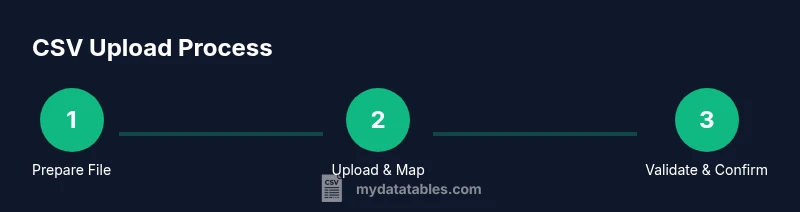
Uploading CSV Files: A Practical Step-by-Step Guide
Learn practical steps to upload CSV files across popular platforms. Coverage includes encoding, delimiters, header mapping, data validation, and common troubleshooting from MyDataTables.


You will learn how to upload CSV files to common destinations such as Excel, Google Sheets, databases, and web apps. This guide covers preparing CSV files (correct encoding, delimiter, and header usage), choosing an import method, mapping columns, and validating data to prevent common import errors. It also highlights troubleshooting steps for flaky connections, large files, and schema mismatches.
What uploading CSV files means in data workflows
In data workflows, a CSV (comma-separated values) file acts as a simple, universal table of data that can be created, edited, and shared across many tools. Uploading this file means sending its contents from your local environment into another system—such as a spreadsheet app, a database, or a cloud service—so the rows and columns become records in the destination. CSVs are lightweight, human-readable, and easy to generate programmatically, which makes them a go-to format for data exchange. When you upload, you’re not just moving bytes; you’re defining how that data is interpreted by the target platform. That interpretation includes delimiters, text encoding, column order, and whether a header row exists. A successful upload requires compatible structure, validated data, and a plan for handling errors. Throughout this guide, we’ll assume you are working with UTF-8-encoded CSV files that use a comma delimiter, but many platforms support variations such as semicolons or tabs. The MyDataTables team emphasizes planning ahead to avoid common pitfalls. According to MyDataTables, using a consistent header row improves downstream transformations.
Common destinations for CSV uploads
CSV uploads land in a variety of destinations, each with its own import interface and rules. Common targets include Excel and Google Sheets for quick analysis and sharing; relational databases such as PostgreSQL or MySQL for durable storage; cloud data warehouses like BigQuery or Snowflake for scalable analytics; and specialized SaaS platforms with built-in import wizards. BI tools often provide connectors that map CSV columns to visualizations. For each destination, consider permissions, data type support, and any required schema constraints. MyDataTables recommends starting with a small test upload to verify mappings and behavior before loading a full dataset. If you need automation, many platforms expose APIs for programmatic imports, but they require consistent field mappings and authenticated sessions.
Preparing a CSV for upload
Preparation is the most reproducible part of CSV uploads. Start with a clean file that has a single header row, consistent delimiters, and UTF-8 encoding. Remove extraneous whitespace, ensure numeric fields contain only numbers, and quote fields containing the delimiter or line breaks. If your data includes commas, quotes, or newlines, use proper CSV escaping rules. Save the file with a clear, descriptive name and keep a backup copy. For teams, agree on a standard header naming convention to simplify downstream mapping. MyDataTables emphasizes documenting the schema and sample rows so others can reproduce the import exactly, reducing surprises during the actual run.
Encoding and delimiter considerations
Encoding and delimiter choices significantly impact import success. UTF-8 is the most widely supported and avoids many character-encoding problems. Delimiters beyond the comma—such as semicolons or tabs—are common in regional data or legacy systems; confirm the destination’s expectations and set the correct option during import. If a destination auto-detects a delimiter, double-check the detected value and adjust if necessary. When headers are missing, some platforms will attempt to infer fields, which can lead to misaligned data. Keep a consistent approach across all files in the project to minimize mapping errors.
Validation and data cleaning before import
Before import, validate data types, constraints, and referential integrity. Check for missing values in required fields, out-of-range numbers, or invalid dates. Normalize formats (for example, date formats or phone numbers) to match the destination’s expectations. Create a lightweight validation script or use a workbook dedicated to validation checks. Document any cleaning rules you apply so future uploads can reuse them without re-creation. This upfront effort saves hours of troubleshooting after import.
Import methods by platform
Destination platforms offer a variety of import methods. Spreadsheets provide import wizards that guide you through file selection, delimiter choice, and mapping; database systems offer bulk loaders or SQL-based COPY commands with optional CSV options; cloud data warehouses often provide staged ingestion routes and API-based imports. For automated pipelines, consider writing a small adapter that reads the CSV, validates it against a schema, and then pushes records via an API. Always align field mappings to destination columns and verify data types early in the process.
Handling large CSV files and performance tips
Large CSV files pose performance and reliability challenges. If possible, break the file into smaller chunks or stream data in batches rather than a single monolithic upload. Some platforms impose size limits or timeouts; batching helps avoid failures and reduces memory pressure. Use parallel imports where supported, but ensure the destination enforces idempotency to avoid duplicate records. For very large datasets, consider staged loading with intermediate validation in a sandbox environment before moving to production.
Security and privacy considerations during upload
CSV data can contain sensitive information. Always use secure transmission (TLS) and verify that the destination supports encrypted storage. Limit import permissions to only what the task requires and enable audit logging if available. Avoid embedding secrets or credentials in CSV files; use secure channels for authentication and avoid exporting credentials in the data payload. When sharing CSV files externally, redact or mask sensitive data when feasible and maintain a version history of imports for compliance.
Troubleshooting common upload issues
Common issues include encoding mismatches, delimiter inconsistencies, and missing headers. If a platform reports a parsing error, re-check the file’s encoding and delimiter, then inspect the header row for alignment with destination fields. If rows fail validation, inspect sample failed rows to identify problematic patterns (bad dates, non-numeric values, or missing required fields). Network timeouts can be addressed by chunking or retry logic. Always keep a verified backup and a rollback plan in case the import impacts existing data negatively.
Best practices and a quick-start checklist
Start with a small, representative CSV to validate mappings and formats. Define a standard header schema and keep it consistent across projects. Validate data locally or in a staging area before import, and document the template and rules for future imports. Use versioned templates and save import settings so teammates can reproduce results. Finally, monitor the import, verify results, and capture learnings to improve your CSV workflows over time.
Tools & Materials
- Computer with internet access(Stable connection; used for uploading and mapping fields)
- CSV file to upload(UTF-8 encoding recommended; include a header row)
- Text editor (optional)(For quick edits to headers or sample rows)
- Destination platform credentials(Account with import permissions and appropriate role)
- Sample template or schema document(Helps align headers with destination fields)
- Delimiter reference sheet(Useful when dealing with semicolons or tabs)
- Backup copy of the original CSV(Preserve the source data in case of issues)
Steps
Estimated time: 60-120 minutes
- 1
Identify destination and prerequisites
Determine where you will import the CSV (e.g., Excel, Google Sheets, database). Gather credentials, permissions, and any schema references needed before starting.
Tip: Check that you have import rights and create a small test workspace first. - 2
Validate CSV structure and encoding
Open the file and verify header presence, delimiter, and UTF-8 encoding. Confirm there are no stray characters that could break parsing.
Tip: If you find anomalies, fix them in a copy to avoid data loss. - 3
Open the destination's import interface
Navigate to the import or data ingestion section of the destination platform. Select the CSV option and review any platform-specific options.
Tip: Some tools auto-detect delimiter; verify it matches your file. - 4
Upload the file and map columns
Upload your CSV and map each column to the destination fields. Specify data types if the interface offers them.
Tip: Use exact column order from the header to minimize confusion. - 5
Validate with a small test import
Import a subset of rows to check mappings, formats, and constraints. Note any errors and adjust the file accordingly.
Tip: Start with 10–100 rows to iterate quickly. - 6
Run the full import and monitor progress
Proceed with the complete file once the test passes. Monitor progress, watching for timeouts or partial imports.
Tip: If the file is large, consider chunking or batch processing. - 7
Verify results and handle exceptions
After import, validate key counts and sample records in the destination. Address any failed rows and re-import if needed.
Tip: Log errors with row identifiers for easy retries. - 8
Document and automate for future imports
Create a template with the mapping, encoding, and validation rules so future uploads are faster and repeatable.
Tip: Store as a repeatable script or a saved import profile.
People Also Ask
What does uploading a CSV file involve?
Uploading a CSV file involves transferring tabular data from a CSV text file into a destination platform. It requires correct encoding, a matching delimiter, and a defined header schema to ensure the destination can parse and store the data properly.
Uploading a CSV file means moving data from a text file into another system with proper encoding and field mapping.
Which encoding should I use for CSV imports?
UTF-8 encoding is widely supported and recommended for CSV imports, as it handles most characters safely. If you must use another encoding, ensure the destination platform supports it and keep a consistent choice across imports.
Use UTF-8 when possible; if not, choose a compatible encoding and stick with it.
How do I map CSV columns to destination fields?
During import, the destination usually presents a mapping interface where each CSV column is linked to a target field. Ensure the data types align and consider renaming headers to match destination field names.
Map each CSV column to the corresponding destination field, checking data types as you go.
Why might a CSV import fail?
Common causes include encoding or delimiter mismatches, missing headers, extra columns, or data that violates destination constraints. Validate the file and test with a small sample before a full import.
Failures usually come from encoding, delimiter, or schema mismatches; fix these and retry.
Can I upload large CSV files without timeouts?
Yes, but consider chunking the data, streaming import where supported, and ensuring the destination has sufficient resources. Large files may require batch processing to avoid timeouts.
Large uploads can work with chunking or batching to prevent timeouts.
What are best practices for pre-upload data validation?
Run validation checks offline or in a staging area: verify schema, check for missing values, normalize formats, and confirm data types. This reduces failed imports and cleans data upstream.
Validate schema and data types before uploading to avoid failures.
Watch Video
Main Points
- Validate CSV encoding and delimiter before import
- Map columns carefully to destination fields
- Test with a small dataset first
- Monitor import progress for large files
- Document templates for repeatable imports