CSV File Upload: A Practical 2026 Guide for Analysts
Master CSV file upload with practical steps for encoding, delimiters, headers, validation, and automation to ensure reliable imports into databases, BI tools, and cloud platforms.


Using this guide, you will learn how to upload a CSV file securely and reliably to your data platform. You’ll choose the right encoding, delimiter, and header options, perform pre-upload validation, and handle errors with retry logic. The steps apply to spreadsheets, BI tools, databases, or APIs, and cover common pitfalls like malformed rows and inconsistent schemas.
What is CSV file upload and why it matters
According to MyDataTables, CSV file upload is a foundational step in modern data workflows. A CSV (comma-separated values) file is simple, human-readable, and widely supported by databases, spreadsheets, and BI tools. The act of uploading a CSV file moves structured data from local sources into systems where it can be analyzed, reported, or transformed. A well-executed upload reduces manual data entry, minimizes transcription errors, and speeds up reporting cycles. In practice, CSV uploads underpin daily tasks such as customer data ingestion, sales analytics, and operational dashboards. This section will cover core concepts, common formats, and the decisions that shape successful data imports. You’ll learn how encoding, delimiter choice, and header handling affect downstream processing, and why pre-upload validation matters for data quality.
Understanding common CSV formats and encodings
CSV is not a single standard; it varies by region, tool, and data governance requirements. The most common format uses a comma as a delimiter, but semicolons or tabs are widespread in Europe or particular industries. Text fields may be quoted to preserve embedded commas, newlines, or quotes. Character encoding matters: UTF-8 is the default for most modern systems, but UTF-16 and other encodings appear in legacy pipelines. Line endings can be CRLF or LF, affecting line counting in some parsers. When planning a CSV upload, decide on delimiter, encoding, quotation rules, and whether a header row exists. Document these choices so downstream processes can parse data consistently.
Pre-upload checklist: ensuring clean data
Before you attempt an upload, audit the source data. Verify that the header row exists and matches the destination schema. Check for empty rows, duplicate records, and inconsistent column counts. Normalize date formats, numeric values, and categorical fields to expected representations. Create a small test CSV that mirrors production structure to confirm the import behavior. Keeping a clean, well-documented source reduces post-upload failures and makes troubleshooting faster.
Step-by-step workflow for uploading CSV files
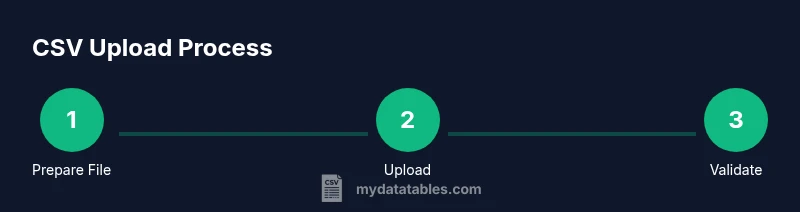
This section outlines a high-level workflow you can apply in most data platforms. Start by aligning the CSV structure with the target schema, then perform preflight checks, execute the upload, and finally validate results. Use versioned files for traceability and maintain an audit log of each import. Adopting a repeatable workflow helps teams scale CSV uploads across departments and tools, from cloud data warehouses to BI dashboards.
Handling encoding, delimiters, and headers
Encoding, delimiter, and header handling are critical knobs that determine how a CSV file is read. Ensure the file is saved in your chosen encoding (UTF-8 preferred) and that the receiving system expects that encoding. Configure the delimiter consistently and confirm whether quoted fields are allowed. If the data file lacks a header, plan for a mapping strategy or use a data dictionary to align columns with the destination. Small misconfigurations here commonly cause misaligned columns or data type conversions.
Validating and cleaning data after upload
Post-upload validation catches issues that slip through preflight checks. Run schema validation to ensure each column has the expected data type and constraints. Compare row counts to the source and sample entries for spot checks. Use data quality rules for outliers, missing values, and referential integrity. If errors are found, isolate the faulty rows, fix the source or update the mapping, and retry the upload with a corrected file. Maintain an error log to support root-cause analysis.
Performance and scalability considerations
For large CSV files, performance becomes a bottleneck. Use streaming parsers or chunked uploads to limit memory usage. Consider staging uploads to a cloud bucket before bulk loading into a data warehouse. Parallel processing can speed imports but requires careful encoding and delimiter handling to avoid race conditions. Establish timeouts, retry policies, and idempotent operations so repeated attempts don't duplicate records. Plan capacity in advance and monitor ingestion metrics.
Security and governance considerations
CSV uploads can carry sensitive data. Enforce access controls, restrict upload destinations, and encrypt data in transit and at rest. Validate that only authorized users can trigger imports and that sensitive fields are masked or tokenized when appropriate. Keep detailed logs of file origins, user identities, timestamps, and schema versions to support audits. If data contains personal information, ensure compliance with relevant regulations and your organization's data governance policy.
Automating CSV uploads with pipelines
Automation reduces manual effort and errors. Build a lightweight pipeline that handles file receipt, validation, and import with minimal human intervention. Use cron jobs, ETL tools, or cloud-native workflows to orchestrate steps, apply schema checks, and raise alerts on failures. Include a rollback plan and a clear versioning scheme for uploaded files. Regularly review automation rules to adapt to changing data contracts and downstream requirements.
Tools & Materials
- CSV file(s) to upload(Ensure files reflect the expected schema and include or exclude headers as planned)
- Text editor or CSV preview tool(For quick verifications of content and headers)
- Upload endpoint or user interface access(API keys or UI credentials as needed)
- Knowledge of encoding (UTF-8/UTF-16)(Set the correct encoding before saving the file)
- Delimiter reference (comma, semicolon, tab)(Choose and document the delimiter used)
- Data validation tool or schema(Schema or dictionary to validate structure and types)
- Sample data dictionary or schema docs(Helpful for mapping columns)
- API client or automation script (optional)(For automation or bulk uploads)
- Network access to destination (cloud/db)(Ensure firewall and authentication are configured)
Steps
Estimated time: 30-60 minutes
- 1
Prepare your CSV file and environment
Gather the CSV file and confirm the destination schema. Verify encoding, delimiter, and the presence of headers where required. Create a clean copy for testing and document any deviations from the standard.
Tip: Keep a backup before making changes; this minimizes risk of data loss. - 2
Choose your upload method (UI or API)
Decide whether you will upload via a graphical interface or an API client. UI uploads are quick for ad hoc tasks; API uploads are better for automation and repeatability. Ensure you have the necessary credentials and permissions.
Tip: If you’re automating, plan idempotent operations to avoid duplicates. - 3
Configure encoding, delimiter, and headers
Set encoding (prefer UTF-8), select the delimiter, and confirm whether a header row exists. Align these settings with the destination system to prevent misreads and misalignments.
Tip: Document the chosen delimiter and encoding to ease future updates. - 4
Validate the CSV against the schema
Run a schema check to ensure column types, names, and constraints match the target. Use a small synthetic sample if possible to verify mappings without risking production data.
Tip: Use a data dictionary to map columns precisely. - 5
Initiate the upload
Trigger the upload through the chosen path (UI or API). Monitor progress and ensure the transfer completes without interruption. Capture any system messages or error codes for later review.
Tip: Enable logging for the import session to aid troubleshooting. - 6
Verify results and log the import
After completion, validate the import by checking row counts and sample records. Confirm that no data was truncated and that constraints are satisfied. Save the results in a project log.
Tip: Automate post-upload checks to reduce manual effort. - 7
Handle failures and implement retries
If errors occur, isolate faulty rows, fix the source or mapping, and retry the upload. Define retry limits and backoff strategies to avoid hammering the system.
Tip: Use idempotent reloads to prevent duplicate records.
People Also Ask
What encoding should I use for CSV uploads?
UTF-8 is the most compatible encoding for CSV uploads. It supports characters from most languages and avoids byte-order issues. If your data includes special characters, confirm that the receiving system supports UTF-8.
UTF-8 is the safest choice for CSV uploads; it's widely supported. If needed, check system compatibility.
How can I handle very large CSV files?
For large files, upload in chunks or use streaming APIs to avoid memory issues. Many platforms support chunked transfers and database bulk loading to improve reliability.
For large files, split into chunks or use streaming to prevent timeouts.
Can I automate CSV uploads via API?
Yes. Use an API client or integration tool to push CSV data, with authentication, rate limits, and error handling.
You can automate uploads via API with proper auth.
What if the header row is missing?
If headers are missing, the system may mis-map fields. Use a defined schema and a header row or supply a data dictionary to map columns correctly.
Without headers, mapping fails; provide a header or a map.
Which delimiter is best for CSV uploads?
Comma is standard, but some regions use semicolons or tabs. Ensure the destination system is configured for the chosen delimiter and quote enclosure is handled.
Choose delimiter that the system expects.
How do I validate data after upload?
Run schema checks, sample row validation, and data quality tests to ensure accuracy. Compare row counts and spot-check key fields.
Validate after upload with schema checks.
Watch Video
Main Points
- Prepare a clean, well-documented CSV file with consistent encoding
- Validate schema before uploading to prevent mapping errors
- Choose a delimiter that aligns with destination expectations
- Enable logging and automation to scale uploads
- Monitor and govern data imports with security and governance controls