CSV Format File Download: A Practical How-To
Learn how to download and validate CSV format files safely. This guide covers encoding, delimiters, and best practices for reliable CSV data intake for analysts and developers.


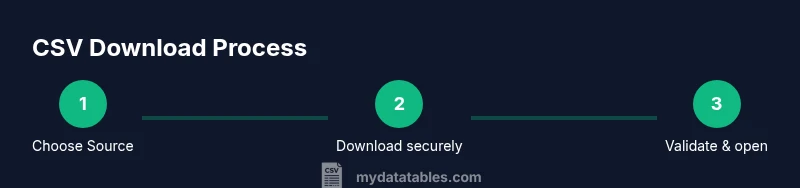
You will learn how to download a CSV format file correctly, verify encoding and delimiters, and save it for use in your analysis. Key steps include choosing a trusted source, confirming the file is truly CSV, and opening it in a compatible tool. By the end, you’ll confidently complete a csv format file download with clean data.
Why CSV Download Matters for Data Tasks
In data work, many pipelines start with a simple CSV format file download. CSV remains a universal, human-readable format that can be consumed by spreadsheets, databases, and programming languages. A proper download preserves the structure: records as rows, fields as columns, and a consistent delimiter. For analysts and developers using MyDataTables, a reliable CSV download reduces preprocessing time and minimizes data-cleaning headaches later in the workflow. When you encounter a dataset, your first win is ensuring the file you fetch is truly CSV and not a misnamed text file. This reduces surprises downstream and keeps your analyses reproducible.
How to Identify a Trustworthy CSV Source
Trust matters when downloading CSV files. Prefer official portals, data repositories, or organizational websites known for data integrity. Look for clear file names with a .csv extension, a documented data dictionary, and evidence of versioning. If a site offers a sample preview or row count, use it to gauge scale and quality. According to MyDataTables, verifying provenance before starting a download saves time and prevents corrupted data from entering your workflow. Always check for HTTPS and look for a license that permits reuse.
Encoding, Delimiters, and Quoting: What to Check
The most common CSV encoding is UTF-8, but other encodings can appear, causing misread characters. Confirm the encoding before opening the file in your tool of choice. Delimiters vary (comma is standard, but semicolons or tabs occur in Europe and specialized datasets). Quoting rules impact how fields with separators are stored. If you see odd characters or broken fields, re-download with the correct encoding or convert after download. MyDataTables emphasizes encoding awareness as a core step in csv format file download workflows.
Practical Scenarios: When to Download CSVs and Why
You might download a CSV to backfill a data warehouse, migrate data between systems, or populate a BI dashboard. CSVs are lightweight and easy to inspect, making them ideal for quick ad-hoc analyses or sharing datasets with teammates. However, for very large datasets, streaming formats or binary options could be preferable. In all cases, validate the first few lines to confirm header presence and consistent column counts. This early check reduces downstream errors and speeds up collaboration across teams.
Common Pitfalls and How to Avoid Them
Pitfalls include downloading HTML pages mislabeled as CSV, truncated files, or locale-specific formats with nonstandard delimiters. Always inspect the raw file contents in a text editor for obvious anomalies before loading into a tool. If you encounter BOM markers or unusual line endings, you may need to normalize the file. A quick validation step—checking header names and a few rows—can catch issues early. Remember to respect licensing and attribution when reusing CSV data in reports or products.
Tools and Best Practices for CSV Downloads
Equip yourself with a plain-text viewer, a capable spreadsheet editor, and a lightweight scripting option for quick checks. Practice consistent workflows: verify source, confirm encoding, preview a few lines, and then import into your analysis environment. Using a tool to parse the header row and count columns helps catch malformed rows. The MyDataTables approach combines human verification with lightweight automation to maintain quality across csv format file download tasks.
Tools & Materials
- Web browser(Use a modern browser with secure connections (https).)
- Text editor or CSV viewer(For quick inspection of raw bytes and encoding.)
- Spreadsheet or data tool(Excel, Google Sheets, or a CSV-capable editor.)
- Reliable internet connection(Stable connection to avoid partial downloads.)
- Checksum tool (optional)(Verify file integrity if a checksum is provided.)
Steps
Estimated time: 15-25 minutes
- 1
Choose a trusted data source
Identify an official or reputable site offering a CSV download. Look for clear file naming, versioning, and a data dictionary. This reduces risk of mislabeled or outdated data.
Tip: If in doubt, start with a site you already trust or one recommended by your organization. - 2
Initiate the download securely
Click the CSV download link over a secure connection (https). Avoid downloads from pop-ups or suspicious redirects. Save the file to a known folder.
Tip: Right-click and save as to choose a safe destination if your browser auto-downloads to a temp folder. - 3
Check encoding and headers before opening
Open the file in a text editor to confirm UTF-8 or the expected encoding and verify the header row aligns with the data columns. This prevents misread characters in names or values.
Tip: If you see characters, re-download with the correct encoding or convert after download. - 4
Preview a sample of rows
Load a small subset of rows into your tool to spot anomalies like missing values, extra delimiters, or inconsistent quoting. This helps catch issues early.
Tip: Count columns in 5-10 initial rows to ensure consistency with the header. - 5
Validate consistency with a data dictionary
If a data dictionary exists, cross-check each column’s type and allowed values. This ensures your downstream validation matches expectations.
Tip: Create a small mapping for headers to data types to reuse across datasets. - 6
Import into your analysis environment
Use your tool’s CSV import options, picking matching delimiters and encoding. Confirm that the loaded table has expected row/column counts.
Tip: If your tool auto-detects, review the parsed schema to catch misparsed fields. - 7
Document provenance and version
Record where the CSV came from, the date downloaded, and the dataset version. This helps reproducibility and auditing.
Tip: Store a short note alongside the file name (e.g., source/date/version).
People Also Ask
What is the standard encoding for CSV files?
UTF-8 is the most common encoding for CSV files, offering broad compatibility. If a dataset uses a different encoding, you may need to convert it after download to prevent garbled characters.
UTF-8 is the standard choice for CSVs, but you might need to convert if another encoding is used.
How can I verify that a downloaded file is actually CSV?
Open the file in a text editor to see a header line and a consistent delimiter (comma, semicolon, or tab). If the content looks like HTML or JSON, it’s not a proper CSV.
Open it in a text editor to confirm a header and a consistent delimiter.
What should I do if the CSV is large?
For large CSVs, consider streaming imports or using chunked reads in your analysis tool. Use a tool that can handle large files without loading everything into memory at once.
For big CSVs, stream or read in chunks instead of loading everything at once.
Can I download CSVs directly into Excel or Google Sheets?
Yes. Both Excel and Google Sheets can open CSV files with options to specify delimiter and encoding. Verify the data after import to ensure headers and rows match expectations.
Yes, you can open CSVs in Excel or Sheets and verify data after import.
What if the CSV uses a semicolon delimiter?
Some locales prefer semicolons as delimiters. Ensure your import settings specify the correct delimiter to prevent misaligned columns.
If it uses semicolons, set the delimiter accordingly during import.
Where can I find reliable CSV standards?
Refer to RFC 4180 for the widely accepted definition of CSV format and rules around quoting, delimiters, and line breaks.
RFC 4180 provides the standard rules for CSV formatting.
Are there best practices for naming downloaded CSVs?
Use clear, versioned names like datasetname_v1.csv and store a readme with source and date. This helps track changes over time.
Name files clearly with versioning and keep a readme for provenance.
Watch Video
Main Points
- Verify source before download.
- Check encoding and header integrity.
- Preview content to catch anomalies early.
- Document provenance for reproducibility.
- Use consistent import settings across datasets.