Reading CSV: A Practical Data Guide
A comprehensive, step-by-step guide to reading CSV files across tools, with best practices for encoding, delimiters, headers, and data quality. Learn reliable parsing, validation, and transformation to power your analyses.


This guide shows you how to read CSV files reliably across common tools, covering encoding, delimiters, headers, and data validation. You’ll choose the right method for your workflow, inspect the file structure, and validate results before analysis.
Understanding reading csv in data work
Reading csv is foundational for data analysis because CSVs are a plain-text, human-readable representation of tabular data that can be exchanged between systems. When you read csv, you convert line-delimited records into a structured data frame or table that you can filter, transform, and analyze. According to MyDataTables, the reliability of your downstream results starts with a solid grasp of the file’s structure: the delimiter, whether a header row exists, the encoding, and how quotes are handled. In this section, we outline why reading csv matters, the vocabulary you’ll encounter, and how small choices (like encoding) propagate through your workflow. As you build your fluency, you’ll notice that reading csv is not a one-size-fits-all step; it’s a small, repeatable process tailored to your data and tools. This awareness helps you pick robust libraries, use sane defaults, and detect problems early in your analysis.
Common formats and encodings you will encounter
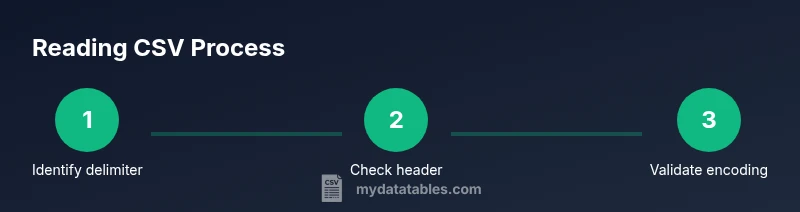
CSV is deceptively simple but hides a few complexities that can derail a read operation if overlooked. Delimiters vary beyond commas—tabs (TSV), semicolons (common in European locales), and pipes are frequent alternatives. Text encoding matters: UTF-8 is the modern default, but you may encounter UTF-16, ISO-8859-1, or even mixed encodings in legacy datasets. Quoting rules differ: some files quote all fields, others quote only those with embedded delimiters. The presence or absence of a header row changes indexing and column names, and line-ending conventions (CRLF vs LF) can affect cross-platform reads. To read csv reliably, you must document the expected structure and verify it against a sample of the data. MyDataTables’s team emphasizes validating these aspects upfront to avoid subtle misreads that skew your results. In the following sections, you’ll learn how to identify these characteristics and choose appropriate options in your toolset.
Reading CSV with Python and other tools: a practical comparison
Different environments offer different affordances for reading CSV. In Python, the pandas library provides a high-level, convenient interface with read_csv, supporting automatic type inference, missing value handling, and dtype specification. The built-in csv module offers a lower-level, streaming approach useful for very large files or fine-grained control. Spreadsheets like Excel or Google Sheets provide GUI-driven imports that work well for quick inspection, but can obscure encoding issues or large-file performance. On the command line, tools like csvkit can simplify column operations, filtering, and quick rewrites. Below is minimal Python code using pandas to read a UTF-8 CSV with a header, and an optional dtype hint to preserve identifiers as strings:
import pandas as pd

# Read a UTF-8 CSV with a header and preserve IDs as strings
df = pd.read_csv("data.csv", encoding="utf-8", dtype={"id": str})
print(df.head())
Each approach has trade-offs: pandas is convenient for analytics, csvkit is excellent for quick CLI manipulations, and Excel/Sheets are best for non-programmers. Your choice should align with your data volume, required transformations, and reproducibility goals. MyDataTables recommends starting with a clear read configuration and validating a subset of rows to catch delimiter or encoding mismatches early.
Handling edge cases and data quality when reading CSV
Reality often presents CSVs with quirks: missing headers, inconsistent row lengths, or mixed data types. The first step is to inspect a sample of the file to confirm column names and counts. If a header is missing, you can supply column names explicitly; if there are extra delimiters inside fields, enabling quotes handling prevents misalignment. Encoding problems commonly show up as garbled text or replacement characters; always declare or test encoding before parsing. When you encounter a Byte Order Mark (BOM) at the start of UTF-8 files, most libraries offer a flag to handle or ignore it. The MyDataTables analysis shows that encoding mismatches and delimiter ambiguities are frequent culprits when reads fail or produce dirty data. Proactively specifying encoding, delimiter, and header settings will save hours of debugging down the line. Remember to verify data types after reading to avoid surprises in aggregations and joins.
Best practices and a robust reading workflow
A dependable workflow for reading csv follows a repeatable pattern: define the expected structure, configure the reader (delimiter, encoding, headers), load the data, validate a sample, and log any anomalies for auditability. Keep a small, representative test file to confirm your configuration before scaling to large datasets. When possible, use streaming reads for very large files to avoid exhausting memory, and set appropriate chunk sizes or iterate with a cursor. Document every assumption about the file layout, including delimiter like comma or semicolon, encoding, and whether quoting is used. If your data will be consumed downstream by other teams, provide a small schema and a couple of validation checks (missing values, type conformance, and range checks) so others can reproduce the read reliably. MyDataTables’s guidance here is to bake validation into your read step, so downstream analyses remain trustworthy and traceable.
Validating the read data and next steps
After loading, perform a quick health check on the dataset: verify the expected number of columns, inspect a handful of rows, confirm that missing values align with known expectations, and ensure numeric columns are truly numeric. Use assertive checks or test fixtures to catch regressions in future reads. If the dataset will be joined with other tables, verify key columns for uniqueness and integrity. Once the data passes these checks, you can proceed with typical analytic steps—cleaning, transformation, feature engineering, and modeling. A robust read is the foundation of reproducible analyses, and thoughtful validation prevents downstream errors from propagating through your workflow.
Tools & Materials
- CSV file (data.csv)(The source data you will read for analysis.)
- Text editor or IDE(For inspecting headers and samples during setup.)
- Python 3.x installed(Needed for pandas/csv-based reads.)
- Pandas library(Primary tool for high-level CSV reading in Python.)
- CSVKit (optional)(Powerful CLI utilities for quick CSV inspection.)
- Excel or Google Sheets (optional)(Good for quick human inspection and lightweight validation.)
Steps
Estimated time: 30-45 minutes
- 1
Define the read objective
Clarify what you need from the CSV: which columns, data types, and downstream tasks. This helps you pick the right delimiter, header handling, and encoding settings before loading any data.
Tip: Write down the expected schema (column names and types) to guide the read configuration. - 2
Inspect the file structure
Open a sample of the file to confirm the delimiter, whether a header exists, and how quotes are used. This prevents misalignment when you load the full dataset.
Tip: Check the first 20 lines to spot inconsistencies early. - 3
Choose a read method
Decide between a high-level reader (like pandas read_csv) for analytics, or a low-level reader (csv module) for large or streaming files. Align with your performance and reproducibility needs.
Tip: If in doubt, start with pandas and add dtype hints to preserve data integrity. - 4
Read with encoding and header options
Load the data with explicit encoding (e.g., utf-8) and header configuration. This avoids cryptic errors and ensures column names map correctly to your schema.
Tip: Prefer utf-8-sig if a BOM is present at file start. - 5
Validate a sample of rows
After loading, display a handful of rows and check data types, missing values, and obvious outliers. This quick check catches when something went wrong during parsing.
Tip: Use df.head() and df.info() (or equivalent in your tool) for a fast snapshot. - 6
Document and save the read configuration
Record the delimiter, encoding, header, and any dtype specifications used. Save this as part of your data workflow to enable reproducibility for teammates.
Tip: Consider creating a small read_config.json file accompanying the CSV.
People Also Ask
What is a CSV file and why is it so widely used?
CSV stands for comma-separated values. It’s a plain-text format that stores tabular data in rows and columns, making it easy to share between apps and programming languages. Its simplicity is powerful but requires careful handling of delimiters, headers, and encoding during reads.
CSV is a simple text format that stores data in rows and columns; reading it correctly means handling delimiters, headers, and encoding properly.
How do I know which delimiter a CSV uses?
Most CSVs use a comma, but many European datasets use semicolons, and some pipelines use tabs or pipes. Inspect a sample of the file and, if possible, check metadata or vendor documentation. When reading, explicitly set the delimiter to avoid mis-reading columns.
Look at a few lines of the file and set the delimiter accordingly when you read the CSV.
What should I do if the CSV has a header row?
If the file has a header, you should use it as column names (header=0 in many tools). If not, supply your own column names. Correct header handling is crucial for reliable column alignment and downstream joins.
Check whether the file has a header and set the reader to use it or provide your own names.
How important is encoding when reading CSVs?
Encoding determines how bytes map to characters. UTF-8 is the default today, but misreading encodings can produce garbled text and data corruption. Always declare or detect encoding before parsing.
Encoding matters a lot; specify UTF-8 by default and adjust if you encounter strange characters.
What about very large CSV files?
For large CSVs, streaming reads or chunked processing prevents memory exhaustion. Consider tools designed for big data and load only necessary columns or process in chunks.
Use streaming or chunking to handle large CSVs without overwhelming memory.
How can I validate that I read the CSV correctly?
After loading, inspect row counts, column dtypes, and a sample of values. Verify key columns align with expectations and run a few simple checks (e.g., non-null counts, range checks) to catch anomalies early.
Check shapes, data types, and a few sample rows to confirm you read the data correctly.
Should I prefer a GUI tool or code for reading CSV?
GUI tools are great for quick checks but lack reproducibility and precise control over encoding and delimited nuances. Code-based reads offer repeatability, logging, and versioning, which are essential for datasets used in analyses.
Code-based reads are usually more reproducible, though GUI tools are handy for quick looks.
Watch Video
Main Points
- Read CSV with a defined objective before loading.
- Know your delimiter, header, and encoding up front.
- Validate a sample to catch parsing issues early.
- Choose a read method that fits data size and analysis needs.
- Document read configuration for reproducibility.