CSV Read: A Practical Guide to Loading and Validating CSV Data
A comprehensive, step-by-step guide to reading CSV data across Python, Excel, and Google Sheets, with encoding, delimited formats, and validation best practices for reliable data workflows.


In this guide you will learn how to reliably perform a csv read across popular tools (Python with pandas, Excel, and Google Sheets). You will cover loading data, handling headers, selecting encodings and delimiters, dealing with missing values, and validating schema so your downstream analysis stays accurate. This steps-focused approach helps you start quickly and scale to large datasets.
Why CSV Read matters in data workflows
CSV read is the gateway to data work. Whether you are examining a small sample or training a model on millions of rows, the way you read the file sets the tone for accuracy and reproducibility. A robust csv read handles headers consistently, respects the correct delimiter, and decodes text correctly so you don’t misinterpret characters. According to MyDataTables, a disciplined approach to CSV loading reduces downstream debugging time and helps teams establish repeatable data pipelines. In practice, you’ll encounter a few core decisions: what delimiter to use, whether there is a header row, what encoding governs the file, and how missing values should be interpreted. Aligning these choices at the read stage keeps your data clean and your analysis trustworthy.
As you move from theory to practice, you’ll appreciate how a clearly defined read strategy translates into faster insights. You’ll also see how small pitfalls—like mismatched encodings or unexpected quotes—can derail a workflow if not handled up front. This section sets the foundation for how to approach csv read across tools with confidence, from scripting to spreadsheet workflows.
Understanding CSV formats and encodings
CSV is deceptively simple: values separated by a delimiter, typically a comma, with optional quoting around text fields. Real-world files vary: some use semicolons as separators (common in Europe), others use tabs (TSV), and some include embedded newlines. Encodings matter a lot: UTF-8 is standard, but you’ll encounter UTF-16, Latin-1, or BOM-prefixed UTF-8. If a file is read with the wrong encoding, you’ll see garbled characters or incorrect missing-value handling. It’s worth validating the file’s encoding and delimiter before load. For reproducibility, document the chosen encoding, delimiter, and header presence so teammates can reproduce your results. MyDataTables notes that explicit encoding handling reduces silent data corruption and makes audits simpler.
Reading CSV with Python and pandas
The pandas library offers a powerful, flexible read_csv function that covers most CSV use cases. Core parameters to know:
- path_or_buf: the file path or buffer you’re reading from
- sep or delimiter: the column separator (default is ',' but can be ';', '\t', etc.)
- header: which row contains column names (None if there isn’t one)
- names: custom column names when header is missing or you want to override
- encoding: text encoding like 'utf-8', 'utf-8-sig', or 'latin1'
- dtype: force specific column types to avoid misinference
Example:
import pandas as pd
 df = pd.read_csv('data.csv', encoding='utf-8', header=0)
If you’re reading large files, pandas also supports chunking with a size you choose, which helps manage memory usage and enables incremental processing. In practice, always preview the first few rows with head() and check dtypes with dtypes to ensure downstream operations align with expectations.
Reading CSV in Excel and Google Sheets
Spreadsheet tools offer straightforward CSV import workflows, but there are important caveats. Excel and Sheets may auto-detect the delimiter or encoding, which can lead to misparsed columns if the file doesn’t match expectations. When importing:
- Specify the delimiter explicitly if prompted (comma, semicolon, tab)
- Confirm the encoding (UTF-8 is widely supported; for files with BOM, UTF-8-SIG can help)
- Check the first row for headers and ensure they map to your downstream fields
- After import, verify column types by applying formatting rules or simple filters
For Google Sheets, use File > Import > Upload to bring the CSV into a new sheet and then adjust headers as needed. In Excel, use Data > Get & Transform Data to gain more control over delimiters, encoding, and data types.
Handling Large Files and Performance
When a CSV grows large, loading it into memory can become expensive or even infeasible. Strategies to improve performance include:
- Read in chunks and process incrementally
- Use a streaming parser if available in your language/tool
- Disable type inference when unsure of column contents to avoid slow scans
- Save intermediate results to a binary or compressed format for repeated runs
In Python, you can loop over chunks with read_csv(chunk_size=...):
for chunk in pd.read_csv('large.csv', chunksize=100000):
    process(chunk)
Chunking keeps memory usage predictable and enables scalable data pipelines.
Data Validation and Cleaning during Read
The read step is an excellent place to enforce data quality. Consider:
- Setting na_values to represent missing data consistently
- Providing dtype hints to avoid mixed-type columns
- Validating required columns exist and have expected lengths
- Checking for duplicate keys and inconsistent records early
Automate these checks in a preprocessing script, log anomalies, and fail gracefully when critical issues arise. By validating during read, you prevent cascading errors in downstream analysis and reduce debugging time.
Practical examples and quick-start snippets
If you’re starting from scratch, a practical approach is to define a minimal schema and a safe encoding first, then progressively broaden the read configuration. Try a small sample file to validate delimiter and header handling, then apply dtype hints for numerical columns. This staged approach makes it easier to reproduce results and share read configurations with teammates. The MyDataTables team emphasizes documenting every read option used so others can reproduce the exact data state.
Authority references and external resources
For CSV standards and best practices, consult these references:
- RFC 4180: Common CSV format specification https://www.ietf.org/rfc/rfc4180.txt
- Python official CSV module docs https://docs.python.org/3/library/csv.html
- pandas read_csv documentation https://pandas.pydata.org/docs/reference/api/pandas.read_csv.html
These sources provide formal guidance on delimiters, quoting, escaping, and practical usage patterns for robust csv read implementations.
Tools & Materials
- Laptop or desktop computer(Adequate RAM for large CSVs)
- Python installed (3.8+)(Includes pandas and optional libraries)
- Pandas library(Install via pip: pip install pandas)
- Excel or Google Sheets(Optional for tabular inspection and quick sharing)
- Sample CSV file(Use to practice read configurations)
- Text editor(For quick edits to headers or small scripts)
- CSV encoding reference(Helpful for troubleshooting garbled text)
- Command line access(Useful for scripting and automation)
Steps
Estimated time: 45-75 minutes
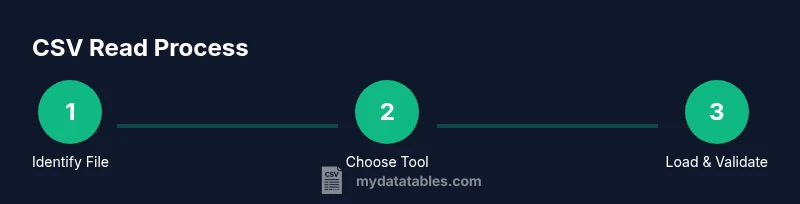
- 1
Identify the CSV file path
Locate the file on disk or cloud storage and capture the absolute path. Use a stable path to avoid runtime errors from changing working directories.
Tip: If the path contains spaces, enclose it in quotes or escape spaces. - 2
Choose your read method
Decide between Python/pandas for scripting, or a spreadsheet tool for quick ad-hoc inspection. Align the choice with file size and downstream tasks.
Tip: For automation, prefer a script rather than manual imports to ensure reproducibility. - 3
Load the file with correct parameters
Provide the delimiter, header, and encoding parameters appropriate to the file. Start with a safe default (comma delimiter, header row present, UTF-8 encoding).
Tip: If you see errors, print the first few lines to confirm the delimiter and header position. - 4
Inspect the data after load
Preview rows and columns, inspect dtypes, and spot anomalies like unexpected nulls or mixed types.
Tip: Use head() and info() to quickly verify structure and types. - 5
Handle encoding and quotes
Address garbled characters by adjusting encoding (e.g., utf-8-sig, latin1) and verify quote handling for embedded delimiters.
Tip: Enforce consistent quoting to prevent misinterpretation of commas inside text. - 6
Deal with missing values and types
Standardize missing value representations and enforce numeric or date types where appropriate.
Tip: Specify na_values and use astype or to_numeric with errors='coerce'. - 7
Validate schema and downstream fit
Confirm required columns exist and types align with downstream processing. Document any deviations.
Tip: Keep a record of column names, types, and expected ranges. - 8
Save or hand off to downstream steps
Store a cleaned CSV or pass the dataframe to a database or analytics pipeline. Avoid writing index columns when unnecessary.
Tip: Use index=False when saving to CSV to keep a tidy file.
People Also Ask
What is a CSV file?
A CSV file stores tabular data as plain text, with values separated by a delimiter (often a comma). Each line represents a row, and the first line usually contains headers. CSVs are widely used for data exchange because they are simple and human-readable.
A CSV is a plain text table where values are separated by a delimiter like a comma, with each line as a row and the first line often as headers.
Why does encoding matter when reading CSVs?
Encoding determines how bytes are interpreted as characters. Mismatched encoding can produce garbled text or incorrect characters, especially for non-English data. Always confirm the file’s encoding and read with the appropriate encoding parameter.
Encoding matters because it decides how bytes map to characters; mismatches can garble text. Always specify encoding when reading CSVs.
How do I read a CSV with a header row?
Specify header=0 (default) in most libraries to treat the first line as column names. If there is no header, set header=None and provide your own column names with names.
Use header=0 to treat the first line as headers, or header=None if there isn’t a header and supply your own names.
What if the CSV uses a different delimiter?
Pass the correct delimiter via sep or delimiter parameter. Common alternatives include semicolon (;), tab (\t), or pipe (|).
If the file uses a non-comma delimiter, specify it with sep or delimiter to parse correctly.
How can I read huge CSV files efficiently?
Read in chunks or stream the data, process pieces, and avoid loading the entire file into memory. This approach scales better for big datasets.
For big CSVs, read in chunks instead of loading everything at once, then process each chunk.
Can I read CSVs directly in Excel or Google Sheets?
Yes, CSVs can be imported into Excel or Sheets, but these tools may auto-detect delimiters and encodings. Verify the import settings and review resulting columns.
You can import CSVs into Excel or Sheets, but check the delimiter and encoding during import to ensure correct parsing.
Watch Video
Main Points
- Define your read parameters up front to prevent misparsed data.
- Test with small samples before scaling to larger files.
- Encode, delimiter, and header choices drive read correctness.
- Validate types and missing values during read for reproducible results.
- Document read configurations for team-wide reproducibility.