How to Read a CSV File: A Comprehensive How-To Guide
Learn how to read CSV files across Python, Excel, and the command line with practical steps, encoding and delimiter guidance, and data validation tips.


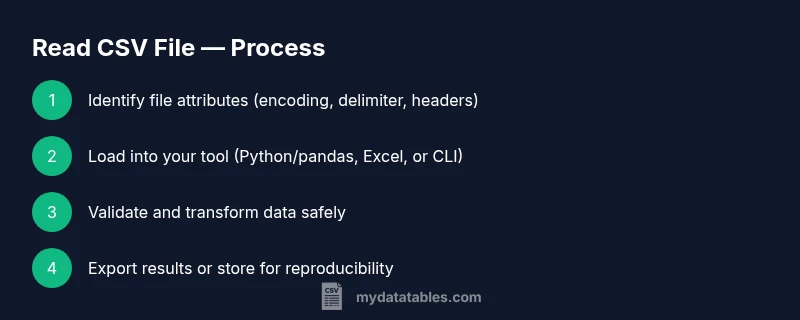
Goal: read a CSV file across common environments and load its data into a structured table. Before you start, verify the file’s encoding, delimiter, and header presence. This quick guide shows how to read CSV files with Python (pandas), Excel/Sheets, and command-line tools, then validate the loaded data and prepare it for transformation or analysis.
Understanding the Read Operation
Reading a CSV file is the gateway to data work. It transforms a plain-text file into a structured table where each line represents a row and each field is separated by a delimiter. The most common delimiter is a comma, but semicolons and tabs appear in many datasets, especially from European or legacy systems. Key decisions during read include encoding, whether a header row exists, how to handle quoted fields, and how to treat missing values. If you choose robust defaults and validate your input, you’ll avoid downstream errors during analysis. This section explains the concepts with practical considerations and warnings for common edge cases, such as embedded newlines in quoted fields and inconsistent row lengths. You’ll also learn how to quickly peek at the data to confirm structure before loading it into a data frame or spreadsheet. By the end, you’ll know what to expect when you first harness data from a CSV file.
Common Environments for Reading CSV
There are several popular environments for reading CSV files, depending on your task and preferred workflow. Data analysts often reach for Python with pandas to programmatically load and transform data. Spreadsheet programs like Excel or Google Sheets provide immediate, visual access to the data with filters and pivot tables. Command-line tools such as awk or csvkit offer quick, scriptable ways to extract and inspect CSV content without launching a full IDE. R users frequently leverage read.csv, which mirrors pandas’ approach from Python. Each environment has strengths: Python for reproducible pipelines, Excel for quick exploration, and the command line for lightweight ad-hoc work. The key is to choose a tool that aligns with your data complexity, team standards, and the need for automation.
Preparing Your CSV: Encoding, Delimiters, Headers
Before you read, confirm three core attributes of the file: encoding, delimiter, and header presence. UTF-8 is the most portable encoding for CSV data, but BOMs (byte order marks) can complicate parsing; handle them with UTF-8-SIG when using Python, for example. Delimiters vary: comma is default, but semicolons and tabs are common in Europe or exported datasets. When a header row exists, you can rely on it to name columns; if not, you’ll need to supply your own headers. Knowing the expected data types helps you plan conversions later. Finally, be aware of quoted fields that may contain delimiters or line breaks; proper parsing should respect quotes to avoid splitting a single field into multiple columns.
Reading CSV with Python and Pandas
Python's pandas library makes reading CSV files straightforward and reliable. Start by importing pandas and calling read_csv with sensible defaults, then inspect the resulting DataFrame. The following example uses UTF-8 encoding, comma as the delimiter, and prints the first few rows to verify structure:
import pandas as pd

# Load the CSV file
path = 'path/to/file.csv'
df = pd.read_csv(path, encoding='utf-8', sep=',')

# Quick inspect
print(df.head())
print(df.info())
If your file uses a different delimiter, or includes a Byte Order Mark (BOM), adjust the parameters accordingly. You can also handle missing values, specify data types, or skip non-data rows with read_csv options like na_values, dtype, and skiprows. Pandas emits a DataFrame, a two-dimensional tabular structure that supports powerful indexing and transformations.
Reading CSV in Excel, Google Sheets, and Other Tools
When you prefer a graphical interface, Excel and Google Sheets offer intuitive import workflows. In Excel, use Data > Get Data > From Text/CSV, then pick the file and customize the delimiter and encoding in the preview dialog. In Google Sheets, choose File > Import > Upload, then select “Replace current sheet” or “Append to current sheet” and map the delimiter if needed. These apps automatically detect headers and convert the data into a usable table. For the command line, tools like csvkit provide read_csv-like capabilities, enabling quick checks and transformations from a shell without opening a GUI.
Handling Large CSV Files and Performance Tips
Large CSV files can strain memory and slow down your workflow. To avoid this, read in chunks rather than loading the entire file at once. In pandas, use read_csv with chunksize to iterate over portions of the file and process them one by one. Downcast numeric columns to save memory, and specify dtypes to prevent auto-inference from inflating RAM usage. If you only need a subset of columns, use usecols to load just the relevant data. When possible, compressing and streaming data helps maintain responsiveness in interactive sessions and production pipelines.
Data Quality Checks During Read
Data quality matters from the moment you read the file. Check that the number of rows matches expectations, columns align with your schema, and key fields contain sensible values. Use DataFrame.info() to verify dtypes, and df.head()/df.tail() to spot anomalies. For CSVs with inconsistent quoting, consider setting quotechar and doublequote parameters in your reader. Logging the read operation, including file metadata (path, size, encoding, delimiter), helps reproduce results later and aids debugging when something goes wrong.
Common Pitfalls and Quick Fixes
Several pitfalls commonly derail CSV reads. Mismatched delimiters cause misaligned columns; always specify the delimiter when the default is not guaranteed. BOMs can create invisible characters at the start of the first column. If header names are duplicated, clean the header row or pass new names via the names parameter. When data appears numeric but should be text (like ZIP codes), force a string dtype to prevent unwanted arithmetic. Finally, always test the read step with a small sample before scaling to full datasets.
Best Practices and Next Steps
Develop a repeatable read strategy that can be codified into scripts and notebooks. Define a standard set of read parameters (encoding, delimiter, header handling, na_values, dtype), and apply them consistently across projects. Document assumptions about the input format, so teammates know how to reproduce results. Combine read steps with validation tests and logging to create reliable data pipelines. Finally, consider archiving the raw CSV with metadata alongside any transformed outputs to preserve provenance for future analyses.
Tools & Materials
- CSV file to read(Path to the file you will load (local or remote).)
- Computer with internet access(Any OS; ensure you can install software or access cloud tools.)
- Python 3.x installed(Needed for pandas-based reads and scripting.)
- Pandas library installed(Install via pip install pandas if not present.)
- Excel or Google Sheets access(Useful for quick visual reads and quick validation.)
- Text editor(For editing scripts, headers, or small CSV previews.)
- Optional: csvkit or similar CLI tools(Helpful for quick command-line inspection.)
Steps
Estimated time: 60-120 minutes
- 1
Prepare your working environment
Verify you have a CSV file ready, a computer, and the tools installed. Check file permissions and confirm the path. Note any encoding quirks you expect (e.g., BOM).
Tip: Use a quick file preview (head -n 5) to confirm format before loading. - 2
Inspect the CSV structure
Open the file to identify the delimiter, whether a header exists, and sample data layout. This helps determine how you’ll read it programmatically.
Tip: If unsure of the delimiter, inspect the first line or run a quick delimiter-detection step. - 3
Load the file with pandas
Use pandas.read_csv with path and sensible defaults to load into a DataFrame. Start with encoding='utf-8' and sep=',' and adjust as needed.
Tip: Check df.head() and df.info() to verify structure and types. - 4
Specify delimiter and encoding explicitly
If the file isn’t comma-delimited or uses a BOM, pass sep and encoding parameters to ensure accurate parsing.
Tip: For BOM-heavy files, consider encoding='utf-8-sig'. - 5
Handle headers and custom column names
If there is no header, load with header=None and supply names= to define column labels. If headers exist but are messy, rename after load.
Tip: Consistently define column names to avoid downstream key errors. - 6
Preview loaded data
Use df.head() and df.info() to confirm data looks correct and types are sensible before further processing.
Tip: Look for unexpected object dtypes or missing values that require cleaning. - 7
Read large CSVs efficiently with chunks
For big files, iterate with chunksize and process each chunk to manage memory usage. Aggregate results as needed.
Tip: Choose a chunk size that fits your available RAM; start with 100,000 rows. - 8
Read CSV in Excel or Sheets
Use built-in import functions to load the file and confirm headers and delimiter are correctly interpreted.
Tip: Verify column alignment after import to catch misparsing early. - 9
Save or transform the read data
Write the cleaned data to a new CSV or export to a preferred format, preserving a record of the read parameters.
Tip: Log the read parameters and file metadata for reproducibility.
People Also Ask
How do I read a CSV file with a different delimiter?
Pass the delimiter parameter (e.g., sep=';') to your reader. If unsure, inspect the first line or run a delimiter-detection step. Verify the first few rows to confirm correct parsing.
Use the delimiter parameter and check the first rows to confirm.
What encoding should I use when reading CSV data?
Default to UTF-8 and handle BOMs with utf-8-sig if needed.Some files may use other encodings; adjust accordingly after a quick test read.
Start with UTF-8 and adjust if you see strange characters.
What if the CSV has no header row?
Read with header=None and supply your own names via the names parameter. This ensures consistent column labeling for downstream processing.
Read without a header and provide your own labels.
How can I read very large CSV files efficiently?
Use chunksize to read in portions, specify dtypes, and load only required columns with usecols to reduce memory usage.
Read in chunks and specify dtypes to save memory.
Can I read a CSV directly in Excel or Google Sheets?
Yes. Use the Import or Get Data feature to load the file, then verify headers and column alignment in the spreadsheet.
Yes—use the Import features to load the CSV.
How do I handle quoted fields with embedded delimiters?
Ensure the reader respects quotes (quotechar) and that double-quoting is enabled if needed. This prevents splitting a field on a delimiter inside quotes.
Respect quotes to avoid misparsing fields.
Watch Video
Main Points
- Verify encoding, delimiter, and header before loading.
- Choose the right tool for automation versus quick checks.
- Explicitly set encoding and delimiter to avoid misparsing.
- Preview data with head() and info() for validation.
- Document read parameters for reproducibility.