Data file to CSV: A Practical Guide for Analysts
Learn how to reliably convert any data file to CSV, with encoding, delimiters, headers, and validation best practices for seamless data exchange.


Learn how to convert a data file to CSV with confidence. This guide explains when CSV is the right choice, how to preserve headers and data types, and how to handle encoding and delimiters. Follow practical steps that work across Excel, Google Sheets, and Python. By the end, you’ll have a clean CSV ready for import, validation, and automation.
What CSV Is and Why People Convert Data Files
Comma-separated values (CSV) is a simple, text-based format that stores tabular data in plain text. Each line represents a row, and each field is separated by a delimiter, most commonly a comma. Because CSV is human-readable and supported by virtually every data tool, it is widely chosen for data interchange between systems, analysts, and dashboards.
Converting a data file to CSV is not just about changing the extension; it’s about preserving structure, headers, and data types in a portable form. When you move data between Excel, databases, programming environments, or cloud services, CSV acts as a lingua franca. However, the simplicity of CSV also means you must decide on details like the delimiter, text qualification, and encoding up front to avoid issues downstream.
In practice, you should aim for a single clean CSV that can be imported without manual edits. Start by inspecting the source file: confirm the presence of a header row, identify unusual characters, and check for embedded delimiters within text fields. Planning these steps saves time and reduces errors during conversion.
Understanding sources and encodings
CSV is not created equal when it comes to source files. You might start from Excel (.xlsx), a JSON payload, an XML export, or a plain text file. Each source has its quirks: some embed special characters, others include embedded delimiters within quoted fields. Encoding matters too; UTF-8 with no BOM is typically safe for cross-platform use, while UTF-16 or UTF-8 with BOM can cause misreadings in older tools. When you prepare to convert a data file to CSV, confirm the original encoding, check for non-printable characters, and decide how to handle nulls and empty strings. If you’re working with multilingual data, validate that characters render correctly across targets to avoid garbled text after import.
CSV format decisions: delimiters, quotes, header rows
The core choices determine whether your CSV will import cleanly into downstream tools. Common delimiter choices include comma, semicolon, and tab; your selection should align with the target environment. Text qualifiers (usually double quotes) prevent delimiters inside fields from splitting rows. Decide whether your source has a header row; most CSVs include one, which makes later referencing and automation easier. Finally, select a line terminator compatible with your operating system and downstream apps. Consistency in these settings minimizes post-conversion edits and import errors.
Practical workflow: from source file to a clean CSV
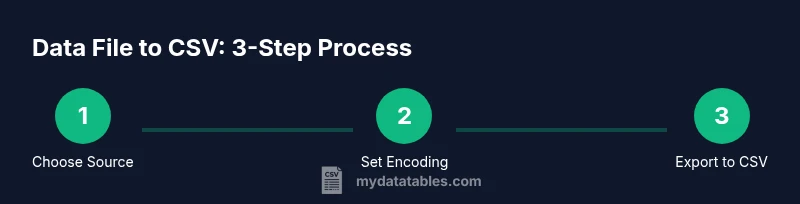
A reliable workflow begins with a plan: identify the source, set the encoding, choose a delimiter, and decide on header handling. Next, normalize column names to remove special characters and spaces. Then, run a conversion using your preferred tool, ensuring that quoted fields remain intact. Finally, perform spot-checks on a representative sample of rows to verify that numeric values, dates, and text fields align with expectations. A well-documented workflow also includes saving a copy of the original file and the resulting CSV for auditability.
Convert with Excel and Google Sheets
Excel and Google Sheets make quick work of simple conversions. Open the source file, inspect the header row, and choose File > Save As (or Download) to pick the CSV option. Be mindful of the delimiter used by regional settings; in some locales, a semicolon is used by default. After saving, re-open the CSV to verify that fields with commas or quotes are correctly wrapped in quotation marks. If you encounter stray line breaks inside fields, consider adjusting the export settings to ensure a single line per record. For large sheets, use data filtering to export only needed columns before saving.
Convert with Python and pandas
Python offers powerful capabilities for converting data files to CSV, especially for automation or large datasets. Read the source with pandas (read_csv handles many formats) and then write_csv to export. Specify encoding (utf-8 is common), the delimiter, and whether to include a header. If the source contains missing values, define na_values to control their representation. Pandas also supports chunked reading for very large files, which helps manage memory usage. A small script can be scheduled to refresh the CSV as the source data updates.
Validation and quality checks
Post-conversion validation ensures your CSV preserves data integrity. Check row counts, verify that the number of columns matches the source, and sample several rows to confirm delimiters and quotes are correct. Validate numeric fields by ensuring no unintended text appears, and test date formats by attempting to parse several dates. A simple validation pipeline includes a quick audit script or a spreadsheet import test to detect obvious errors before data consumption by downstream systems. Establish a repeatable QA process so future conversions stay reliable.
Authority sources and best practices
When standardizing CSV practices, rely on established references to guide decisions on encoding, delimiters, and field quoting. For example, the IETF RFC 4180 provides a formal definition of CSV format conventions, while Python’s csv module and the pandas documentation offer practical guidance for programmatic conversion. These resources help ensure interoperability and reduce edge-case errors across tools and workflows. For more details, see the linked sources below.
Common pitfalls and troubleshooting
What typically goes wrong when converting data files to CSV? Mismatched encodings, embedded delimiters inside fields, missing headers, and inconsistent quoting are frequent culprits. If you see garbled characters, re-check encoding (prefer UTF-8) and re-export with proper quoting. Large files can cause memory issues; switch to streaming reads or chunked processing. Finally, always validate the exported CSV with a quick import test to catch issues early.
Tools & Materials
- Computer with internet access(Any modern OS; used for tooling and scripting)
- CSV editor or spreadsheet software(Examples: Excel, Google Sheets, LibreOffice Calc)
- Original data file (e.g., .xlsx, .xls, .json, .txt)(Source data for conversion)
- Text editor(For quick edits and notes)
- Python 3.x installed(Used for automated conversion via pandas or csv module)
- Pandas library(Install with pip install pandas)
- Command-line / terminal access(For running scripts and export commands)
- Optional: data profiling tools(OpenRefine or similar for advanced cleansing)
Steps
Estimated time: 30-120 minutes
- 1
Identify source and target settings
Locate the original data file and define the target CSV settings (encoding, delimiter, and whether to include a header). Decide on the text qualifier and line terminator based on downstream consumers. This upfront planning prevents rework later.
Tip: Document the chosen delimiter and encoding to guide future conversions. - 2
Inspect and clean headers
Open the file and verify header names are clean, consistent, and free of special characters that could break imports. Normalize spaces and case to ensure reliable downstream processing.
Tip: Prefer lowercase, hyphenated or underscore-separated headers for scripting compatibility. - 3
Choose encoding and delimiter
Select UTF-8 as the default encoding and a comma as the delimiter, unless your target system requires another option. Ensure all data that contains the delimiter is quoted.
Tip: If your data includes commas, enable quotes around fields to prevent misparsing. - 4
Convert using a tool or script
Use Excel/Sheets export, or a Python script to perform the conversion. If using code, specify encoding, delimiter, and whether to include headers. Validate the resulting file to confirm structural integrity.
Tip: For large datasets, process in chunks to avoid memory issues. - 5
Validate results
Run a quick import test in a target tool and check a random sample of rows for data integrity, correct types, and missing values. Compare row and column counts with the source.
Tip: Automate a small QA script to repeat checks with every conversion. - 6
Document and iterate
Record the steps, settings, and any caveats for future conversions. Use this as a template to scale CSV conversions across teams or projects.
Tip: Keep a versioned backup of the original file and the CSV output.
People Also Ask
Why is CSV often preferred for data interchange?
CSV is a lightweight, universal plain-text format widely supported by spreadsheet programs, databases, and programming languages. It is easy to inspect and modify, which makes it a popular choice for exchanging tabular data.
CSV is popular because it is lightweight and universally supported, making data exchanges between tools straightforward.
What common problems occur when converting data files to CSV?
Problems include encoding mismatches, improper quoting, embedded delimiters, missing headers, and inconsistent row lengths. Careful setting of delimiter, encoding, and header handling can prevent most issues.
Encoding and quoting issues are the most common; ensure proper delimiter and header handling.
How can I preserve numeric formats in CSV?
CSV stores data as text. To preserve numeric formats, keep consistent quotes around numbers with thousands separators or decimals, and validate with a numeric import step in your target tool.
Remember CSV is text-based; validate numeric fields after import to confirm formatting.
What encoding should I use for CSV?
UTF-8 is generally recommended for CSV to maximize compatibility across platforms. If you must use another encoding, verify that all downstream tools support it.
UTF-8 is usually best; check downstream tools if another encoding is required.
Is there a universal one-click tool to convert everything?
No single tool fits every data type. Choose the method that matches your source format and downstream needs, then validate the output with a quick import test.
There isn't a universal one-click solution. Pick a method that fits your data and test the result.
How should I handle very large CSV files efficiently?
Use streaming reads or chunk processing to avoid memory issues. Many tools offer chunking options in read_csv-like functions; always monitor memory usage during conversion.
For large files, process in chunks and monitor memory usage.
Watch Video
Main Points
- Identify source format and target encoding before conversion
- Use a consistent header naming convention
- Validate the CSV with a sample import workflow
- Document settings for repeatability