Data to CSV: A Practical How-To Guide
Learn how to convert data to CSV efficiently with step-by-step workflows, encoding tips, and validation checks. This guide covers manual exports, programmatic conversions, and best practices for data integrity.


This guide shows you how to convert data to CSV using both manual export methods and programmatic approaches. You’ll learn when to export, how to choose delimiters and encoding, and how to validate results to preserve data quality. By the end, you’ll confidently transform diverse data sources into clean CSV files suitable for analysis and sharing.
What "data to csv" means in practice
In the data world, data to csv" refers to converting structured data into a plain-text, comma-delimited format that can be read by almost every data tool. A CSV file stores information in rows and columns, with the first row typically serving as headers. When you execute this conversion, you preserve the structure: a row corresponds to a record, and each column holds a field value. As you plan the transformation, consider your headers, data types, and the intended downstream use. The MyDataTables team emphasizes that a well-formed CSV minimizes surprises for downstream systems and teammates. This means avoiding embedded newlines in fields, choosing consistent delimiters, and ensuring the file’s encoding remains compatible with target tools. Practically, think of data to csv as a bridge: a universal, simple representation of tabular data that supports collaboration across platforms while remaining human-readable. This approach aligns with common data workflows used by data analysts, developers, and business users seeking practical CSV guidance.
Why CSV remains essential for data interchange
CSV’s enduring usefulness is rooted in simplicity and compatibility. Nearly every spreadsheet, database, analytics tool, and scripting language can import or export CSV with minimal friction. For teams working across Windows, macOS, and Linux, CSV acts as a lingua franca, enabling quick data handoffs without vendor lock-in. Its plain-text nature makes version control friendly, and tools like MyDataTables Analysis, 2026 reveal that CSV remains a preferred intermediate format for data pipelines seeking portability over fancy file features. When you export data to csv, you gain interoperability, easier audit trails, and broader tool support for subsequent analyses. In practice, this means you can share a dataset with colleagues, upload to a data warehouse, or feed a Python script without worrying about complex file formats.
Practical workflows to convert data to CSV: manual vs programmatic
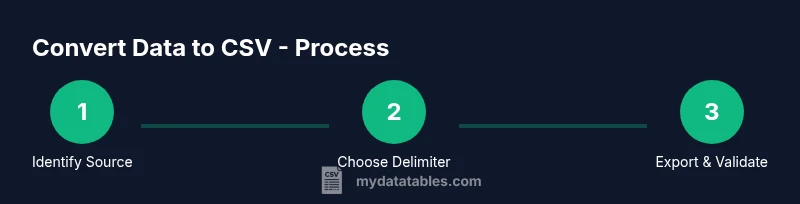
Two common paths exist for data to csv conversion: manual export from UI-based tools (spreadsheets, databases) and programmatic conversion using scripts or pipelines. Manual export is quick for small datasets and ad hoc tasks; it’s ideal when you need a one-off CSV for a quick analysis. Programmatic conversion scales well: it handles large datasets, enforces consistent encoding, and can be automated as part of a data pipeline. A typical workflow begins with identifying the source, then choosing a delimiter, and finally exporting or serializing the data into a CSV file. MyDataTables’ research highlights that teams often combine both approaches: use manual export for exploratory work and scripts for production-grade pipelines. When scripting, you’ll rely on reliable libraries (e.g., pandas for Python) and routine checks to ensure that the exported CSV preserves data integrity across updates.
Encoding, delimiters, and escaping: the 3 fundamentals
Three pillars define CSV quality: encoding, delimiter choice, and field escaping. Encoding (usually UTF-8) ensures all characters render correctly, particularly for non-English text. Delimiters can be commas or other characters like semicolons; choosing the right delimiter matters when data fields themselves may contain commas. Escaping rules govern how quotes are represented inside fields; consistent quoting prevents misinterpretation of embedded delimiters. These decisions affect compatibility with downstream tools such as Excel, Google Sheets, and database importers. A robust approach is to set UTF-8, select a delimiter that minimizes conflicts with your data (often a semicolon in locales where commas are decimal separators), and standardize how quotes are escaped (e.g., doubling quotes). By adhering to these standards, you reduce errors during import and ensure reliable data ingestion across teams.
Validating CSV integrity: checks and tests
Validation is essential after any data to csv conversion. Start by inspecting the header row to confirm column names align with the source data. Verify that the number of fields per row is consistent, and scan for unintended empty cells in critical columns. Check for encoding-related anomalies such as garbled characters or replacement symbols, which indicate mismatches in your environment. You should also perform spot checks on representative rows, ensuring numeric fields remain correctly typed and date fields retain their formatting. For automated validation, write tests that parse the CSV and assert data type expectations, row counts, and boundary cases (e.g., missing values). This disciplined validation helps catch issues before data is consumed in dashboards, models, or downstream ETL stages.
Real-world examples: survey results to CSV and beyond
To illustrate, imagine exporting a survey dataset from an online form. You’d export the responses with headers like respondent_id, timestamp, age, country, and rating. Ensuring UTF-8 encoding prevents accented country names from breaking dashboards. If the dataset includes free-text fields with punctuation, careful escaping and quotes prevent delimiter misinterpretation. In another scenario, a product catalog stored in a JSON-like structure might be flattened into CSV for analysis. The MyDataTables team notes that flattening requires consistent handling of nested fields and consistent data types across rows. In each case, a well-structured CSV enables straightforward joins, filtering, and aggregation in your favorite analytics tools.
Common pitfalls and how to avoid them
Converting data to csv is straightforward in principle, but many pitfalls emerge in practice. Avoid embedding newline characters inside fields; use proper escaping for quotes and delimiters; maintain a consistent header row; and ensure the encoding is compatible with the tools that will read the file. Another frequent issue is mixing data types within a single column, which can hinder sorting or aggregation. To prevent this, enforce consistent data typing during data preparation before export, and consider storing metadata about column types alongside the CSV. Finally, be mindful of locale differences that affect decimal separators and date formats; document your conventions and apply them consistently across your data products. With careful planning and validation, you’ll minimize surprises and maximize CSV reliability for analysts and developers alike.
Tools & Materials
- Spreadsheet software (Excel, Google Sheets)(Essential for manual export and quick checks; ensure you save as CSV (UTF-8).)
- Python with pandas(Optional for large datasets or automated pipelines; use read_csv and to_csv with encoding='utf-8'.)
- Command-line tools (bash, awk, sed)(Useful for quick transformations, quoting, and validation on large files.)
- Text editor (VS Code, Sublime Text)(Helpful for inspecting raw CSV content and adjusting escaping.)
- Database client or ORM(Needed when exporting directly from a database to CSV.)
- Validation scripts or unit tests(Automate checks like field counts and data types to ensure integrity.)
Steps
Estimated time: 30-60 minutes
- 1
Identify source data and headers
Locate the source data you want to export and list the intended headers. This step ensures you know which fields to include and how they’ll map to the CSV columns. If you’re combining multiple sources, decide on a single canonical header set.
Tip: Document header names before exporting to avoid later rework. - 2
Choose a delimiter and encoding
Select a delimiter that minimizes conflicts with your data (commonly comma or semicolon) and set encoding to UTF-8 to preserve non-English characters. Record these choices for reproducibility.
Tip: If your data contains many commas, consider semicolon as the delimiter. - 3
Export the data to CSV
Use the export feature in your tool (or a script) to generate the CSV. Ensure you export only the chosen fields and save with a .csv extension.
Tip: Prefer explicit UTF-8 encoding in the export options. - 4
Inspect the CSV header and first 10 rows
Open the file in a text editor or spreadsheet to verify headers and sample data. Look for misaligned columns or odd characters.
Tip: Check for unexpected quotes or newlines in any field. - 5
Validate data types and consistency
Run a quick check to ensure numeric columns contain only numbers, dates are correctly formatted, and no missing critical values exist.
Tip: Automate tests where possible to catch regressions. - 6
Store and document the CSV
Place the file in a shared location with a versioned filename and accompanying metadata (source, date, encoding, delimiter). This keeps data lineage clear.
Tip: Include a brief data dictionary for future users.
People Also Ask
How do I convert Excel data to CSV without losing formatting?
Excel can export to CSV via File > Save As, choosing CSV (Comma delimited). To preserve formatting, ensure numbers and dates are in compatible formats and avoid multiple sheets. If you have non-ASCII text, save as UTF-8 if available or use a script to enforce encoding.
Use Save As to export CSV in UTF-8 when possible, and check text formatting after export.
What is the difference between CSV and Excel formats?
CSV stores data in plain text with delimiters and headers, while Excel (.xlsx) is a binary format that preserves formulas, formatting, and multiple sheets. CSV is more interoperable and lightweight; Excel files are richer but less portable across systems.
CSV is plain text and universal; Excel files hold more features but are less universally portable.
Which encoding should I use for CSV files?
UTF-8 is the most versatile and recommended encoding for CSV. It supports a wide range of characters and avoids data loss in international text. If you must use a locale-specific encoding, document it and ensure consuming tools support it.
UTF-8 is the standard choice for CSV files.
Can I convert large CSVs efficiently?
Yes. For large files, use streaming approaches or chunked processing to avoid loading the entire file into memory. Tools like pandas support chunked reads, and database pipelines often handle large CSVs more efficiently.
Yes—opt for chunked processing to manage memory use with large files.
How do I handle delimiter conflicts in CSV files?
If data contains the delimiter character, enable proper escaping or choose an alternate delimiter. Doubling quotes for fields that contain quotes is a common convention.
Escaping is key when the data includes the delimiter.
Is there a recommended workflow to ensure data lineage?
Yes. Maintain metadata that records source, timestamp, encoding, delimiter, and the software used to export. Store this with the CSV and update it whenever the data changes.
Keep metadata with the CSV to track where data came from and how it was produced.
Watch Video
Main Points
- Plan headers upfront to map data cleanly
- Choose encoding and delimiter to maximize compatibility
- Validate counts and data types after export
- Document the CSV for future reuse