Convert Text to CSV: A Practical How-To Guide
Learn practical methods to convert plain text into clean CSV data. This educational guide covers manual, spreadsheet, and scripting approaches with tips to ensure accurate, reusable results.


This guide shows how to convert plain text into CSV format quickly and accurately. You’ll learn when to use manual methods, spreadsheet tools, and lightweight scripts, plus best practices for delimiters, quoting, and headers. By the end, you’ll be able to convert text data reliably for analysis, reporting, or importing into databases.
What is CSV and why text conversion matters
CSV, or comma-separated values, is a plain-text format that stores tabular data in rows and columns. Converting text to CSV is a common data-cleaning and data-prep step that makes data machine-readable for analysis, visualization, or import into databases. According to MyDataTables, CSV is a universal, lightweight format ideal for sharing text-derived data. When you convert text to CSV, you standardize delimiters, handle quoting, and ensure consistent headers, which reduces downstream errors in tools like Excel, Python, and BI platforms. This section lays the groundwork: understand the format, its common pitfalls, and the basic rules you’ll follow in every conversion project. By the end of this discussion, you’ll see how a careful approach to conversion can save time and prevent data quality issues in real-world workflows.
wordCountExpectedNote
Tools & Materials
- Source text file (TXT)(Plain or delimited text containing rows)
- Text editor(Notepad, VS Code, or similar)
- Spreadsheet software(Excel, Google Sheets, or similar)
- Python interpreter (optional)(If using Python scripts (csv module or pandas))
- Command-line tools (optional)(For Bash/PowerShell one-liners)
- CSV validator or parser (optional)(Tools to verify quoting/escaping)
Steps
Estimated time: 45-90 minutes
- 1
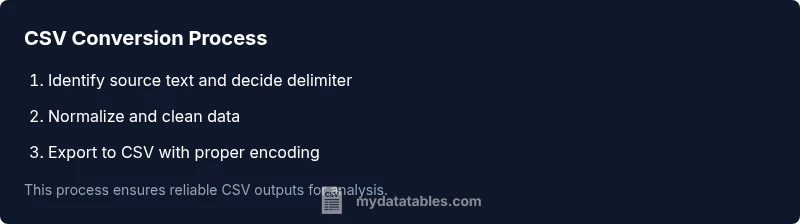
Identify source and delimiter
Open the text file and determine how records are separated (newline character) and how fields are delimited. This helps you choose the right parsing approach from the start.
Tip: Scan multiple lines to confirm consistency. - 2
Check encoding and line endings
Verify the file uses UTF-8 encoding and consistent line endings (LF or CRLF). Mis-matched encodings lead to garbled data after import.
Tip: If unsure, convert to UTF-8 before processing. - 3
Decide on headers and column mapping
Determine whether the source text includes headers. If not, plan header names and the order of fields to ensure correct mapping.
Tip: Use descriptive, short header names for analytics. - 4
Choose a target delimiter and quoting rule
Pick a delimiter (comma is typical, but semicolon or tab may be necessary). Decide when to quote fields containing delimiters or quotes.
Tip: Adopt the standard rule: quote fields with embedded delimiters. - 5
Create a CSV skeleton
Draft the header row and set up a template with the expected number of columns. This helps prevent misaligned rows during conversion.
Tip: Keep a small sample file to validate structure. - 6
Convert using your chosen method
Apply the chosen method (manual, spreadsheet, or script) to transform the text into the CSV structure, honoring quotes and escapes.
Tip: Work with a subset first to verify rules. - 7
Save with correct encoding and extension
Save or export as .csv using UTF-8 encoding. Ensure the file extension is .csv to trigger proper handling by tools.
Tip: Avoid BOM unless required by your pipeline. - 8
Validate the output
Open the resulting file in a text editor to confirm proper quoting and delimiters. Count columns per row and check header alignment.
Tip: Run a quick sample check against a known-good file. - 9
Document and automate
Document the rules used (delimiter, quoting, header names) and set up an automation path if you need repeated conversions.
Tip: Capture a run log for auditing.
People Also Ask
What is CSV?
CSV stands for comma-separated values. It is a plain-text format where each line represents a row and fields are separated by a delimiter like a comma or tab. Headers describe columns and quoting rules protect fields containing delimiters.
CSV is a plain-text format that uses a delimiter to separate fields, with an optional header row.
How do I handle delimiters inside data fields?
If a field contains the delimiter, wrap that field in double quotes and escape inner quotes by doubling them. This prevents misinterpretation of the field's boundaries.
Wrap fields with the delimiter in quotes and escape inner quotes.
Can I convert text with quotes easily?
Yes. Enclose the entire field in quotes if it contains quotes or delimiters, and escape internal quotes by doubling them. This ensures the data remains intact when parsing.
Enclose problematic fields in quotes and escape quotes inside with doubled quotes.
How can I preserve data types during conversion?
CSV stores all data as text. If you need numbers or dates to be recognized, ensure the consuming tool applies the correct data type during import or processing.
CSV is text-based; configure your tool to interpret types on import.
What should I do with very large text files?
For large files, prefer streaming or chunked processing with scripts or command-line tools to avoid high memory usage. Validate each chunk before combining.
Use streaming or chunking for large files and validate chunks.
What are common CSV conversion pitfalls?
Pitfalls include mixed line endings, inconsistent field counts, unquoted delimiters, and incorrect encoding. Pre-checks and automated tests help prevent them.
Watch for inconsistent endings, field counts, and encoding issues.
Should I always use a comma as delimiter?
Not always. If the data contains commas, consider a semicolon or tab as delimiters. Ensure downstream systems can parse the chosen delimiter.
Choose a delimiter that minimizes conflicts with data values.
How do I ensure UTF-8 encoding in the output?
Specify UTF-8 in your export settings and verify by opening the file in a UTF-8-aware editor. Some tools add a BOM; adjust according to your pipeline.
Export with UTF-8 and verify encoding in your editor.
Watch Video
Main Points
- Understand CSV structure and quoting rules.
- Choose a delimiter that minimizes data conflicts.
- Validate output with small checks before scaling.
- Standardize workflow to reduce rework.