How to Download CSV Files: A Practical Guide
Learn reliable ways to download CSV files across browsers, spreadsheets, and code. This step-by-step guide covers encoding, delimiters, and practical tips from MyDataTables.


How to download CSV files: This guide shows quick browser-based exports, spreadsheet app saves, and simple code methods. You’ll confirm the data source, choose CSV as the format, ensure UTF-8 encoding, and save the file locally. Follow the steps for reliability across browsers, devices, and operating systems. According to MyDataTables, consistent encoding and proper quoting reduce import errors.
What you’ll accomplish and when to use CSV downloads
Downloading a CSV file is a common, practical task for data analysts, developers, and business users who need portable data. This guide on how to download csv file walks you through browser exports, spreadsheet app saves, and basic code-based downloads. You’ll learn how to choose the right options, confirm encoding, and save a clean, import-ready file.
According to MyDataTables, CSV remains the most interoperable data format across tools when you standardize encoding and delimiters. This approach minimizes data quality issues during import into analytics pipelines and dashboards. By the end, you’ll be able to export CSV files confidently from any source, with reliable results across Windows, macOS, and Linux.
CSV download fundamentals: encoding, delimiters, and quoting
CSV stands for comma-separated values. Despite its simplicity, the format requires consistent rules to ensure the data remains readable after import. The two most important choices are encoding and delimiter: UTF-8 is the widely supported default, while the delimiter can be a comma, semicolon, or tab depending on regional settings and the target application. Quoting rules prevent ambiguity when fields contain separators or line breaks. For maximum compatibility, enable notable settings such as UTF-8 encoding, without a Byte Order Mark (or with BOM only when your tools require it). If your data includes quotes, escaping them properly ensures the resulting file parses correctly.
Browser-based CSV exports: where to find the option
Many websites and dashboards offer a straightforward export option. Look for labels like Export, Download, or Save as CSV in menus or toolbar items. If you don’t see a CSV option, try selecting a data view or table first, then re-check the actions menu. Some services impose defaults for the export that mirror your browser’s locale, so you may need to adjust the delimiter in your destination tool after download. Always choose a descriptive file name and verify the file size before proceeding.
CSV downloads in spreadsheet apps: Excel, Google Sheets, LibreOffice
Spreadsheets commonly provide a simple path to export as CSV. In Excel, navigate to File > Save As, choose CSV (Comma delimited) (*.csv), and save. In Google Sheets, choose File > Download > Comma-separated values (.csv, current sheet). In LibreOffice Calc, use File > Save As and select Text CSV. After saving, reopen the file to confirm that all columns align and that characters like commas within fields are correctly quoted. If your data includes non-Latin characters, confirm that the encoding remains UTF-8 when exporting.
Programmatic CSV downloads: Python, JavaScript, and APIs
Automating CSV downloads is common in data pipelines. In Python, you can request a CSV endpoint or read a CSV file from a URL using requests or urllib, then store it locally or load into a DataFrame with pandas. In JavaScript, fetch API can initiate a download by parsing response text and creating a Blob, then triggering a download. If you work with APIs, ensure the response includes the correct Content-Type header (text/csv) and consider streaming large files for memory efficiency. See examples for guidance.
Common pitfalls and how to avoid them
- Mismatched encoding: Always default to UTF-8 unless you have a specific reason to choose another encoding.
- Inconsistent delimiters: Stick to a single delimiter per file to prevent import errors.
- Improper quoting: Quote fields that may contain separators or line breaks to maintain data integrity.
- Missing headers: Include a header row to help downstream tools map columns correctly.
- Empty or extra trailing delimiters: Clean the data before exporting to avoid empty columns.
- Large files: For very large CSVs, prefer streaming downloads or chunked processing to minimize memory usage.
Security, privacy, and data integrity considerations
Only download CSV files from trusted sources. If you obtain data from external services, confirm the legitimacy of the endpoint and use secure connections (HTTPS). When handling sensitive information, apply access controls and minimize exposure by sharing only necessary columns. Validate the file after download with a quick consistency check: verify row counts, headers, and a sample of data values. This helps catch tampering or truncation early.
Authority Sources
- RFC 4180: Common format for CSV files (rules and syntax). https://www.rfc-editor.org/rfc/rfc4180.txt
- U.S. Census Bureau: Data export best practices. https://www.census.gov
- NIST: Data encoding and security considerations. https://www.nist.gov
Verdict
The MyDataTables team recommends adopting a consistent export workflow: UTF-8 encoding, standard delimiter, and proper quoting for every CSV download. This practice minimizes import issues and keeps data portable across tools and platforms.
Tools & Materials
- Computer or device with internet access(Stable browser; up-to-date OS)
- Text editor(For notes and quick code blocks)
- Spreadsheet software (Excel, Sheets, or LibreOffice)(Used for manual export testing)
- Programmatic environment (Python/JavaScript)(Optional for automated downloads)
- UTF-8 capable editor and CSV sample(Helpful for testing encoding and delimiters)
Steps
Estimated time: Total: 20-45 minutes
- 1
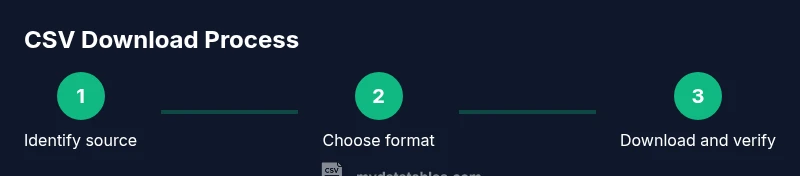
Identify source and target format
Locate the dataset you want to export and decide that CSV is the appropriate target format for your workflow. Confirm that the source supports CSV exports or offers a downloadable URL.
Tip: Check for a visible Export or Download button before proceeding. - 2
Choose the export method
From the data source, select the option to export or download. Pick CSV as the format and adjust options like delimiter and encoding if offered.
Tip: Prefer UTF-8 encoding and a comma delimiter unless your tools require otherwise. - 3
Download and save the file
Save the file to a known folder with a descriptive name, ensuring the extension is .csv. Avoid spaces or strange characters in the path.
Tip: Use a name that reflects data content and date. - 4
Verify integrity after download
Open the file in a text editor or spreadsheet to confirm headers, columns, and a sample of data values. Look for truncated lines and misquoted fields.
Tip: Scan the first and last few rows to spot obvious issues. - 5
Handle encoding and quotes if issues arise
If you see misinterpreted characters or broken fields, re-export with UTF-8 encoding and proper quoting rules.
Tip: Avoid using BOM unless your downstream tools require it. - 6
Automate for recurring downloads
For regular exports, implement a small script (Python or JavaScript) to fetch and save the CSV, then schedule it with your system's task runner.
Tip: Store credentials and URLs in environment variables for security.
People Also Ask
What is CSV?
CSV stands for comma-separated values, a plain-text format used for tabular data. Files use a delimiter (often a comma) and can include headers to map columns.
CSV is a simple text format with delimiters used to separate values in columns.
How do I download a CSV from a website?
Look for Export or Download options, choose CSV, and save the file. If CSV is not available, try exporting a broader data view or requesting the data directly.
Click Export, choose CSV, and save the file.
Can I choose a different delimiter?
Some tools let you select a delimiter other than a comma. If not, you can adjust the file after download or in your import settings.
Yes, if supported; otherwise adjust later.
What encoding should I use?
UTF-8 is the standard encoding for CSV downloads and ensures broad compatibility. Use it unless your system requires another encoding.
UTF-8 is usually the best choice.
Why won’t my CSV open correctly?
Issues often come from encoding, delimiter, or quoting mistakes. Re-export with consistent settings and verify headers and a sample row.
Check encoding, delimiter, and quoting.
Can I automate CSV downloads?
Yes. Use a small script to fetch the CSV from a URL and save it, then schedule the job as needed.
You can automate with a script.
Watch Video
Main Points
- Export with UTF-8 encoding by default
- Use a single delimiter per file
- Verify a sample row after download
- Name files descriptively for future reference