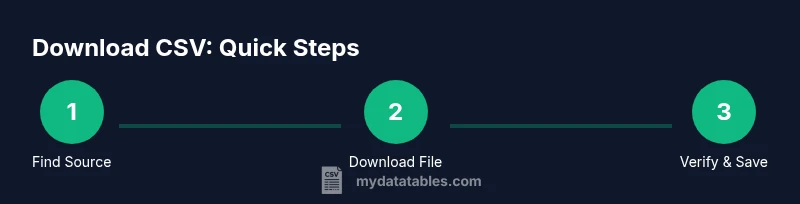
Download Sample CSV Files: A Practical Guide
Learn how to find, verify, and download safe sample CSV files for testing data pipelines. Practical steps, tips, and best practices from MyDataTables.


Learn how to download sample csv file safely, verify its headers and encoding, and save it for testing data workflows. You’ll learn how to pick trusted sources, avoid common pitfalls, and prepare the file for immediate analysis in your data projects. This approach aligns with MyDataTables guidance for practical CSV guidance.
Why you might need to download a sample csv file
When you build data workflows, you often need to test parsing, data cleaning, and import processes without exposing real customer data. A well-chosen sample csv file provides a safe playground to validate that your code correctly handles headers, delimiters, quoting, and empty rows. According to MyDataTables, starting with a small, representative file helps you reproduce issues, verify fixes, and compare results across tools—from spreadsheet apps to ETL pipelines. In practice, you might use a sample to test an import script, prototype a dashboard, or teach colleagues how to work with CSVs. This block will guide you through finding trustworthy sources, evaluating quality, and performing a safe download that you can reuse in multiple projects. You’ll also learn how to document provenance so others can reproduce your steps.
Understanding CSV basics: delimiters, headers, and encoding
CSV stands for comma-separated values, but many datasets use variations like semicolons or tabs. The first row often contains headers, which define column names and help you map fields during imports. Encoding matters too: UTF-8 is widely supported, and some files may include a Byte Order Mark (BOM) or use other encodings. When you’re testing, you want a file that demonstrates typical patterns—quoted fields, newline handling inside text, empty rows, and consistent column counts. Understanding these basics helps you design parsers, validators, and data-cleaning rules that won’t break when you switch data sources. This foundation also makes it easier to compare results across Excel, Google Sheets, and code-based readers.
Safe sources for sample CSV files
Choosing reputable sources reduces risk and increases the usefulness of your sample. Look for open data portals, government sites, academic repositories, and documented examples from data communities. Examples include official public data portals and educational datasets that clearly state license terms and data use restrictions. Before downloading, review terms of use and check for any disclaimers about redistribution. Avoid sources that request excessive permissions or require you to sign in with personal credentials. By starting with trusted sites, you’ll minimize the chance of malware or corrupted files and maximize your learning value.
How to evaluate CSV quality before download
Before you click download, inspect the page for clarity and sample visibility. Look for a visible header row in the snippet, confirm that a UTF-8 or ASCII encoding is stated, and verify that the file preview includes typical values. Check whether the dataset includes edge cases like quoted text, embedded newlines, or missing values. If the page offers multiple files, choose one labeled as a small, representative sample rather than a full dataset. These pre-download checks save time and give you confidence that the file will behave consistently in your tests.
How to download and save the file correctly
Click the download link or button, and choose to save the file rather than opening it directly in your browser. Name the file with a clear, descriptive title and the .csv extension, for example, test-dataset-en.csv. If prompted, select UTF-8 encoding to ensure broad compatibility, especially if you plan to work across systems or programming environments. Avoid spaces and special characters in the filename, and store the file in a dedicated workspace folder to simplify versioning and provenance.
Verifying the downloaded CSV: encoding, header, and delimiter
After downloading, open the file in a text editor to inspect the first line. Confirm that there is a header row with expected column names. Check that the delimiter works as expected by scanning a few lines; if you see merged columns, the delimiter may be different (e.g., semicolon instead of comma). If the file uses UTF-8 with BOM, some tools may display extraneous characters at the start. Tools like notepad++, VS Code, or a terminal can help you verify encoding and delimiter quickly.
Quick checks after download: opening in Excel, Google Sheets, or a code editor
Open the CSV in your preferred tool to validate that data aligns with headers. In Excel or Google Sheets, import via the proper option to specify delimiter and encoding. In a code editor, confirm that there are no unusual characters and that quotes are balanced. If you notice columns shifting when you import, re-save the file with the correct delimiter or encoding. These checks help ensure your downstream imports, joins, or analyses will run smoothly.
Practical examples: use cases for sample CSVs
Sample CSV files are excellent for testing a range of tasks: validating an import routine, prototyping dashboards, or teaching teammates how to handle common CSV quirks. You can simulate a small customer list, product catalog, or transaction log that includes typical data types (strings, numbers, dates). By working with representative scenarios, you’ll build confidence in your parsing pipelines, error handling, and data transformation rules before touching live datasets.
Handling common encoding and delimiter issues
Delimiters are a frequent pitfall: a file might use a semicolon or tab instead of a comma. Encoding problems often show up as garbled characters or unexpected replacement characters. When you encounter issues, re-save the file using UTF-8 and specify the correct delimiter during import. If you’re dealing with quotes inside fields, enable proper quoting in your parser. Documenting these settings makes collaboration easier and reduces errors in future runs.
Working with large CSV samples efficiently
Large samples test performance and memory usage. Use streaming readers or chunk-based processing to avoid loading the entire file into memory. When possible, work with a subset of the data to iterate on logic, then scale up. If you must process the full file, ensure your environment has sufficient RAM and CPU resources, and consider parallel processing if your tools support it.
Integrating downloaded samples into your workflow
Store downloaded samples in a well-structured data workspace with clear provenance. Create a simple naming convention that includes the source, date, and purpose (e.g., govdata-202603-test.csv). Maintain a short description or readme that explains what the sample demonstrates and any caveats. This discipline makes it easier to reuse the file across projects and share it with teammates while preserving traceability.
Next steps: learn more and get help
If you want deeper guidance, explore more structured CSV tutorials and best practices from trusted sources. Consider building a small reference library of safe, representative samples that cover a variety of edge cases. For ongoing CSV work, you may also want to explore MyDataTables resources for CSV guidance, data quality checks, and practical tooling recommendations.
Tools & Materials
- Web browser(Chrome/Edge/Firefox; ensure JavaScript is enabled.)
- Stable internet connection(Needed to access sources and download files.)
- Plain text editor(View encoding and BOM markers; examples: VS Code, Notepad++.)
- CSV viewer or spreadsheet app(Excel, Google Sheets, or LibreOffice for quick verification.)
- Optional: anti-malware software(Good practice when downloading from new sources.)
Steps
Estimated time: 15-25 minutes
- 1
Identify a trustworthy source
Start with official government data portals, university datasets, or reputable open-data sites. Look for clear licensing and documented sample files. This reduces risk and ensures the sample is representative of common CSV patterns.
Tip: Check the source's terms of use and license before downloading. - 2
Navigate to the sample CSV page
Open the data page and locate a small, representative sample. Prefer pages that display a visible preview of the first few rows to assess headers and delimiters before downloading.
Tip: Use the site’s search filters to quickly find sample datasets. - 3
Click the download button
Click the download link or button and choose to save the file rather than opening it directly. This ensures you control where it lands on your device.
Tip: If prompted for a format, choose CSV; avoid exporting to non-CSV formats. - 4
Save with a clear filename
Name the file using a concise convention and end with .csv, for example, test-data-en.csv. Place it in a dedicated workspace folder for easy reuse.
Tip: Avoid spaces and special characters in filenames to prevent parsing issues. - 5
Verify encoding and BOM
Open the file in a text editor to confirm UTF-8 encoding and check for BOM markers. If BOM appears, ensure your tools handle it correctly.
Tip: If you see strange characters at the start, it may be BOM-related. - 6
Inspect the header and a few rows
Confirm the header row contains expected column names and that several data rows align with the headers. Look for consistently filled fields and reasonable data types.
Tip: If headers are missing, select a different sample or source. - 7
Test import in your workflow
Load the CSV into your target tool (ETL, database, or analysis notebook) and verify that columns map correctly without errors.
Tip: Document any mapping or delimiter settings used during import. - 8
Document provenance
Record the source, download date, and filename with a brief note about what the sample demonstrates. This helps others reproduce your steps.
Tip: Keep a local changelog for CSV samples you reuse.
People Also Ask
What qualifies as a good sample CSV file?
A good sample CSV is small yet representative, UTF-8 encoded, and includes a header row with typical data patterns. It should demonstrate common CSV features like quoting and edge cases.
A small, representative CSV with headers and typical data patterns.
Where can I safely download a sample CSV file?
Trusted open data portals, government sites, and educational repositories are best. Always review terms of use and avoid sensitive data.
Use trusted portals and government sites with clear licenses.
What should I do if the file uses a non-comma delimiter?
Identify the delimiter from a quick view of the first lines or documentation, then configure your import to use that delimiter.
Configure your importer to use the correct delimiter.
How can I verify the encoding of the downloaded file?
Open the file in a text editor or run a simple encoding check; UTF-8 is common, but verify there are no unexpected BOM markers.
Check encoding and BOM if present.
Can I edit the sample CSV after downloading?
Yes. You can modify values locally, but keep an original copy for reference and reproducibility.
Yes, keep the original and document changes.
What if the file is very large?
Use streaming readers or process the file in chunks to avoid memory overload and improve performance.
Process in chunks or stream data.
Watch Video
Main Points
- Identify trusted sources before downloading.
- Check encoding, delimiter, and header integrity.
- Save with a clear, consistent filename.
- Test the sample in your target workflow.
- Document provenance for reproducibility.