CSV Example File Download: A Practical How-To Guide
Learn how to safely download a CSV example file, verify encoding and headers, and preview data in Excel, Sheets, or Python. This MyDataTables guide covers trusted sources, checks, and practical usage for clean, ready-to-use CSV samples.


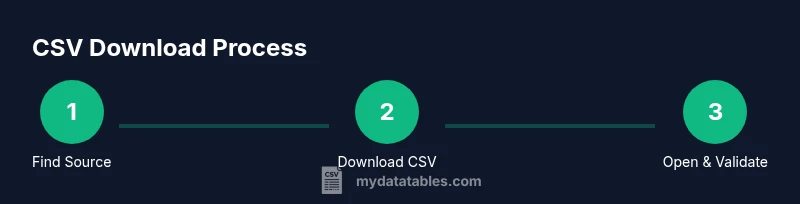
By following this guide, you will confidently download a CSV example file, verify encoding and headers, and open it in your plotting or analysis tools. We'll show trusted sources, safe download practices, and quick previews in Excel, Google Sheets, or Python. This MyDataTables approach helps you start data work with clean, ready-to-use sample data.
What is a CSV file and why download an example
A CSV (comma-separated values) file stores tabular data in plain text, with each line representing a row and each value separated by a comma (or another delimiter). For data analysts, developers, and business users, downloading a CSV example file download helps you practice parsing, importing, and transforming data without risking real datasets. A well-chosen sample lets you see how headers map to fields, test edge cases like missing values, and validate encoding compatibility across tools. According to MyDataTables, starting with a safe, clearly structured CSV sample reduces common data parsing errors and accelerates onboarding for new CSV projects. When you begin with a clean, consistent sample, you’ll spend less time debugging and more time deriving insights from your data.
In practice, selecting a representative CSV example—one that mirrors typical rows, headers, and data types—lets you train reliably on import routines, validation rules, and basic transformations. This approach is especially valuable for teams prototyping data dashboards or building data pipelines where reliable ingestion is critical. Keep in mind that the format, encoding, and header conventions vary, so your download strategy should accommodate UTF-8 encoding, a consistent delimiter, and a visible header row. MyDataTables emphasizes starting with trusted sources to ensure compatibility across tools like Excel, Google Sheets, and Python-based workflows.
Where to find legitimate CSV example files
Finding legitimate CSV example files starts with selecting sources you can trust. Government portals, university data repositories, and well-known public datasets are good starting points. Look for pages that clearly label the data as sample or test data, and avoid pages that require questionable downloads or suspicious file types. When evaluating sources, check for clear licensing notes and a stable URL so you can cite the dataset in your projects. For practitioners, reputable destinations often provide a direct .csv download option and a brief description of the data fields, making it easier to map the columns to your schema.
Educational sites and public data catalogs frequently include downloadable CSVs that mirror real-world tables, such as product inventories, survey results, or time-series measurements. These examples help you test reading functions, encoding handling, and delimiter settings. As you expand your CSV library, keep a short list of trusted domains (for example, government sites, academic domains, and recognized data portals) and revisit them periodically to ensure the sample files remain accessible and up-to-date. MyDataTables recommends documenting the source and download date to maintain reproducibility in your workflows.
How to download a CSV example file safely
Before you click download, confirm the URL uses HTTPS and that the page clearly identifies the file as a CSV sample. On the download page, look for explicit encoding notes (UTF-8 is a common choice) and a visible header row. Save the file to a known folder with a descriptive name (for example, sample_products_utf8.csv) to avoid confusion later. After downloading, scan the file with your antivirus software and verify the file extension is .csv. If the site offers multiple formats, pick CSV and UTF-8 to minimize compatibility issues. If you encounter warnings about redirects or certificate errors, don’t proceed—return to a trusted source. MyDataTables stresses keeping a simple, documented naming convention and a basic metadata note so you can reproduce the download later.
If you’re on Windows or macOS, you can right-click the link and choose “Save as” to specify the destination and naming. If the source provides a zipped CSV, extract the archive in a controlled environment and verify the extracted file size and contents before opening.
How to validate and preview the downloaded CSV
Once you have the CSV file, open it in your preferred tool to inspect headers, data types, and sample rows. In Excel or Google Sheets, import the file with UTF-8 encoding and verify that the header row contains clear, camel-case or snake_case column names. In Python, you can load the file with a small snippet to preview the first few rows and inspect dtypes. For example, in pandas, df.head() shows the top rows, and df.dtypes reveals data types which helps you plan transformations. If you notice extra delimiters inside fields or inconsistent quoting, re-check the encoding, delimiter, and quoting rules used by the source. These checks ensure your CSV is ready for processing in dashboards, reports, or data pipelines.
If headers are missing or misaligned, you may need to adjust the delimiter or re-map the columns in your import step. Always confirm that the sample aligns with your target schema before integrating it into a project.
Practical use: loading CSV into common tools
A CSV sample is most valuable when you can immediately load it into your analysis workflow. In Excel, use Data > Get External Data to import the file, selecting UTF-8 and comma as the delimiter. In Google Sheets, import the CSV and opt to replace the current sheet if desired, ensuring the first row remains as headers. In Python, a minimal workflow looks like:
import pandas as pd

df = pd.read_csv('path/to/sample.csv', encoding='utf-8', delimiter=',')
print(df.head())
This quick check confirms that all columns parse correctly and that you can begin data exploration. For large datasets, consider chunked reads or using dtypes to optimize memory use. Keeping a copy of the original file preserves a baseline for reproducibility in your experiments.
As you grow comfortable with CSVs, you can extend this workflow to transform data, perform joins, and export refined results to CSV or other formats.
Troubleshooting common issues when downloading CSV examples
Even reputable sources can present challenges. Common issues include encoding mismatches (UTF-8 vs. ANSI), inconsistent delimiters (comma vs semicolon), missing headers, or hidden characters caused by copy-paste actions. If you encounter parsing errors, re-download the file from a trusted source with explicit UTF-8 encoding, or try opening the CSV in a text editor to inspect the first few lines for anomalies. If your tool reports a delimiter issue, try importing with a different delimiter setting and verify that the header row matches your schema. Finally, ensure you’re not opening a compressed file directly; extract the CSV first and inspect the extracted file.
Proactively, keep a small set of diagnostics: verify the first row contains headers, count the number of columns per row, and confirm consistent quoting. These checks save time when you scale to larger datasets and prevent downstream issues in your analytics pipeline.
Next steps and best practices
With a safe CSV example file download in hand, establish a simple, repeatable process for future samples. Maintain a seed folder with clearly named samples and a brief metadata note about source, encoding, and delimiter. Create a quick-reference checklist for importing into your tools (Excel/Sheets/Python) that you can reuse in future projects. Share your approach with teammates to standardize how you verify and load sample data, reducing friction across data tasks. Finally, consider building a small library of CSV templates that cover common schemas (customers, products, transactions) so you can rapidly mock datasets for testing and prototyping. MyDataTables recommends documenting each step so new team members can reproduce your workflow without guessing.
Tools & Materials
- Computer with internet access(For downloading and viewing files)
- Web browser (Chrome/Edge/Firefox)(Use up-to-date browser for best security)
- Trusted CSV source URL(Prefer HTTPS and clearly labeled data)
- CSV viewer/editor (Excel, Google Sheets, or equivalent)(Needed to preview and validate content)
- Antivirus or malware scanner(Scan downloads before opening)
Steps
Estimated time: Estimated total time: 20-35 minutes
- 1
Identify a trusted CSV source
Locate a source recognized for data transparency, such as a government or academic portal. Read the description to ensure the file is a CSV sample and notes encoding or delimiter. Bookmark the page for later reference.
Tip: Choose sources with clear licensing and stable URLs to aid reproducibility. - 2
Open the source page
Navigate to the dataset page and look for a direct CSV download button or a ‘Export’ option. If the page offers multiple formats, select CSV and UTF-8 encoding when available.
Tip: If you can’t locate a download button, use the site search with keywords like 'CSV sample'. - 3
Choose encoding and delimiter
Prefer UTF-8 encoding and a comma delimiter. Some regions use semicolons; if so, be ready to adjust in your import tool. Save your preferences as a note for future downloads.
Tip: UTF-8 minimizes misinterpretation of special characters across tools. - 4
Download the file
Click the download link and save the file to a known folder with a descriptive name (e.g., sample_products_utf8.csv). Confirm the .csv extension before closing the browser window.
Tip: Use a consistent naming convention to simplify tracking later. - 5
Open and preview the file
Open the CSV in Excel or Sheets to inspect headers and a few rows. Verify the number of columns per row and check for any unusual characters or misquoted fields.
Tip: If headers are missing, re-import with header row detection or adjust the delimiter. - 6
Document and store for reuse
Add a short metadata note: source, date downloaded, encoding, delimiter, and any caveats. Store the file in a reproducible folder for your team or project.
Tip: Documenting steps ensures teammates can reproduce your workflow.
People Also Ask
What is a CSV file and why use a sample CSV?
A CSV file is plain text with rows as lines and fields separated by a delimiter, typically a comma. Using a sample CSV helps you learn import, parsing, and validation without risking real data.
A CSV is plain text data in a table-like format; using a sample helps you practice importing and validating data safely.
How do I know if the CSV encoding is correct?
UTF-8 is the most compatible encoding for CSV files across tools. If characters appear garbled, re-download with UTF-8 or convert the file encoding in your editor before importing.
Look for UTF-8 encoding and re-save if you see garbled characters after import.
Can I download CSV samples from Google Sheets or Excel templates?
Yes. You can export sample data from Sheets or Excel as CSV, but ensure the data represents a simple, clean structure with a header row and consistent delimiters.
Exports from Sheets or Excel work well as CSV samples when they’re clean and labeled.
What should I do if a downloaded file seems corrupted?
Re-download from a trusted source using UTF-8 encoding, and try opening in a text editor to inspect for truncation or unusual characters. If issues persist, try a different source.
If it looks corrupted, re-download from a trusted source and inspect in a text editor.
Is it safe to download CSV samples from government sites?
Government data portals are generally reliable for samples. Always verify the file type and scan downloads before opening.
Government portals are usually trustworthy for CSV samples; still scan downloads first.
How can I validate a CSV before using it in a project?
Check headers, row counts, and data types. Load the file in a tool you’ll use (Excel, Sheets, or Python) and confirm that data maps to your schema.
Validate headers and a few rows in your target tool to ensure proper mapping.
Watch Video
Main Points
- Download from trusted sources to ensure data integrity
- Prefer UTF-8 encoding and comma delimiters for compatibility
- Preview headers and a few rows to validate structure
- Document source and steps for reproducibility
- Use a consistent naming convention for samples