How to Download a CSV File: A Practical Guide
Learn practical, step-by-step methods to download a CSV file from any source, handle encoding, and verify data integrity. This educational guide covers websites, cloud apps, and spreadsheets with best practices for CSV data.


Goal: download a CSV file from any source quickly and safely. You’ll learn how to locate the download option, choose the correct encoding, and save the file with the right extension. This quick guide covers websites, cloud apps, and spreadsheets, plus tips to verify data integrity after download. Expect minor variations by source, but the core steps stay the same.
Understanding CSV downloads
Downloading a CSV file is a fundamental data task that almost every data professional encounters. A CSV, or comma-separated values file, stores tabular data in plain text, making it easy to transfer between systems. When you set out to download a CSV file, you’re not just grabbing data—you’re choosing a format that preserves structure and compatibility across tools. According to MyDataTables, CSV remains one of the most universally supported data interchange formats, which is why mastering downloads is worth your time. Before you click anything, define your goal: what dataset do you need, which columns are essential, and what encoding will you require for downstream analysis? As you perform the download, you’ll want to verify that the file uses a .csv extension, that there’s a header row, and that the delimiter matches your expectations. This upfront planning will save you from surprises when you open the file in Excel, Google Sheets, pandas, or a database.
Common sources for CSV downloads
CSV downloads come from a variety of sources, including data portals on government and university sites, cloud-based tools, GitHub repositories, and enterprise databases. On most sites you’ll find a Download or Export option, often tucked under menus labeled Data, Tools, or More. If you’re working with a spreadsheet, the path is usually File > Download as > CSV. Developers frequently encounter API endpoints that emit CSV data, which can be downloaded or streamed. Regardless of source, look for clear encoding information and a header row. The most reliable downloads usually provide both, making downstream processing predictable and reproducible. In practice, ensure you’re grabbing the right dataset and that the delimiter matches your region (comma vs. semicolon).
Encoding and headers to watch
Encoding governs how characters appear after download. UTF-8 is widely recommended because it covers international characters and symbols. Some tools add a Byte Order Mark (BOM); in many workflows BOMs can cause parsing issues, so consider removing it if your parser misreads the file. The header row should list column names that align with your data model; mismatched headers can derail automation. If fields include commas or quotes, verify proper escaping rules (fields may be enclosed in quotes). Finally, confirm the delimiter—some locales default to semicolons. MyDataTables Analysis, 2026 emphasizes consistent encoding and delimiters to ensure compatibility across Excel, Sheets, and programming languages.
How to confirm the data after download
After saving the CSV, perform quick checks to validate integrity. Open the file in a plain-text viewer to spot obvious issues (missing headers, broken lines). Import the file into your target tool (Excel, Sheets, Python, R) and verify that the number of rows matches the source and that data types align with expectations. Check a sample of rows for correct parsing of dates, numbers, and text fields. If anything looks off, review the encoding, delimiter, and escaping rules, then re-download if necessary. Consistency between the source and the local copy is the goal.
Automating CSV downloads with scripts
For recurring data needs, automation is your friend. Use simple commands like curl or wget to fetch a CSV from a stable URL, or write a small script in Python (requests or urllib) to pull data on a schedule. Add error handling, retry logic, and logging so failures are visible. When automating, store files with a predictable naming convention (dataset-date.csv) and store them in a versioned location. This approach reduces manual steps and improves reproducibility across teams.
Troubleshooting common issues
CSV downloads can encounter several pitfalls. Missing headers or wrong delimiters can break imports. Garbled characters often point to incorrect encoding. Large files may cause memory issues or slow down your editor; consider streaming or chunked processing. If a site blocks automated downloads, respect robots.txt and use official APIs or export options where available. Always re-check the file extension and re-export if the original source provided a different format.
Best practices for CSV downloads in organizations
Adopt standard conventions to streamline CSV workflows. Use UTF-8 with no BOM for maximum compatibility, maintain a stable source URL, and tag files with version numbers and dates. Keep a data catalog or inventory that records download times, source, and schema. Implement QA checks to confirm schema consistency and data types before feeding CSVs into analytics pipelines. Finally, secure sensitive datasets with appropriate permissions and encryption when transporting or storing files.
Quick checks for large CSV files
Large datasets require special handling to avoid performance issues. Prefer streaming parsers that load data in chunks rather than all at once. When possible, process data in chunks (e.g., using a read_csv with chunksize in pandas) and monitor memory usage. If you must perform analysis in-memory, consider filtering or sampling a subset first to validate the structure. For distribution, generate smaller export files with descriptive filenames and maintain a master archive separately.
Tools & Materials
- Web browser(Chrome/Edge/Firefox; ensure JavaScript is enabled for dynamic download links)
- Computer with internet access(Stable connection; avoid interruptions during large downloads)
- CSV viewer or editor(Excel, Google Sheets, or a text editor for quick checks)
- Source URL or dataset page(Copy exact CSV export link or navigate to the export option)
- Well-labeled filename and save location(Use a consistent naming convention like dataset-date.csv)
- Optional scripting tool (for automation)(PowerShell, Bash, Python, or a scheduler for repeating downloads)
- Text encoding reference(Be aware of UTF-8 vs regional encodings; UTF-8 is safest)
Steps
Estimated time: 15-25 minutes
- 1
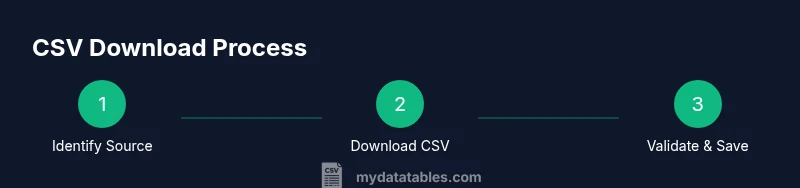
Identify the source and dataset
Determine which dataset you need, confirm the source URL or data portal, and locate the CSV export or download option. This ensures you pull the correct data and avoids wasted clicks.
Tip: If there are multiple sheets, note which one you need before downloading. - 2
Prepare your workspace
Open a safe directory for downloads, ensure your browser is up to date, and if you plan automation, set up a script environment and authentication tokens if required.
Tip: Disable automatic file renaming in the browser to preserve the intended filename. - 3
Download the CSV
Click the export/download option and choose CSV. If prompted, select UTF-8 encoding and confirm the delimiter (comma is standard in most locales).
Tip: If the site offers multiple formats, pick CSV only, not Excel or JSON. - 4
Inspect the downloaded file
Open the file in a viewer or editor to confirm headers and a representative sample of rows. Check that the delimiter and encoding match expectations.
Tip: Look for a visible header row and a consistent row count with the source. - 5
Save with a consistent name
Store the file using a predictable naming scheme and folder path. Use dataset-date.csv to simplify future retrieval.
Tip: Keep a log of when and where the CSV was downloaded for auditing. - 6
Validate and test import
Import the CSV into your target tool (Excel, Sheets, Python, or a database) and run a quick validation to ensure data types and values parse correctly.
Tip: Run a small subset first to catch issues before processing the full file.
People Also Ask
What is a CSV file and why is it widely used?
CSV stands for comma-separated values. It’s a plain-text format that stores tabular data in rows and columns, making it easy to share across applications. Its simplicity and broad compatibility explain its frequent use for data export and interchange.
CSV is a simple, plain-text table format used to share data across many apps.
Why is encoding important when downloading CSV files?
Encoding determines how characters are represented in the file. UTF-8 is the safest default because it supports most characters across languages and symbols, reducing garbled text when the file is opened in different tools.
Encoding affects character accuracy; UTF-8 is recommended.
What should I do if the CSV is very large?
For large CSVs, avoid loading the entire file into memory. Use chunked processing or streaming to read in parts, and consider splitting the file into smaller exports for easier handling.
Handle large files in chunks or smaller parts to avoid memory issues.
How can I verify the downloaded CSV matches the source?
Compare the number of rows and the header names between the source and your local copy. Import the file into your analysis tool to validate data types and a sample of values.
Import the CSV and compare headers and a sample of rows to verify accuracy.
Can I automate CSV downloads?
Yes. Use scripting (curl, Python, or similar) to fetch CSV data on a schedule. Include error handling and logging to ensure reliability and traceability.
Yes, you can automate CSV downloads with scripts and scheduling.
What about CSVs from Google Sheets?
In Google Sheets, use File > Download > Comma-separated values (.csv) to export. If you have multiple sheets, export each sheet separately as its own CSV.
Export Sheets as CSV via the File menu, one sheet per file.
What should I do if the download link is blocked by the site?
If direct downloads are blocked, use the site's official API or export mechanism when available, or contact the data owner for proper access. Avoid workarounds that breach terms.
If blocked, use official APIs or contact the data owner for access.
Watch Video
Main Points
- Identify the correct download option from the source.
- Check encoding and delimiter before opening the file.
- Verify data integrity after download with a quick import test.
- Consider automation for recurring CSV downloads.