How to Get CSV: A Practical CSV Guide
Learn practical methods to obtain CSV data—from exporting in apps to generating via code. This guide covers encoding, delimiters, reading CSV in popular tools, and common pitfalls.


You can get CSV by exporting data from apps, saving data as CSV, or generating it with code. Key steps include choosing a delimiter (comma by default), ensuring UTF-8 encoding, and including a header row.
What is CSV and why it matters
If you’re wondering how do you get csv, the answer is typically straightforward: export data from the source app or generate it through a small script. CSV stands for comma-separated values and is a plain-text format designed for tabular data. Rows represent records; columns represent fields. The appeal of CSV is its simplicity and broad compatibility with spreadsheets, databases, and data pipelines. Because it uses plain text, you can open it in nearly any editor without special software. The downside is that flavor differences exist: locale-based delimiter variations, quoting rules, and escaping conventions can vary. In practice, most teams standardize on UTF-8 encoding and a comma delimiter, with a header row naming each column. This standardization makes CSV a reliable lingua franca for data interchange across tools and teams.
Getting Your Data into CSV
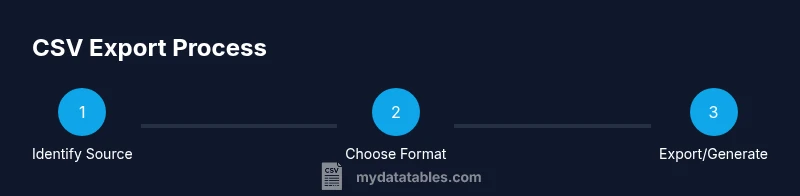
Getting CSV data typically starts with identifying where the data lives and how you want to extract it. You can: export from a business app’s UI, dump a database table via a query, or generate CSV from code that serializes rows into a text file. If you’re new to CSV, begin with a small sample to test your workflow. For larger datasets, plan batch exports or streaming to avoid memory bottlenecks. The general approach is to ensure the data is represented as rows (records) and columns (fields), with a header row that names each field. This consistency makes downstream processing predictable and repeatable.
Saving and Encoding Considerations
Two choices often determine whether a CSV file plays nicely downstream: delimiter and encoding. The default delimiter is a comma for most regions, but semicolons are common in locales that use commas in numbers. UTF-8 encoding is widely recommended to preserve special characters and avoid mojibake when sharing data internationally. Always include a header row so tools can align columns automatically. If you anticipate non-ASCII characters, test with a sample that includes accented letters and symbols. Finally, consider including a Byte Order Mark (BOM) only if your target tools expect it; many modern tools handle UTF-8 without BOM.
Reading CSV in Popular Tools
CSV is designed for broad compatibility, so you can read it in spreadsheet programs like Excel and Google Sheets, database tools, or programming languages. In Excel or Google Sheets, you typically use Import or Open, then choose the CSV file and ensure the delimiter and encoding are correct. In Python, the csv module or pandas can parse CSV files efficiently, with options to set the delimiter, quote character, and encoding. In R, read.csv makes it easy to import data frames. When you read a CSV, verify that the header row maps to the expected field names and that numeric values aren’t inadvertently imported as strings. If you encounter issues, examine a few sample lines in a text editor to confirm the delimiter and quoting conventions.
Common Pitfalls and How to Avoid Them
CSV files are simple, but small missteps break downstream workflows. Common pitfalls include: inconsistent delimiters across files, missing headers, or quoted fields that include the delimiter themselves. To avoid these, enforce a single delimiter per file, always include a header row, and ensure all fields that contain the delimiter are properly quoted. When sharing CSVs between systems, agree on encoding (UTF-8) and line endings. If your data contains commas, quotation marks, or line breaks inside fields, make sure the export tool quotes those fields consistently.
Validation and Quality Checks
Before you depend on a CSV for analysis or ingestion, validate its structure. Check that every line has the same number of fields as the header, ensure the header names are stable, and confirm encoding and newline conventions are uniform. Simple checks you can perform include counting rows, sampling a few lines to verify data types, and opening the file in a text editor to inspect quotes and escapes. For automated validation, use lightweight validators or write a small script that compares the header against a schema. This early validation prevents downstream errors in data pipelines.
Automation: Generating CSV at Scale
When CSV export becomes routine, automation saves time and reduces errors. Implement scheduled jobs or CI/CD pipelines to run export scripts against the source data, generate CSVs, and store them in a shared location or data lake. If you’re using code, design a small module that takes input data structures and writes rows with proper encoding and escaping. For very large datasets, consider streaming the output instead of loading everything into memory. Add a verification step that checks a sample of rows after export to catch formatting anomalies early.
Real-World Recipes: Typical CSV Scenarios
- Export a customer list from a CRM: choose CSV with UTF-8 encoding, include a header, and pick a comma delimiter.
- Generate a daily report from a database: run a query, convert results to CSV, and validate column counts.
- Share data with a partner using a spreadsheet: export as CSV, then re-import in the recipient’s system to confirm compatibility.
- Clean data before export: remove duplicates, normalize dates, and ensure numeric fields have consistent formatting.
- Large-Scale data: implement chunked exports to avoid memory issues and validate each chunk separately.
- Quick ad-hoc analysis: copy a small slice into a text file and save as CSV for rapid testing.
AUTHORITY SOURCES
- RFC 4180: Common format for CSV files https://tools.ietf.org/html/rfc4180
- Python CSV Module Documentation https://docs.python.org/3/library/csv.html
- Data sharing and CSV best practices https://www.data.gov/developers/apis/
Tools & Materials
- Computer with internet access(Any operating system; used to access apps and documentation.)
- Spreadsheet software (Excel, Google Sheets, or LibreOffice)(Used to export or view CSV files.)
- Text editor (optional)(Useful for quick edits or inspecting raw CSV content.)
- Scripting environment (optional)(Python, R, or Node.js for programmatic CSV generation.)
- CSV validator or linter (optional)(Helps automate integrity checks.)
- Sample dataset or API endpoint (optional)(For hands-on practice and testing export workflows.)
Steps
Estimated time: 30-60 minutes
- 1
Identify your data source
Decide which dataset you need in CSV and locate its origin, whether it’s a database, a SaaS app, or an API. This clarity prevents exporting unnecessary data.
Tip: Document required fields and any security constraints before export. - 2
Choose export or generation method
Select the method you’ll use to create CSV: built-in export in an app, a database dump, or a small script that serializes data rows into CSV format.
Tip: If you plan to automate, design a reusable function or module. - 3
Set format options
Decide on the delimiter (default comma), encoding (UTF-8 recommended), and whether to include a header row. These choices impact compatibility downstream.
Tip: Test with a small sample to confirm the chosen settings. - 4
Execute the export or run the script
Run the export or script and save the results with a meaningful filename. If data is large, consider streaming to avoid memory issues.
Tip: Log the export time and source for auditing. - 5
Validate encoding and line endings
Open the file to verify UTF-8 encoding and consistent line endings (LF or CRLF). Wrong endings can break imports in some tools.
Tip: If issues appear, re-export using a fixed encoding and delimiter. - 6
Verify header and data integrity
Check that the header names match your expectations and that each row has the same number of fields as the header.
Tip: Use a quick script or validator to automate this check. - 7
Test import in target tool
Import the CSV into the destination tool (spreadsheet, database, or data pipeline) to confirm data reads correctly.
Tip: Resolve any mapping or type conversion issues before production use.
People Also Ask
What is a CSV file?
CSV stands for comma-separated values. It is a plain-text format where each line represents a row and fields are separated by a delimiter, typically a comma. CSVs are widely used for data exchange because they are simple and readable by many tools.
CSV is a simple plain-text format with rows and comma-delimited fields that many programs can read.
Which delimiter should I use?
Comma is the default delimiter in most contexts, but some locales prefer semicolons. Choose a delimiter that matches your downstream tools to avoid parsing errors.
Use a comma by default unless your tools require something else, like a semicolon.
How do I export CSV from Excel?
In Excel, go to File > Save As, choose CSV (Comma delimited) as the format, and save. Be aware some features like formulas may not translate to CSV.
In Excel, use Save As and pick CSV to export the sheet.
What about encoding issues?
UTF-8 is the recommended encoding to preserve characters from all languages. If you encounter a mismatch, re-export specifying UTF-8.
Make sure you export as UTF-8 to avoid character problems.
How can I validate a CSV?
Open the file in a text editor or use a validator to check for consistent field counts, correct headers, and proper quoting.
Check the file in a text editor or with a validator to ensure it’s well-formed.
Can CSV handle large datasets?
Yes, but large files may require streaming, chunking, or incremental exports to avoid memory issues.
CSV can handle big files, but you might export in chunks to stay performant.
Watch Video
Main Points
- Export CSV via apps or code with a header
- Use UTF-8 encoding and a consistent delimiter
- Validate structure before sharing
- Test imports to verify compatibility