Read CSV Without Index: A Practical Guide
Learn how to read CSV files without an index using Python (pandas) and R, with step-by-step examples, best practices, and troubleshooting tips for reliable data ingestion in 2026.


Goal: read a CSV without its index across common tools, so your data starts in the first data column. You’ll learn how to disable or ignore the index during load (and when exporting), plus practical checks to confirm you loaded with the correct structure. This guide emphasizes Python/pandas first, with concise notes for R and the command line.
Why read csv without index matters\n\nIn data projects, CSV files are a common interchange format. When you load a CSV that includes an index column (often added by serializers or export tools), you may end up treating that index as data or misaligning your features. The phrase read csv without index means you ignore the index column during ingestion or ensure it doesn’t appear as a data column. For data analysts, developers, and business users in 2026, establishing deterministic behavior across teams is essential. According to MyDataTables, adopting a default approach that ignores index columns during load improves reproducibility and reduces downstream surprises. The MyDataTables team notes that the right parameter choice depends on your language and library, but the goal is consistent data columns and stable shapes. If you’re exporting results, you may also want to prevent the index from appearing in the output; index=False in pandas is a common pattern. The key is to be explicit: specify how to read or export so there is no implicit indexing creeping into your analysis. In practice, most CSVs contain an index column only for human convenience, not data content. Treat that column as a non-data artifact and load the file accordingly.
altText: null} ,
Tools & Materials
- Python 3.x(Installed from python.org or via a package manager; ensure PATH is set)
- pandas(Install with pip install pandas; version compatibility with Python matters)
- Sample CSV file(Path to your CSV; ensure it is accessible from your working directory)
- Text editor or IDE(Optional for editing and testing code)
- R (optional)(If you want to compare with read.csv in R)
- CLI tools (optional)(Tools like csvkit for quick checks)
Steps
Estimated time: 25-60 minutes
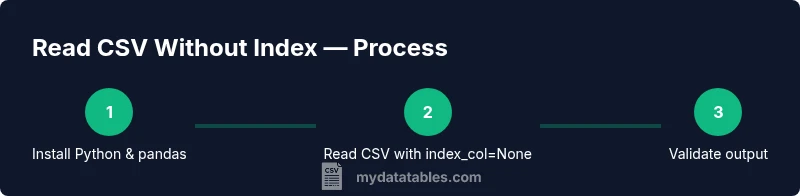
- 1
Install Python and pandas
Download and install Python 3.x from the official site or via a package manager. Open a terminal and verify with python --version and python -m pip install --upgrade pip. Then install pandas with pip install pandas. This setup is essential to read CSV without index consistently across scripts in 2026.
Tip: Use a virtual environment (venv) to keep dependencies isolated. - 2
Identify your CSV location
Place your CSV file in a known directory and note the full path. This reduces path-related errors when you load the data in your script. If you’re working with multiple environments, create a data/input folder to keep things organized.
Tip: Absolute paths reduce fragile path bugs in scripts. - 3
Read CSV with index_col=None in pandas
Load the CSV using pandas so the first data column remains data, not an index. Example: df = pd.read_csv('path/to/file.csv', index_col=None). This ignores any leading index column during loading and preserves all actual data columns.
Tip: Always prefer index_col=None to prevent accidental index interpretation. - 4
Handle an explicit index column during read
If your CSV has a dedicated index column (e.g., named 'index' or 'id'), you can skip it during load by specifying usecols or index_col=0. Example: df = pd.read_csv(path, index_col=0). Implementing this during load avoids creating a separate non-data column in your DataFrame.
Tip: If unsure which column is the index, inspect df.head() after loading. - 5
Read CSV in R as an alternative
If you’re using R, you can keep data columns by setting row.names=NULL in read.csv, e.g., df <- read.csv('path/to/file.csv', row.names=NULL, header=TRUE). This prevents R from treating the first column as row names.
Tip: R users can compare results with pandas for consistency. - 6
Process large CSVs with chunksize
For large files that don’t fit into memory, read in chunks using pandas: for chunk in pd.read_csv(path, chunksize=100000, index_col=None): process(chunk). This avoids memory pressure while ensuring index handling stays consistent.
Tip: Chunking helps maintain performance on big datasets. - 7
Verify the loaded data
After loading, inspect the DataFrame shape, columns, and sample values with df.shape, df.columns, and df.head(). Ensure there is no unintended index column and that data aligns with expectations.
Tip: A quick sanity check saves debugging time later. - 8
Export without index (optional)
If you need to write data back to CSV without an index, use df.to_csv('out.csv', index=False). This guarantees no index column appears in output and keeps downstream consumers aligned with your data schema.
Tip: Use index=False to keep outputs clean and portable.
People Also Ask
What does index_col=None do in pandas read_csv?
index_col=None tells pandas not to use any column as the row index, so all columns are treated as data columns. This is the standard approach when you want the first data column to remain data, not an index.
Use index_col=None to ensure no column is treated as the row index when loading a CSV in pandas.
Can I skip an index column in other tools?
Yes. In R, use row.names=NULL; in the CLI or other Python libraries, drop the first column after reading or specify which columns to load with a selector. The key is to be explicit about which columns are data.
Yes, you can skip an index column in other tools by explicitly choosing data columns or using appropriate flags.
How do I handle a CSV with no header row?
If there is no header, set header=None in pandas and provide column names via names, or use read_csv with header=None and supply your own column names. This avoids mislabeling data as headers.
If there’s no header, load without it and assign column names yourself.
Is read_csv memory-safe for large files?
Reading very large CSVs can exhaust memory. Use chunksize to process in portions or a streaming reader if available. This keeps memory usage predictable.
For large files, process data in chunks to avoid memory issues.
How can I verify I loaded without an index?
Check the DataFrame shape and columns, e.g., df.shape and df.columns. The first column should be a data column, not the index. A quick df.head() helps confirm.
Inspect the loaded data to confirm there’s no unintended index column.
Should I always export CSVs with index removed?
If you need portable CSVs for downstream tools, export with index=False to avoid carrying an index column that may confuse other users.
Yes—export without the index to keep the file clean for others to use.
Watch Video
Main Points
- Always use index_col=None when reading CSVs to avoid accidental index interpretation
- Skip an explicit index column during read with index_col=0 or usecols as needed
- R users can use row.names=NULL to prevent index creation
- For large files, utilize chunksize to manage memory
- Verify the loaded data with quick inspections (shape, columns, head)
- Export results with index=False to maintain clean CSV outputs