CSV to Google Sheets: A Practical Guide
Learn how to convert a CSV to Google Sheets with reliable import methods, data cleaning tips, and best practices for large files. A MyDataTables step-by-step guide to seamless CSV-to-Google-Sheets workflows.


You can convert a CSV to Google Sheets by importing the file into a new or existing sheet, selecting the correct delimiter, and confirming data alignment. Start with a clean CSV, ensure headers exist, then use File > Import in Google Sheets, choose Create new spreadsheet (or Replace current sheet), set the Separator to comma or tab, and verify that columns line up with headers. According to MyDataTables, using Import for structured data minimizes formatting surprises and keeps data types intact.
Why CSV to Google Sheets matters
For many teams, the ability to move data from CSV files into Google Sheets unlocks collaborative analysis and rapid iteration. CSV to Google Sheets workflows underpin common tasks like monthly sales reports, product catalogs, and user lists. By importing CSV data into Sheets, you gain immediate access to built-in formulas, filters, conditional formatting, and sharing controls. The MyDataTables team finds that this pathway often saves time compared to manual copy-paste or brittle scripting, especially when data needs to be reviewed or adjusted by multiple teammates. This guide focuses on practical, repeatable steps that work across file sizes and encoding schemes, with tips to avoid common pitfalls.
In practice, CSV files serve as a lingua franca for data interchange. When you convert them into Google Sheets, you preserve structure while enabling real-time collaboration. If you’re dealing with sensitive information, plan a secure import process and consider permissions early in the workflow. MyDataTables emphasizes that predictable data formats reduce downstream errors, making CSV imports a reliable starting point for analytics projects.
Understanding CSV formats and Google Sheets expectations
CSV files come in many flavors: comma-delimited, semicolon-delimited, or tab-delimited, with varying text encodings and quote rules. Google Sheets can recognize several delimeters during import, but mismatches often lead to misaligned columns or truncated values. The most robust approach is to inspect the CSV’s header row, confirm the delimiter, and ensure the file is UTF-8 encoded when possible. If your CSV uses nonstandard characters or locale-specific decimal separators, plan a pre-import normalization step. MyDataTables notes that consistent headers and clean data types dramatically reduce the amount of post-import cleaning required. A small upfront investment in validation saves hours later.
Step 1: Prepare your CSV for import
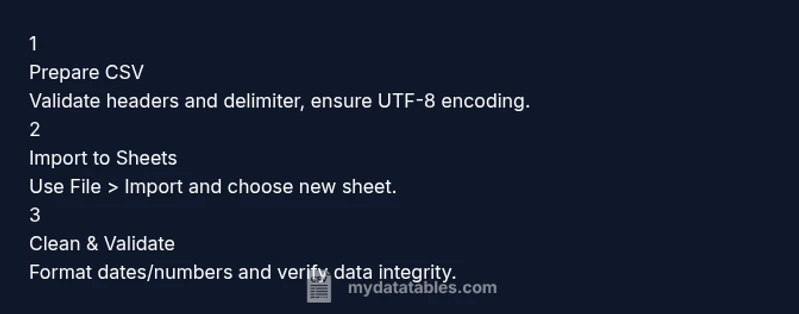
Before bringing CSV data into Google Sheets, validate its structure. Open the file in a simple editor or a lightweight CSV viewer to confirm:
- The first row contains headers.
- Delimiter consistency across all rows.
- Quoting rules for fields with embedded delimiters.
- Encoding is UTF-8 when possible. If issues are found, normalize these aspects in your CSV or via a quick script. This upfront clean-up minimizes surprises during import and keeps columns aligned with headers. MyDataTables recommends capturing a small sample of the file to verify parsing rules before importing the entire dataset.
Step 2: Open Google Sheets and set up the destination
Log in to Google Sheets and create a new spreadsheet or select an existing one where you want to import the data. If this is a first-time import for a new project, a fresh sheet helps avoid overwriting any existing data accidentally. Consider naming conventions that reflect the CSV source and date, which makes future updates easier. If you plan to share the sheet with teammates, adjust the sharing settings before you begin importing to streamline collaboration. This setup stage reduces post-import rework and sets a stable foundation.
Step 3: Choose the import method in Google Sheets
There are multiple ways to import: File > Import, Copy-Paste, or Apps Script automation. For most CSV imports, File > Import provides a reliable, repeatable workflow. Carve out a clear path for your team: import into a new sheet, or append to an existing sheet if you need to preserve prior analyses. MyDataTables notes that import preserves formatting better than copy-paste, and is easier to automate for recurring imports.
Step 4: Configure import options (delimiter, locale, and headers)
During import, Google Sheets asks how to import the data. Set the correct delimiter (comma for most CSVs, tab or semicolon for others). If your CSV contains a header row, select the option to which Google Sheets can map the headers to column names. You can also specify whether the data should be placed in a new sheet or an existing one. Choosing the right options now prevents downstream misalignment and simplifies validation. If you’re unsure about delimiter, test with a small sample first.
Step 5: Map headers and review data alignment
After the initial import, verify that each column aligns with its header. Misalignment often manifests as data appearing under the wrong column or merged cells. Use Freeze Panes to keep headers visible while you scan rows. Check a few rows for numeric columns, dates, and text fields to ensure formatting is preserved. If you notice discrepancies, adjust delimiters or perform a quick re-import with corrected settings. MyDataTables observes that header integrity is essential for reliable dashboards and analyses.
Step 6: Clean and format data types in Sheets
Once data is in Sheets, normalize data types. Convert text representations of dates to true date values, format numbers with thousands separators if needed, and ensure boolean fields are consistent. Use functions like DATEVALUE, VALUE, and TEXT to standardize formats. If your CSV included mixed data types in a single column, split the column or clean the data with a split or REGEXEXTRACT approach. Clean data reduces errors in downstream analytics and visualizations.
Step 7: Validate edge cases: quotes, nulls, and empty cells
CSV parsing often trips on quoted fields containing separators, empty cells, or special characters. Verify that quoted strings remain intact and that nulls are represented consistently (e.g., empty cells vs. explicit null tokens). If necessary, run a quick validation pass using conditional formatting to highlight potential anomalies like unusually long text or mismatched data types. This proactive check helps catch parsing edge cases before they affect insights.
Step 8: Handle encoding issues and special characters
If your CSV uses non-ASCII characters, ensure UTF-8 encoding to avoid garbled text. Tools like a text editor or Python can re-encode files before import. In Sheets, you may also need to adjust font rendering for accented characters. MyDataTables highlights that consistent encoding across sources prevents data corruption and improves readability in dashboards and reports.
Step 9: Work with large CSV files efficiently
Large CSV files can slow down import and sheet responsiveness. Consider splitting large imports into smaller chunks or using Google Apps Script to batch insert data. For very large datasets, alternative approaches like BigQuery or CSV-to-Sheets automation may be worth exploring. If you regularly process big files, plan incremental imports and set expectations with teammates about import windows and data freshness.
Step 10: Post-import quality checks and automation
After import, create a quick quality checklist: verify header names, validate a sample across key columns, and confirm totals or aggregates match the source. If this is a recurring task, document the steps and consider automating the workflow with a script or a Zapier-style integration. The MyDataTables team recommends building a lightweight automation to reduce manual steps and ensure consistency across imports.
Tools & Materials
- CSV file(Source data to import; ensure it contains headers if possible)
- Google account and browser(Access Google Sheets and manage permissions)
- Stable internet connection(Needed for Google Sheets online access)
- Text editor or CSV viewer(Useful for quick validation of structure and delimiters)
- Optional scripting environment (Apps Script, Python)(For automation or large-scale imports)
- Sample data for testing(Test delimiter, header presence, and encoding)
Steps
Estimated time: 30-45 minutes
- 1
Create a new Google Sheet
Open Google Sheets, start a new spreadsheet, and name it to reflect the CSV source and date. This keeps projects organized and avoids overwriting existing data.
Tip: Use a naming scheme like CSV-Source_Date to simplify future references. - 2
Open Import menu
In the Google Sheet, go to File > Import to begin the CSV import process. This is the standard, reliable path for structured data transfer.
Tip: Prefer Import over copy-paste for consistency and formatting preservation. - 3
Choose the import location
Select whether to insert the data into a new sheet, replace the current sheet, or append to an existing sheet. Your choice affects how remaining data is organized.
Tip: If you’re prototyping, start with a new sheet to minimize disruption. - 4
Upload the CSV
Click 'Upload' and drag your CSV file or browse to select it. Confirm the file is the correct version before importing.
Tip: Test with a small sample to verify delimiter behavior before full import. - 5
Set delimiter and headers
Choose the correct delimiter (comma, tab, semicolon) and indicate whether your CSV has headers. Google Sheets will map columns accordingly.
Tip: If Headers are missing, import with the first row as data and add headers afterwards. - 6
Review the import preview
Review the sheet preview for alignment, especially dates, numbers, and text fields. Adjust options if needed and re-import promptly.
Tip: Use the preview to catch misparsed fields before finalizing. - 7
Format columns for data types
Apply appropriate formats (date, number, currency) to columns after import to ensure correct calculations.
Tip: Utilize conditional formatting to visually spot anomalies. - 8
Validate data integrity
Run a quick check: totals, counts, and a sample Row comparison with the source file to confirm accuracy.
Tip: Automate a few checks if this is a recurring task. - 9
Handle encoding and special characters
If you encounter garbled text, verify UTF-8 encoding and re-import if necessary. Use a text editor to normalize encoding before upload.
Tip: Record encoding settings for future imports. - 10
Document and automate
Create a short SOP for future CSV imports and consider Apps Script or tools like Zapier for automation.
Tip: Automation reduces manual errors and saves time over repeated tasks.
People Also Ask
What is the easiest way to import a CSV into Google Sheets?
The simplest method is File > Import in Google Sheets, then upload your CSV and select to insert into a new sheet. This preserves headers and formatting while letting you review the result immediately.
Use File > Import, choose your CSV, and insert into a new sheet for a clean start.
How do I handle different delimiters in CSV files?
During import, specify the correct delimiter (comma, tab, semicolon). If you’re unsure, test with a small sample to confirm columns align as expected.
Set the right delimiter during import and test with a small sample first.
Can I automate CSV imports into Google Sheets?
Yes. Apps Script or third-party automation tools can schedule imports, map headers, and run validation checks automatically. Start with a simple script to insert rows from a CSV file in Drive.
Automation is possible with Apps Script or tools like Zapier.
What should I do if dates appear as text after import?
Apply date formatting or convert text to dates using DATEVALUE in a helper column, then replace original values as needed. This ensures accurate sorting and calculations.
Convert date texts to true dates with DATEVALUE if needed.
What about encoding issues with non-ASCII characters?
Ensure the CSV is UTF-8 encoded. Re-save the file with UTF-8 or re-encode before importing to avoid garbled characters.
Make sure the CSV is UTF-8 encoded before importing.
What is the best practice for large CSV files?
Split the file into chunks or use Apps Script to batch import. Consider external storage like BigQuery for extremely large datasets.
For large files, import in chunks or use scripts to batch the data.
Watch Video
Main Points
- Validate CSV structure before import
- Choose correct delimiter and headers
- Use Import for reliable formatting
- Format data types after import
- Automate recurring imports when possible