Import CSV in Google Sheets: Step-by-Step Guide
Learn how to import csv in google sheets with a robust, step-by-step approach. This guide covers file formats, delimiters, locale, and data validation for clean results.


To import a CSV into Google Sheets, use File > Import, then upload your file and choose whether to insert into a new sheet, replace current data, or append. For online CSVs, you can use the IMPORTDATA function with a URL. Verify the delimiter (comma, semicolon) and adjust locale settings to ensure dates and numbers import correctly.
Why CSV imports in Google Sheets matter
According to MyDataTables, CSV is a foundational format for moving data between systems, and Google Sheets offers a reliable, accessible import path for analysis and collaboration. When you import a CSV, Sheets parses the data into rows and columns, preserving headers if present and enabling immediate use with formulas like FILTER, QUERY, and VLOOKUP. This convenience is why professionals rely on the import CSV in google sheets workflow to speed up data analysis. The benefits extend beyond single-user workbooks: teams can co-edit, comment, and share datasets in real time, which reduces version conflicts and accelerates decision-making. However, accuracy during import depends on proper delimiter handling, correct header recognition, and locale-aware data interpretation. Common pitfalls include misread columns, dates shown as text, and numeric fields loaded with thousands separators that aren’t locale-appropriate.
How the Google Sheets import interface works
Google Sheets provides a straightforward path for CSV import via File > Import. When you open the Import dialog, you can switch between options such as Create new spreadsheet, Replace current sheet, or Append to current sheet. The Import tool also exposes an Upload tab for local CSVs and an URL-based option for online CSVs (via IMPORTDATA). The interface automatically detects a delimiter, but you can force comma, semicolon, tab, or other characters if automatic detection misreads your file. Locale and date formats can influence how numbers, dates, and currencies appear after import, so adjust these settings during the import process to preserve data integrity. In this guide, you’ll learn practical steps and safe defaults to minimize surprises when importing.
Importing from local files vs URLs: what to expect
Local CSV imports from your computer are the most common scenario, using the Upload option in the Import dialog. URL-based CSVs can be pulled directly into Sheets with the IMPORTDATA function, though this method is best when the file is publicly accessible and consistently formatted. For private resources, you’ll typically download the CSV first and then import it as a local file. If you routinely pull data from the web, consider combining IMPORTDATA with Apps Script or an automation workflow to schedule imports and refresh data as needed. The MyDataTables team recommends testing a small sample before committing a full dataset to guard against unexpected formatting changes.
Delimiters, encoding, and header rows: getting the basics right
CSV files come in various flavors, with comma as the default delimiter but many regions using semicolon or tab delimiters. Google Sheets import honors these variations, but misalignment can split fields or merge values incorrectly. Always confirm that your file uses UTF-8 encoding to preserve special characters and that the first row contains headers if you rely on automatic header recognition. If a delimiter mismatch occurs, re-import with the correct option or pre-process the file to standardize delimiters. Header rows are essential for predictable column mapping and formula reliability after import.
Step-by-step overview (for quick reference)
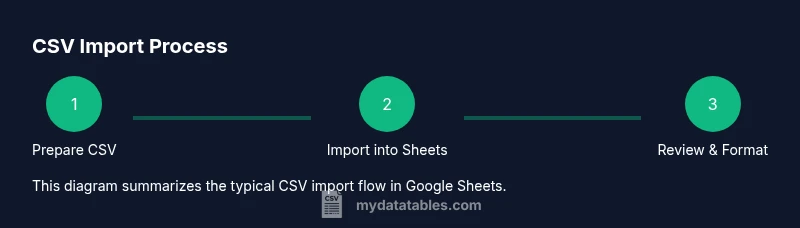
This section offers a compact synthesis of the routine you’ll perform in Google Sheets to import a CSV. Prepare the file with headers, open Sheets, navigate to File > Import, select Upload, choose the CSV, and decide whether to Create new spreadsheet, Replace or Append. Review delimiter and locale settings, confirm header recognition, and finally format columns if needed. Re-running a test import on a small subset helps catch issues before you scale.
Headers, data types, and how Sheets interprets values
After import, Google Sheets attempts to infer data types. Dates, numbers, and boolean values may require formatting adjustments, especially if the CSV uses nonstandard date formats or regional number conventions. If dates appear as text, apply DATEVALUE or use the DATE function to convert. For numeric fields, consider removing thousands separators that don’t align with your locale. Consistent headers help preserve data integrity when applying formulas and filters later in your analysis.
Import timing and performance considerations
For large CSVs, the import operation may take longer and Sheets can hit practical limits in terms of rows and cells or performance latency in collaborative environments. If your file is very large, break it into logically sized chunks, or import into a database or dedicated analytics tool first, then pull subsets into Sheets for analysis and visualization. The MyDataTables guidance emphasizes testing with a slice of data to validate formats before scaling up.
Tips for repeatable CSV imports and automation
To streamline repeated imports, create a reusable template: a blank Google Sheet preconfigured with headers, data formats, and sample formulas. For automation, consider Apps Script to fetch a CSV URL or watch a Google Drive folder and trigger an import. This approach minimizes manual steps and reduces human error over time, aligning with best practices in CSV import and data hygiene.
MyDataTables verdict and best practices
The MyDataTables team recommends using the standard File > Import workflow for most CSV files, ensuring headers are preserved and data types are checked post-import. Validate a subset before full-scale imports and document any locale-related adjustments for future runs. A consistent import process supports reliable downstream transformations and analyses.
Authority sources and further reading
For deeper understanding, consult official Google Sheets documentation and developer resources. See the CSV import and data integration guidance from Google’s Sheets ecosystem, and explore best-practice references on data interchange formats from reputable educational resources.
Tools & Materials
- CSV file(UTF-8 encoding recommended; include a header row if possible)
- Google account with Sheets access(Needed to access Google Drive and create/import Sheets)
- Web browser(Latest version of Chrome, Edge, or Firefox preferred)
- Stable internet connection(Recommended to avoid upload interruptions)
- Optional: sample URL for IMPORTDATA(Use only if importing CSV from a public URL)
Steps
Estimated time: 5-15 minutes
- 1
Prepare the CSV file
Ensure the file uses a consistent delimiter (comma or semicolon), includes a header row, and is UTF-8 encoded to preserve special characters. Save a copy as a backup before importing.
Tip: Check for embedded newlines within fields – they can break parsing. - 2
Open Google Sheets and start the import
In Google Sheets, go to File > Import, then switch to the Upload tab to choose your local CSV file. This opens the import options panel.
Tip: Prefer 'Create new spreadsheet' for large datasets to avoid altering current work. - 3
Choose import location
Select whether to Create new spreadsheet, Replace current sheet, or Append to current sheet. The choice governs how existing data is treated.
Tip: If replacing, ensure the target sheet can be overwritten without losing unrelated data. - 4
Configure import options
Review delimiter selection, locale, and whether the first row should be treated as headers. Confirm the correct data mapping for columns.
Tip: If delimiter is misdetected, switch to the explicit delimiter option (comma, semicolon, tab). - 5
Review imported data
Scan for misparsed columns, date and number formatting, and header presence. Adjust column widths and apply basic formatting as needed.
Tip: Run a quick check on a few rows to confirm consistency across fields. - 6
Save, format, and document
Apply a light formatting pass, add filters, and document the import steps for future use. Consider creating a template for repeat imports.
Tip: Save changes in a named version or folder to track provenance.
People Also Ask
What if my CSV uses a semicolon as the delimiter?
In the import dialog, set the delimiter to semicolon or choose 'Detect automatically' if available. This prevents fields from splitting incorrectly.
Choose the correct delimiter in the import dialog to avoid misparsed columns.
Can I import CSV into an existing sheet?
Yes. In the import options, select 'Append to current sheet' or 'Replace current sheet' depending on whether you want to add data or overwrite.
Yes, you can append or replace existing data during import.
How do I fix dates that show up as text after import?
Check the locale and date format in the import settings, then convert with DATEVALUE or the DATE function if needed.
Check locale and convert dates if necessary.
What should I do if the headers aren’t recognized?
Ensure the first row contains names for each column and that you selected the option to treat the first row as headers during import.
Make sure headers are in the first row and recognized during import.
Is there a way to automate CSV imports into Google Sheets?
Yes. Use Apps Script or a scheduled workflow to fetch CSV data and import it into Sheets, especially for recurring data pulls.
Automation with Apps Script can schedule imports.
Watch Video
Main Points
- Use File > Import for most CSVs to preserve headers
- Verify delimiter and locale to prevent misreads
- Review dates and numeric formats after import
- Organize data in Drive for collaboration