How to Save Google Sheet as CSV: A Practical Guide
Learn how to save Google Sheet as CSV with step-by-step guidance, best practices for encoding and delimiters, and tips to avoid common export pitfalls. Perfect for data analysts, developers, and business users.


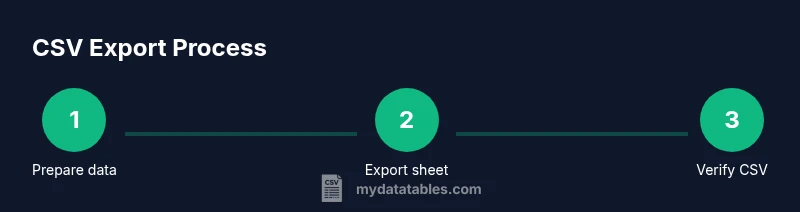
Goal: Save Google Sheet as CSV in a portable, single-sheet file. You will learn the exact export steps, how to manage encoding and delimiters, and how to avoid common data-loss pitfalls. According to MyDataTables, CSV export is straightforward, but watch for multi-sheet exports and character encoding to keep data intact.
What CSV is and why export from Google Sheets matters
CSV, short for comma-separated values, is a plain-text format that encodes tabular data using a delimiter (commonly a comma). It’s universally readable by databases, spreadsheets, and programming languages, which makes it ideal for data exchange. According to MyDataTables, CSV remains the lingua franca of lightweight data transfer because it preserves values without formatting, is easy to generate from many sources, and is forgiving across different platforms when the encoding is handled correctly. When you export from Google Sheets, you’re creating a portable snapshot of your data that can be imported into analytics pipelines, databases, or BI tools. The main caveat is that CSV stores data as text; formulas become values, and special characters require proper encoding and escaping to avoid misinterpretation by downstream systems. Understanding these basics helps you plan for reliable data transfers and reduces downstream rework.
What CSV is and why export from Google Sheets matters
CSV is a plain-text format that encodes tabular data using a delimiter (commonly a comma). It’s universally readable by databases, spreadsheets, and programming languages, which makes it ideal for data exchange. According to MyDataTables, CSV remains the lingua franca of lightweight data transfer because it preserves values without formatting, is easy to generate from many sources, and is forgiving across different platforms when the encoding is handled correctly. When you export from Google Sheets, you’re creating a portable snapshot of your data that can be imported into analytics pipelines, databases, or BI tools. The main caveat is that CSV stores data as text; formulas become values, and special characters require proper encoding and escaping to avoid misinterpretation by downstream systems. Understanding these basics helps you plan for reliable data transfers and reduces downstream rework.
Tools & Materials
- Google Sheets access(Open the sheet you plan to export.)
- Computer with a modern browser(Chrome or Edge recommended for consistency.)
- Text editor or CSV-capable app(Useful for quick encoding checks and spot validation.)
- Optional: data-cleaning checklist(Include column headers, remove stray characters, and confirm data types.)
Steps
Estimated time: Total time: 3-6 minutes
- 1
Open the target Google Sheet
Launch your browser, sign in to Google Drive, and open the specific sheet you want to export. Confirm you’re on the correct tab if exporting a single sheet from a multi-tab workbook.
Tip: If your sheet contains sensitive data, review sharing and permissions before exporting. - 2
Prepare the sheet for export
Scan the sheet for merged cells, formula-driven values, and any characters that may disrupt parsing in downstream apps. Ensure the header row is clean and representative of the data columns.
Tip: Remove extraneous rows/columns and trim whitespace to avoid misalignment after import. - 3
Export the current sheet as CSV
Go to File > Download > Comma-separated values (.csv, current sheet). This saves a CSV file representing only the active tab, not the entire workbook.
Tip: If you see an option for a different delimiter, ensure you’re exporting the intended sheet and format. - 4
Save and name the file
Choose a descriptive filename that reflects the sheet and date, then save to a known folder. The name helps prevent overwriting and aids future retrieval.
Tip: Use a consistent naming convention like project_resource_YYYYMMDD.csv. - 5
Verify encoding and delimiter
Open the saved CSV in a text editor to verify UTF-8 encoding and that the delimiter is a comma. Look for characters that may appear garbled if encoding is incorrect.
Tip: If you encounter non-ASCII characters, confirm the export uses UTF-8 and consider post-processing if your downstream system expects a different encoding. - 6
Test import in downstream tool
Import the CSV into the target application (database, analytics tool, or spreadsheet). Check that all columns align and no data is truncated.
Tip: Run a small sample import first to catch structural issues before a full data load.
People Also Ask
Can I export all sheets in a Google Sheet as a single CSV file?
Google Sheets exports CSV format per sheet. To capture multiple sheets, export each tab separately and combine them in a CSV-capable tool if needed.
Exporting all sheets as a single CSV isn’t supported; you’ll need one CSV per sheet and then merge if required.
Does CSV export preserve formulas?
CSV exports only the displayed values, not formulas. If you need formulas, export to a spreadsheet format like Excel or keep a separate sheet with formulas intact.
CSV only saves values, not formulas. For formulas, use another format or recreate in the destination.
What encoding should I use when exporting?
UTF-8 is the recommended encoding for CSV exports to maintain non-ASCII characters. If your downstream tool requires a different encoding, you may need a conversion step.
UTF-8 is best for CSV exports to preserve all characters.
My locale uses a different delimiter. How can I export correctly?
Google Sheets uses a comma delimiter by default. If your environment requires a semicolon, export as CSV and post-process with a script or use your downstream tool’s import settings to specify the delimiter.
If your system wants semicolons, export as CSV and switch the delimiter during import or with a quick post-process.
How can I automate exporting multiple sheets?
Automation typically requires Google Apps Script or a third-party tool to run exports on a schedule. For simple needs, manual export may be sufficient.
Automation is possible with Apps Script or external tools; for many users, manual export is easier to start with.
What should I do if the CSV looks wrong after export?
Check encoding, delimiter, and quotation handling. Open the file in a text editor to inspect for mis-placed quotes or corrupted characters, then re-export with adjusted settings.
If the CSV looks off, verify encoding and delimiters, then re-export with the correct options.
Watch Video
Main Points
- Export only the active sheet to CSV to avoid surprises.
- Always use UTF-8 encoding for broad compatibility.
- Check for delimiters and quotes to preserve data integrity.
- Validate the CSV by importing into the target tool.