Google Sheet Export to CSV: A Practical Step-by-Step Guide
Learn how to export Google Sheets data to CSV, including single-sheet exports, multi-sheet workflows, encoding tips, and automation options to streamline data flows.


To export Google Sheets to CSV, open your sheet and choose File > Download > Comma-separated values (.csv). Note that CSV exports include only the active tab; to capture all sheets, export them individually or use a script. This guide covers step-by-step actions, caveats, and best practices.
How CSV exports work in Google Sheets
CSV export in Google Sheets saves the visible data from the active tab as plain text using comma delimiters. The export is primarily concerned with values; formulas themselves are not preserved as formulas—only their calculated results appear in the CSV. The encoding is typically UTF-8, which preserves most characters from most languages. When you export, you can expect that formatting, fonts, formulas, and other sheet features do not carry over to the CSV. This distinction matters when you rely on cell formatting to interpret data. For analysts, this means you should verify that numbers, dates, and booleans render correctly in downstream tools such as databases, Python scripts, or Excel.
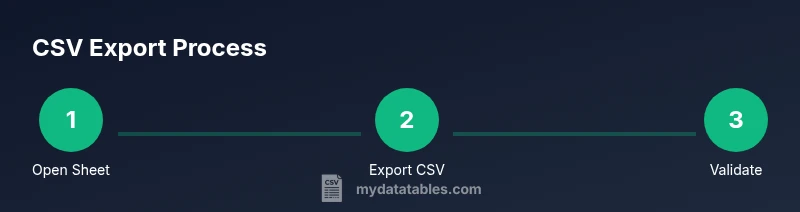
Export flow often begins with opening the correct sheet tab, then selecting the menu path File > Download > Comma-separated values (.csv). If the sheet contains more than one tab and you need multiple CSVs, you will need to repeat the export for each tab or use automation. Keep in mind that CSV can handle standard ASCII and most UTF-8 characters, but certain characters in some locales can require special handling when importing into other software. MyDataTables notes that verifying the exported file in the target environment reduces downstream errors.
Common gotchas and best practices
- CSV is not able to store layout or style: Bold text, colors, cell borders, and charts do not exist in CSV. If you rely on formatting to interpret data, you'll need to reformat after import.
- Only the active sheet exports at a time: If your workbook has multiple sheets and you need all data, you must export each sheet separately or create a script to automate the process.
- Encoding matters: UTF-8 is widely supported; if you see garbled characters after import, ensure the importer uses UTF-8 and that the data was saved in UTF-8. In Excel, you may need to import with the correct encoding or select Data > From Text (Legacy) and specify UTF-8.
- Handling quotes and delimiters: If your data contains commas or quotes, the CSV format uses quotes to wrap fields; ensure your downstream parser respects quoted fields.
- File naming conventions: Name files clearly (e.g., MyData_Sales_2026_Q1.csv) to indicate content and period. This prevents confusion in pipelines and helps audit trails.
MyDataTables suggests validating a CSV export in your target tool before integrating into a pipeline, to catch locale or encoding mismatches early.
Use cases and automation options
For analysts moving data between Google Sheets and a database, CSV export is a reliable, human-readable interchange format. If you export a single sheet for a quick handoff, manual export is sufficient. If you need to export several sheets on a schedule, consider automating with Google Apps Script, which can loop through sheets and save separate CSVs to Google Drive or zip them for distribution. Alternatively, third-party tools and automation platforms can orchestrate multi-sheet exports and convert results to CSV, Excel, or JSON. When deciding between manual export and automation, weigh the frequency of exports, data volume, and downstream requirements. MyDataTables finds that a lightweight, well-documented automation plan reduces errors and saves analysts time over repeated manual exports.
Tools & Materials
- Web browser with Google Sheets access(Chrome, Edge, or Firefox recommended; sign in to your Google account.)
- Target Google Sheet tab(Open the specific sheet tab you want to export.)
- CSV encoding awareness(UTF-8 is recommended to avoid garbled characters.)
- Automation option (optional)(Google Apps Script or external tools for multi-sheet exports.)
Steps
Estimated time: 20-60 minutes
- 1
Open the target sheet tab
Navigate to the Google Sheets tab you want to export and confirm that the data is up to date. This ensures the CSV reflects current values.
Tip: Make sure the correct tab is active before exporting; this controls what gets written to the CSV. - 2
Prepare the data
If you plan to exclude certain rows or columns, hide or remove them before exporting. This keeps the resulting CSV focused on relevant data.
Tip: Hide or remove nonessential columns to avoid exporting unwanted data. - 3
Export the active sheet
Go to File > Download > Comma-separated values (.csv). The browser will save the file to your default downloads folder.
Tip: Confirm you downloaded the file and note the destination path. - 4
Verify encoding and content
Open the CSV in a text editor to verify UTF-8 encoding and that fields with commas are properly quoted.
Tip: If characters look off, re-export with UTF-8 or re-import using UTF-8. - 5
Repeat for additional sheets
If you need data from other sheets, repeat the export for each tab. CSVs are separate per sheet.
Tip: There is no multi-sheet CSV in a single file by default. - 6
Automate multi-sheet exports
Use Google Apps Script to loop through sheets and save each as a separate CSV to Drive or zip them for distribution.
Tip: Automation saves time and reduces manual errors for frequent exports.
People Also Ask
Does exporting to CSV preserve formulas?
No. CSV exports save the resulting values, not the formulas or formatting.
CSV exports save the values, not formulas or formatting.
Can I export all sheets at once?
CSV exports capture only the active sheet at a time. To export multiple sheets, repeat the export or use automation.
CSV exports only the active sheet; use repetition or automation for others.
What encoding should I use when exporting?
UTF-8 is recommended to preserve international characters and prevent garbling.
UTF-8 is recommended for CSV encoding.
How can I automate CSV exports?
Use Google Apps Script or a third-party workflow tool to generate CSVs on a schedule.
Automate with Apps Script or a workflow tool.
Why might my CSV look garbled after import?
Encoding mismatch or locale differences during import can cause garbled characters; ensure UTF-8 across tools.
Encoding mismatches cause garbling; use UTF-8.
Watch Video
Main Points
- Export the active sheet by default to keep scope predictable.
- UTF-8 encoding prevents garbled characters on import.
- CSV stores data values; formatting and formulas do not survive.
- Export each sheet separately when multiple sheets are needed.