Can you export CSV from Google Sheets? A Complete How-To
Learn how to export CSV from Google Sheets with a clear, step-by-step guide. This tutorial covers full-sheet exports, range exports, encoding tips, and how to open CSV files in Excel, Python, and R.


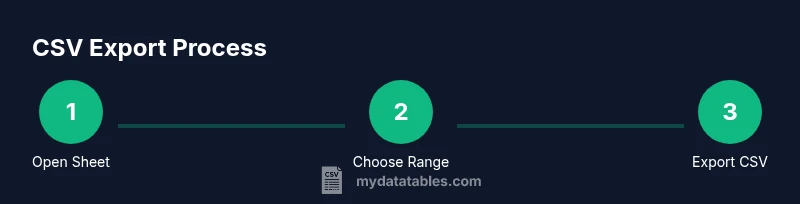
Yes. You can export CSV from Google Sheets by navigating to the menu: File > Download > Comma-separated values (.csv). This method works for entire worksheets or any selected range, making it ideal for data sharing, archiving, and import into other tools. You’ll need internet access and a Google account to proceed. The procedure is consistent across web and mobile interfaces, though the exact menu path may vary slightly by device.
Can you export CSV from Google Sheets? Why it matters
If you work with tabular data, exporting as CSV is a common, portable format. The question can you export csv from google sheets often comes up when you need to move data into a database, a data visualization tool, or a scripting environment. According to MyDataTables, CSV remains the most interoperable plain-text format for simple data exchange because it preserves rows and columns without heavy formatting. In Google Sheets, exporting is designed to be quick and predictable: you pick the scope (entire sheet or a subset), choose the CSV option, and download. This approach minimizes surprises and helps you keep a clean data pipeline. Throughout this guide, we’ll emphasize practical steps, common pitfalls, and tips so you can confidently export CSV from Google Sheets in real-world workflows.
Understanding CSV and why it’s often the preferred format
CSV stands for comma-separated values and is widely adopted because it is lightweight, human-readable, and easy to parse in almost every programming language. For analysts, CSV supports seamless ingestion into SQL databases, Python data pipelines, Excel, R, and BI tools. While Google Sheets can export to multiple formats (ODS, XLSX, PDF), CSV is the go-to when interoperability, storage efficiency, and script-friendly parsing matter most. In this section, you’ll learn when CSV is the right choice and what you can expect in terms of structure, delimiters, and encoding. You’ll also see how locale settings can influence the delimiter choice in some environments, so you’ll know what to adjust if you encounter issues.
Step-by-step overview: routes to export in Google Sheets
Google Sheets provides several routes to export CSV, depending on whether you’re exporting a full sheet or a specific range. The web interface keeps things straightforward with a single path to download. If you’re using a mobile app, the steps are similar but streamlined for touch navigation. The next sections translate these routes into actionable steps you can follow without guessing. We’ll cover full-sheet exports, range exports, and tips for preserving data integrity across tools and platforms.
Exporting a full sheet to CSV from the web
To export a complete sheet as CSV, you start from the top of the workbook and select the tab you want. Then you access the File menu, choose Download, and click Comma-separated values (.csv). The browser will prompt you to save the file. If you’re collaborating, ensure you’re exporting the correct tab, since Google Sheets treats each tab as a separate CSV file when exported. This method is reliable for producing portable data snapshots that can be imported into databases or data processing environments without preserving formatting or images from the original sheet.
Exporting a specific range to CSV
When you only need a subset of data, exporting a specific range can reduce file size and focus downstream analysis. First, select the cells you want to export, then copy them to a new sheet or use an add-on that exports a selection. The standard CSV export path (File > Download > Comma-separated values) will export the active sheet, so you’ll need to ensure your range is on a sheet that’s ready for export. If you must export multiple ranges, consider consolidating them into a single sheet for a single CSV export, or export multiple CSVs and merge later in your analysis pipeline.
Exporting from Google Sheets mobile app
On iOS and Android, Google Sheets exposes a similar export path, typically via the menu (three dots) in the sheet view. Choose Share & Export or Download as, then select CSV. The mobile interface emphasizes quick saves and easy sharing, which is ideal for on-the-go data collection. Note that some features available on the web (like exporting a range with a precise selection) may be slightly different on mobile, so double-check the exported file size and content after download.
Formatting considerations when exporting to CSV
CSV deliberately avoids rich formatting, formulas, and images. When you export, only the raw values are included unless you use a workaround (e.g., copy-paste values). If your sheet contains multi-line cells, ensure that a proper newline character is preserved in your target environment. Depending on locale, Excel may use a semicolon as a delimiter; in that case you can switch to a comma or adjust regional settings. If your downstream tool expects a specific encoding (UTF-8 is the default for most modern tools), verify that the exported file uses the correct encoding to avoid misinterpreted characters.
Encoding and non-ASCII characters: what to watch for
Non-ASCII characters (like accented letters or symbols) require proper encoding to prevent garbled text. UTF-8 is the safest default for CSV exports and is widely supported across databases, Python, and R packages. If you discover mojibake after opening the file, re-export with UTF-8 encoding or use a CSV editor that allows explicit encoding specification. Some tools also offer a workaround by importing with a specified encoding, but adjusting the export to UTF-8 first minimizes downstream surprises.
Post-export checks: verifying data integrity
After exporting, perform quick checks to confirm data integrity. Open the CSV in a plain text editor to inspect a sample of rows for correct delimiter placement and line breaks. Load the file into your target tool (e.g., Python with pandas, R with read.csv, Excel) and validate that the number of rows and columns matches the expected counts. If formulas were present in the source sheet, remember that CSV exports only values, not formulas. Document any such assumptions so downstream users understand the exported data's state.
Common issues and how to troubleshoot
Export failures are uncommon but can occur for several reasons: network interruptions, locale-based delimiter differences, or attempting to export from a protected range. If you see an error, retry with a smaller range, check your internet connection, and ensure you have permission to export. If the issue persists, try exporting from a different browser or clear cache and cookies. For range exports, verify that the selected cells aren’t empty and that the destination folder is writable.
Tips for large spreadsheets and performance
When dealing with very large sheets, consider exporting in batches or using a script to automate the export process. Limit the scope to the essential data to reduce file size and memory usage. If you routinely export CSVs for automation, you can implement a simple Apps Script that writes data to Cloud Storage or a Google Drive file, then triggers downstream pipelines. Large exports can take longer to download, so plan for a brief wait if your dataset is substantial.
Working with CSVs in common tools: quick-start references
CSV files are designed to be easily imported into Excel, Python, R, and most database systems. In Python, use pandas.read_csv; in R, read.csv is the common approach. In SQL-based workflows, many databases offer a CSV import utility. If you’re sharing the data with others, provide a short note on encoding and delimiter conventions to prevent misinterpretation. This approach aligns with practical CSV workflows described by the MyDataTables team and other data practitioners.
Tools & Materials
- Google Sheets access (account with edit rights)(Needed to view and export data)
- Web browser or Google Sheets mobile app(Access the export options)
- Internet connection(Required for online export)
- File saver location (local drive or cloud storage)(Where to save the CSV)
- CSV-compatible tool (optional for verification)(Excel, Python, R, etc.)
Steps
Estimated time: 15-25 minutes
- 1
Open the Google Sheets document
Navigate to sheets.google.com and open the workbook that contains the data you want to export. Confirm you’re on the correct sheet tab before exporting.
Tip: Double-check the tab title to avoid exporting the wrong data. - 2
Select the scope (full sheet or range)
If exporting a range, select the cells to export; otherwise, you’ll export the entire sheet. This choice impacts the resulting CSV size.
Tip: For range exports, consider duplicating the sheet and clearing non-essential data. - 3
Access the export menu
From the menu, choose File > Download, then select Comma-separated values (.csv). Depending on device, the path may vary slightly.
Tip: On mobile, use the three-dot menu to find the export option. - 4
Choose the export scope
If prompted, indicate whether to export the current sheet or the entire workbook depending on your needs.
Tip: Export the current sheet to avoid surprises in the file size. - 5
Save the file locally
Choose a destination and save the file with a clear name, avoiding spaces or special characters if your downstream tools require strict naming.
Tip: Use a consistent naming convention like data_sheetname_YYYYMMDD. - 6
Verify file integrity
Open the CSV in a plain text editor or a CSV viewer to confirm delimiters and a representative row look correct.
Tip: Check a few rows for correct column alignment and no stray characters. - 7
Test import into target tool
Import the CSV into Excel, Python, or R to ensure the data loads as expected and encoding is preserved.
Tip: If encoding issues arise, re-export using UTF-8 encoding if your tool supports it. - 8
Document any caveats
Note any data that was excluded (formulas, images) and any locale-specific delimiter decisions for future users.
Tip: Add a short README with the export instructions for teammates.
People Also Ask
Can I export only a portion of a Google Sheet to CSV?
Yes. To export a portion, select the range you want, copy it to a new sheet, and export that sheet as CSV. Alternatively, export the entire sheet and plan to remove unwanted rows later in your downstream workflow.
You can export a portion by selecting the range or copying it to a new sheet and exporting that sheet as CSV.
Does exporting CSV preserve formulas?
CSV exports only the calculated values, not formulas. If you need the formulas later, keep a separate copy of the original sheet or export metadata describing the formulas.
CSV only includes values, not formulas. Keep a copy of the sheet with formulas if you need them later.
What encoding should I choose for CSV exports?
UTF-8 is the recommended encoding for CSV exports to avoid character misinterpretation across tools like Python, R, and Excel.
Use UTF-8 encoding to avoid garbled characters when you open the CSV.
Can I export a Google Sheet to CSV on mobile?
Yes. Use the Google Sheets mobile app, open the sheet, tap the menu, select Share & Export or Download as, and choose CSV. The steps are similar but optimized for touch navigation.
Exporting on mobile is available; look for the export option in the sheet's menu.
What should I do if the CSV opens with extra delimiters?
If extra delimiters appear, re-check the source range and ensure the correct delimiter is used in the target tool. Some locales default to semicolons; switch to comma if needed.
Delimiter issues usually come from locale settings; switch to comma if necessary.
Watch Video
Main Points
- Export CSV is straightforward and repeatable.
- CSV preserves data rows/columns but not formatting or formulas.
- Encoding and locale matter; use UTF-8 when possible.
- Verify data after export to prevent downstream issues.